
What are AFK Inactivty Checks?
AFK Inactivity Checks automatically monitor your ER:LC Sessions to ensure that your on-shift staff members remain active. Inactive Staff will trigger an alert that is sent to your team.How to configure AFK Inactivity Checks
You can configure AFK Inactivity Checks from your
ER:LC Integration → API page, located beneath Event Logs.
ER:LC Integration → API page, located beneath Event Logs.
Configuration Options
1
Enable AFK Inactivity Checks
Toggle this setting to turn the feature on or off.
When enabled, the system will begin monitoring all on‑shift staff for inactivity.
When enabled, the system will begin monitoring all on‑shift staff for inactivity.
2
Minutes Before Alert
Set how many minutes a staff member can remain inactive before the first alert is triggered.
For example, setting this to 8 minutes means the system will send an alert after 8 minutes of inactivity.
For example, setting this to 8 minutes means the system will send an alert after 8 minutes of inactivity.
3
Escalation Grace Period
Define how long the system should wait after the first alert before escalating.
If set to 8 minutes, the escalation will occur 8 minutes after the initial alert if the user remains inactive.
If set to 8 minutes, the escalation will occur 8 minutes after the initial alert if the user remains inactive.
4
Alert Channel
Choose the text channel where the system will send the initial inactivity alert.
This should typically be a staff‑only or session‑management channel.
This should typically be a staff‑only or session‑management channel.
5
Escalation Channel
Select the channel where escalation alerts will be posted.
Escalations are more urgent notifications, often used to notify higher‑level staff.
Escalations are more urgent notifications, often used to notify higher‑level staff.
6
Mention Roles on Alert
Select up to five roles to ping when the first alert is triggered.
7
Mention Roles on Escalation
Choose roles to ping when an escalation occurs.
These are typically senior staff or administrators who can intervene quickly.
These are typically senior staff or administrators who can intervene quickly.
8
Send ER:LC PM Confirmation
When enabled, the flagged staff member will receive an in‑game private message containing a confirmation code.
They must run the command
Include
They must run the command
:log {code} in ER:LC to verify they are still active.You can customise the message using the PM message template field.Include
{{token}} where the confirmation code should appear - Melonly will automatically replace it with the generated code.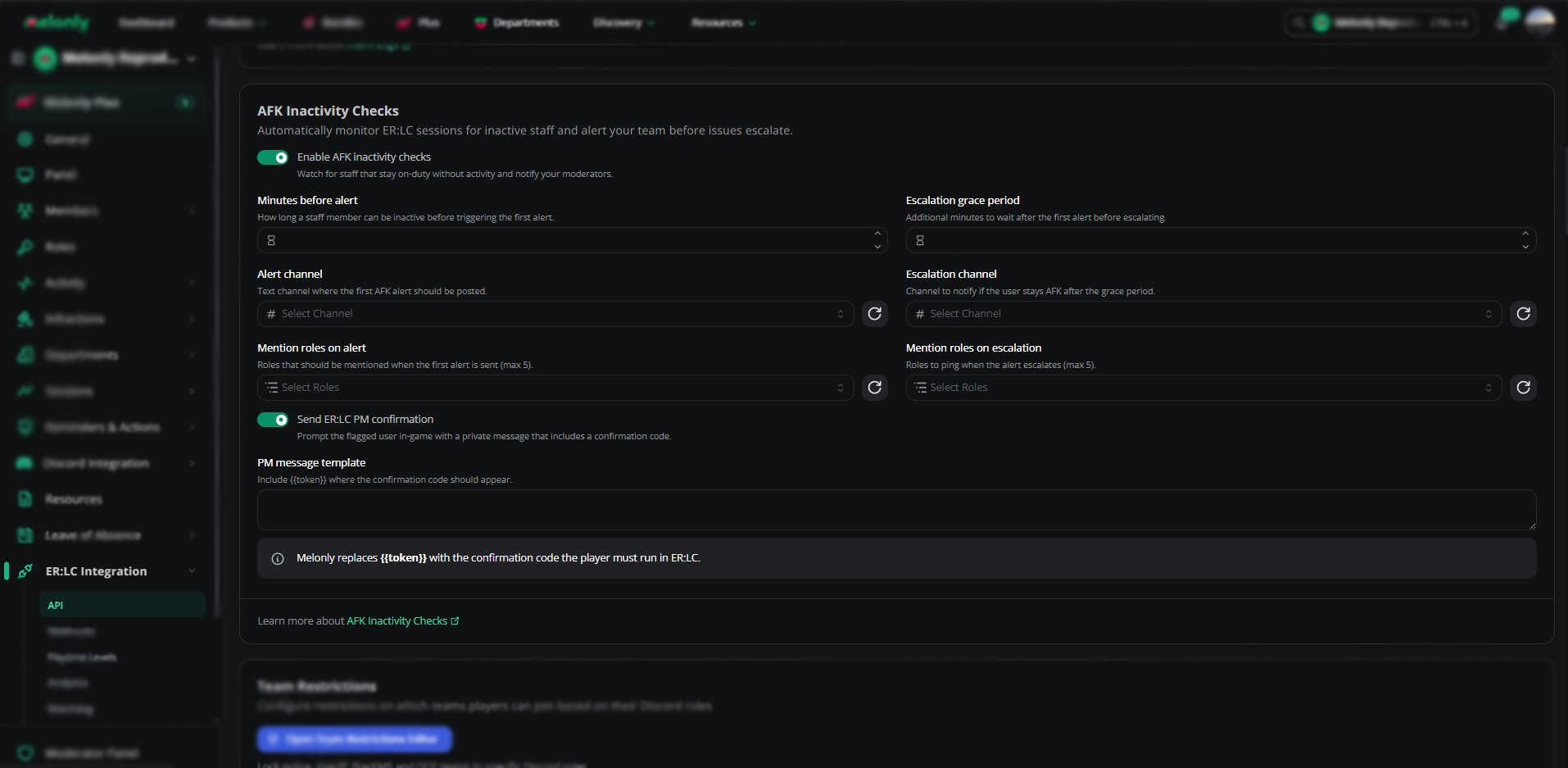
Inactivity Checks Configuration
Example Workflow
- A staff member goes inactive during a session.
- After the configured Minutes Before Alert, the system sends an alert to the selected channel.
- If the staff member remains inactive, the system waits for the Escalation Grace Period.
- If still inactive, an escalation alert is sent, pinging the configured roles.
- If ER:LC PM Confirmation is enabled, the user is prompted in‑game before escalation occurs.
Need help?
Still have questions? Join our Discord server for support from the Melonly Team.