Configure your ER:LC Server connection, view your server information and manage your connects
The Server Configuration section allows you to connect your ER:LC Private Server to Melonly, manage linked servers and view real-time server information.
1
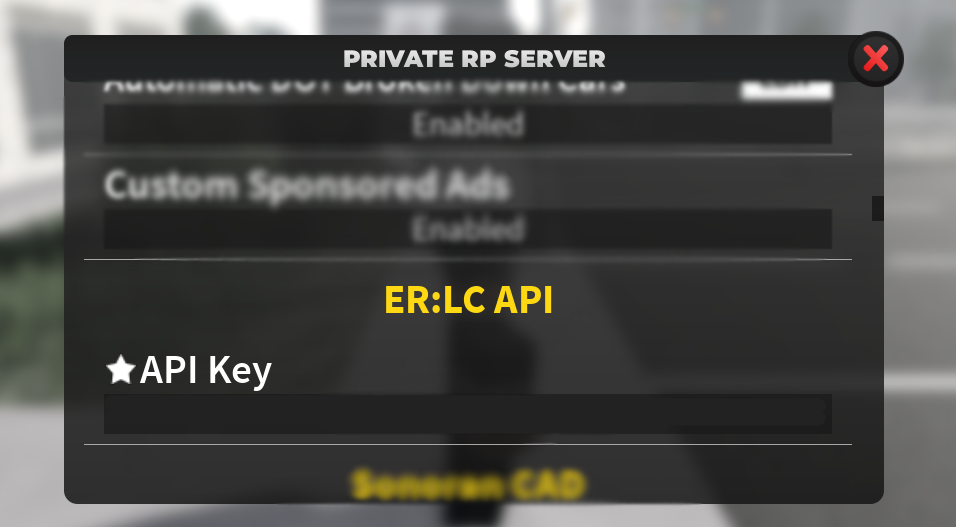
Retrieve your API Key
Join your ER:LC Private Server and open
Private Server Settings -> ER:LC API.
Here you will find your API Key - copy your unique key.
Find your API key
2
Configuring your Key
Now that you have your API Key, you can configure it in four simple steps.
Follow these steps on your dashboard under ER:LC Integration → API.
The Set Active button designates the selected API Key/Server as the one currently connected to your Dashboard and Moderator Panel.
This allows you to switch between multiple linked servers with ease.
Your ER:LC Integration settings are stored per API Key — meaning each linked server can have its own independent configuration.
What does the Red X do?
The Red X removes the selected API Key from your Melonly server.
Need help?
Still have questions? Join our Discord server for support from the Melonly Team.