
What are Voice Channel Configurations?
Voice Channel Configurations allow you to assign abbreviations to your Discord voice channels.Players can then use the in game ;vc command to move themselves between channels using said abbreviations.
Moderators and admins can also move other players if the option is enabled. This feature makes it easier for staff and players to navigate voice channels during sessions.
How to use Voice Channel Configurations
You can configure Voice Channel Configurations from your
ERLC Integration → API page, located beneath VC Server Status.
ERLC Integration → API page, located beneath VC Server Status.
Configuration Options
1
Allow Moving Others
Enable this if you want moderators and admins to move other players using the ;vc command.
When disabled, players can only move themselves.
When disabled, players can only move themselves.
2
Set Channel Abbreviations
Each voice channel can be assigned an abbreviation.
For example, Scene 1 can be set to s1, and Mod Sit 1 can be set to ms1.
For example, Scene 1 can be set to s1, and Mod Sit 1 can be set to ms1.
3
Staff Only
Enable this if only staff should be allowed to use the abbreviation for that channel.
When disabled, any player can use the abbreviation.
When disabled, any player can use the abbreviation.
4
Add More Channels
Use the plus button to add additional voice channels to your configuration list.
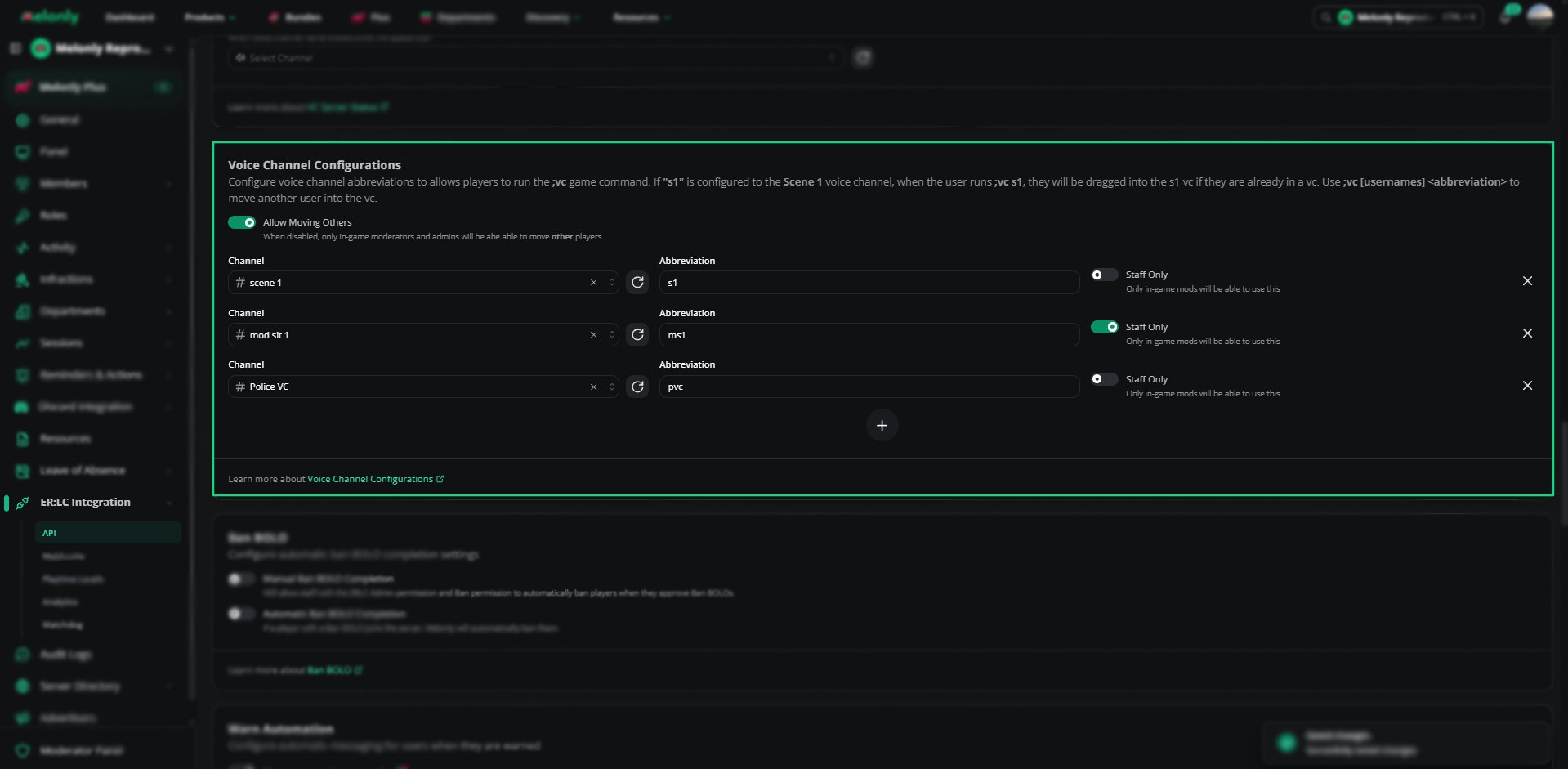
Voice Channel Configurations
Using the ;vc Command
Players can move themselves between channels using the abbreviation you set.- ;vc s1
Moves the player to the channel mapped to s1
(only works if the player is already in a voice channel)
- ;vc [username] [abbreviation]
Moves the specified user to the target channel
Example Use Cases
- Allow players to quickly move into scene channels
- Give moderators the ability to move players during mod calls
- Restrict certain channels to staff only
- Create simple abbreviations for fast navigation
Need help?
Still have questions? Join our Discord server for support from the Melonly Team.