
What is Shift Automation?
Shift Automation allows Melonly to automatically start and end staff shifts based on when they join or leave the ERLC server.This ensures accurate shift tracking and removes the need for manual clock in and clock out.
You must have a Roblox Account linked to your Melonly profile for this feature to function. You can link your account here
How to use Shift Automation
You can configure Shift Automation from your
ERLC Integration → API page, located beneath Warn Automation.
ERLC Integration → API page, located beneath Warn Automation.
Configuration Options
1
Automatic Shift Start
Enable this setting to automatically start a staff member’s shift when they join the ERLC server.
This helps ensure shifts begin on time without manual input.
This helps ensure shifts begin on time without manual input.
2
Automatic Shift End
Enable this setting to automatically end a staff member’s shift when they leave the ERLC server.
This prevents forgotten clock outs and keeps shift logs accurate.
This prevents forgotten clock outs and keeps shift logs accurate.
3
Shift Type and Required Team
Select the shift type that should be started and the team a staff member must join.
This ensures shifts only start when the staff member is on the correct team.
This ensures shifts only start when the staff member is on the correct team.
Shift Automation Settings Overview
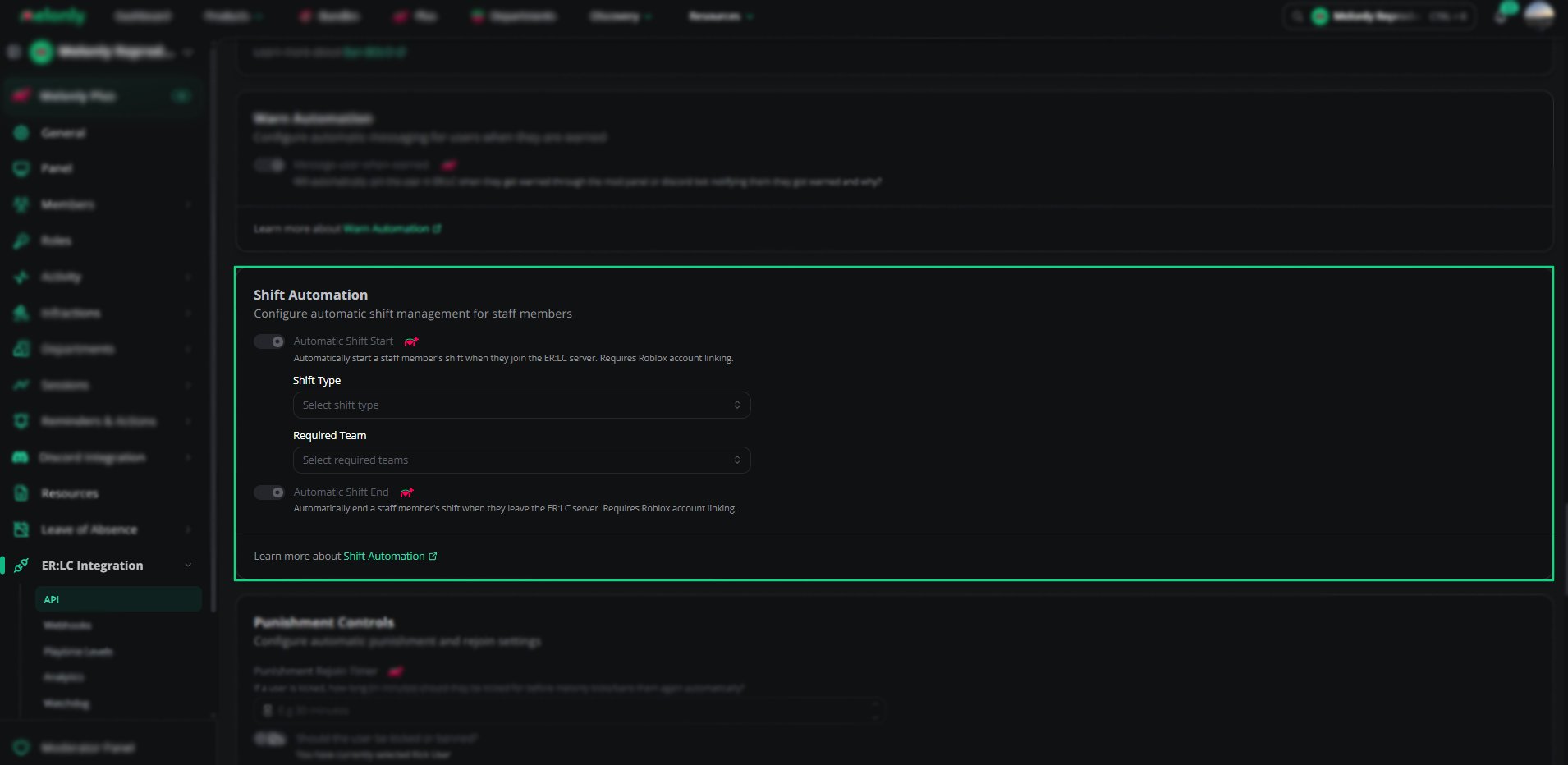
Shift Automation
Example Use Cases
- Automatically track staff activity without manual clock in
- Ensure shifts only start on approved teams
- Prevent staff from forgetting to end their shift
Need help?
Still have questions? Join our Discord server for support from the Melonly Team.