Departments are dedicated Melonly servers for ER:LC departments — fire, EMS, police, dispatch — linked to a parent server for shared moderation and CAD access.

Create a department

Open the dashboard

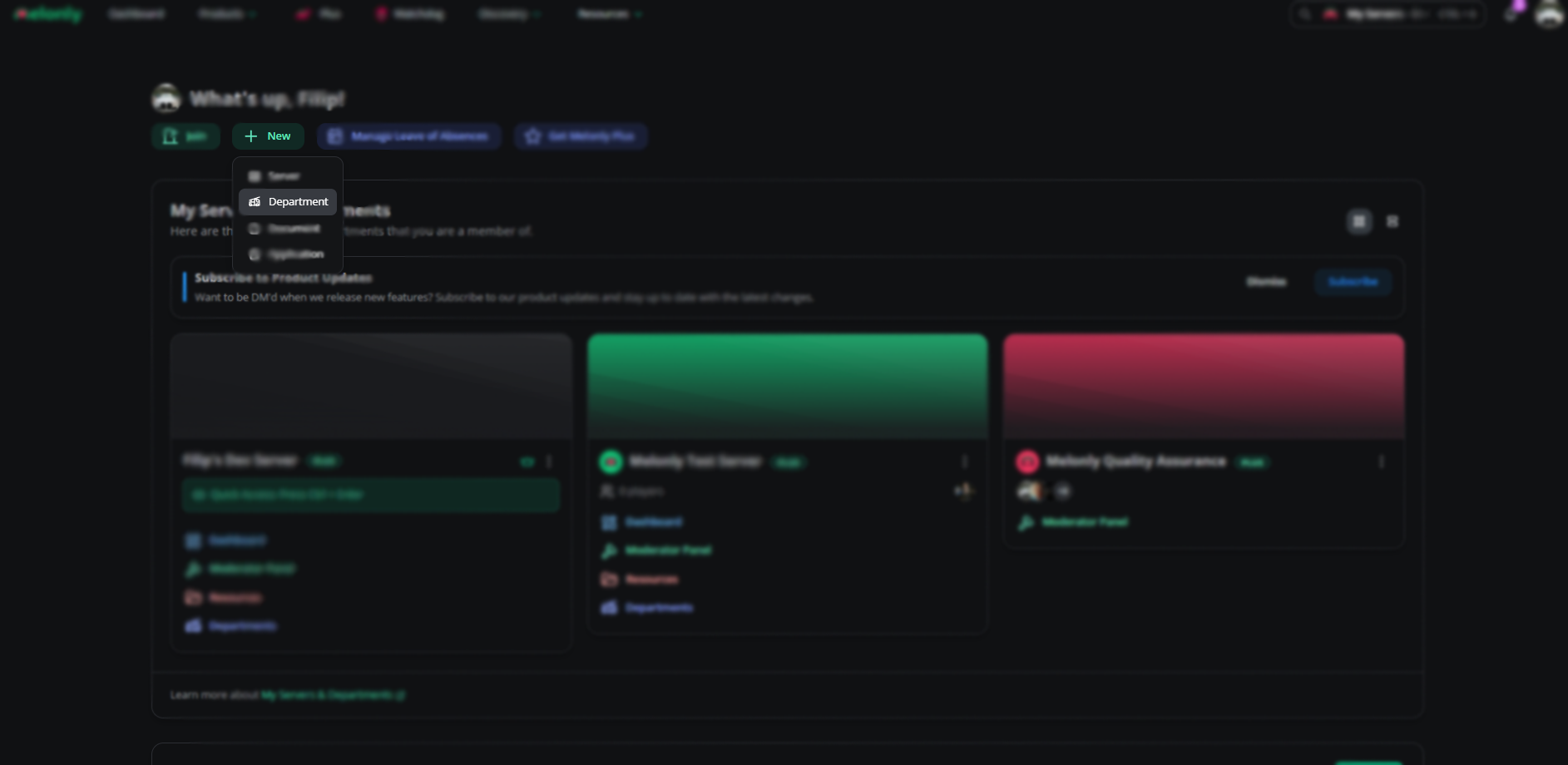
Go to your Melonly dashboard, click New, and choose Department.

Start a new department

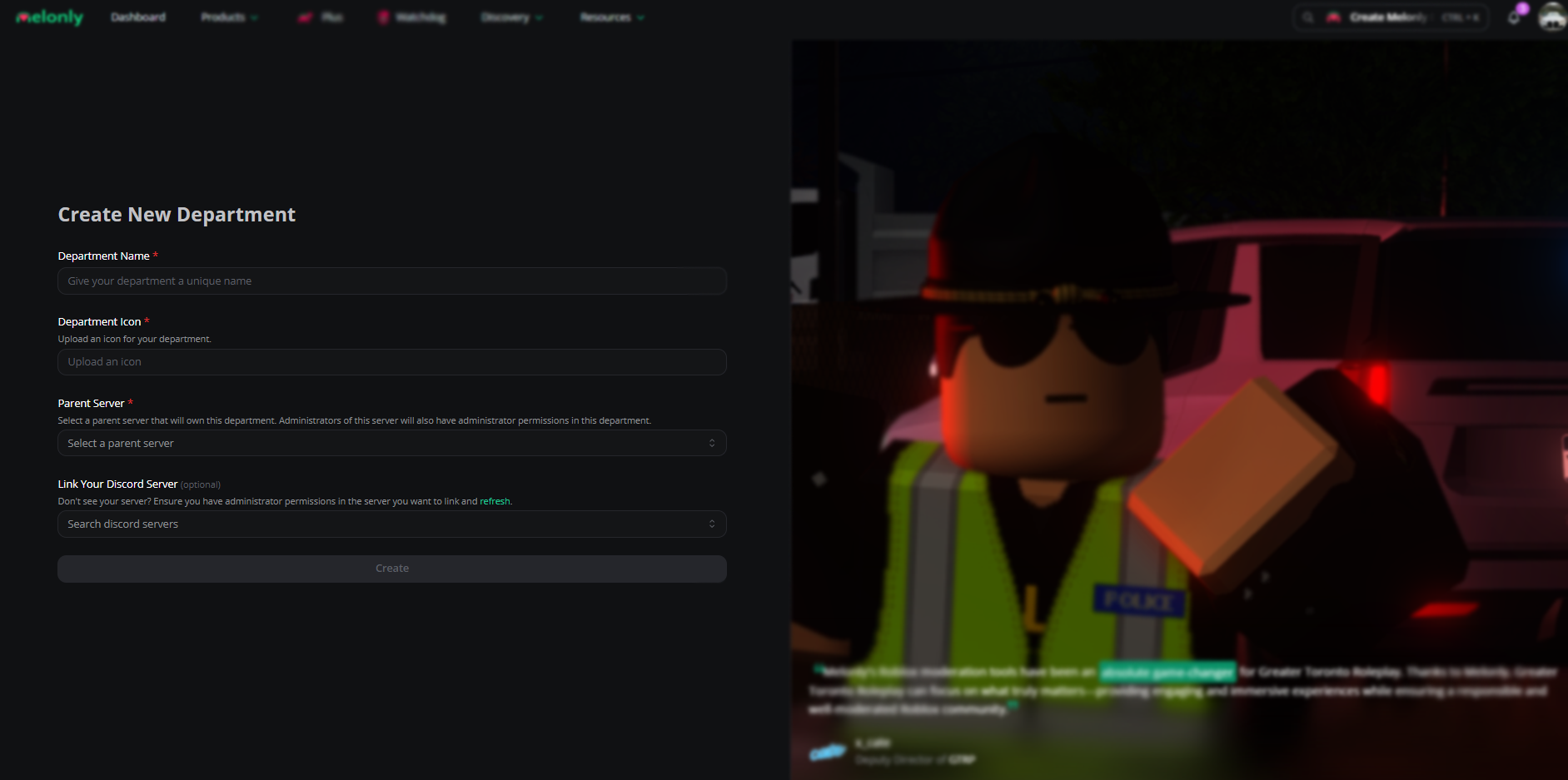
Set info and parent server

Fill in the department details, pick the parent server (your main ER:LC Melonly server), and link the department’s Discord server.

Department information

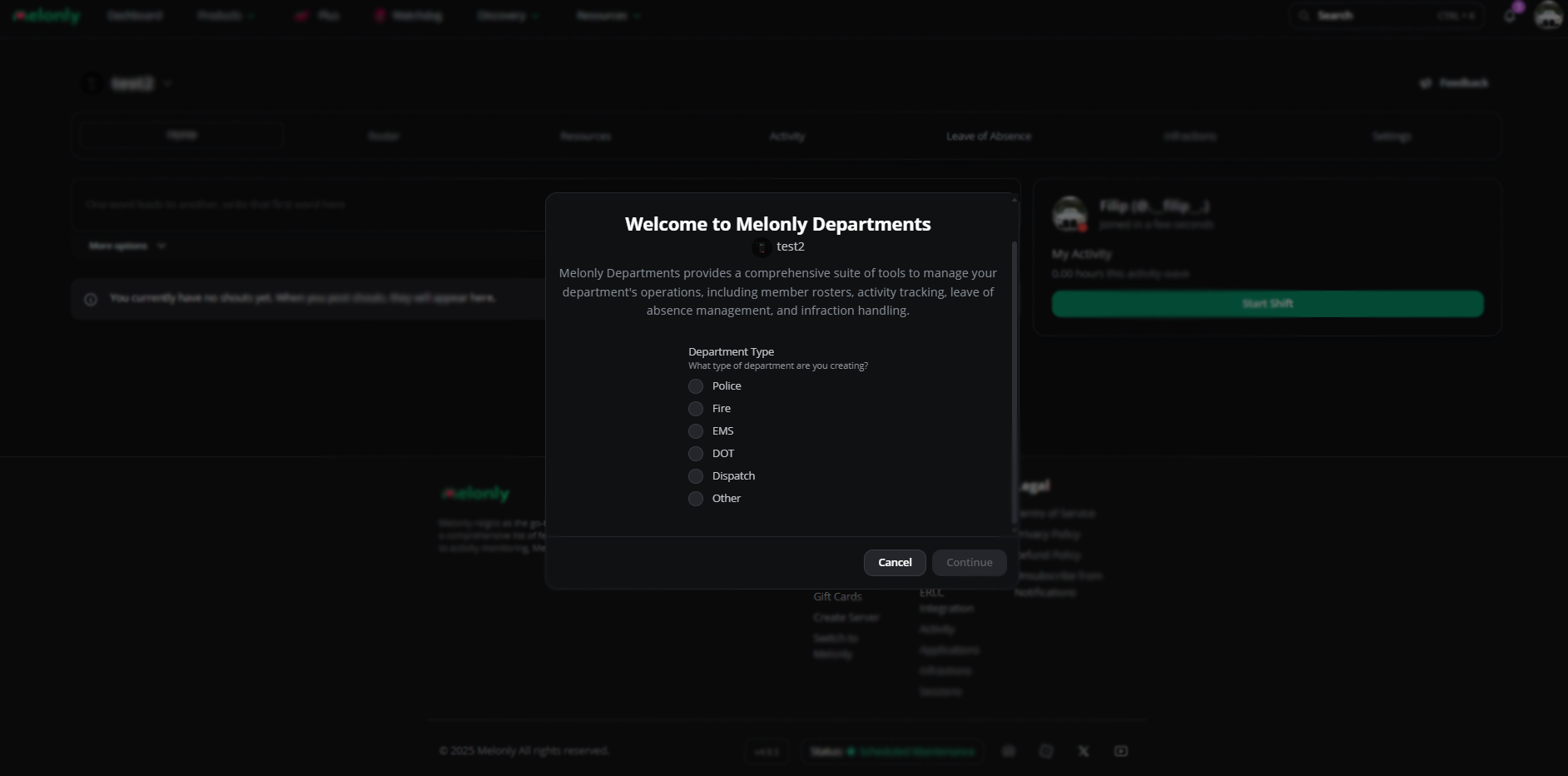
Pick a department type

Choose the department type to unlock tools tailored to it.

Department type

Open the department

Your new department appears on your dashboard.

Manage departments

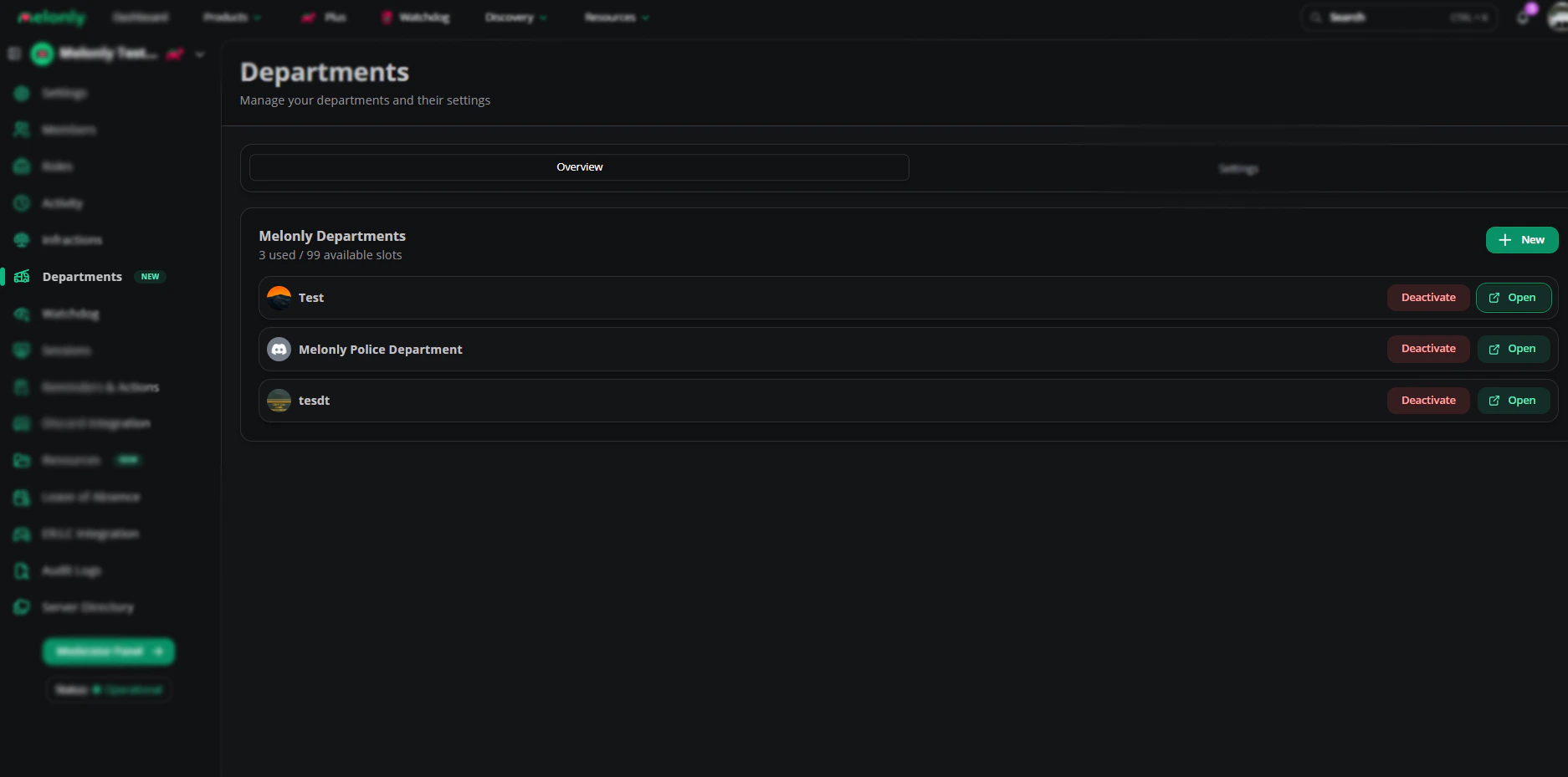
The Departments page on your main server is where you manage every linked department.

Overview

Activate, deactivate, and open department panels.

Departments overview

Settings

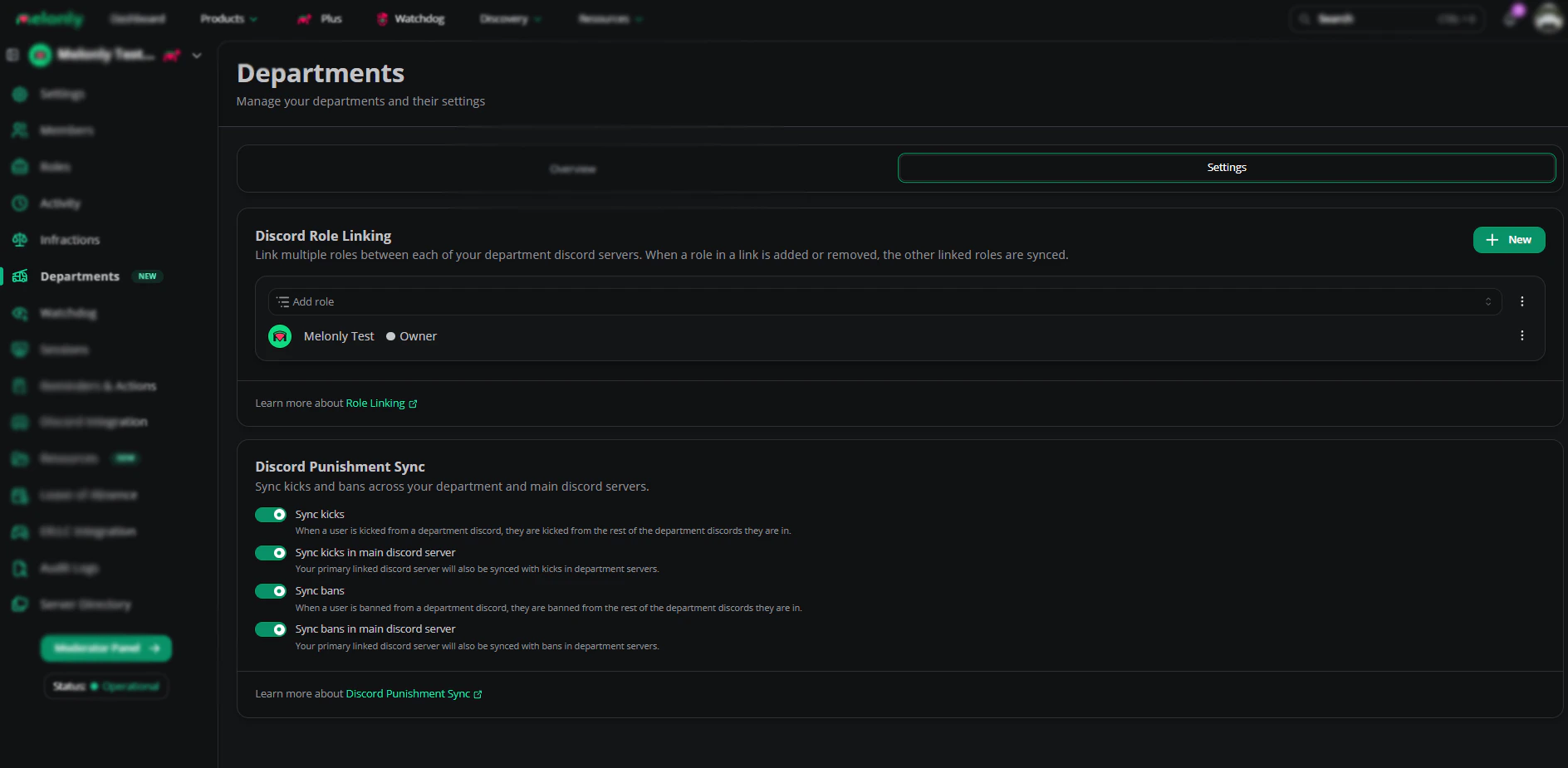
Link Discord roles between departments and sync kicks and bans.

Departments settings

Discord role linking

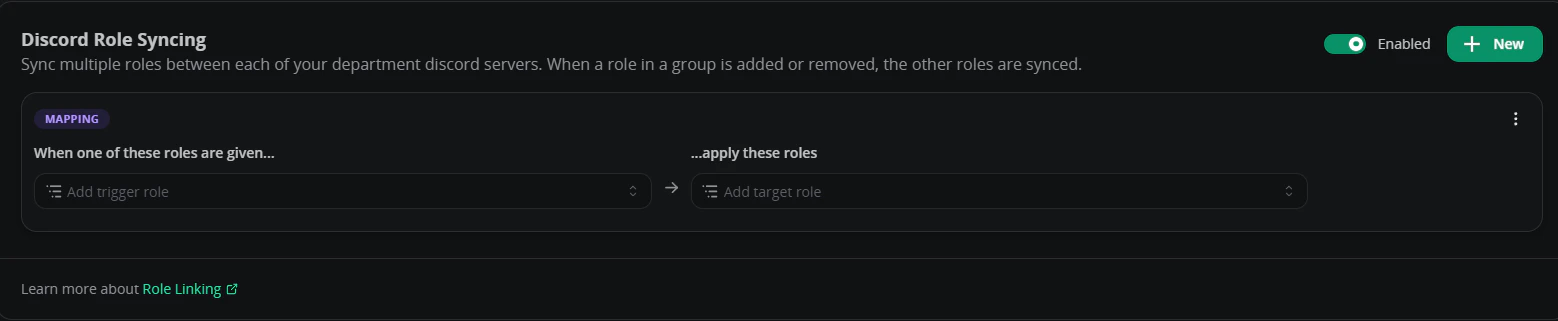
Link roles between department Discord servers. Adding or removing one syncs the others. You can also create a primary-role group: assigning the primary role grants every linked role automatically. Role mapping decides which roles trigger additional roles.

Role mapping

Discord punishment sync

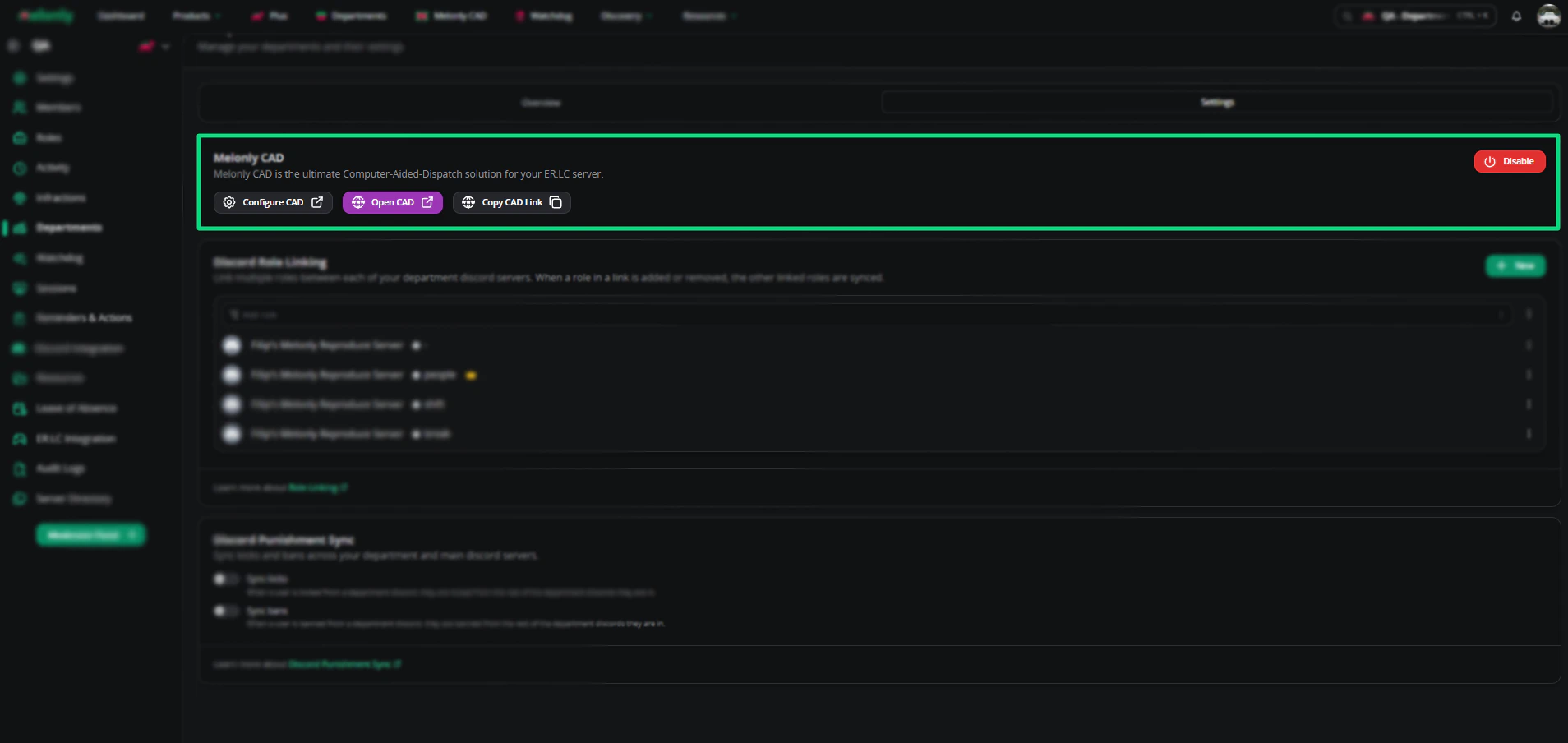
Melonly CAD

Open CAD configuration, launch the live CAD, or copy the CAD link directly from the Departments page.

Department CAD access

Need help?

Still have questions? Join our Discord server for support from the Melonly team.
Last modified on May 17, 2026