
What is Weather and Time Sync?
Weather and Time Sync allows Melonly to automatically match your ERLC server’s weather and time to a real world city.This creates a more immersive experience by keeping in game conditions aligned with real life. You can choose any supported city and enable weather sync, time sync, or both.
Important Requirements
To use Weather and Time Sync correctly:- The in game weather cycle must be disabled in your ERLC server settings
- Weather and time updates occur automatically once enabled
How to use Weather and Time Sync
You can configure Weather and Time Sync from your
ERLC Integration → API page, located beneath Automated Messages.
ERLC Integration → API page, located beneath Automated Messages.
Configuration Options
1
City Name
Select the real world city you want your ERLC server to sync with.
Weather and time will be based on this location.
Weather and time will be based on this location.
2
Sync Weather
Enable this setting to match your in game weather to the selected city’s real world weather.
Conditions such as rain, fog, and clear skies will update automatically.
Conditions such as rain, fog, and clear skies will update automatically.
3
Sync Time
Enable this setting to match your in game time to the selected city’s real world time.
This includes hour changes..
This includes hour changes..
Weather and Time Sync Overview
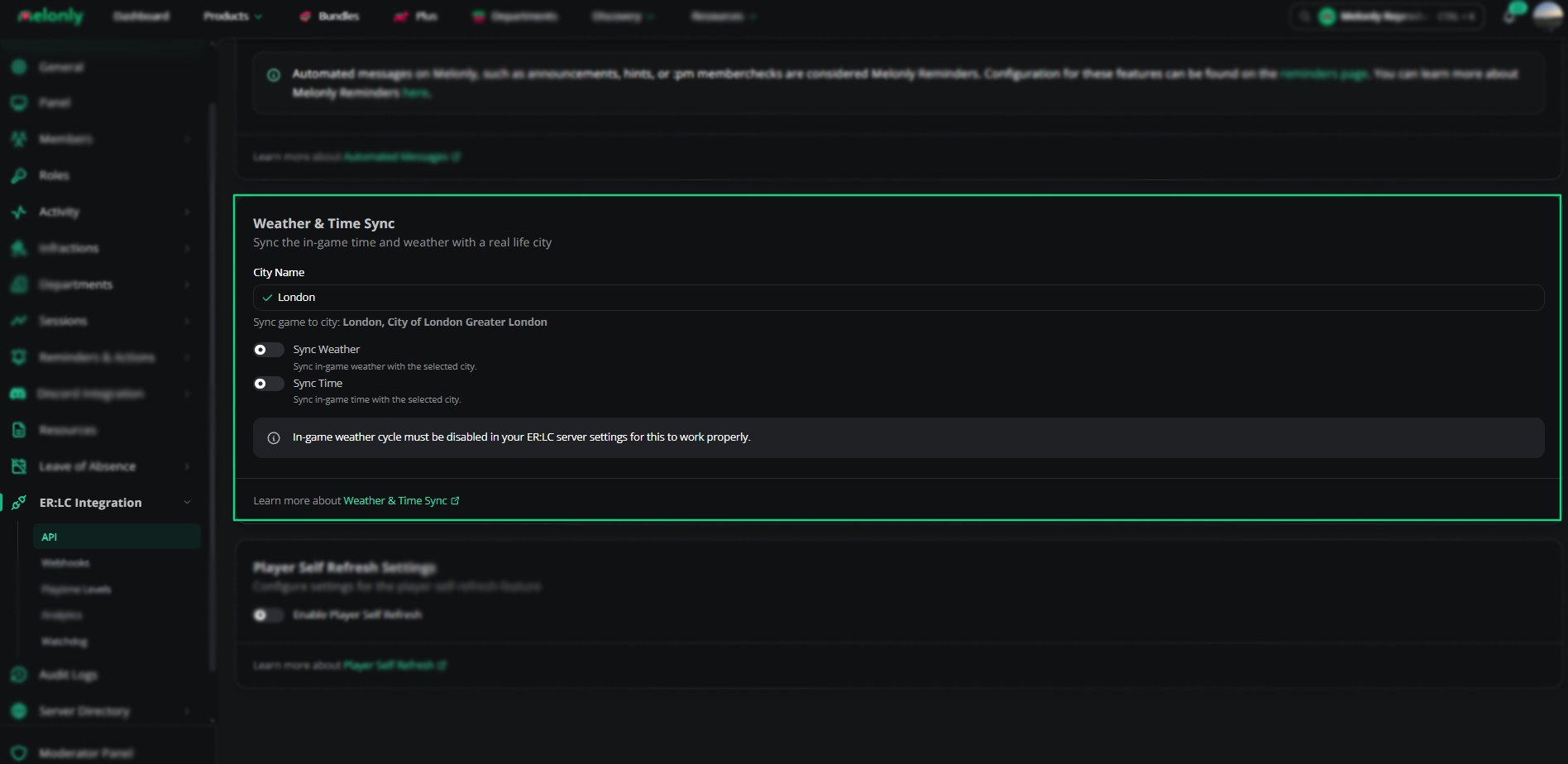
Weather and Time Sync
Example Use Cases
- Match your game environment to your real world region
- Keep night and day cycles realistic for your community
Need help?
Still have questions? Join our Discord server for support from the Melonly Team.