
What is the Dashboard?
Your Dashboard is your starting point in Melonly. It lists every server and department you belong to, with quick links to their Mod Panel, server dashboard, CAD and resources. From here you can also join a new community, create your own server, and keep track of membership requests you’re waiting on.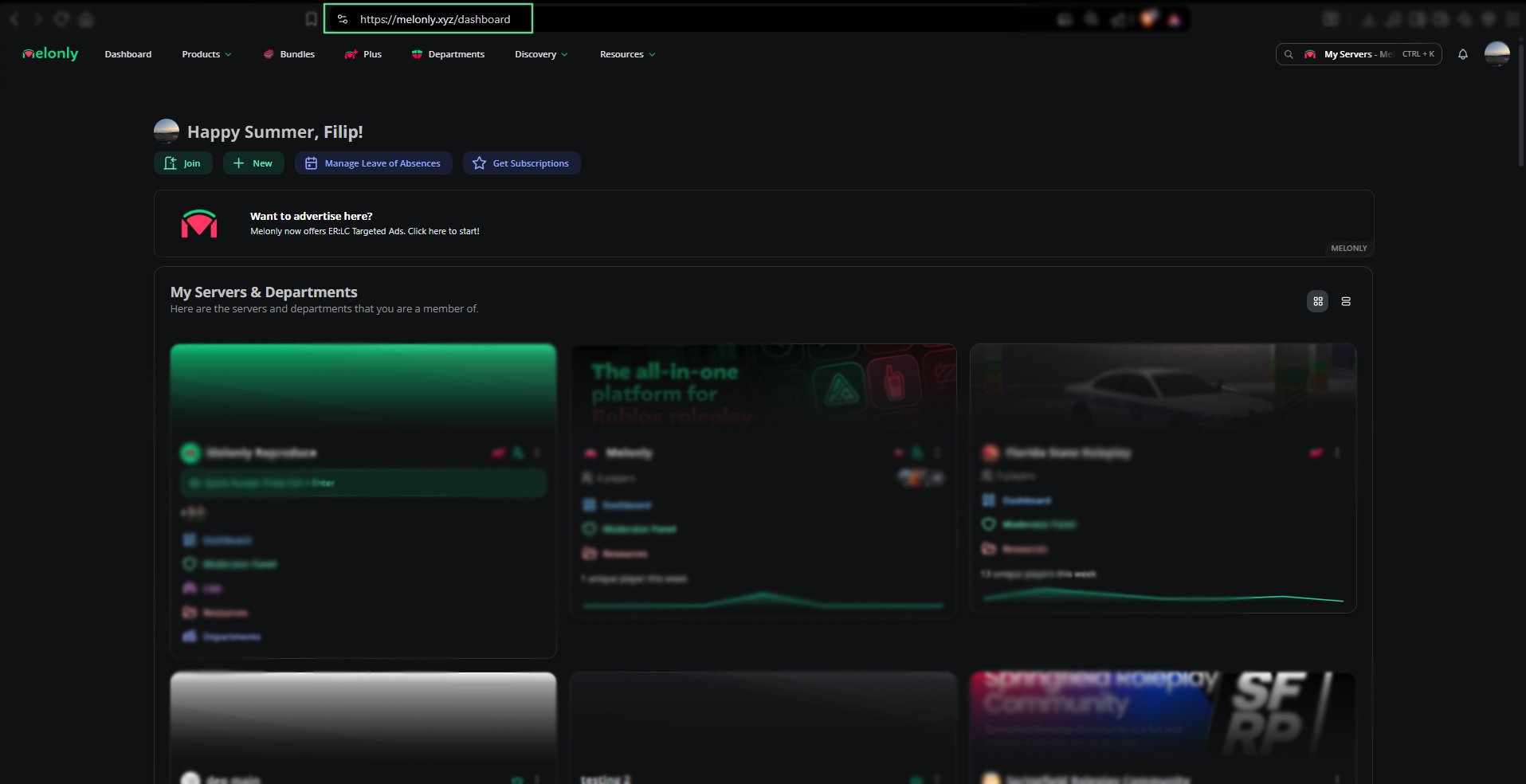
Your Dashboard
🧭 Quick Navigation
Joining a Server or Department
Use a join code or link, and manage your pending membership requests.
Creating a Server
Set up a new server, link Discord, import data and pick a plan.
Top Buttons
If you’ve bought a subscription that isn’t activated in any server yet, a yellow Inactive Subscriptions notice appears. Click Manage them to activate it.
New Department is covered in Getting Started with Departments. Documents, applications and workflows are covered in Resources.
My Servers and Departments
Every server and department you’re a member of appears as a card. The ones you opened most recently come first. On desktop, use the grid and list icons in the top right of the section to switch layout. Your choice is remembered.Server Cards
Each server card shows the server’s banner and name, plus:- How many players are in the ER:LC server right now (when the server has the ER:LC integration).
- Avatars of staff who are on shift. Click the extra count to see everyone.
- How many unique players joined this week, with a small chart.
The icons next to the name tell you about the server and your role:
If you only have CAD access to a server (for example through a CAD join code), its card shows just the CAD link.
The Card Menu
Click the three dots on a card for more options:Departments
Click Departments on a server card to see the departments of that server you’re in. Click Go back (or press Esc) to return to all your servers. Departments whose parent server you aren’t a member of appear in the main list on their own. Each department card links to the department’s Home, Roster and Resources, and to its CAD panel when the server has CAD turned on and your department has a CAD panel. A shield icon shows if you’re an administrator or super administrator of the department. The department menu has Manage LOA, Leave department, and Quick Actions for the department pages you can open. Super administrators can’t leave a department from here. See Departments for more.Resources
Below your servers, the Resources section shows the documents, applications, workflows, folders and workspaces from every server and department you can manage, plus anything shared with you. Use the search bar to find one quickly. It works the same as the Resources page on a server dashboard. See Resources.Pending Membership Requests
This table lists the servers and departments you’ve asked to join but haven’t been accepted into yet, with the join code and the date you sent it. Click the delete icon to cancel a request. See Joining.Quick Search
Press Ctrl+K (Cmd+K on Mac) on any page to search your servers, departments, dashboard pages, settings, resources and account pages, and jump straight there.Support Codes
If the Melonly Team asks you for a support code, they’ll send you a link that opens the support code window on your dashboard. Pick your server, then copy the code and send it to them. It gives support members temporary access to your server. You can only generate a code for servers where you can manage settings.Need help?
Still have questions? Join our Discord server for support from the Melonly Team.