| Types | Description |
|---|---|
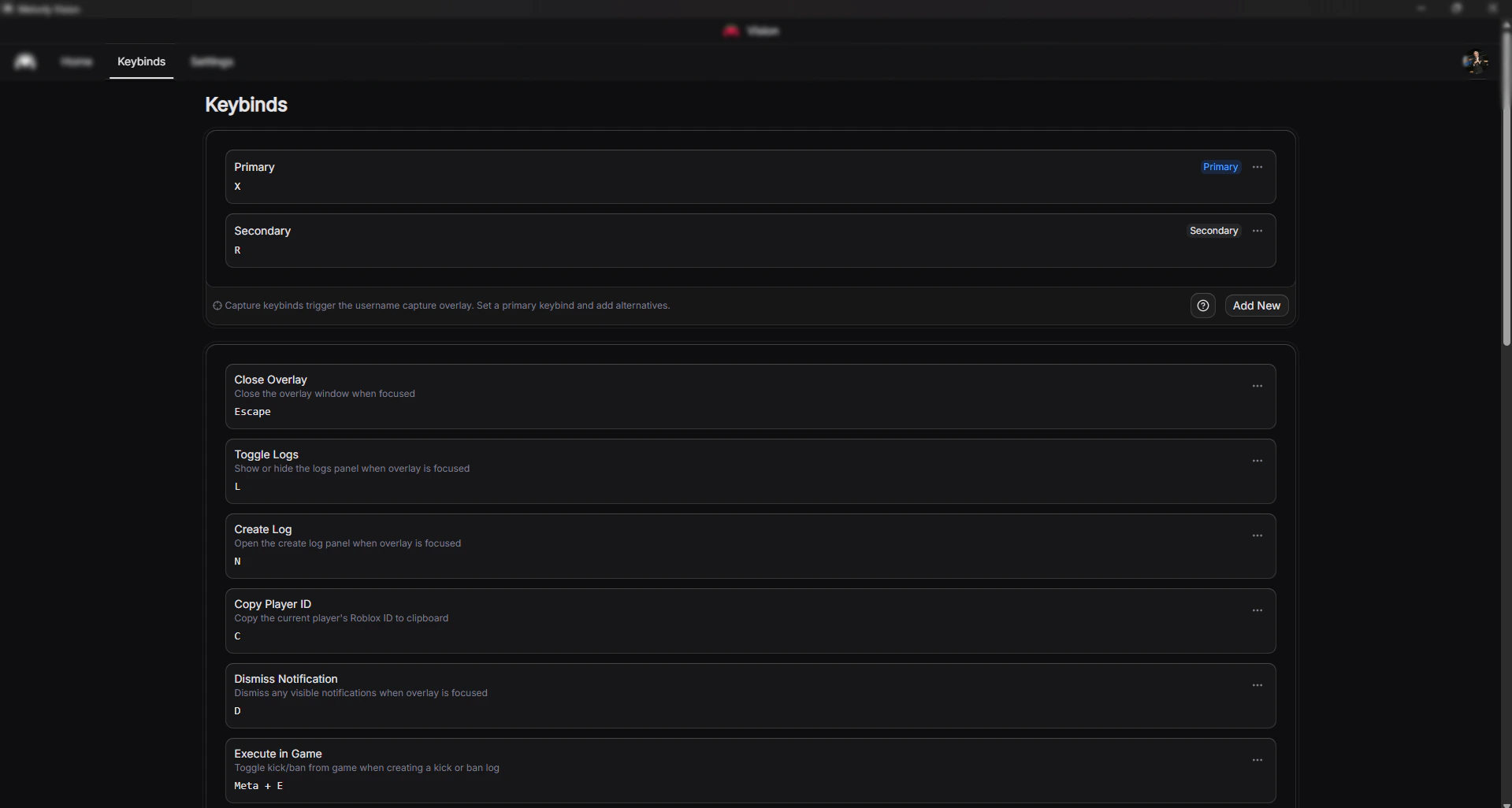
| Primary | The main keybind that will be registered globally. |
| Secondary | Alternative keybinds you can switch to. |
Documentation Index
Fetch the complete documentation index at: https://docs.melonly.xyz/llms.txt
Use this file to discover all available pages before exploring further.
What is Melonly Vision?
Melonly Vision is a powerful moderation enhancement tool designed to make server management faster, smoother, and more efficient. With Melonly Vision enabled, moderators can hover over a username, press a keybind, and take immediate action—without opening extra menus or navigating to a separate moderation panel. This allows for quicker responses, reduced friction, and a significantly improved moderation workflow.How to Use Melonly Vision
How to Install Melonly Vision on macOS
To install Melonly Vision on macOS, go to http://melonly.xyz/vision, click download, then open it.How to Install Melonly Vision on Windows
To install Melonly Vision on Windows, go to http://melonly.xyz/vision, click download, then open it.Home Page Overview
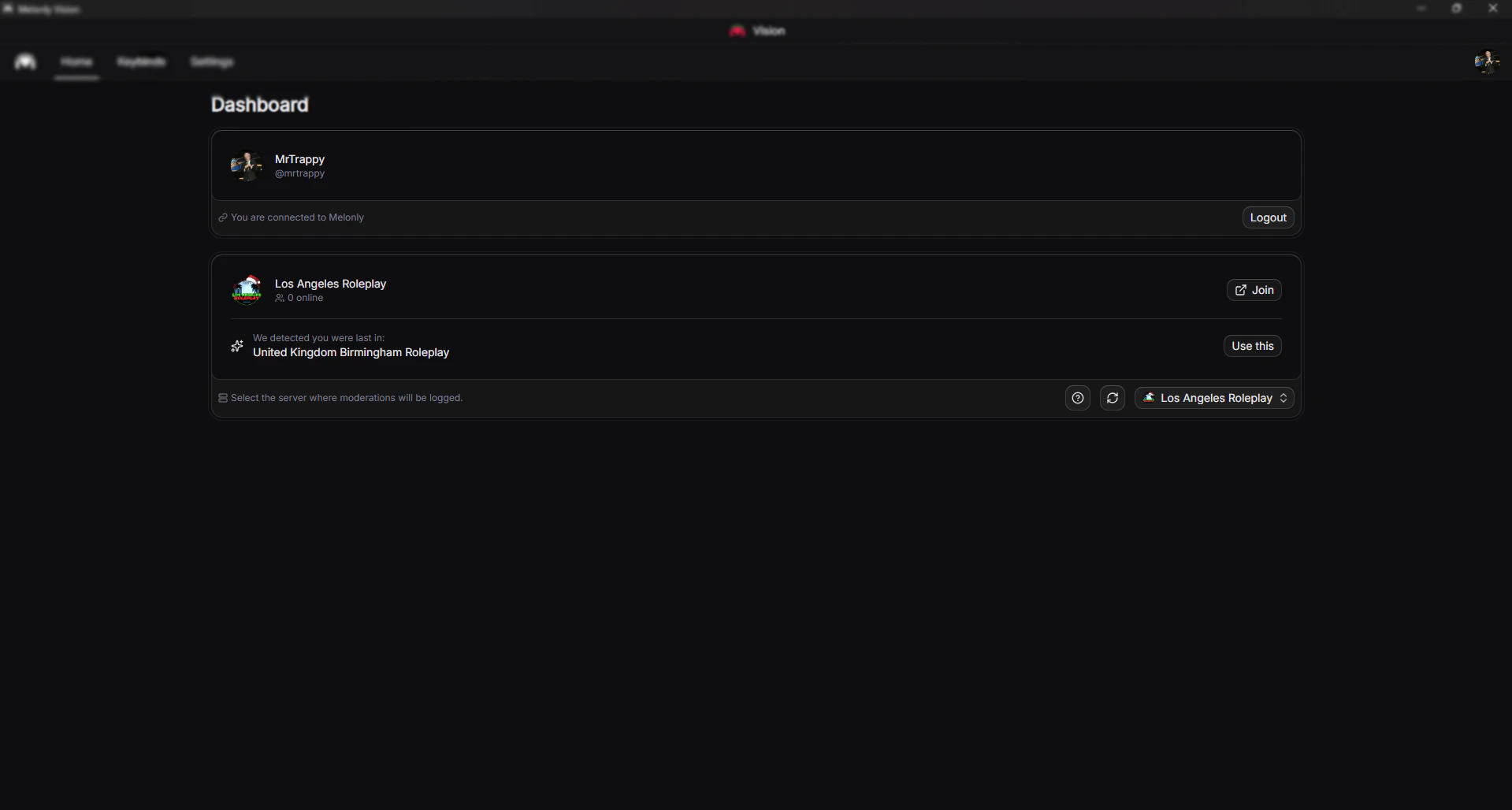
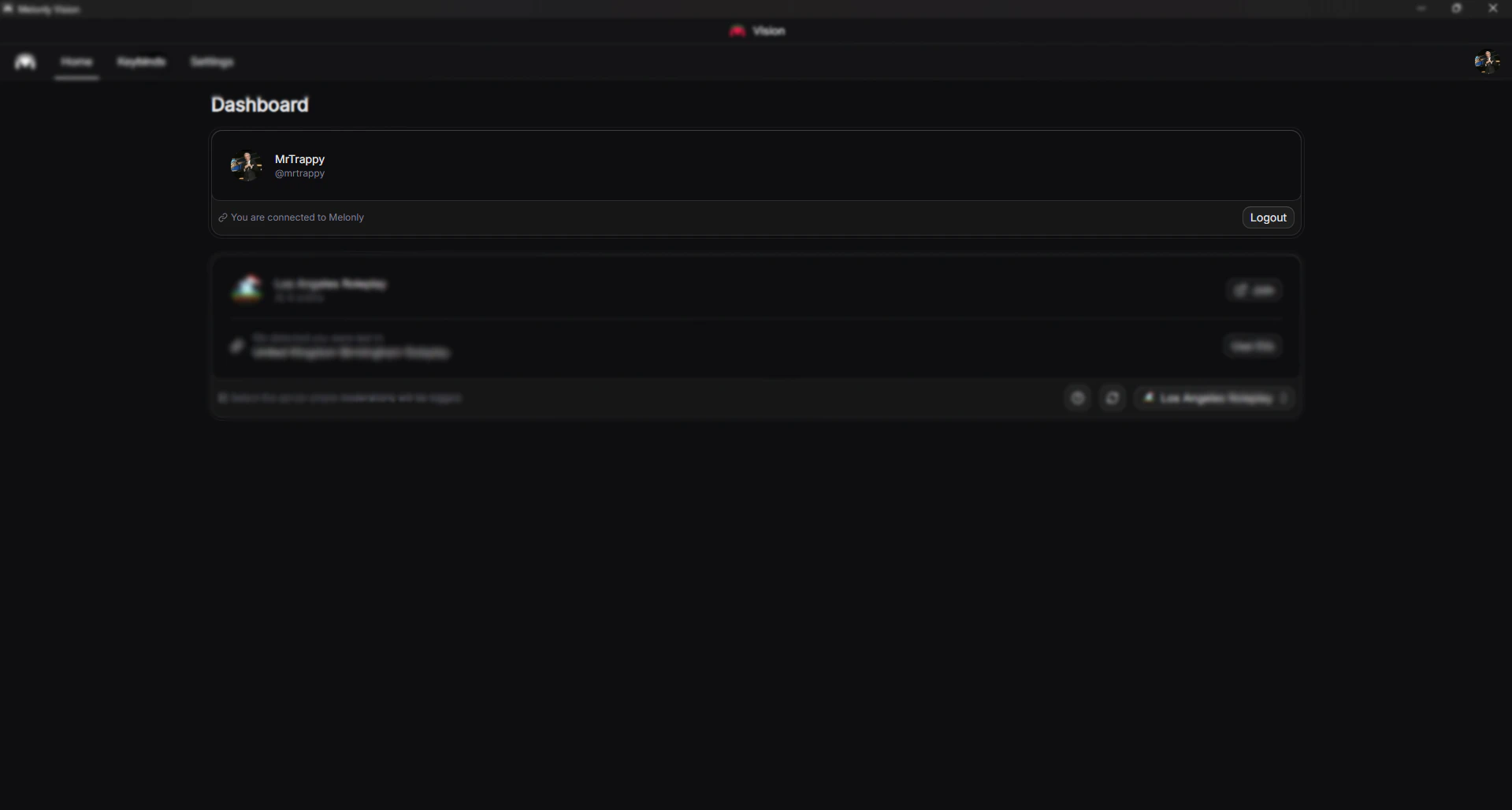
This is a overview of the home page within the Melonly Vision.Your Profile
Profile Section
Profile Section
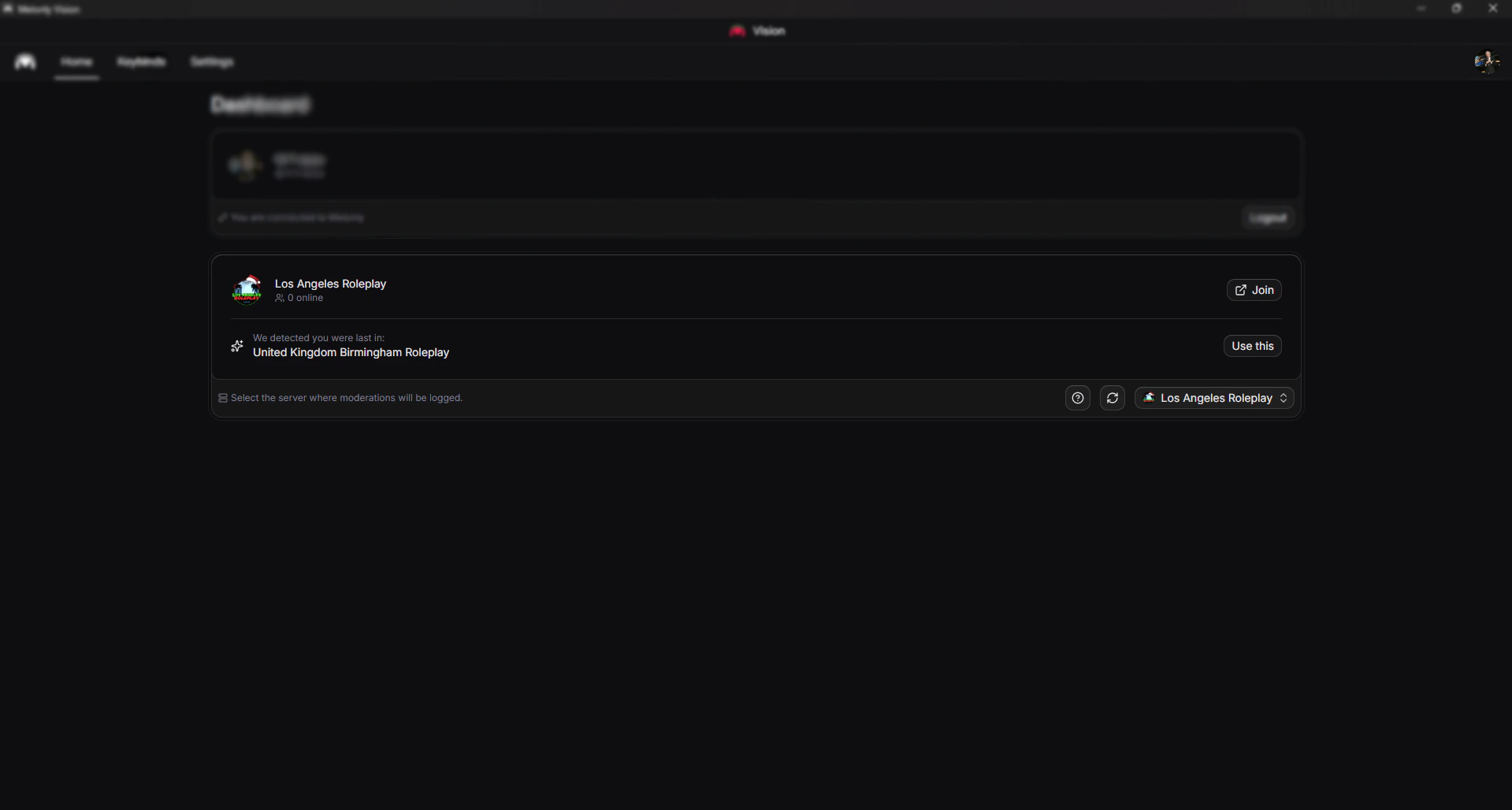
Your Servers
Servers Section
Servers Section
| Options | Description |
|---|---|
| Join Button | Pressing this will allow you to join selected roblox server. |
| Use This Button | This is the last detected you were last in. |
| Refresh Button | This is to refresh your server options. |
| Server Selection Dropdown | This is for the servers you are in. |
Keybind Page Overview
This is a overview of the keybinds page within the Melonly Vision.Capture Keybinds
What are Capture Keybinds?
Primary vs Secondary
How to Use?
How to Use?
- Hover over a username in Roblox
- Press your assigned capture keybind
- The overlay will capture and analyze the username
Overlay Keybinds
What are Overlay Keybinds?
Available Available Actions
| Keybind Action | Description |
|---|---|
| Close | Closes the overlay and returns to your game. |
| Toggle Logs | Shows or hides the player’s log history. |
| Create Log | Opens the panel to create a new log entry. |
Global Keybinds
What are Global Keybinds??
Default Format
Default Format
| Operating System | Format |
|---|---|
| MacOS | ⌘ + ⇧ + Key (Command + Shift + Key) |
| Windows | Ctrl + Shift + Key |
Settings Page Overview
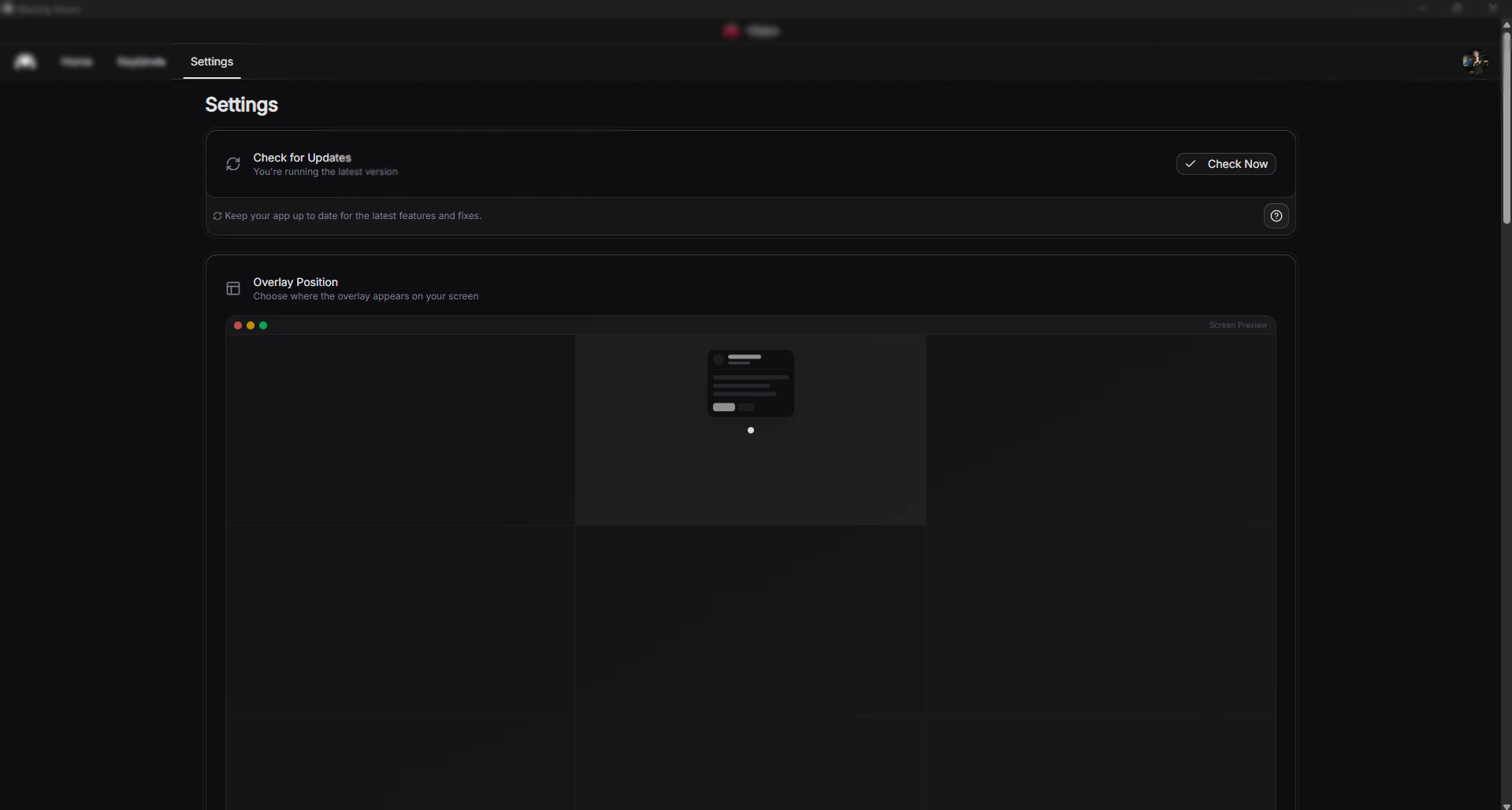
This is a overview of the settings page within the Melonly Vision.Update Melonly Vision
Check Now
Check Now
Overlay Position Overview
Choose where the overlay appears on your screenWhat is Overlay Position?
What is Overlay Position?
Position Options
Position Options
| Position | description |
|---|---|
| Top | Top of the screen, best for seeing arrest overlay in the bottom right and other elements down there. |
| Middle | Centered visibility, may obstruct gameplay |
| Bottom | Bottom of the screen, best for seeing arrest overlay in the bottom right and other elements down there. |
What do we reccomend
Overlay Scale Overview
Size of overlay cards on your screenWhat is Overlay Scale?
What is Overlay Scale?
Scale Options
Scale Options
| Scale | description |
|---|---|
| Small (75%) | Minimal screen presence, best for smaller monitors or when you want maximum game visibility. |
| Compact (87.5%) | Slightly reduced size while maintaining good readability |
| Default (100%) | Standard size, balanced for most use cases. |
| Large (112.5%) | Easier to read at a glance, good for larger monitors. |
| Extra Large (125%) | Maximum readability, best for high-resolution displays. |
What do we recommend
Theme Overview
Choose the look and feel of Melonly VisionTheme Options
Theme Options
| Scale | description |
|---|---|
| Light | Bright theme optimized for daytime use. |
| Dark | Reduced eye strain in low-light environments |
| System | Automatically follows your operating system preference. |
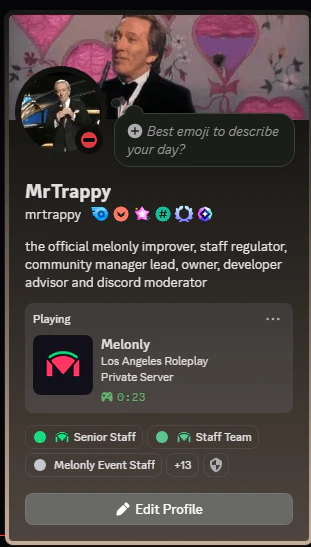
Discord Rich Presence
Show your activity status on DiscordRich Presence Options
Rich Presence Options
| Rich Presence | description |
|---|---|
| Minimal | No server information displayed. |
| Server Info | Displays the server name. |
| Full Detail | Shares all revelant details. |
How does it look on Discord?
Hardware Acceleration Overview
Improve performance by utilizing your GPUWhat is Hardware Acceleration?
What is Hardware Acceleration?
When to Enable?
When to Enable?
Device Inforation Overview
Debug details you can share with support.What is Device Info?
What is Device Info?
When to Share?
When to Share?