
What you get
- Question types — Multiple-choice, true/false, and short answer. See response types.
- Automated grading — Set passing scores and Melonly grades submissions for you.
- Point allocation — Weight questions by importance.
- Correct answers — Define answers to enable auto-grading.
- Instant feedback — Show results to the submitter immediately.
Quiz works at both the server and department level.
Add points to a question
Open the form
From your server or department dashboard, open Resources and select the form or application.
Open the answer key
Click Answer Key at the bottom of the question.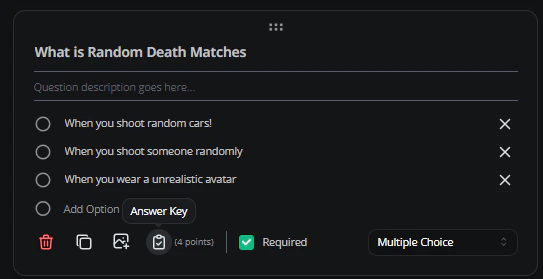
Answer key button
Set point value
Type a value or use the arrows to adjust the points.
Set the correct answer
Open the form
From your server or department dashboard, open Resources and select the form or application.
Open the answer key
Click Answer Key at the bottom of the question.
Enter the answer
Type the correct answer to enable auto-grading on submissions.
If Quiz isn’t visible, enable it in your server or department form settings. See response types.
Need help?
Still have questions? Join our Discord server for support from the Melonly team.