
What is the Desktop App?
The Melonly desktop app is Melonly in its own window instead of a browser tab. You sign in with the same account and get the same dashboard, panels and CAD, plus a few things a browser can’t do, like keybinds that work while you’re in Roblox. It’s free and optional. Everything still works in your browser.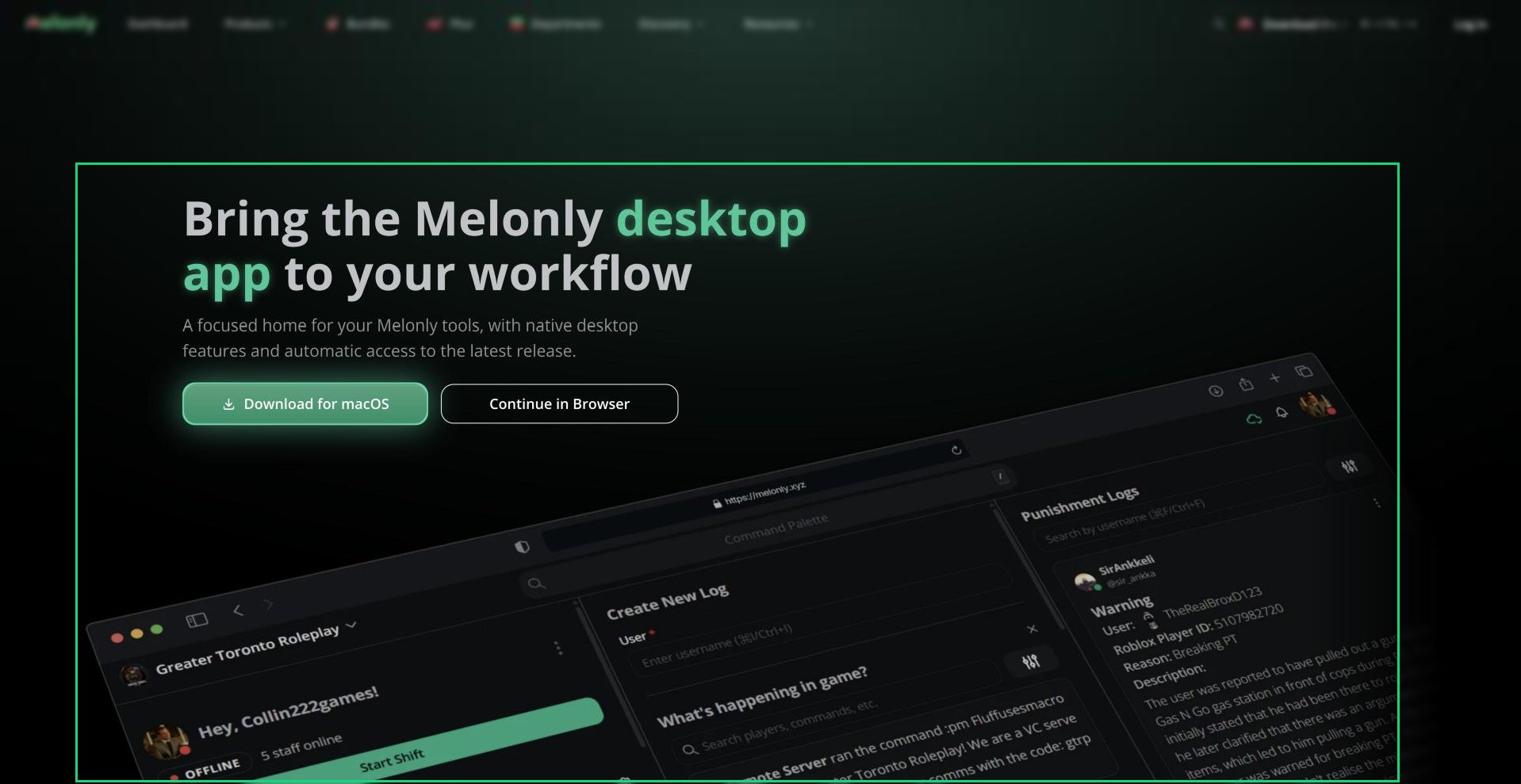
Desktop app
Downloading the App
1
Open the download page
Go to melonly.xyz/download. It picks the right download for your computer.
2
Download and install
Click the download button, or choose a different build from the list. Then run the installer.
3
Sign in
Open Melonly and sign in with your Melonly account.
The app updates itself, so you only need to download it once.
What You Get
To keep CAD windows inside the main app, turn on Disable native windows under Legacy in your CAD preferences.
Permissions on macOS
The first time you use some features, macOS asks for permission. You can change these later in System Settings, Privacy & Security.On Linux, global keybinds need X11 or XWayland.
Good to Know
- The desktop app isn’t the same as Melonly Vision, which is a separate overlay app for moderating in game.
- If support asks for your logs, use Diagnostics, then Open Logs Folder, in the app menu.
- On a phone or tablet, install Melonly to your home screen instead.
Need help?
Still have questions? Join our Discord server for support from the Melonly Team.