
Discord Actions let workflows interact with your connected Discord server.
They can send messages, manage roles, moderate Discord members and respond to slash commands.
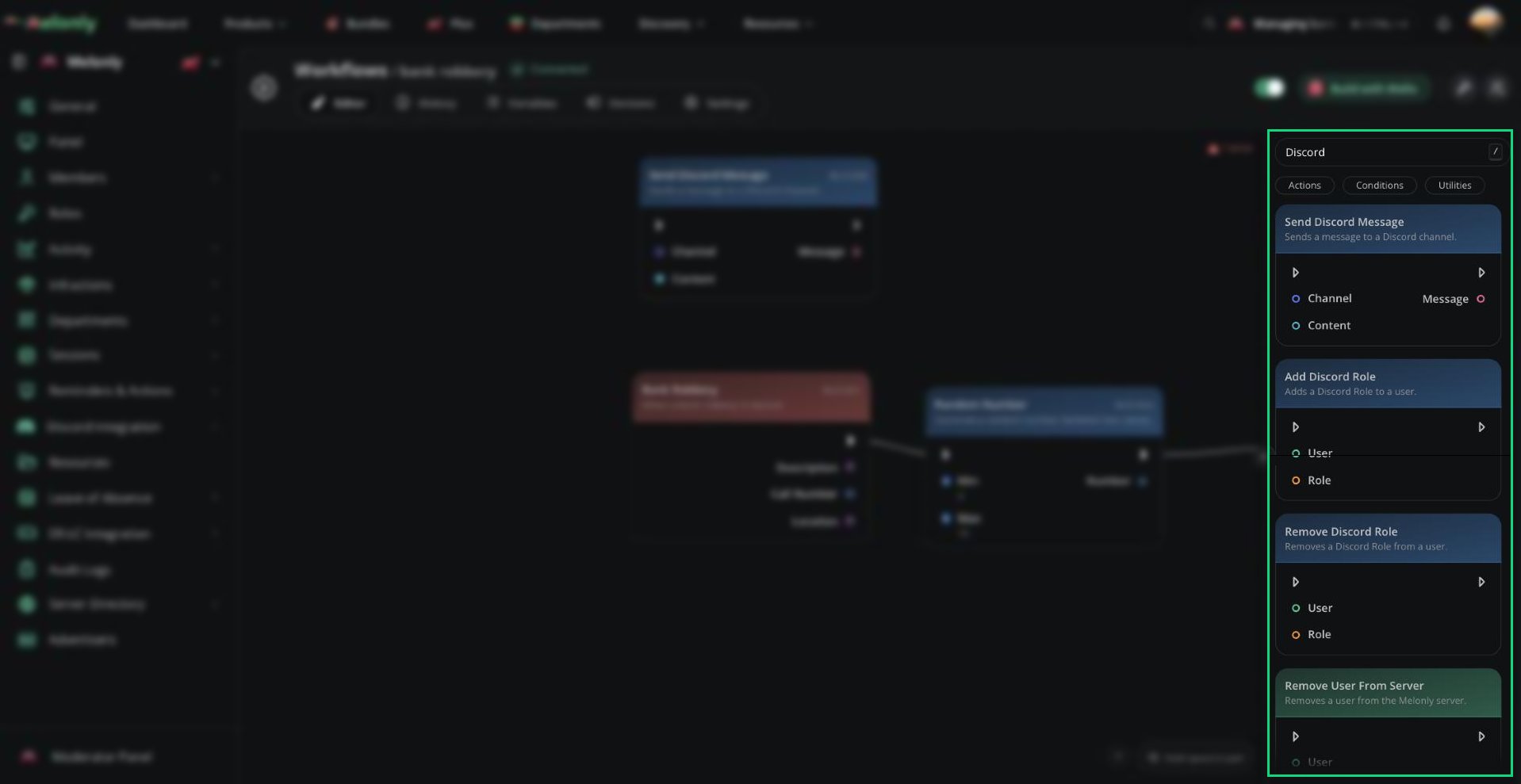
Discord actions in the block library
Blocks
- Send Discord Message
- Respond to Slash Command
- Add Discord Role
- Remove Discord Role
- Kick From Discord
- Ban From Discord
Send Discord Message
The Send Discord Message block sends a message to a Discord channel.What Does It Do?
The Send Discord Message block posts a message in the selected Discord channel when the workflow reaches it. It can be used for staff alerts, moderation logs, workflow updates or automated announcements.Input
- Channel: The Discord channel where the message should be sent. Channels are selected from a searchable channel dropdown.
- Content: The message content. This can be manually typed or use output from another block.
- Message: The message that was sent. This includes the message ID and channel ID as string values.
Example
A workflow can post to a management channel when a staff member removes someone from a department.Filip removed RadicalVision from the Training Department.Notes
- This action sends messages to Discord channels, not Discord direct messages.
- The connected Melonly Discord bot needs access to the selected channel.
- If the workflow was started by a slash command and you want to reply to the command user, use Respond to Slash Command instead.
Working With Discord Actions
Discord actions usually need data from a trigger or an earlier block. For example, a slash command can provide the invoking user, selected channel, command options or target user. Before using Discord actions, link your Discord server from the Discord Integration module. For setup instructions, see Linking Your Server. When using Discord actions, keep in mind:- Bot Permissions: Make sure the bot can send messages, has Manage Roles when using role actions and can kick or ban members when using moderation actions.
- Role Order: For role actions, the bot’s highest role must be higher than the role it is adding or removing. For kick and ban actions, the bot’s highest role must be higher than the target user’s highest role.
- Connected Server: Discord actions require the Discord integration to be connected.
- User Feedback: Slash command workflows should normally include a response so the command user knows what happened.
Example Workflow Flow
- A staff member runs a custom slash command.
- The workflow checks if the staff member has the required role.
- If allowed, the workflow sends a message to a Discord staff channel.
- The workflow responds to the slash command with a confirmation message.
Need help?
Still have questions? Join our Discord server for support from the Melonly Team.