
What is Discord Integration?
Discord Integration links your Melonly Dashboard with your Discord server through the Melonly Bot. Once connected, you unlock a range of features including automated nickname formatting, role management, channel configuration, and verification tools.How does Discord Integration benefit my server?
A Discord Integration centralises your server management by bringing key Discord tools directly into your Melonly Dashboard. This gives your staff faster access to moderation tools, automated systems that reduce manual work, and a smoother experience for your team.🧭 Quick Navigation
Nicknames
Configure automatic nickname formatting and enforcement for your members.
Channels
Manage channel settings for Dashboard & Moderator Panel logging.
Roles
Set up automated role assignment.
Verification
Enable secure member verification.
How to Link and Unlink Your Discord Server
Linking Your Server
Follow the steps below to link your Discord Server.1
Navigation
Navigate to ANY Discord Integration page.
2
Select Your Server
Select the Discord Server that you wish to link. If you cannot find the server you’re looking for, click the refresh list button to refresh your server data.
The yellow triangle indicates that the server has already been linked to a Melonly Dashboard.
3
Confirm Your Link
Confirm the link by clicking the green Link button.
4
Discord Commands
You can also link your Discord Server to a Melonly Dashboard by running the command
/setup and selecting your Discord Server.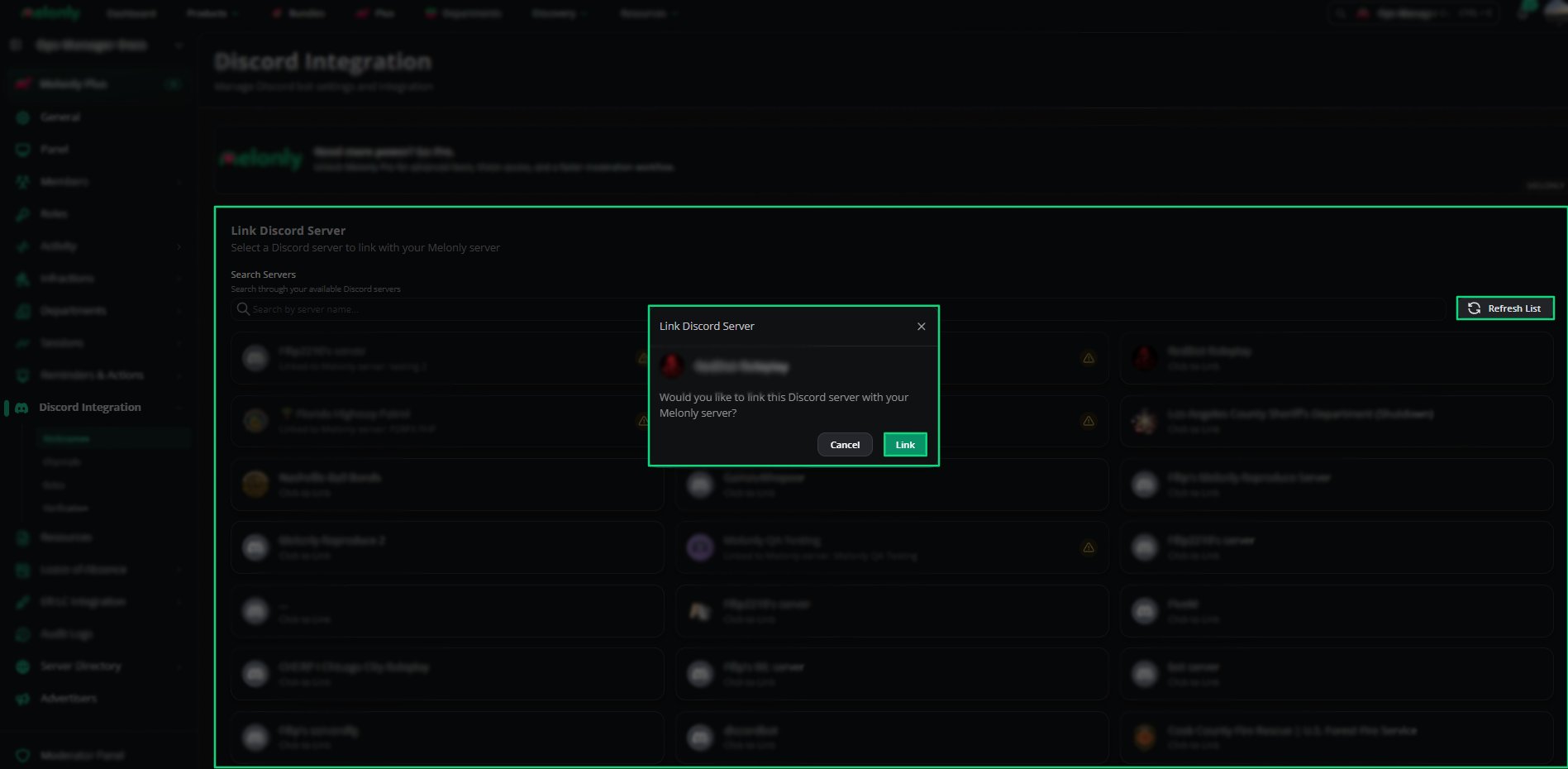
Linking Your Discord Server
Unlinking Your Server
Follow the steps below to unlink your Discord Server.1
Navigation
Navigate to ANY Discord Integration page.
2
Unlink
Click the red Unlink button and confirm your unlinking by pressing the same button.
3
Discord Commands
You can unlink your Discord Server from your Discord Dashboard by running the command
This command is restricted to the Server Owner.
/unlink.This command is restricted to the Server Owner.
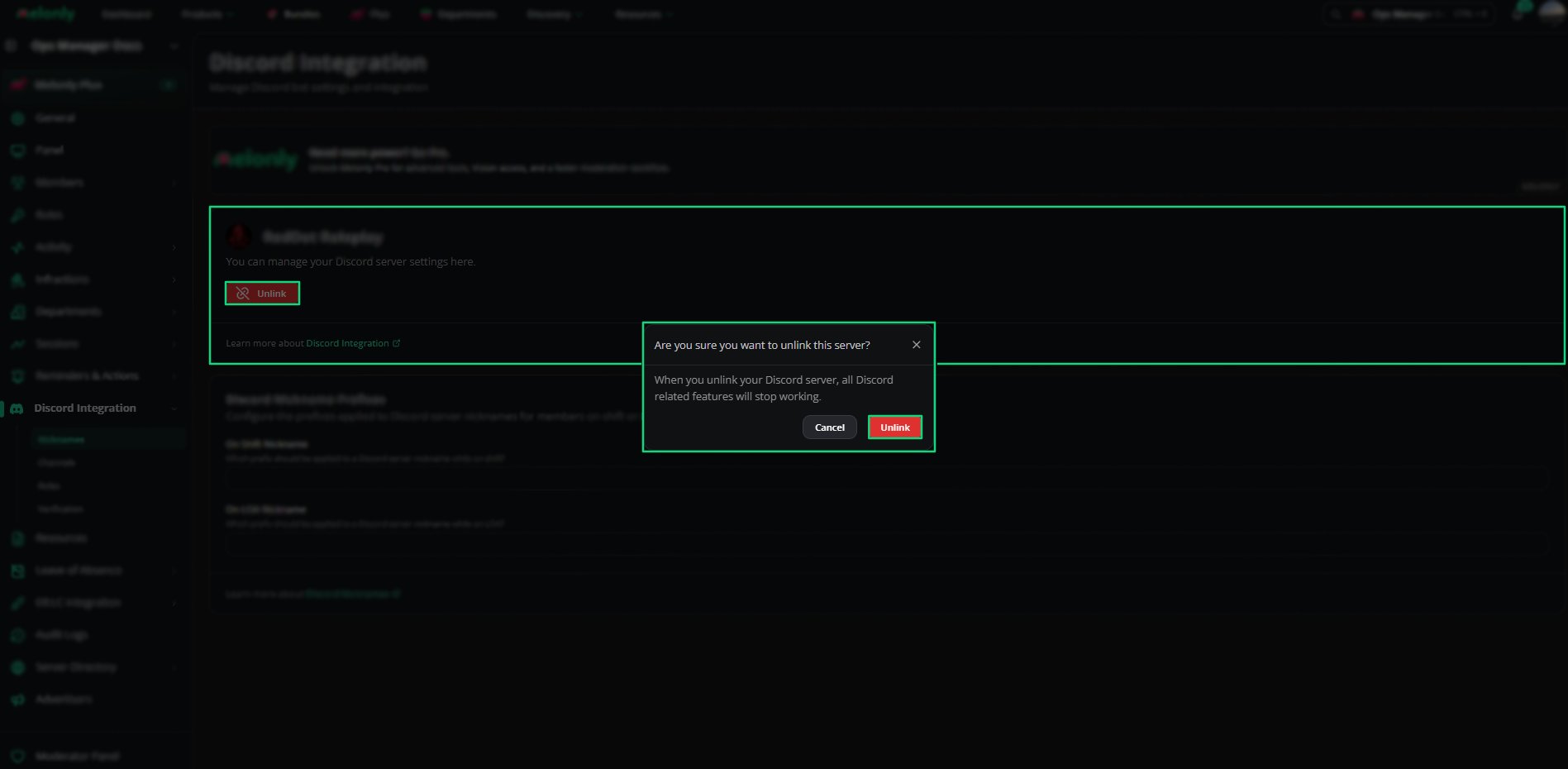
Unlinking Your Discord Server