
What is the Panel Page?
The Panel page of your dashboard controls how the Mod Panel behaves for your staff. Server-wide settings like your name, join code and API tokens are on General Settings instead. Click Save after each change.Panel Access
Click Open moderator panel to open your server’s panel, or Copy Link to share it with staff. Staff can only open the panel once they’re members of your server, through your join code or Discord linked roles.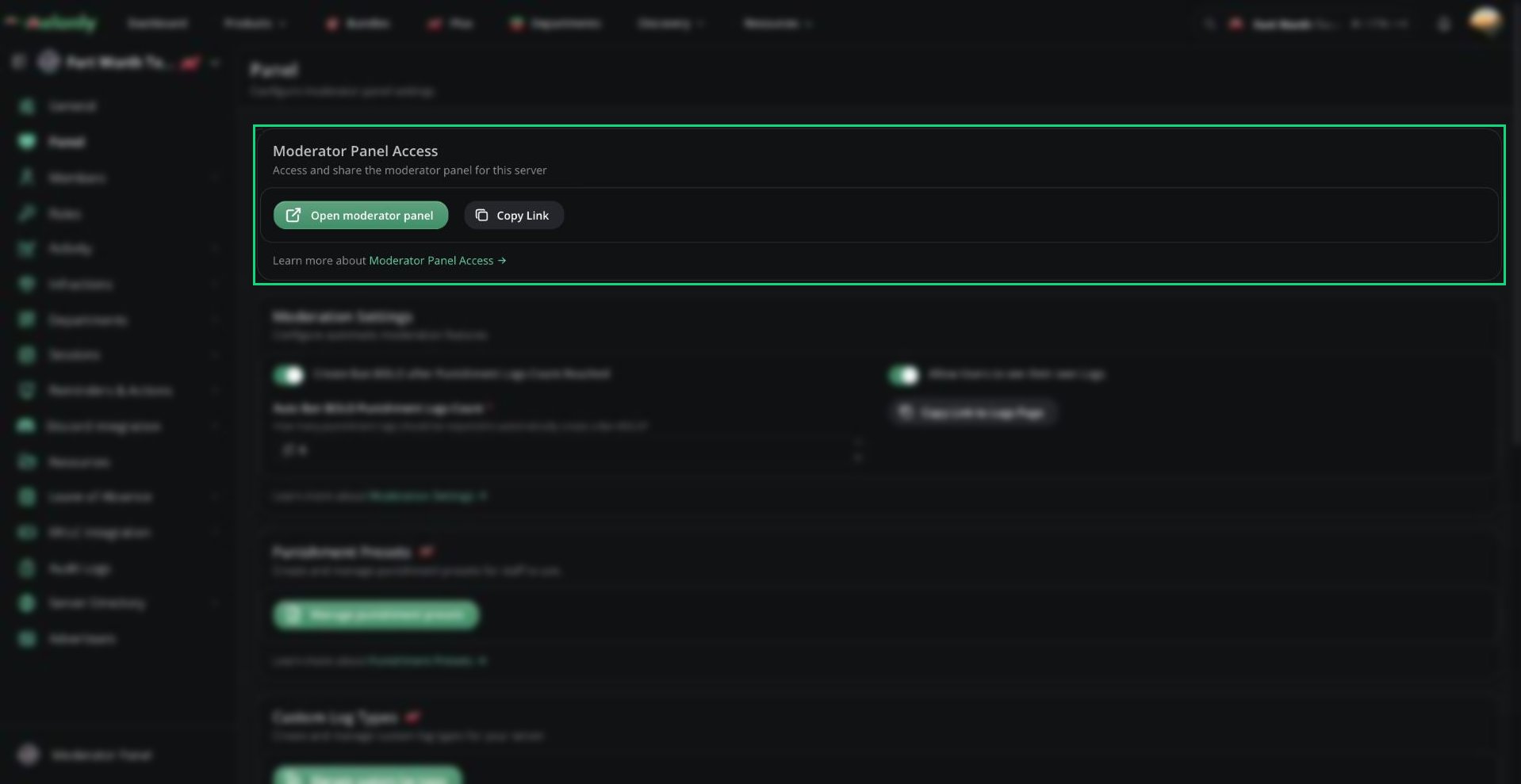
Moderator Panel Access
Moderation Settings
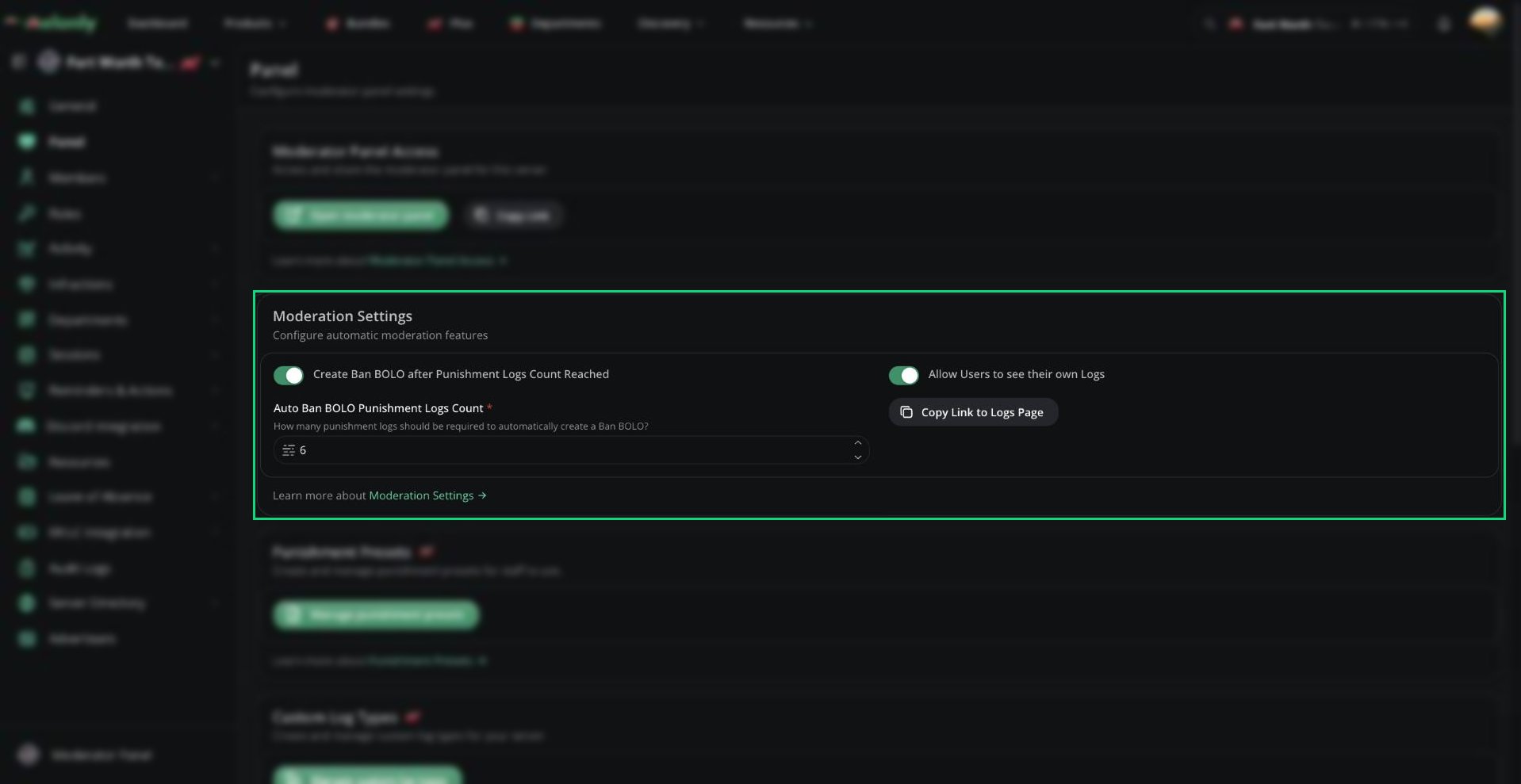
Moderation Settings
Automatic Ban BOLO
Create a Ban BOLO automatically when a player collects too many punishments.
Only warnings and kicks count, and the count resets after a ban. See Ban BOLOs.
Allow Users to See Their Own Logs
Turn on Allow Users to see their own Logs to let players view the punishment logs issued to them. Click Copy Link to Logs Page to get a link to share with your community. This also lets staff hide individual logs from the player. See Hiding a log.Punishment Presets
Presets are saved punishments your staff can apply in one click from the log form. They need Melonly Plus. Click Manage punishment presets to add, edit or remove them.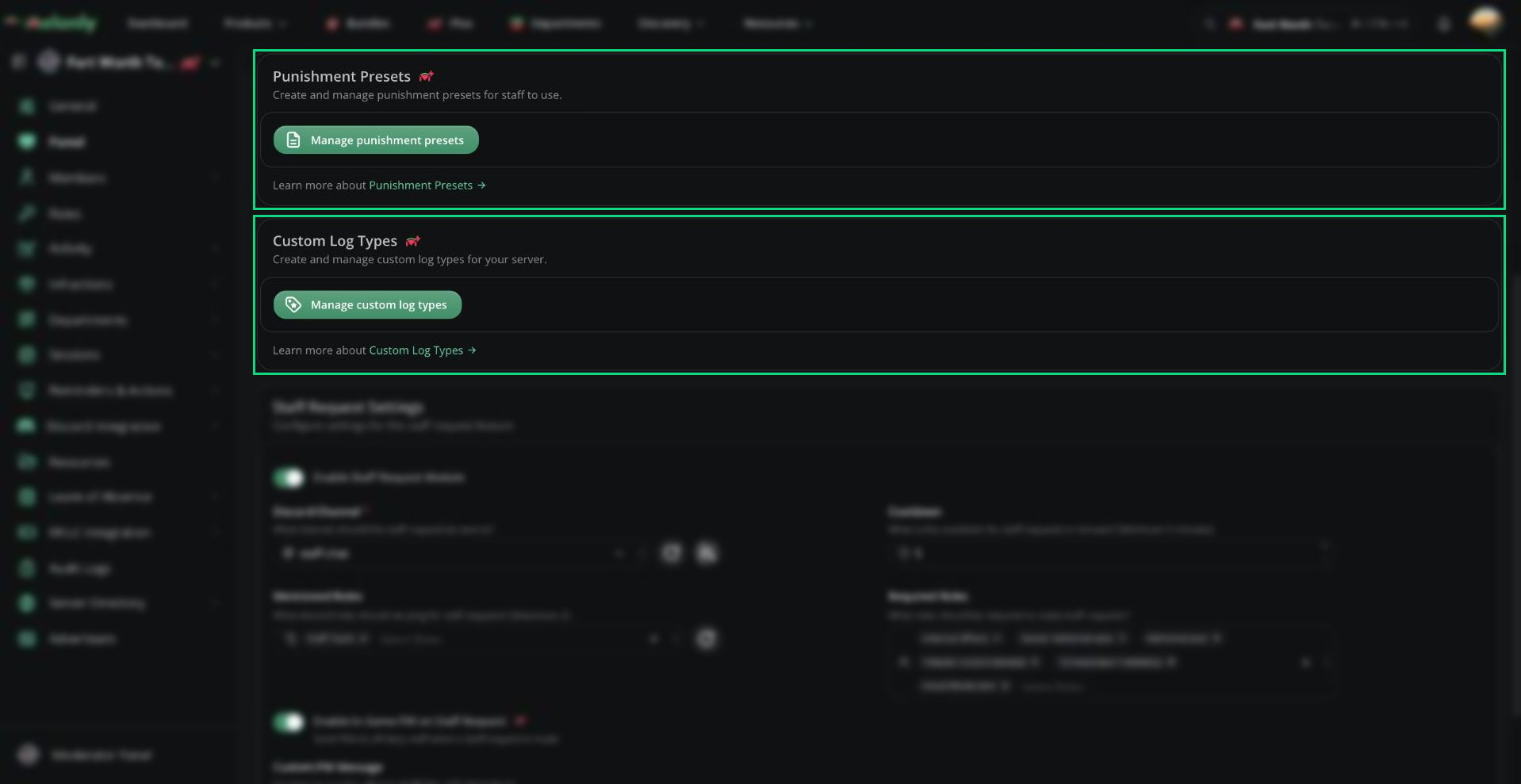
Punishment Presets and Custom Log Types
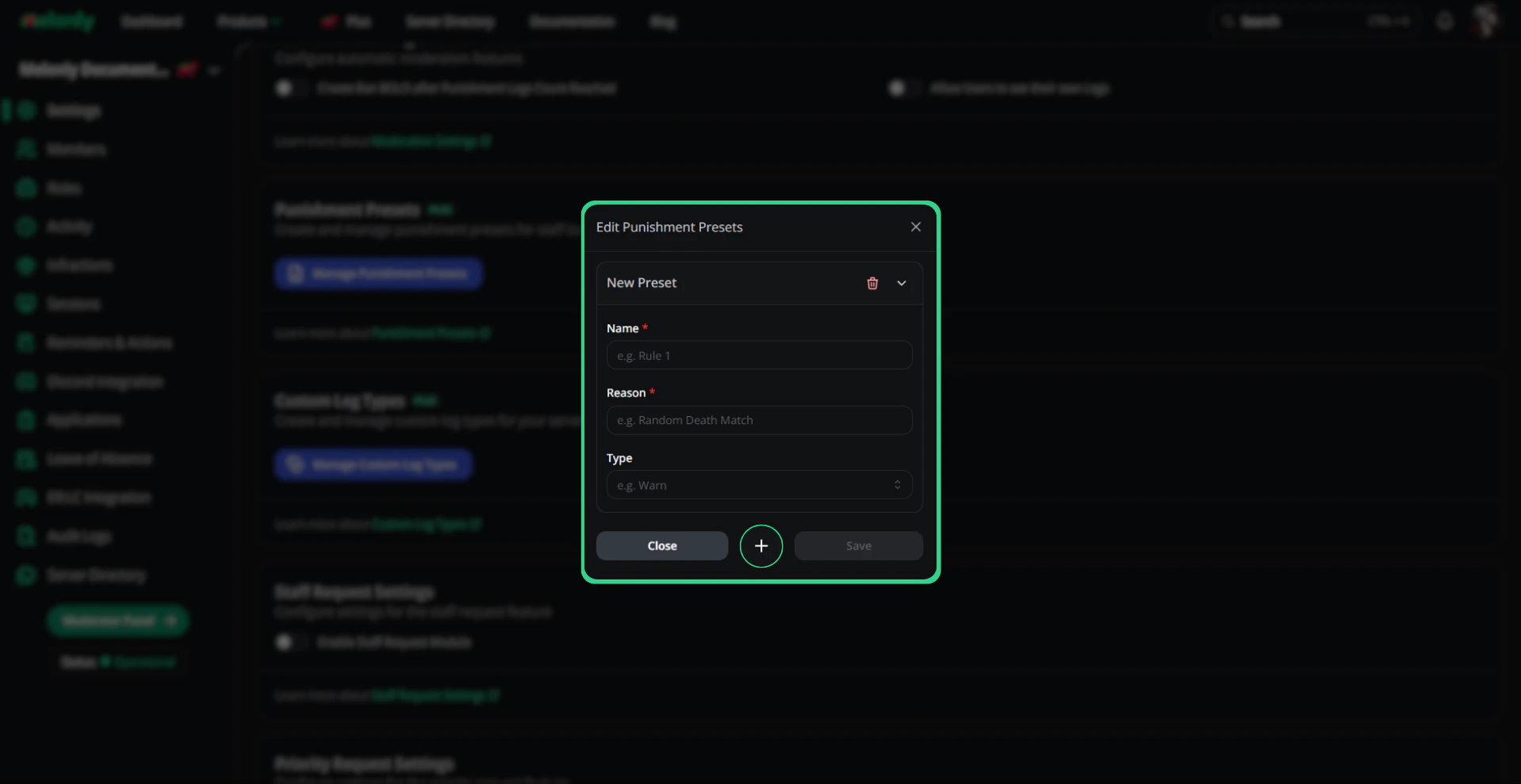
Edit Punishment Presets
Custom Log Types
Add your own log types next to the built-in ones, such as “Verbal Warning”. This needs Melonly Plus. Click Manage custom log types to set them up.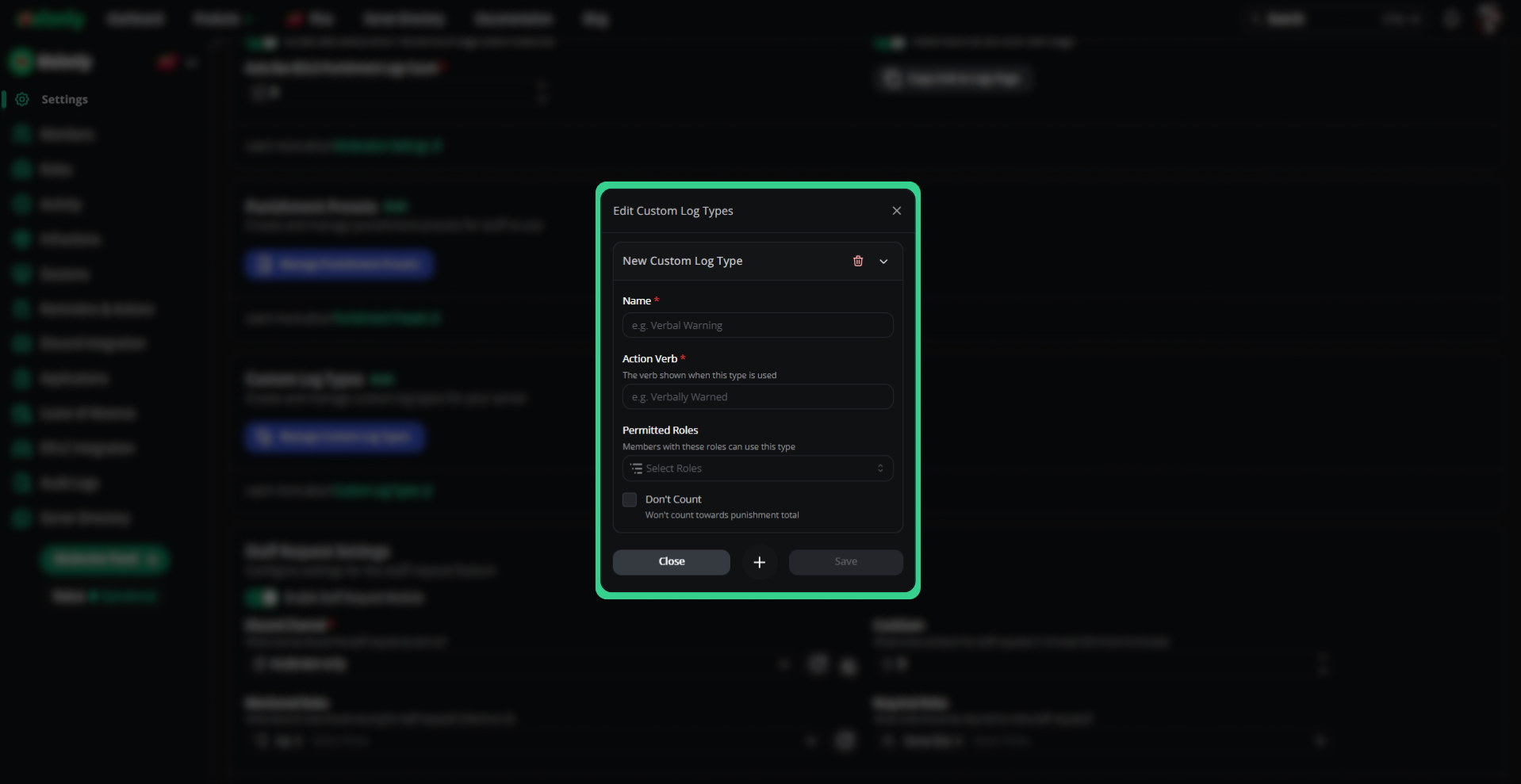
Edit Custom Log Types
Staff Requests
Staff requests let moderators call for backup from the panel. Each request posts to a Discord channel. See Request Staff for how staff use it. Your server must be linked to Discord. Without it, the card shows Discord Integration Required with a Configure linked guild button.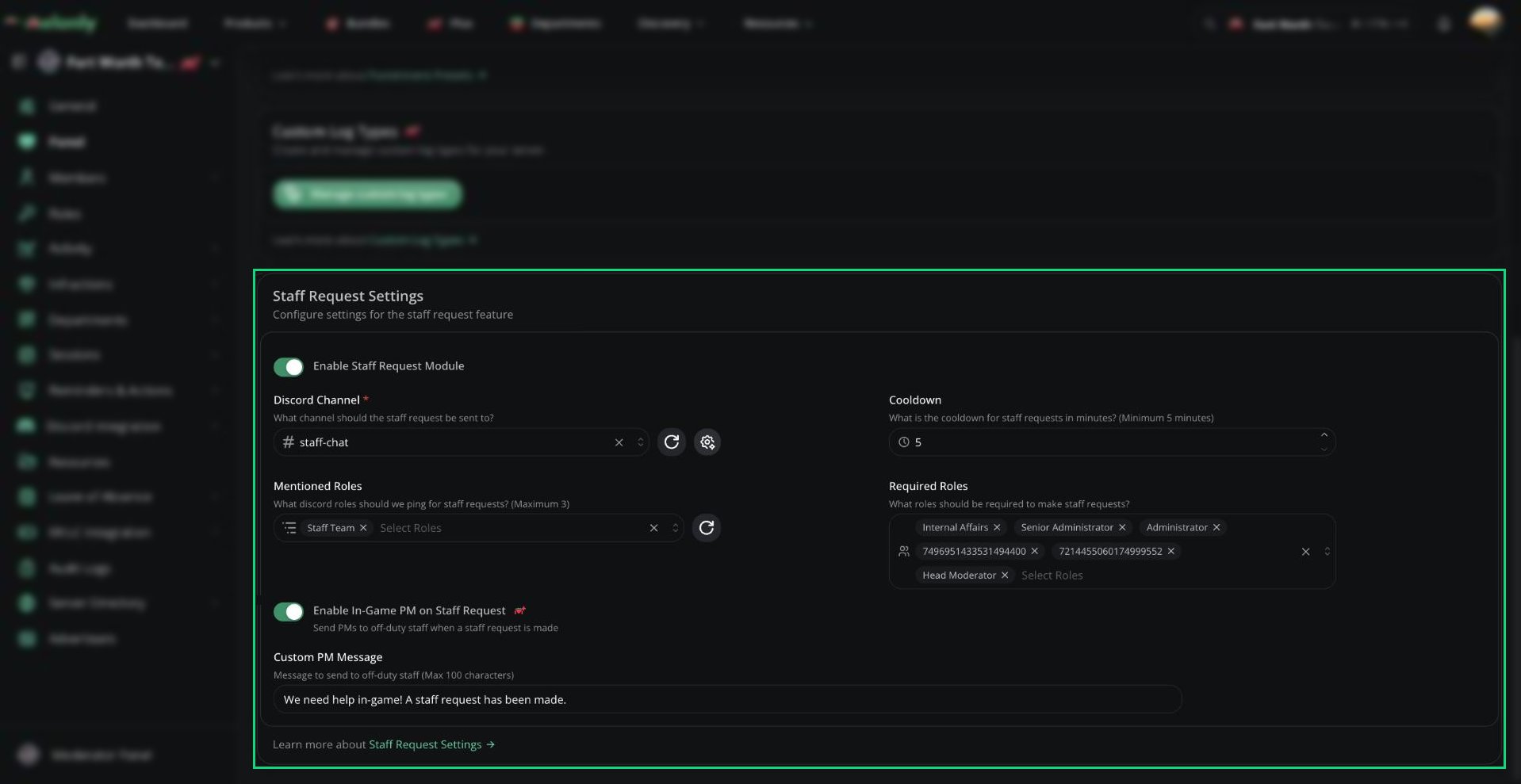
Staff Request Settings
In-Game PMs
Turn on Enable In-Game PM on Staff Request to PM off-duty staff in-game whenever someone requests staff. Off-duty means staff who are in your ER:LC server but not on a Melonly shift. This needs Melonly Plus and the ER:LC integration. Set the message in Custom PM Message (up to 100 characters). If you leave it empty, Melonly sends “A staff request was made; please respond in-game.”Need help?
Still have questions? Join our Discord server for support from the Melonly Team.