
ER:LC Actions let workflows control or interact with your live ER:LC server.
They can run commands, moderate players, send in-game messages, change player status, manage fires and read server counts.
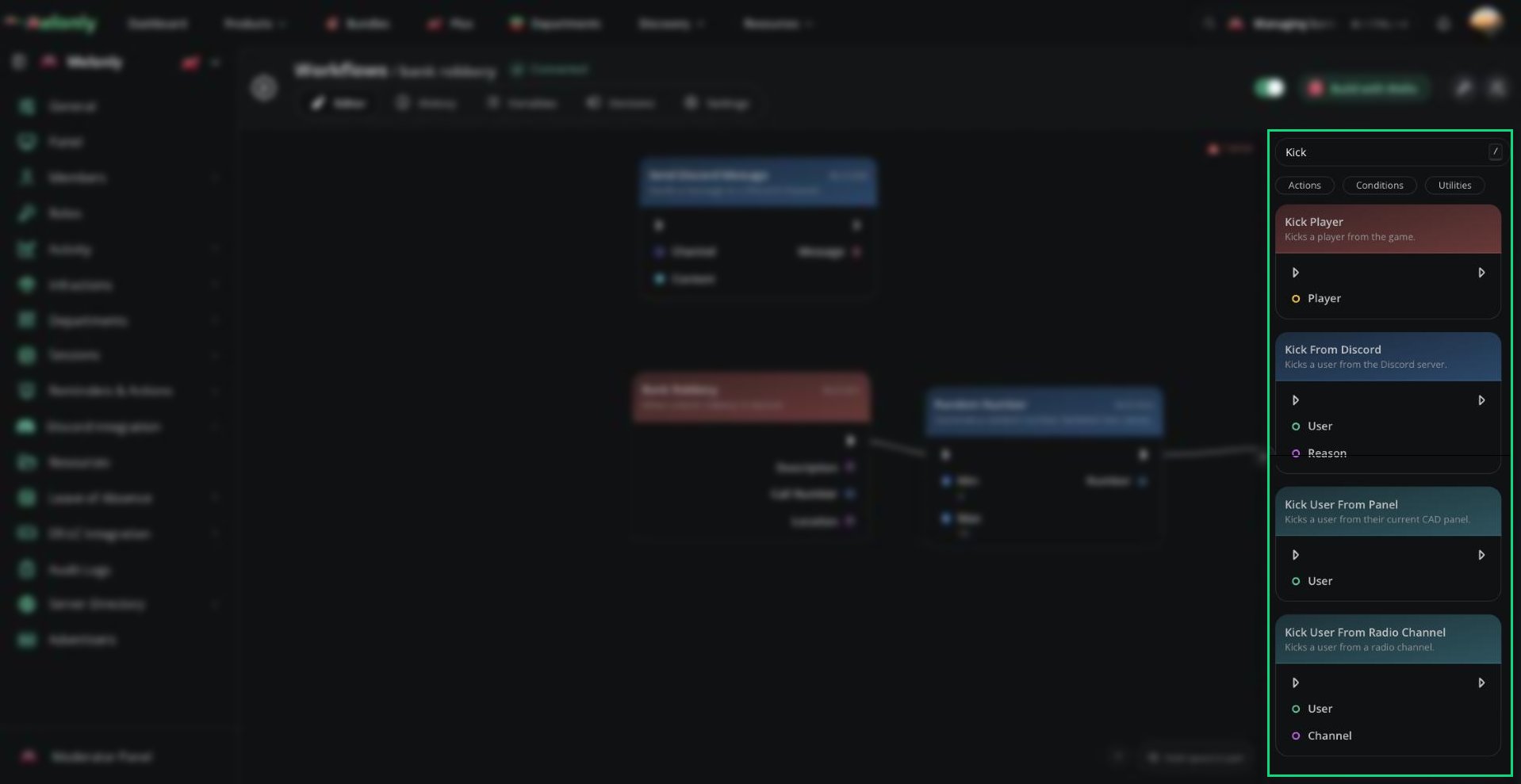
ER:LC actions in the block library
Blocks
ER:LC action blocks run through your connected ER:LC server. The server needs at least one player online before ER:LC actions and ER:LC data blocks can execute. Most ER:LC actions also need a live player to target. If the selected player is not in the server when the workflow runs, actions such as kick, jail, heal, teleport or private message cannot affect them.- Player Moderation
- Messages & Commands
- Player State
- Server Control
- Permissions
- Counts
Player Moderation
These blocks perform direct moderation actions on ER:LC players.Refresh Player
Refreshes a player in-game.Input
- Player: The player who should be refreshed.
- No direct output. The workflow continues after the player is refreshed.
- A workflow needs to reload a player’s character without removing them from the server.
- A staff action should reset a player after another action runs.
Kick Player
Kicks a player from the ER:LC server.Input
- Player: The player who should be kicked.
- No direct output. The workflow continues after the player is kicked.
- A workflow needs to remove a player from the current session.
- A staff command or automation confirms that a kick should be applied.
Ban Player
Permanently bans a player from the ER:LC server.Input
- Player: The player who should be banned.
- No direct output. The workflow continues after the player is banned.
- A workflow needs to permanently block a player from rejoining the ER:LC server.
- A serious moderation action should also apply an in-game ban.
Unban Player
Unbans a player from the ER:LC server.Input
- Player: The player who should be unbanned.
- No direct output. The workflow continues after the player is unbanned.
- A workflow needs to reverse or expire an in-game ban.
- A moderation appeal or manual staff action restores access.
Kill Player
Kills a player in-game.Input
- Player: The player who should be killed.
- No direct output. The workflow continues after the action runs.
- A workflow needs to punish, reset or stop a player during an active session.
Jail Player
Jails a player in-game.Input
- Player: The player who should be jailed.
- No direct output. The workflow continues after the player is jailed.
- A workflow needs to place a player in jail after a staff command, condition or moderation event.
Respawn Player
Respawns a player in-game.Input
- Player: The player who should be respawned.
- No direct output. The workflow continues after the player respawns.
- A workflow needs to reset a player after another in-game action.
Working With ER:LC Actions
ER:LC actions rely on your ER:LC integration being connected and able to reach the live server. ER:LC actions and ER:LC data blocks require at least one player to be in the server before they can execute. When using ER:LC actions, keep in mind:- Live Players: Player actions need the target player to be online in the ER:LC server when the workflow runs.
- Server State: ER:LC actions and count blocks need an active server session with at least one player online.
- Permissions: If a workflow can kick, ban, jail, run commands or change staff permissions, add permission checks so only the right users can trigger it.
- Data Flow: Use trigger inputs, command options or previous block outputs to choose the correct player, message or target.
Example Workflow Flow
- A staff member runs a custom slash command with a player and reason.
- The workflow checks if the staff member has permission to use the command.
- If allowed, the workflow sends the player a private in-game message.
- The workflow kicks the player and creates a Melonly log.
Need help?
Still have questions? Join our Discord server for support from the Melonly Team.