
Discord Triggers start workflows when something happens in your connected Discord server.
They can react to slash commands, members joining or leaving, role changes, moderation events and invite activity.
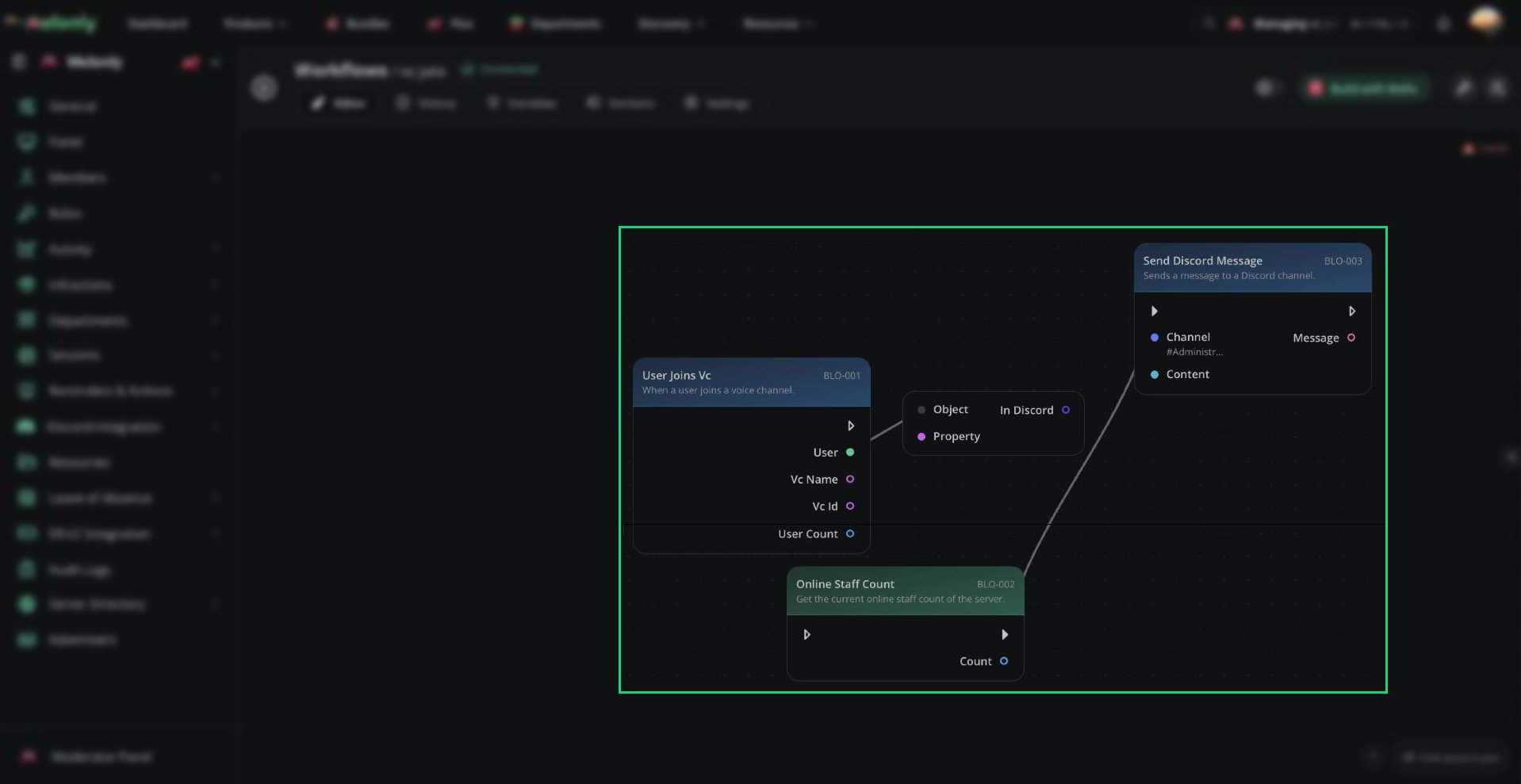
A Discord trigger in a workflow
Blocks
- Commands
- Members
- Roles
- Moderation
- Invites
Commands
Custom Slash Command
Starts the workflow when someone uses a custom slash command created for the workflow.Configuration
- Command Name: The name of the slash command. It must use lowercase letters and numbers with no spaces.
- Command Description: The description shown in Discord when users browse slash commands.
- Options: Custom command inputs. Each option has a name, description and type.
- Required Discord Roles: The Discord roles allowed to run the command. If multiple roles are selected, the user only needs one of them. Leave this blank to allow all users.
- Text: A text value.
- Player: A Roblox player username or ID. Partial usernames match the closest player in-game.
- User: A Discord user.
- Number: A number.
- Boolean: A true or false value.
- Channel: A Discord channel name or ID. Partial names match the closest channel.
- Discord Role: A Discord role name or ID. Partial names match the closest role.
- Command Name: The name of the command that was used.
- Invoking User: The user who ran the command. This output includes Melonly ID, Discord ID, name, avatar, Discord roles, Melonly roles, Melonly server status, nickname, join date and Discord status.
- Channel: The Discord channel where the command was used. This output includes the channel ID and name.
- Any custom command options configured for the trigger. Command options are optional.
- You want users or staff to start a workflow from Discord.
- The workflow needs values such as a player, reason, action or other command input.
Working With Discord Triggers
Discord triggers use events from the Discord server linked through your server’s Discord Integration module. The Melonly Discord bot must be in the linked server. Giving it Administrator is the safest way to make sure all required permissions are available. For setup instructions, see Linking Your Server. When using Discord triggers, keep in mind:- Outputs: Connect trigger outputs such as User, Role, Channel, Code or Reason to later blocks.
- Slash Command Options: Custom slash command options become outputs that later blocks can use.
- Discord Integration: These triggers require a linked Discord server with the Melonly Discord bot added.
Example Workflow Flow
- Filip runs
/asset-requestand entersNew patrol vehicle liveryas the request,Design Teamas the department andtruefor urgent. - The workflow reads the request, department, urgent status, invoking user and channel from the trigger.
- The workflow posts the request in the selected department channel and adds the urgent review role when needed.
- The workflow responds privately to Filip with
Request submitted.
Need help?
Still have questions? Join our Discord server for support from the Melonly Team.