
The Settings page is where you configure your dashboard end-to-end — server identity, moderation behavior, and optional modules.Documentation Index
Fetch the complete documentation index at: https://docs.melonly.xyz/docs/llms.txt
Use this file to discover all available pages before exploring further.
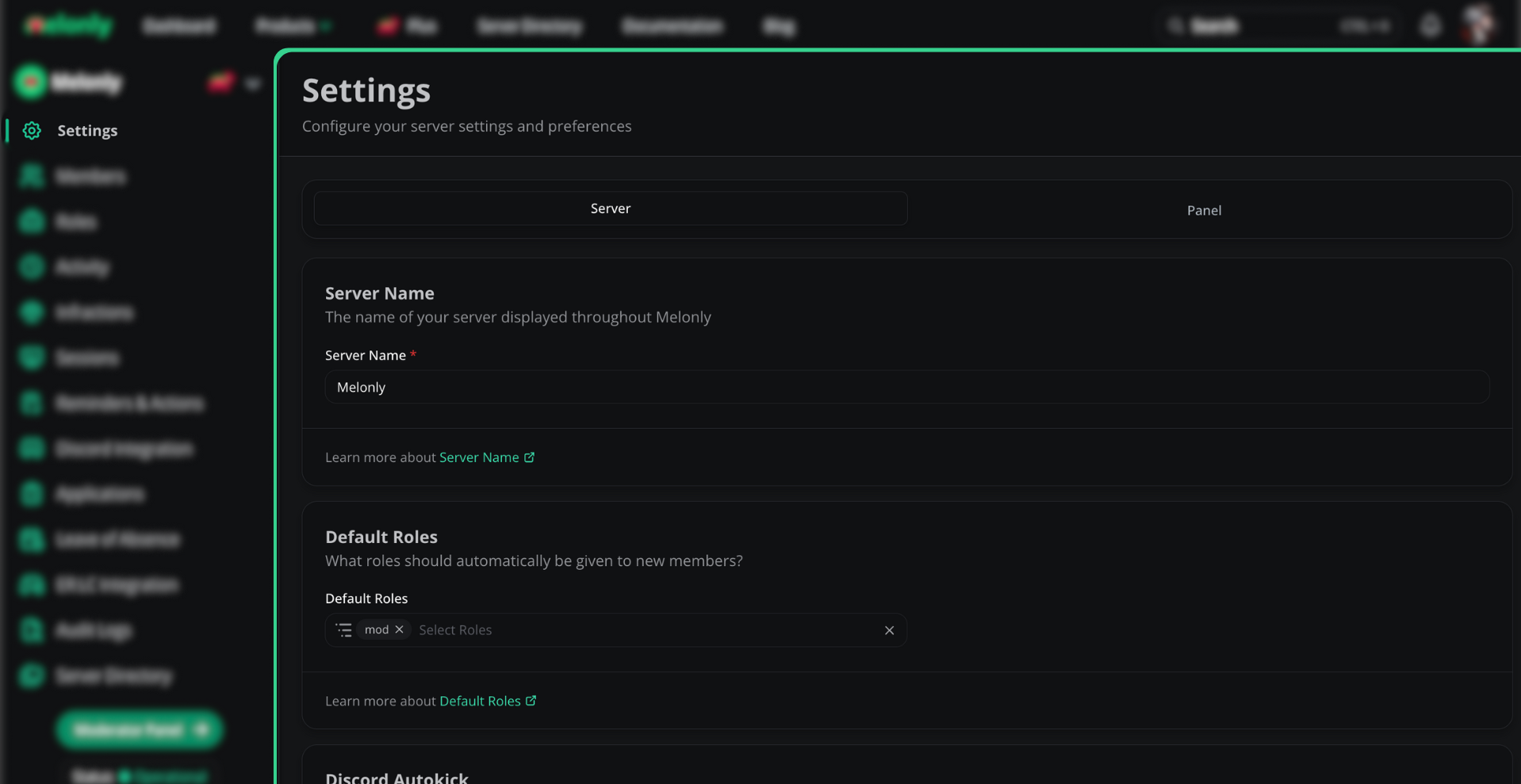
Dashboard settings
Migrating to Melonly
Move existing data from ERM, Trident, or Ducky into Melonly with our switching guide.
Server name
Edit your dashboard’s display name under Server Name. The same naming guidelines apply.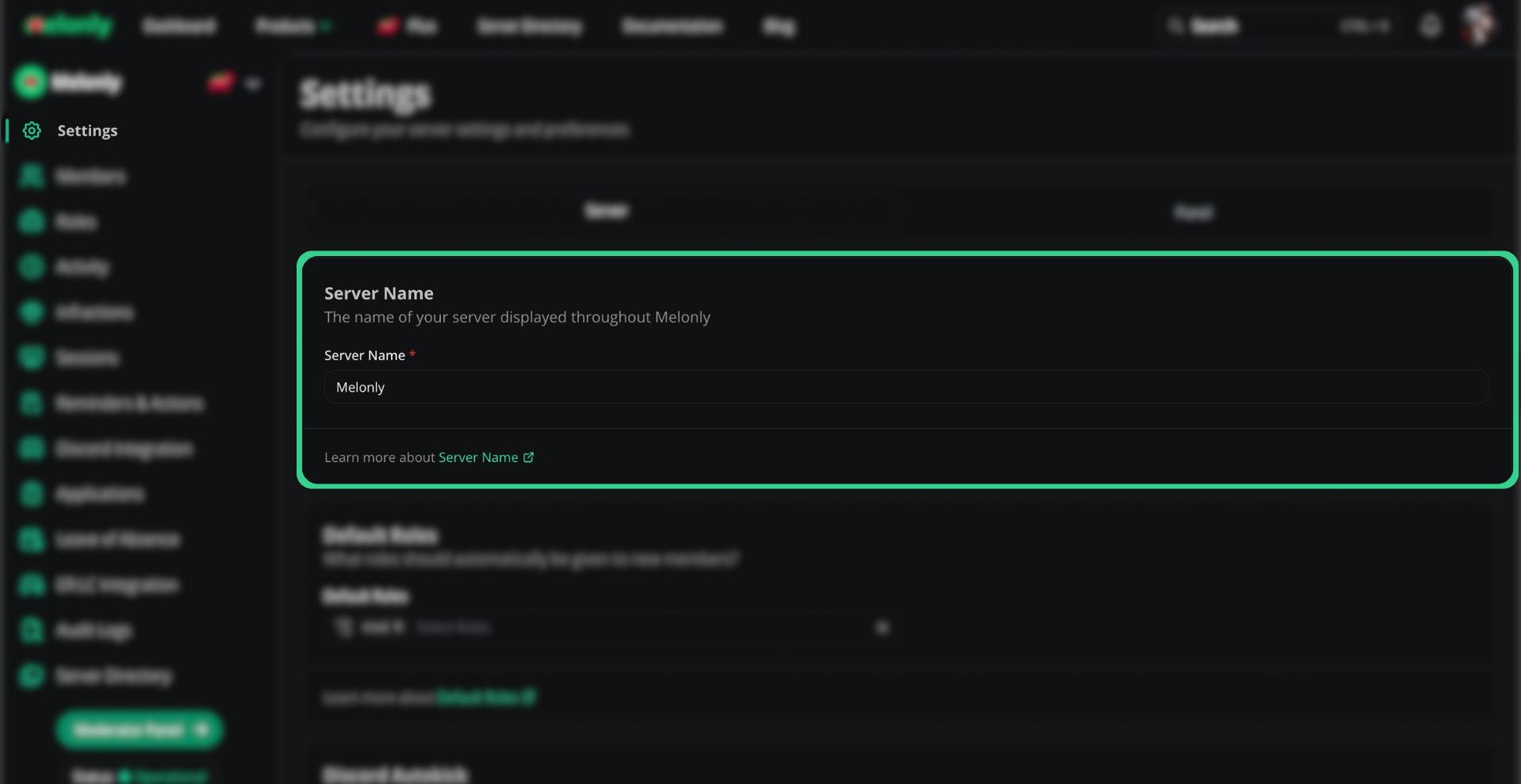
Default roles
Default roles auto-assign Melonly roles to new staff, speeding up onboarding. Add as many or as few as you need — including none.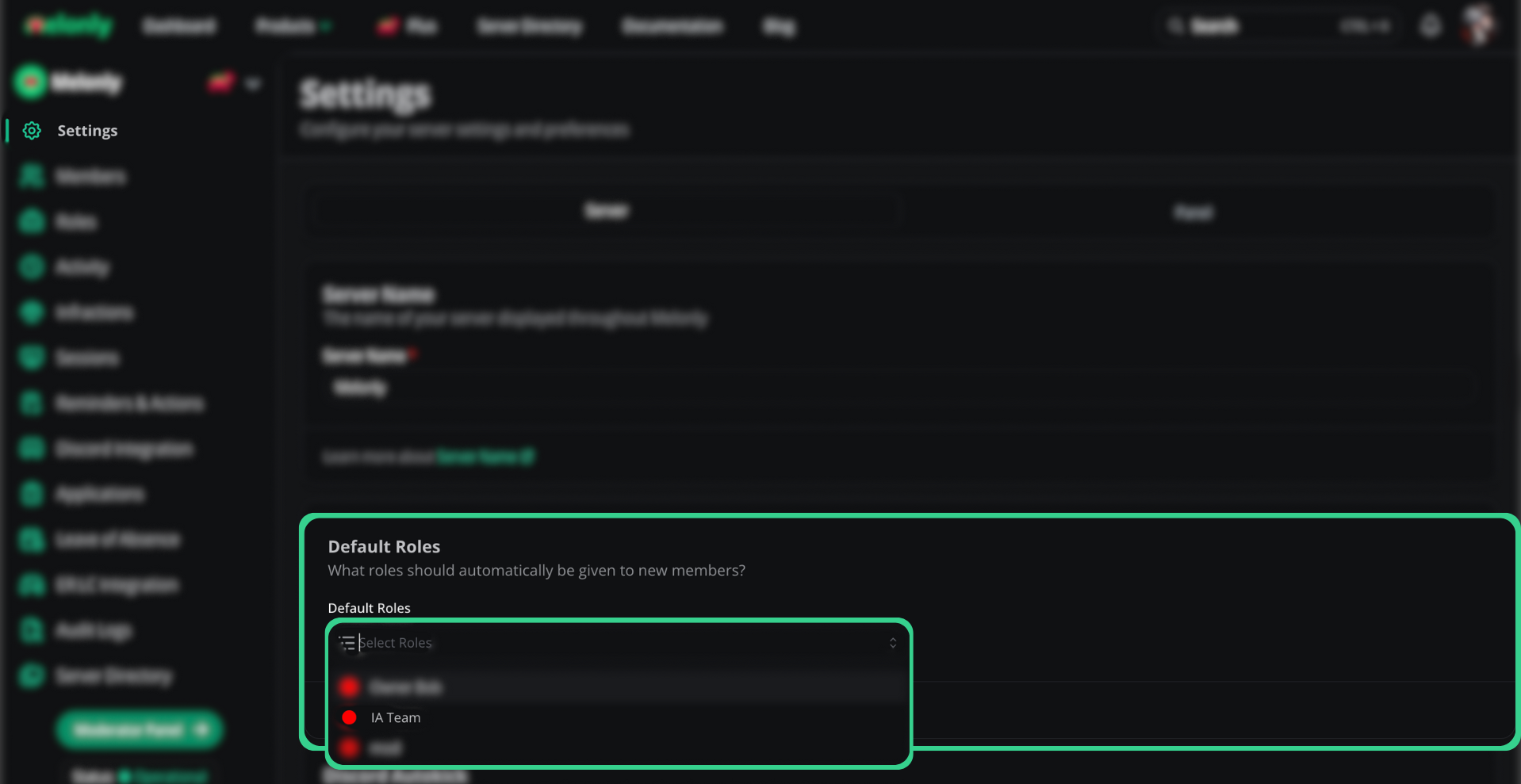
Discord autokick
Kicks members from your Melonly server when they leave the linked Discord server.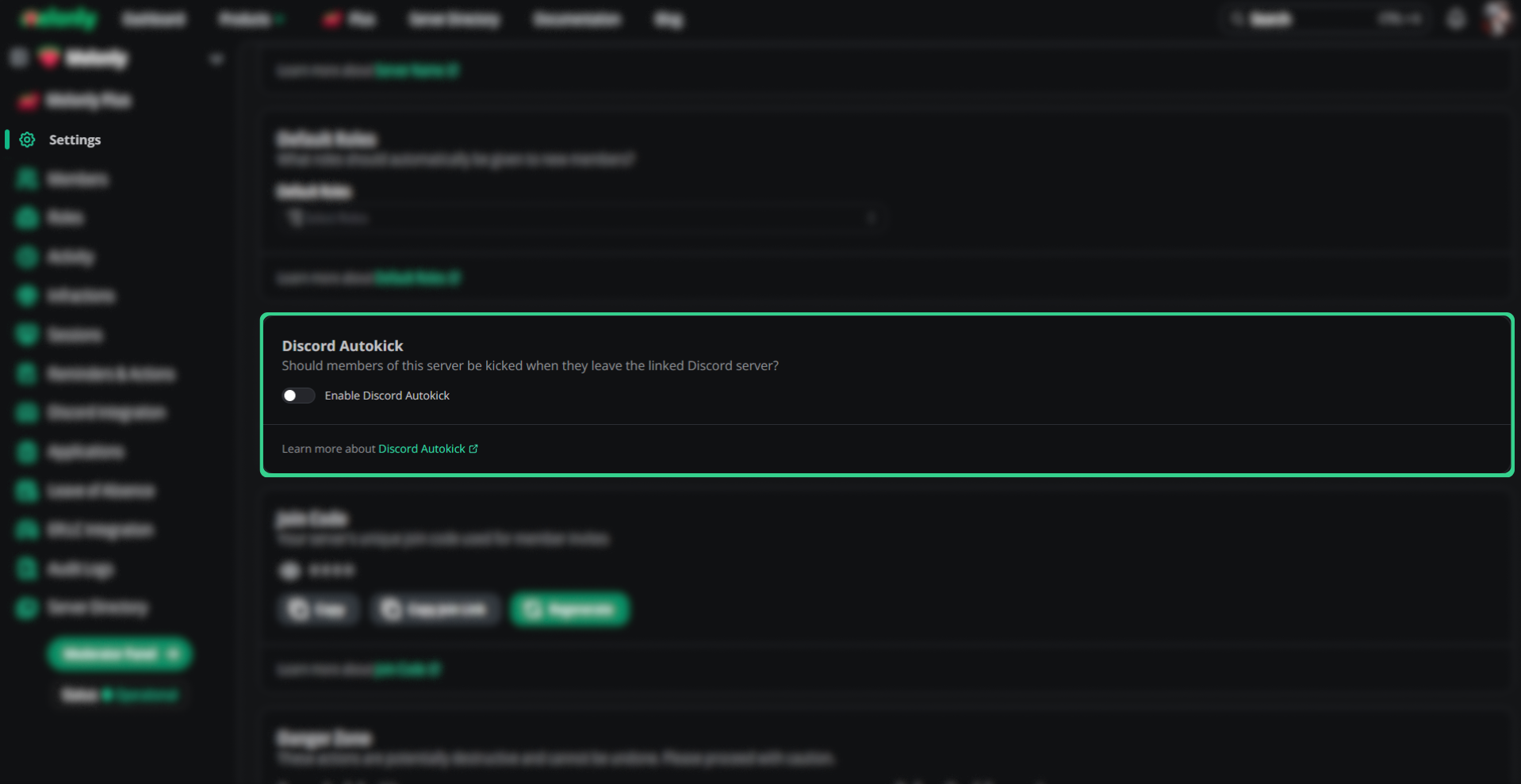
Remove members with no roles
Auto-removes members with no assigned roles to keep your server tidy and reduce risk from stale accounts.
Join code
The join code (and join link) invites new staff to your dashboard. It can’t be disabled — only regenerated. Regenerating invalidates the old code.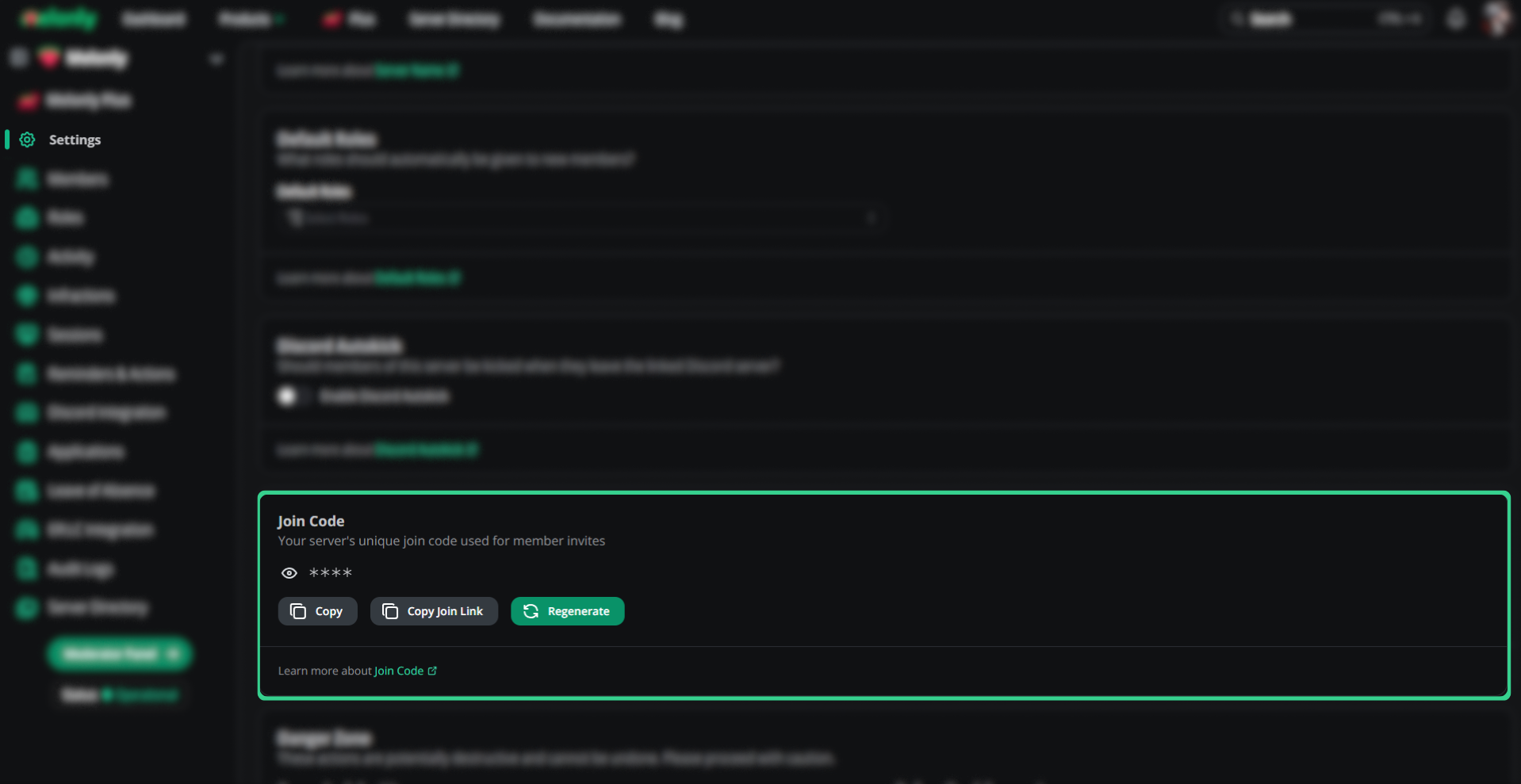
Beta features
Try upcoming features early. Toggle each one on or off as you like. There are currently no public beta features — check back later.Danger zone
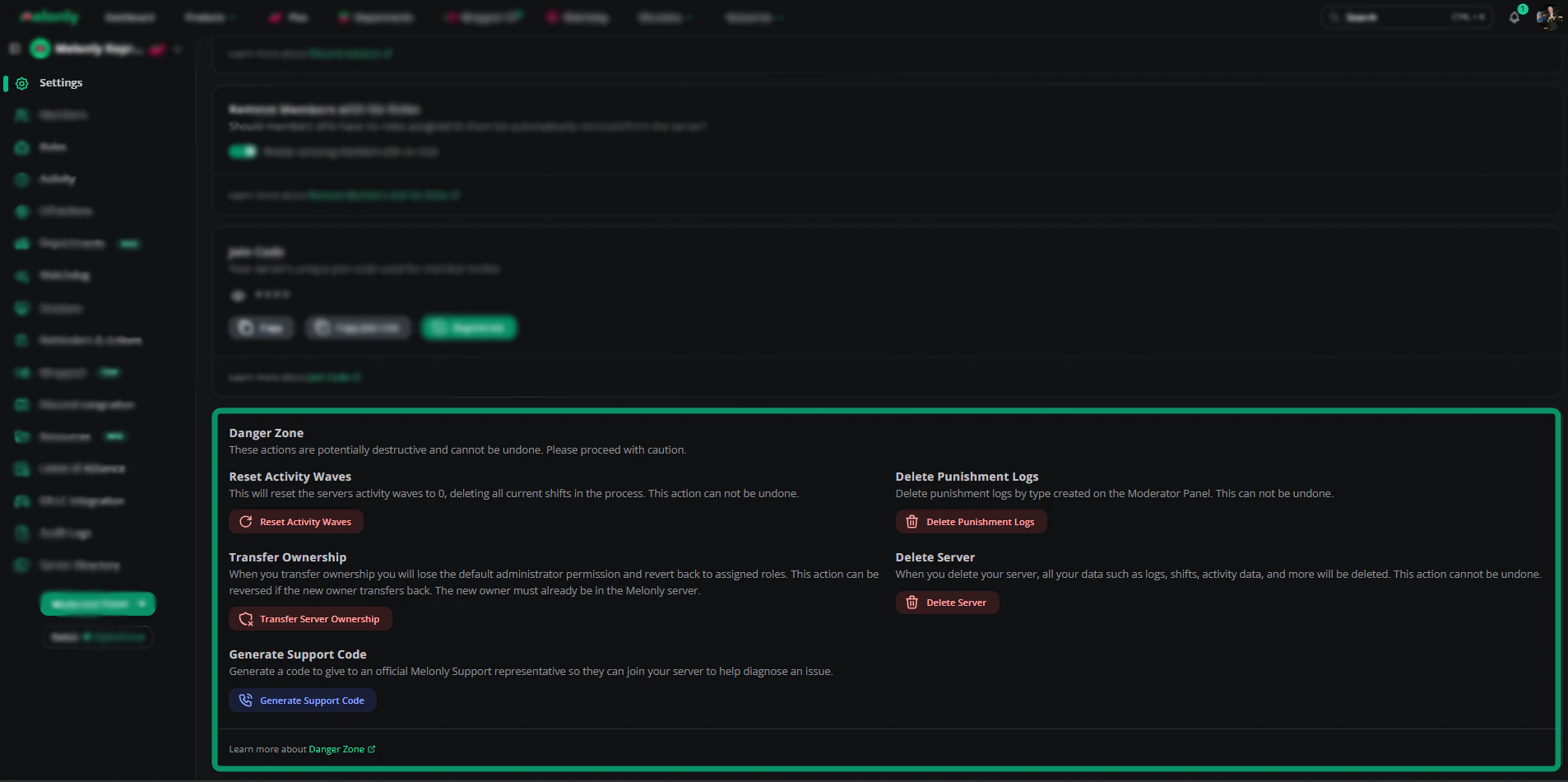
| Action | Effect |
|---|---|
| Reset Activity Waves | Resets activity waves to 0 and deletes all current shifts |
| Delete Punishment Logs | Deletes punishment logs by type (or all) from the moderation panel |
| Transfer Ownership | Transfers ownership; you lose default Administrator and revert to assigned roles. The new owner must already be in the server. Reversible only if they transfer back. |
| Delete Server | Permanently deletes the server, including logs, shifts, applications, LOAs, and activity data |
| Generate Support Code | Generates a code Melonly support uses to identify your server quickly |
Department conversion
Convert your Melonly server to a Department server. Data, members, and configuration carry over.
Moderation panel settings
Panel access
Copy your moderator panel link to share with staff. They’ll only get in if they joined via your join code or have access through Discord linked roles.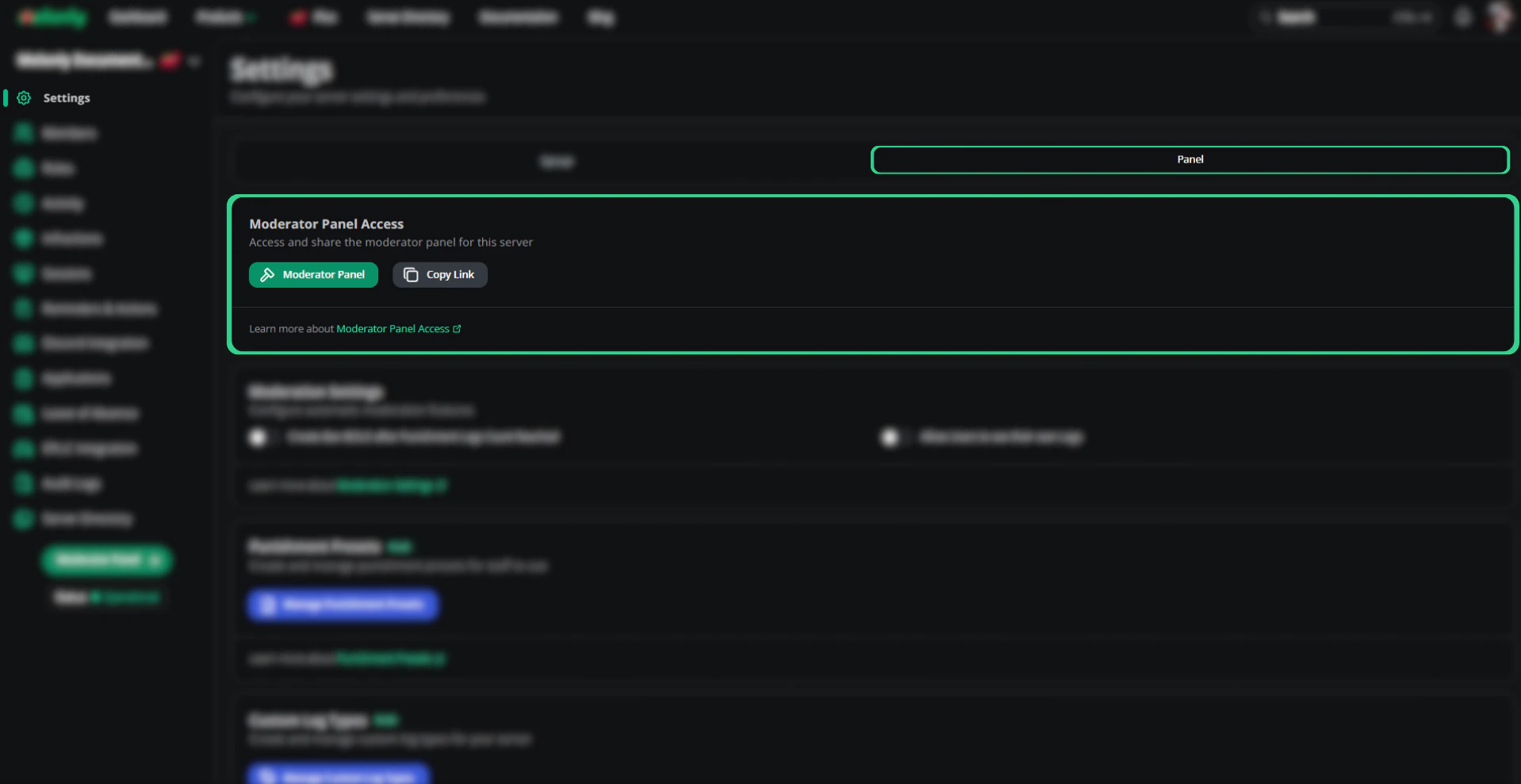
Automatic Ban BOLO
Auto-creates a Ban BOLO once a member hits a configurable log count (e.g. 6 logs).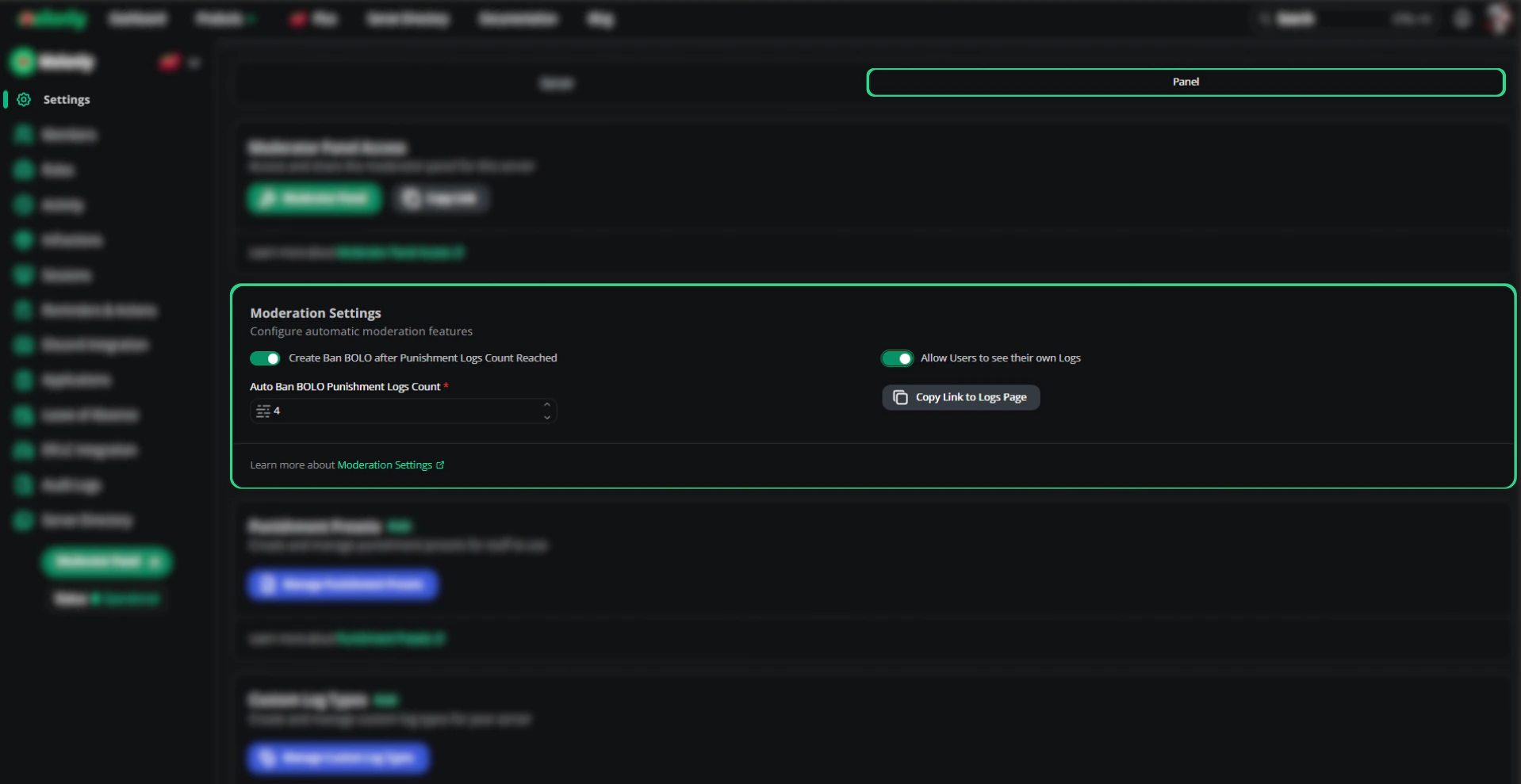
Allow users to see their own logs
Lets users view punishment logs issued to them. Disable to hide all logs.Punishment presets
Save preset rules and punishments so staff can apply them in one click.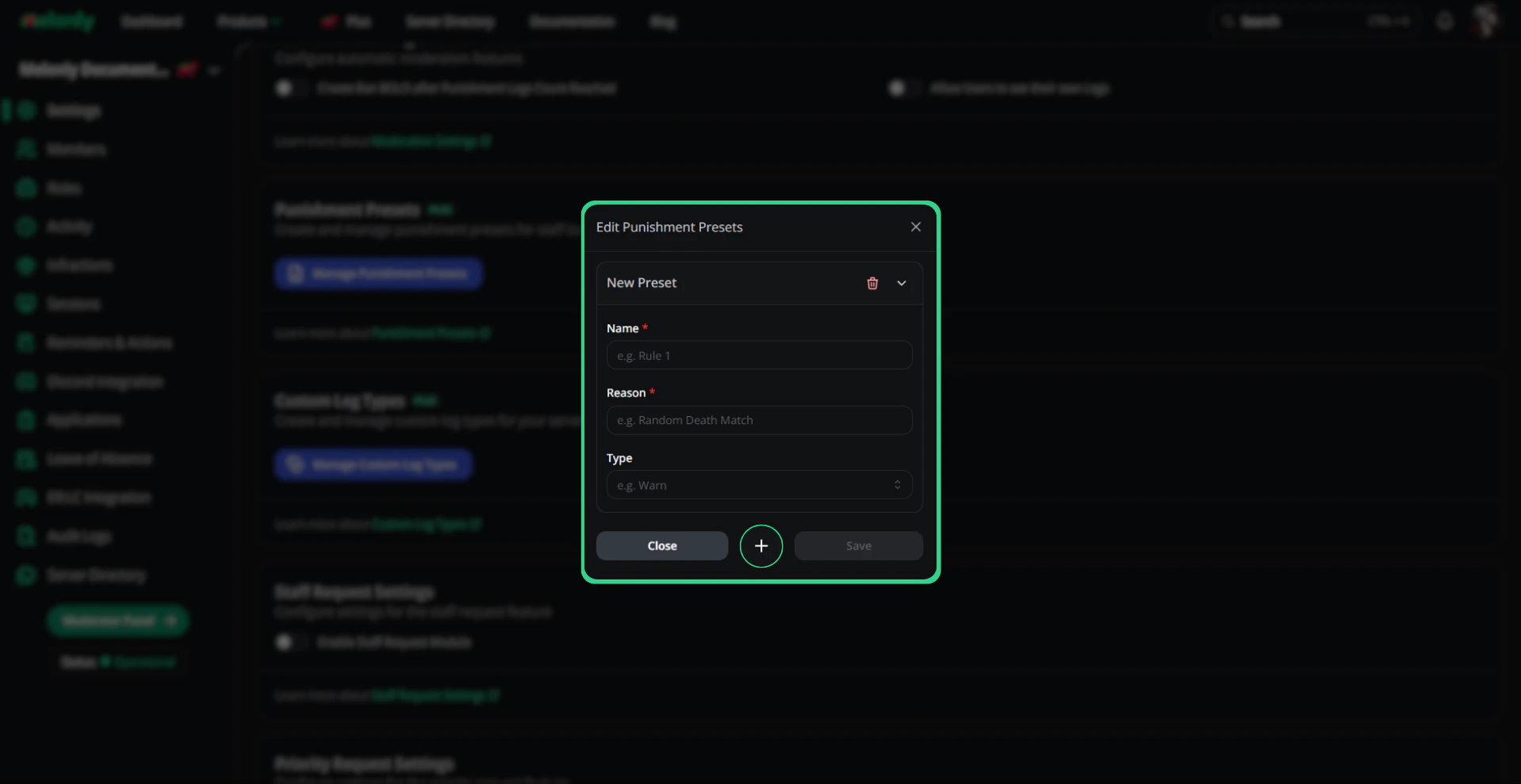
Custom log types
Add custom log types beyond the defaults — for example, “Verbal Warning”.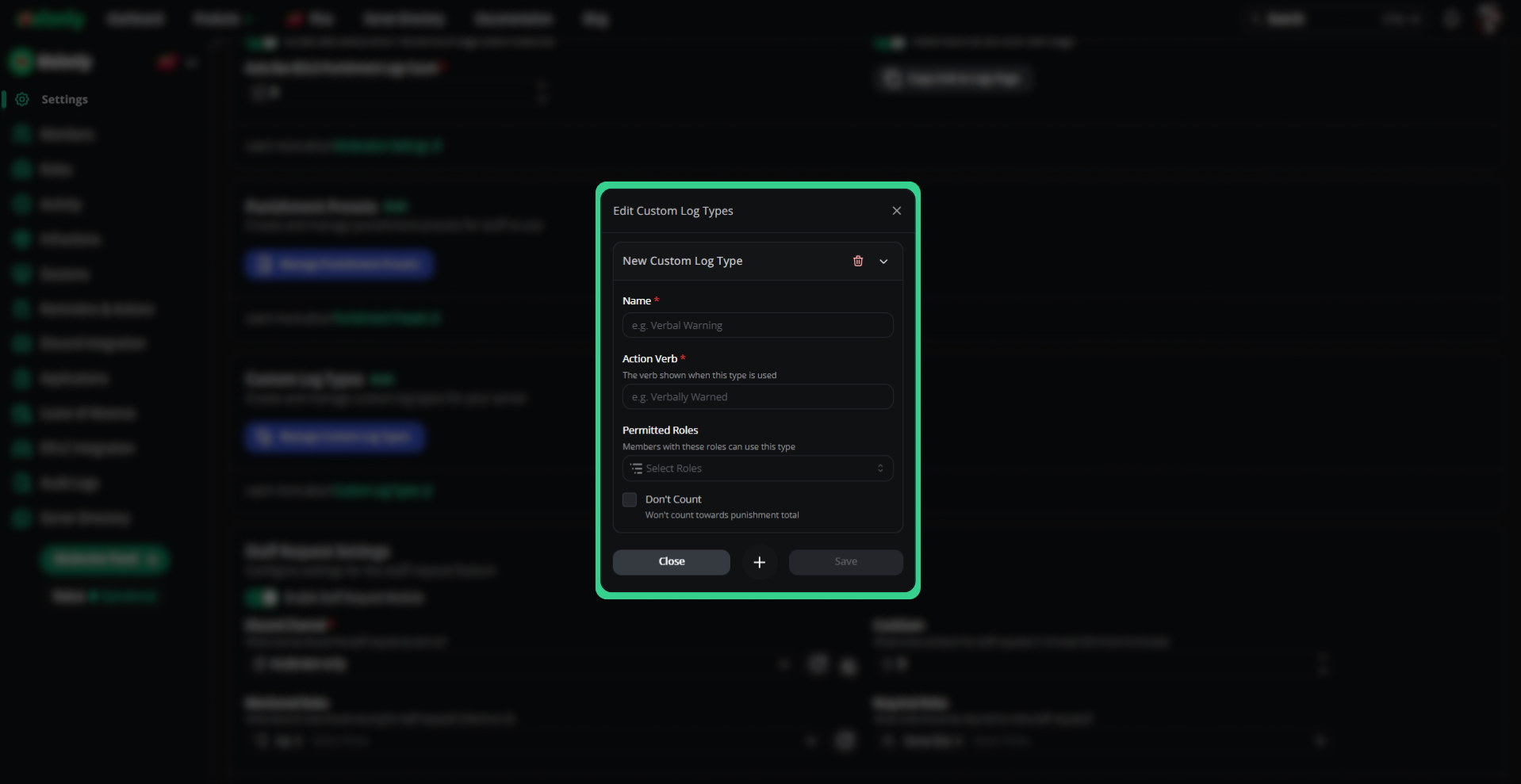
Modules
Staff requests
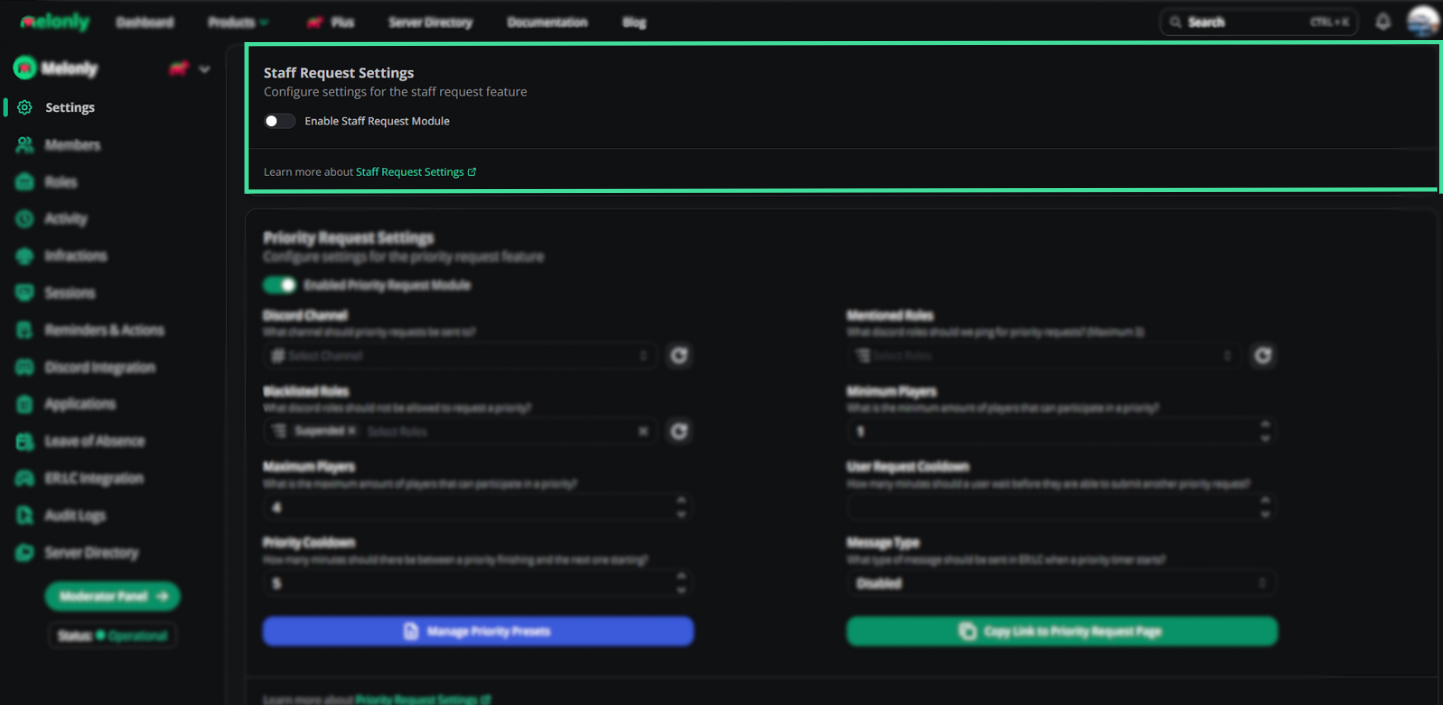
Adds a button on the dashboard that lets staff request backup, posting to a Discord channel.| Setting | Description |
|---|---|
| Channel | Where staff requests post |
| Mention Role | Role pinged on request |
| Required Role | Restricts who can press the button |
| Cooldown | Minimum 5 minutes between requests |
In-game PM settings
Enable or disable in-game PMs for staff requests, and customize the message sent to staff when a request is made.Priority requests
Members can request priority roleplay time — for events, time-sensitive scenes, or any situation that needs the spotlight.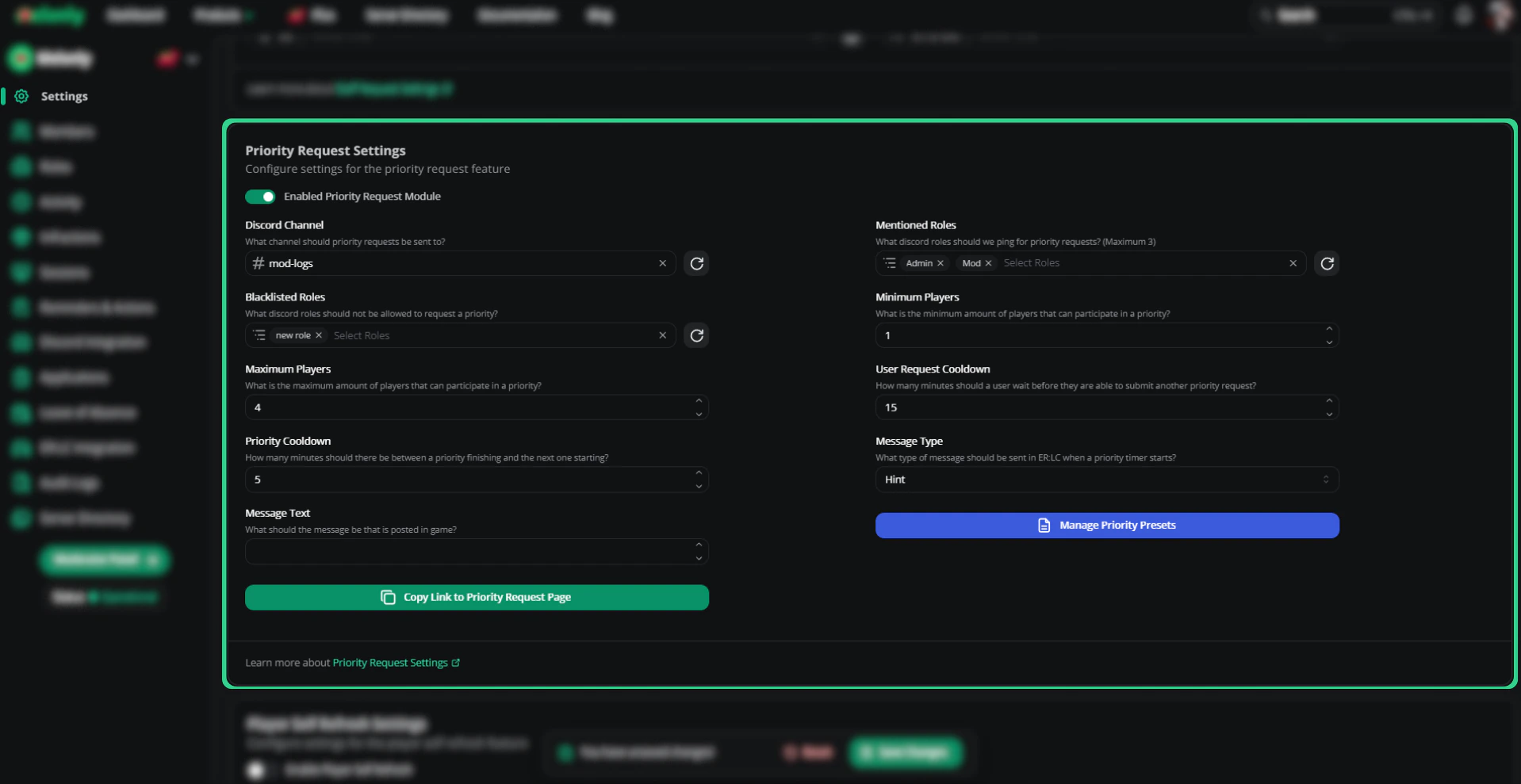
| Setting | Description |
|---|---|
| Discord Channel | Channel where requests post |
| Mentioned Roles | Roles pinged on a new request |
| Minimum Players | Minimum players in-game to allow a request |
| Maximum Players | Cap on participants |
| User Cooldown | Time before a user can request again |
| Priority Cooldown | Time between priority requests |
| Blacklisted Roles | Roles that can’t request priority |
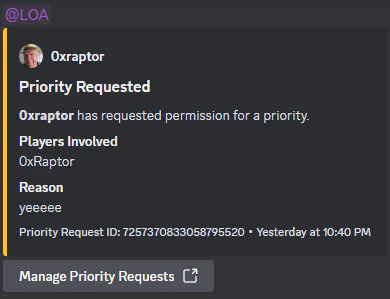
Manage priority requests
Open Priority Requests to see all requests, who made them, and when. Approve or deny from here, and view the live queue.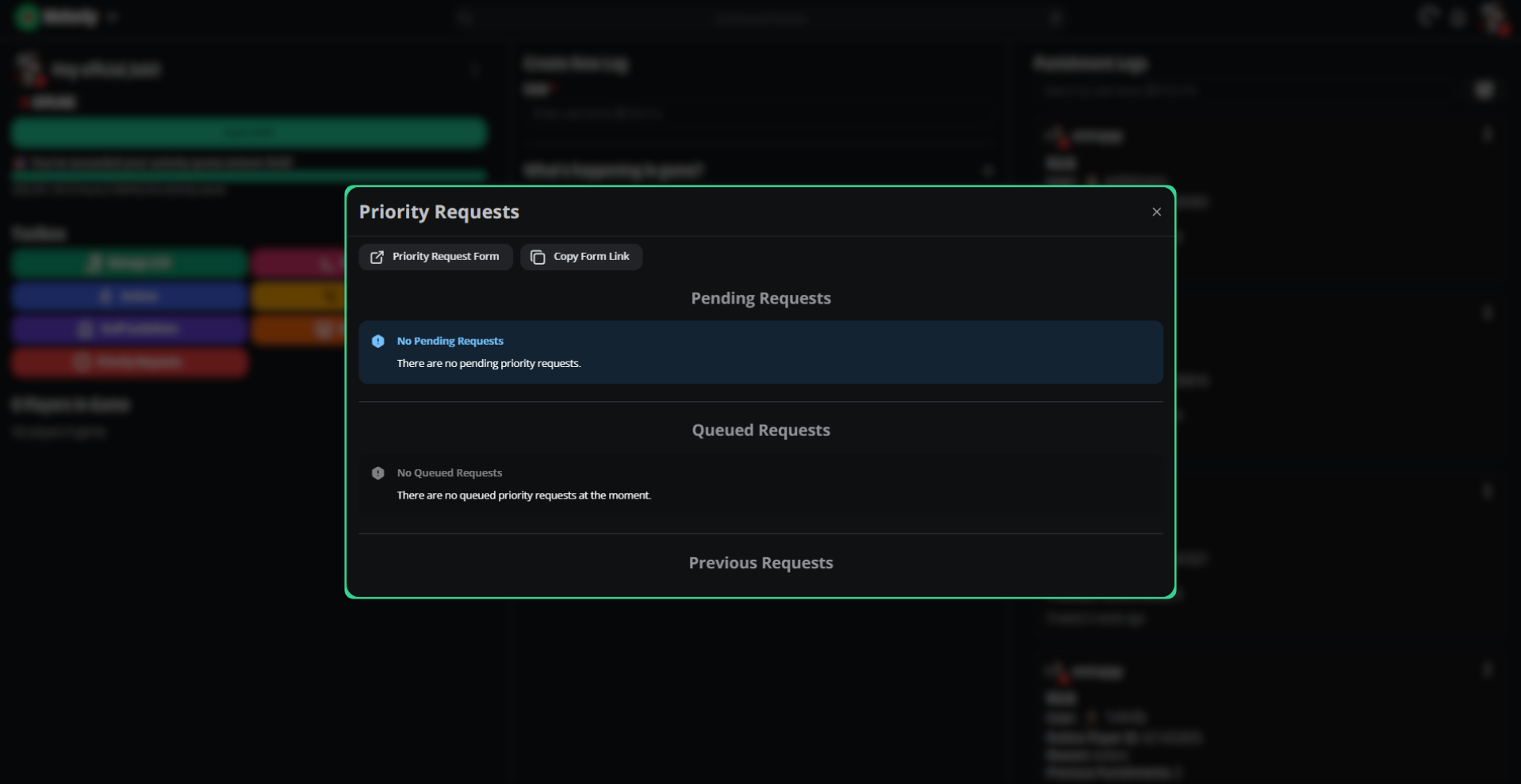
Player self-refresh
When enabled, players can refresh their character in-game via the Discord bot.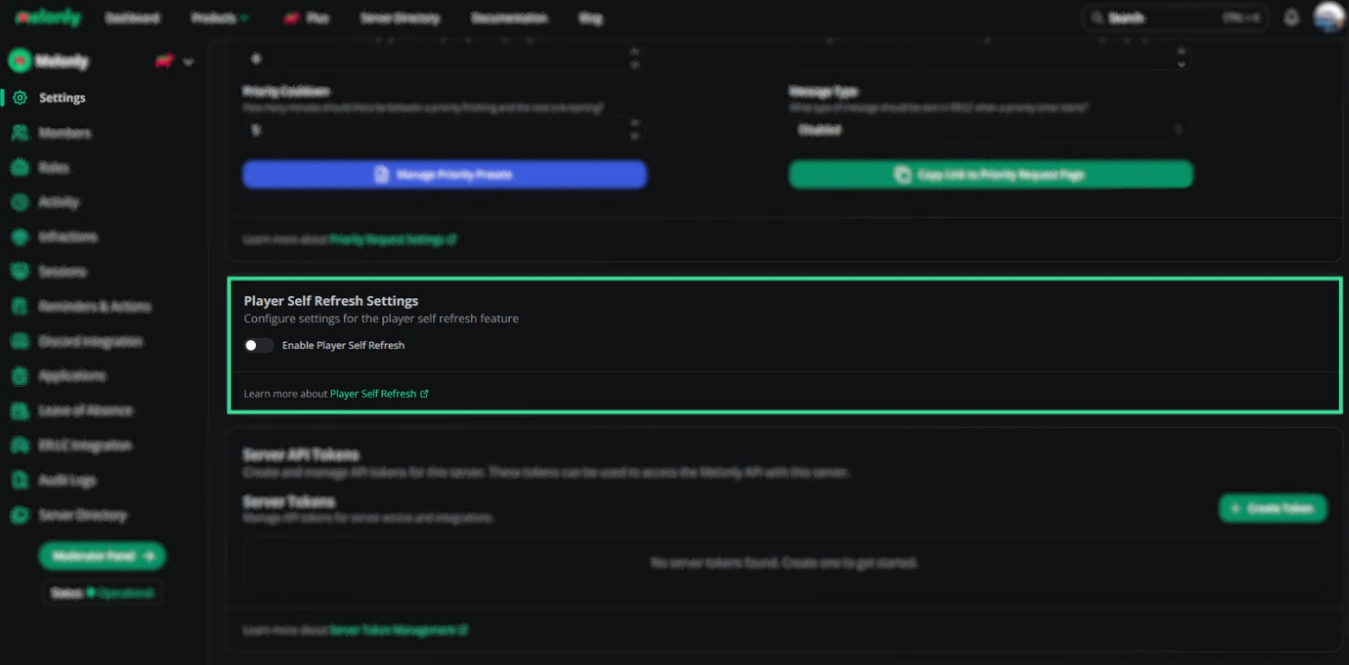
Need help?
Still have questions? Join our Discord server for support from the Melonly team.