Documentation Index Fetch the complete documentation index at: https://docs.melonly.xyz/docs/llms.txt
Use this file to discover all available pages before exploring further.
The ER:LC integration links Melonly to your private server for Virtual Server Management (VSM), member checks, in-game logs, automation, and more.
Set up the integration
Get your API key
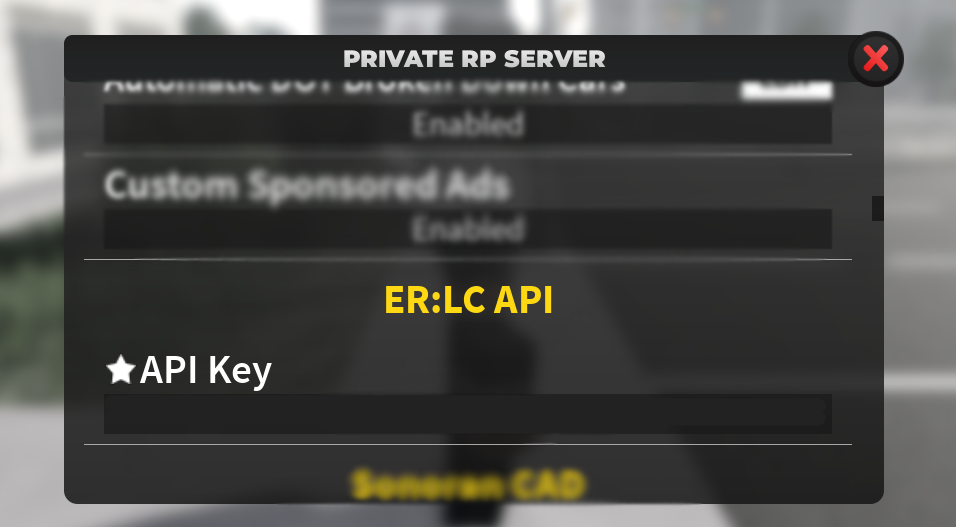
Join your ER:LC private server and open Private Server Settings → ER:LC API . Copy your unique key.
Add the server in Melonly
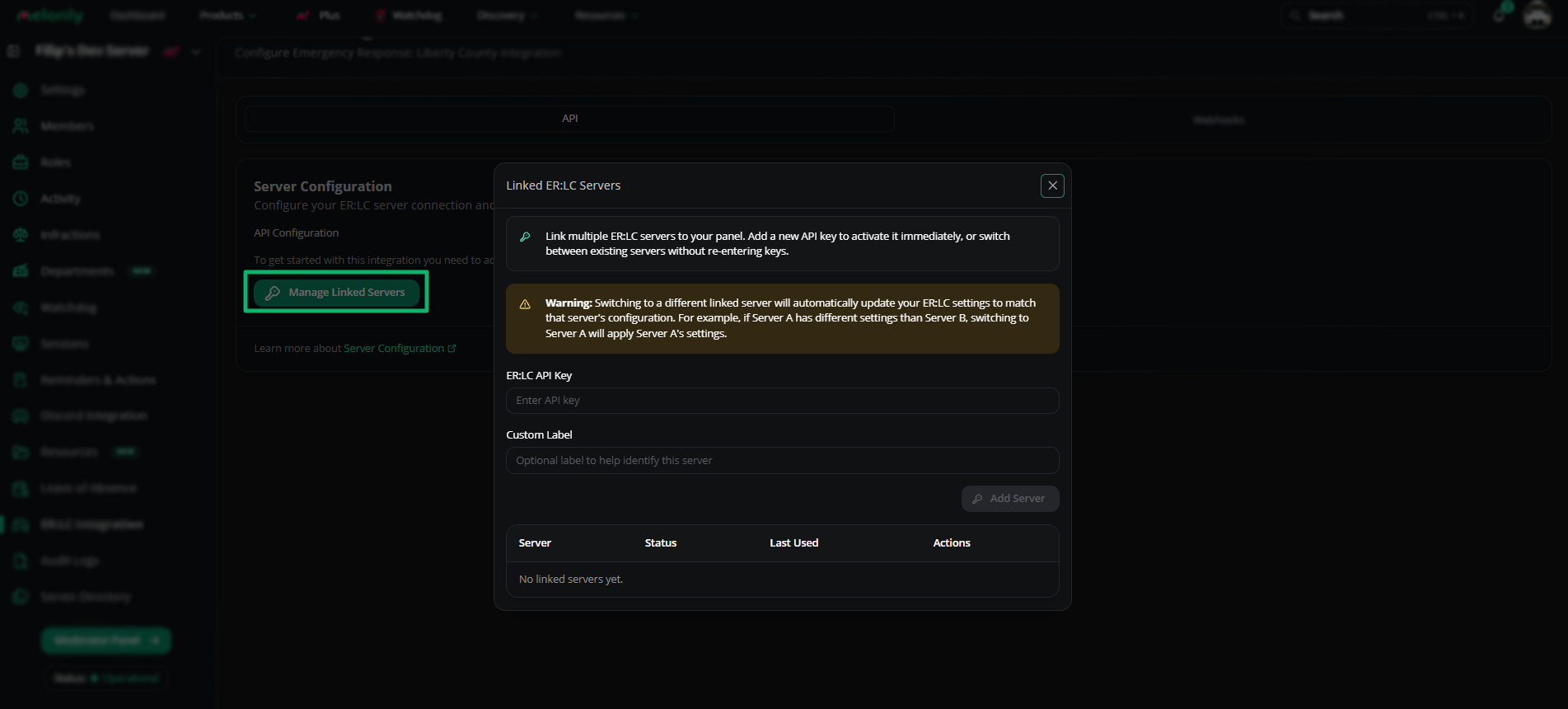
On your dashboard’s ER:LC Integration page, click Manage Linked Servers . Paste your API key, enter a label, and click Add Server . Server info appears next to the setup button. Add multiple API keys to switch between linked servers. Each key keeps its own configuration.
VSM and member checks become available automatically once a key is set.
ER:LC API Server configuration Setting Description API Configuration Set or update your ER:LC API key Server Name The linked private server’s name Players Live player count (may take up to 5 minutes to refresh) Join Code Your private server join code (or use Join Server )
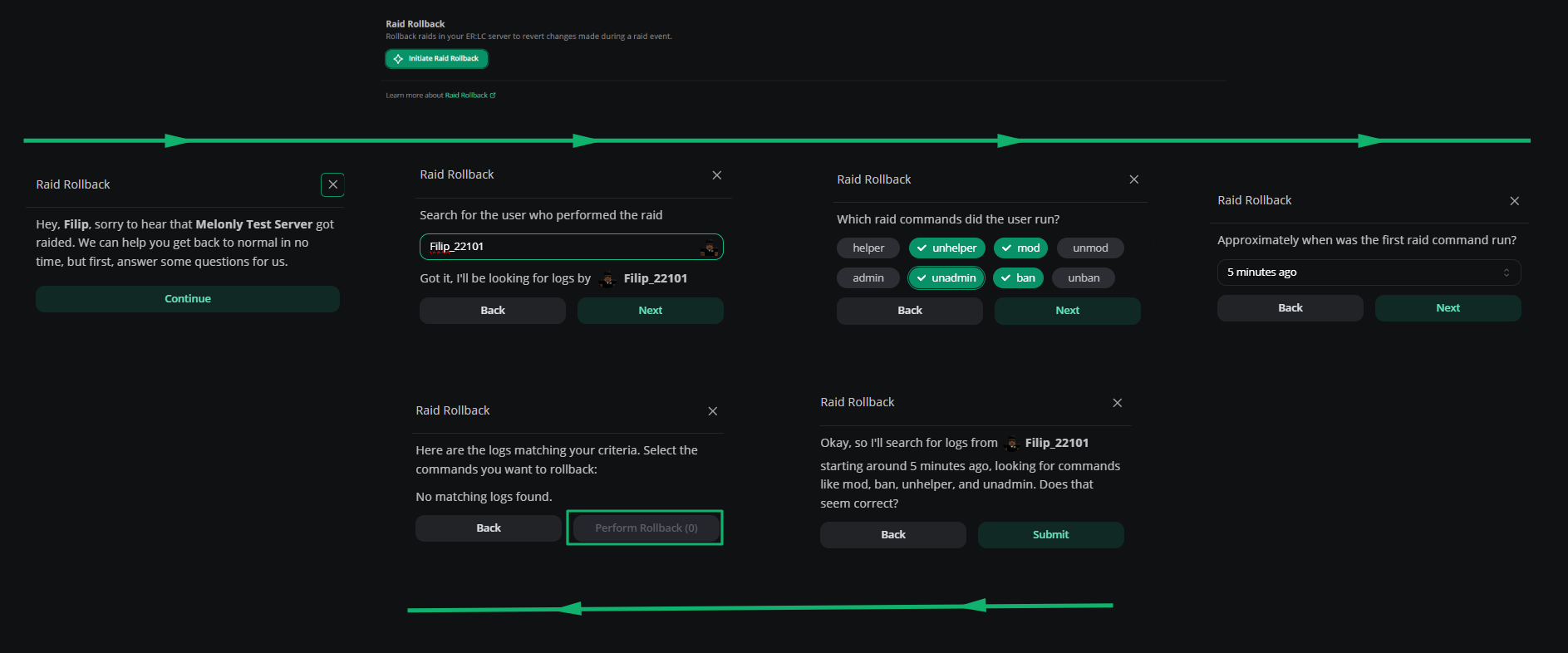
Raid rollback Revert actions taken during a raid. Answer a few prompts and Melonly handles the rest.
Event logs Forward ER:LC event types to dedicated Discord channels.
Channel Sends Join Logs ER:LC join events Leave Logs ER:LC leave events Kill Logs ER:LC kill events Mod Call Logs ER:LC modcalls
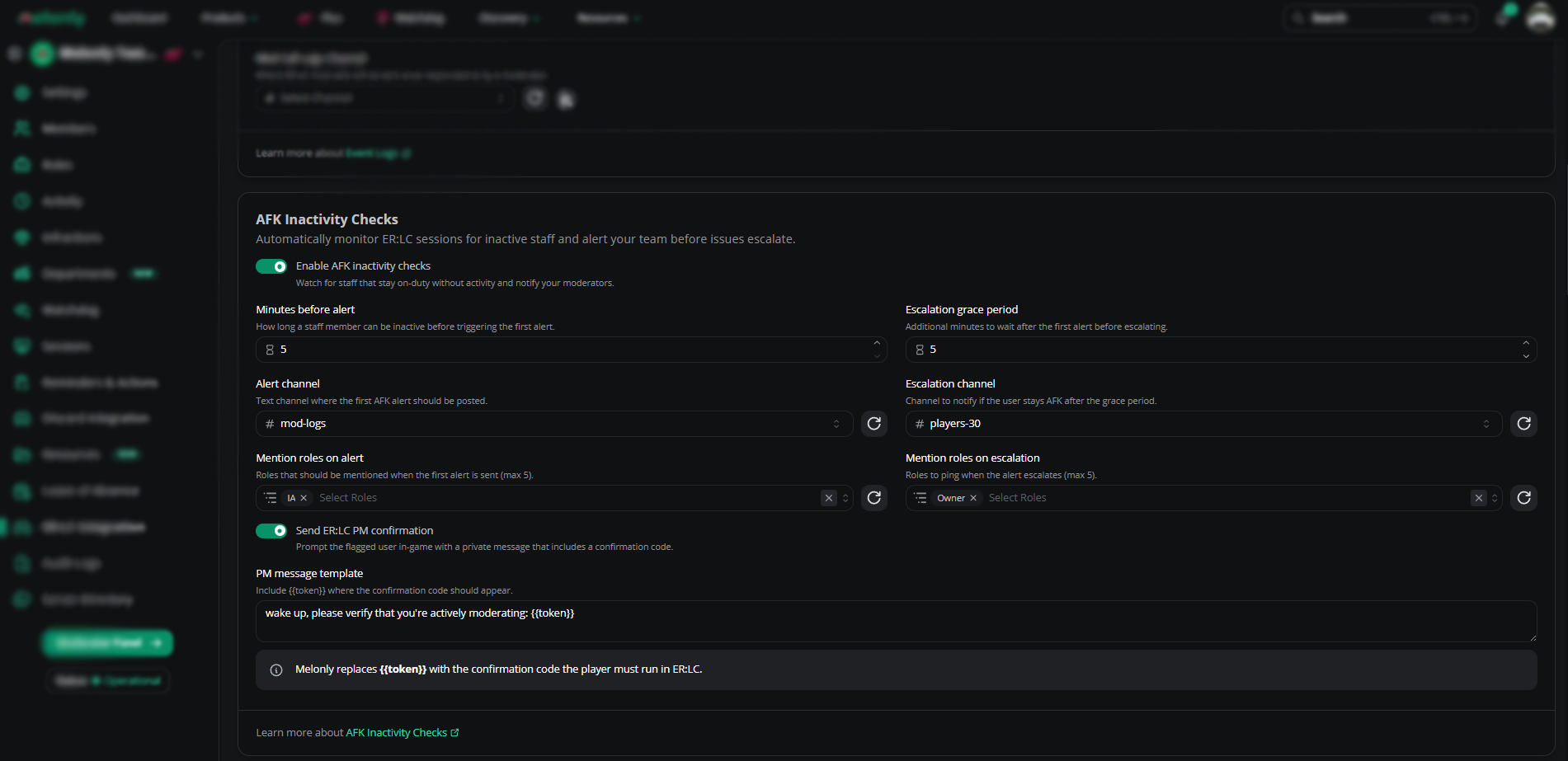
AFK inactivity checks Make sure on-duty staff are actually moderating. Staff receive a :PM with a code they must run within a set duration.
Setting Description Minutes Before Alert Time before the first alert fires Alert Channel Where the first alert posts Mention Roles on Alert Roles pinged on the first alert Escalation Grace Period Time before escalation Escalation Channel Where the escalation posts Mention Roles on Escalation Roles pinged on escalation Send ER:LC PM Confirmation The DM containing the confirmation code Confirmation Command The :log code command staff must run
Restrictions Team restrictions Lock teams to Discord roles or Melonly departments.
Setting Description Role Requirement Team requires a Discord role Department Restriction Team requires a Melonly department Combined Requirement Both role and department required Alert Message DM sent to a user before being kicked from the team Minimum Playercount Player count at which restrictions activate
Vehicle restrictions Lock vehicles behind a Discord role. Users without the role get flagged in the panel or via reminders.
Safe zone enforcement Setting Description Safe Zone Enforcement Master toggle Open Safe Zone Enforcement Editor Opens the safe-zone editor — see edit location maps Warnings Before Action Warnings issued before enforcement Action After Warnings Punishment after warning threshold Create Moderation Record Logs the punishment in moderation history
Team jurisdictions Setting Description Police Jurisdiction Area assigned to Police Sheriff Jurisdiction Area assigned to Sheriff Fire Department Jurisdiction Area assigned to Fire DOT Jurisdiction Area assigned to DOT Open Team Jurisdictions Editor Opens the editor — see edit location maps Minutes Allowed Outside Jurisdiction Time before warnings are issued Number of PM Warnings Before Action DM warnings before enforcement Jurisdiction Enforcement Action Action after warning threshold Exclude Moderators Makes mods immune to enforcement
VC server status Voice channels that auto-update with live server data.
Type Displays Playercount VC Number of players in-game Queue VC Number of players in queue
Voice channel configurations Configure voice-channel abbreviations to use the :log vc command. If s1 maps to the Scene 1 VC, running :log vc s1 drags you into Scene 1 (if you’re already in a VC). Use :log vc [username] [abbreviation] to move someone else.
Anyone can run this unless Staff Only is toggled on.
Open ER:LC integration
From your server’s dashboard, open the ER:LC integration page.
Open the Webhook tab
Voice-channel configurations live under the Webhook tab.
Ban BOLO Setting Description Manual Completion Staff with ER:LC Admin and Ban permissions can ban players when approving a BOLO Automatic Completion Auto-bans BOLO targets when they join
Shift automation Setting Description Automatic Shift Start Starts a shift when staff join the ER:LC server Automatic Shift End Ends a shift when staff leave the ER:LC server
Punishment controls Setting Description Punishment Rejoin Timer If a kicked user rejoins within this period, Melonly punishes them again Kick or Ban Pick the rejoin punishment
Welcome messages Setting Description Welcome Message Private message sent only to new joiners
Permission management Setting Description Automatic Permission Removal Removes in-game permissions when a user leaves the linked Melonly server
Username moderation Setting Description Kick “All/Others” Usernames Auto-kicks anyone whose username starts with all or others
Weather and time sync Requires Melonly Plus . Disable in-game weather cycle in your ER:LC server settings for this to work. Setting Description City Name City to sync with Sync Weather Sync in-game weather with the city Sync Time Sync in-game time with the city
Webhook ER:LC webhook channel Setting Description Webhook Channel Channel for command webhooks from PRC Alternative Channel Channel for punishment / kick / ban webhooks from PRC Events Webhook Link Copy this link into the Events Webhook setting in your PRC server
Auto-log kicks and bans Auto-logs every kick and ban issued in your ER:LC server. Reasons can be added later by editing the log in the mod panel.
:log punish commandThe :log command lets staff punish users from in-game. Custom log types are supported — configure them on the dashboard first.
Command Action :log note [username] [reason]Log a note :log warn [username] [reason]Log a warning :log kick [username] [reason]Log a kick :log bolo [username] [reason]Log a ban BOLO :log ban [username] [reason]Log a ban :log vehicle [user/plate]Returns the player or vehicle
Off-duty commands alert Catch staff using moderation commands while off duty.
Setting Description Off-Duty Commands Alert Master toggle Alert Channel Channel for alerts Mention Roles on Alert Roles pinged on alerts (max 5) Allowed Commands Commands allowed off duty Allowed Roles Roles exempt from alerts
Mass command alerts Flag server-wide commands like :ban all and post an alert to prevent abuse.
Setting Description Commands to Monitor Commands tracked (e.g. :unmod, :ban, :kick) Targets that Trigger an Alert others or allMention Roles on Alert Roles pinged (max 5) Alert Delivery Channel Channel for alerts. Empty = post to webhook feed. Minimum Players Affected Trigger only when this many players are affected Alert Cooldown Minimum time between alerts for the same command/target
Playtime levels Playtime has its own dedicated tab at the top of the page.
Enable playtime levels Setting Description Module Toggle Enable or disable Playtime Levels
Manage levels Field Description Level Name 1–50 characters (e.g. “Bronze Player”) Required Playtime Minimum playtime to reach the level. Levels must be in ascending order. Min 1 minute, max 1 year (525,600 minutes). Discord Role Optional role granted at this level Perks Up to 10 perks per level, 100 characters each
Action Description Reorder Levels Reorder the level list (must stay ascending) Remove Levels Delete a level Add Perks Add perks to a level
Notifications Setting Description Level Up Events Channel Channel for level-up posts Custom Level Up Message Channel message. Supports {user}, {level}, {playtime}. DM Players on Level Up DMs the player when they level up Custom Level Up DM DM template. Supports the same variables.
Melonly Plus increases the level cap from 10 to 100 and unlocks advanced configuration.
Need help? Still have questions? Join our Discord server for support from the Melonly team.