
Leave of absences (LOAs) let staff request time off and let admins approve or deny them. Melonly auto-ends LOAs when the period expires, can apply Discord roles, supports submission cooldowns, and more — all configurable from the Leave of Absences tab on your dashboard.Documentation Index
Fetch the complete documentation index at: https://docs.melonly.xyz/docs/llms.txt
Use this file to discover all available pages before exploring further.
Submit an LOA
Open the dashboard
Go to the dashboard.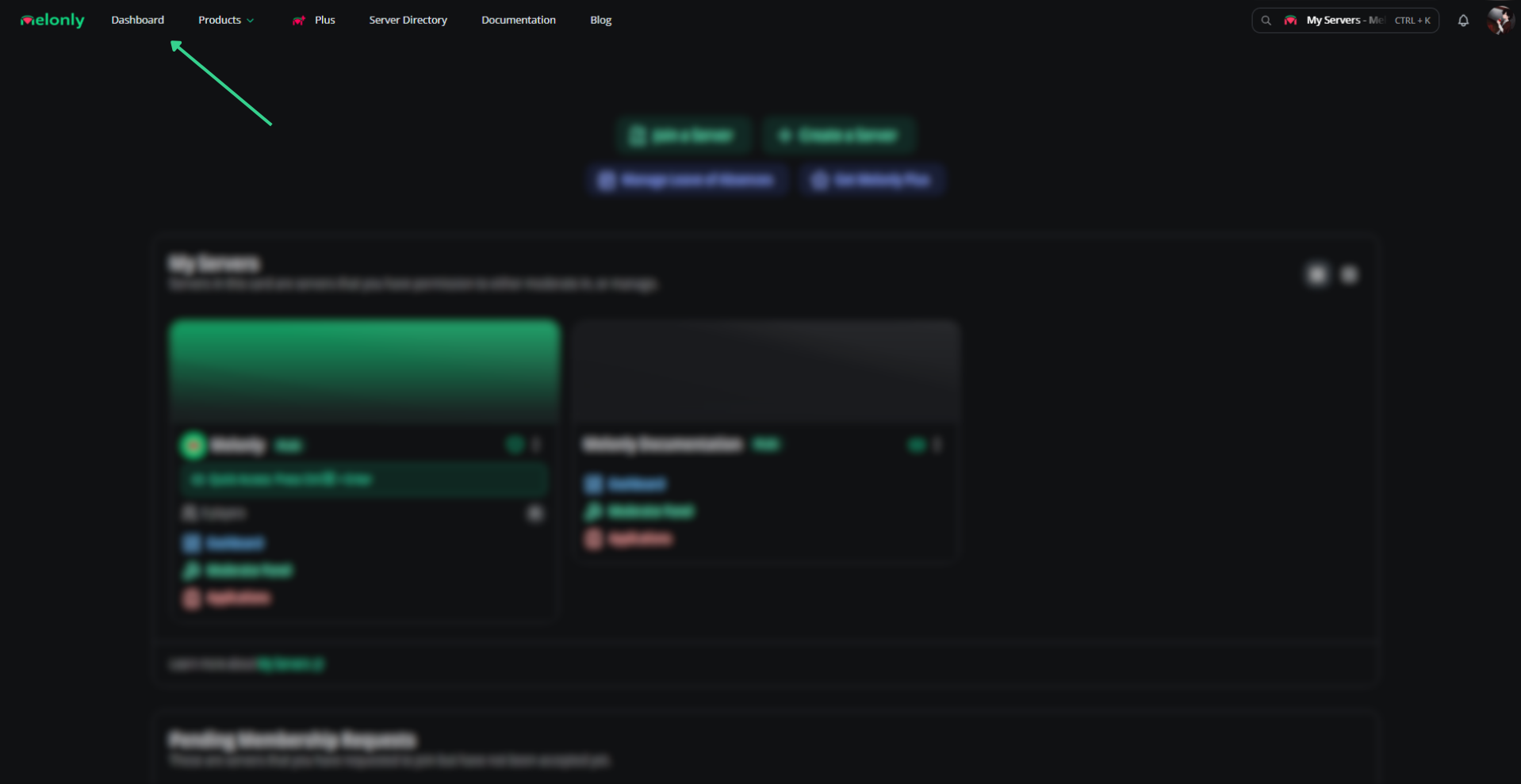
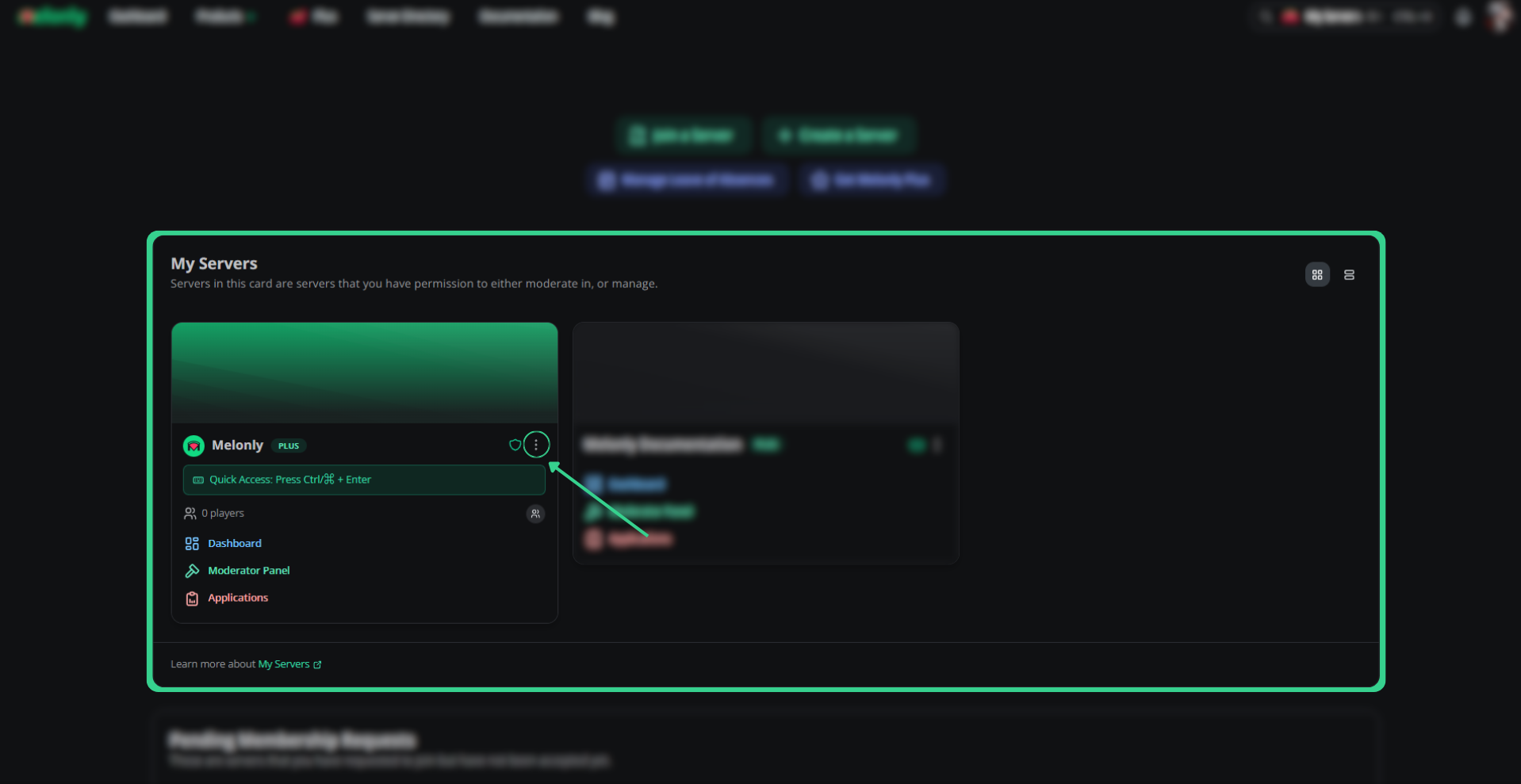
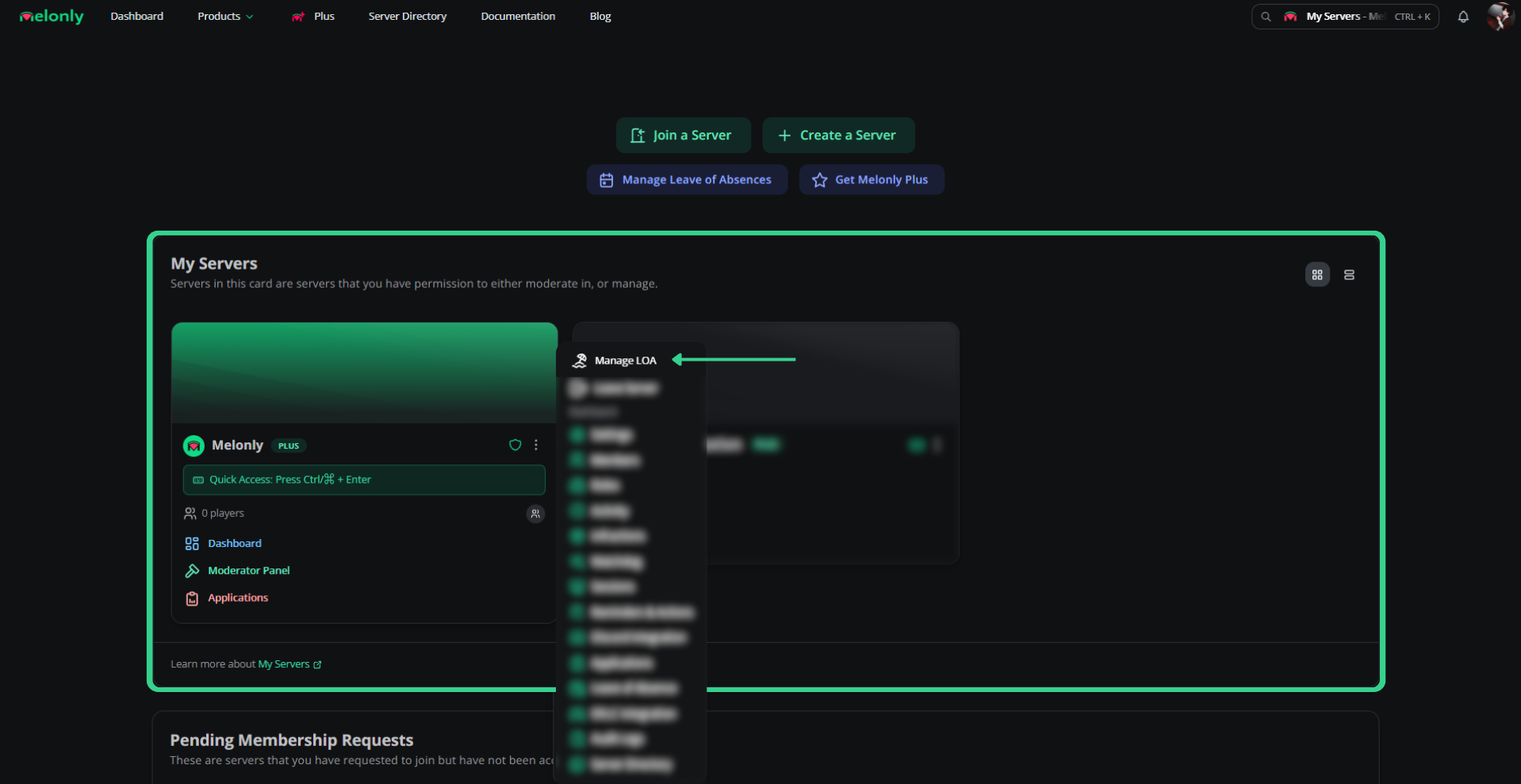
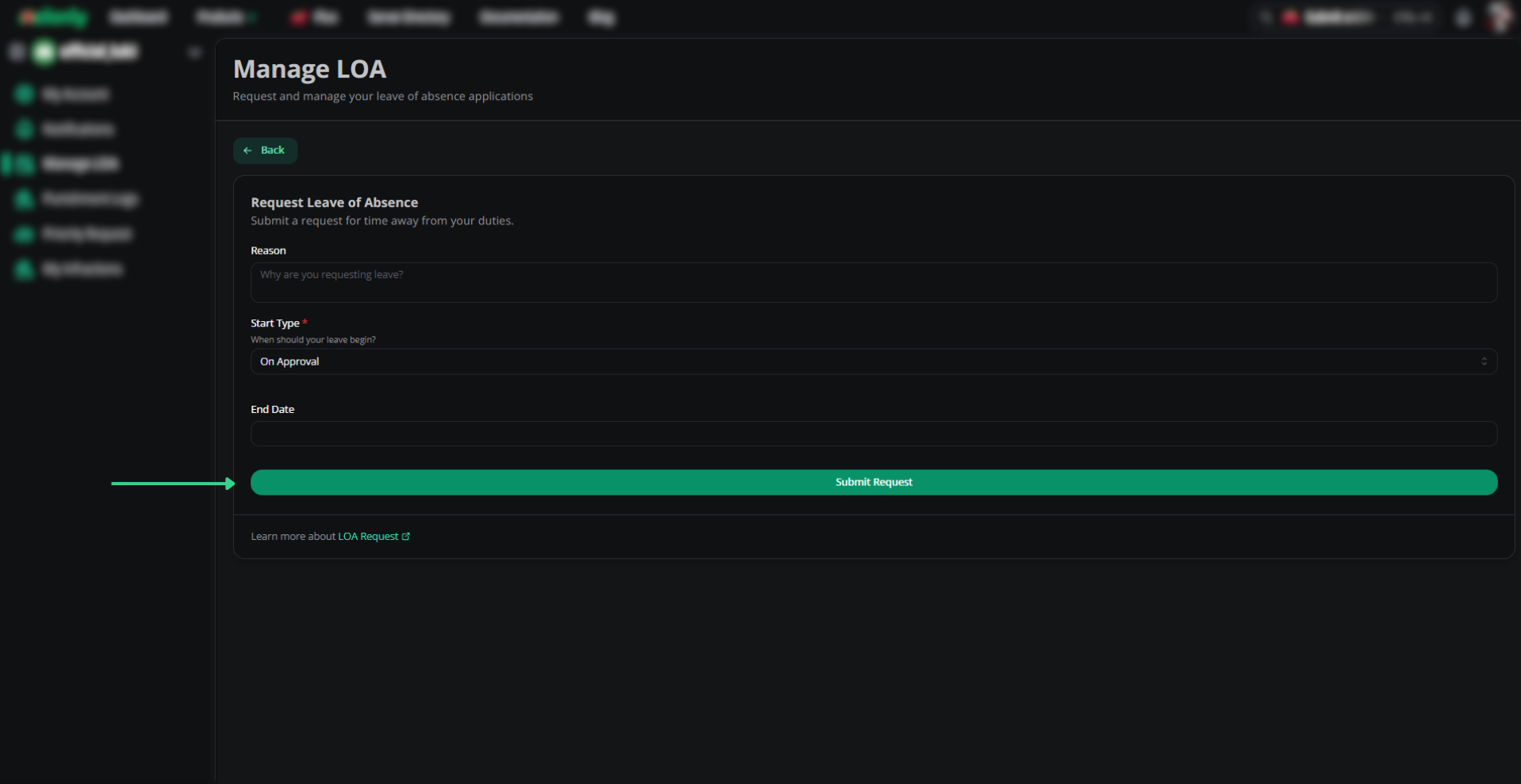
Review LOAs
Open the dashboard
Go to the dashboard.
Open Leave of Absences
The LOA page lists awaiting requests, currently active LOAs, and the full history.
Recent
Pending requests
Review and act on pending LOA requests.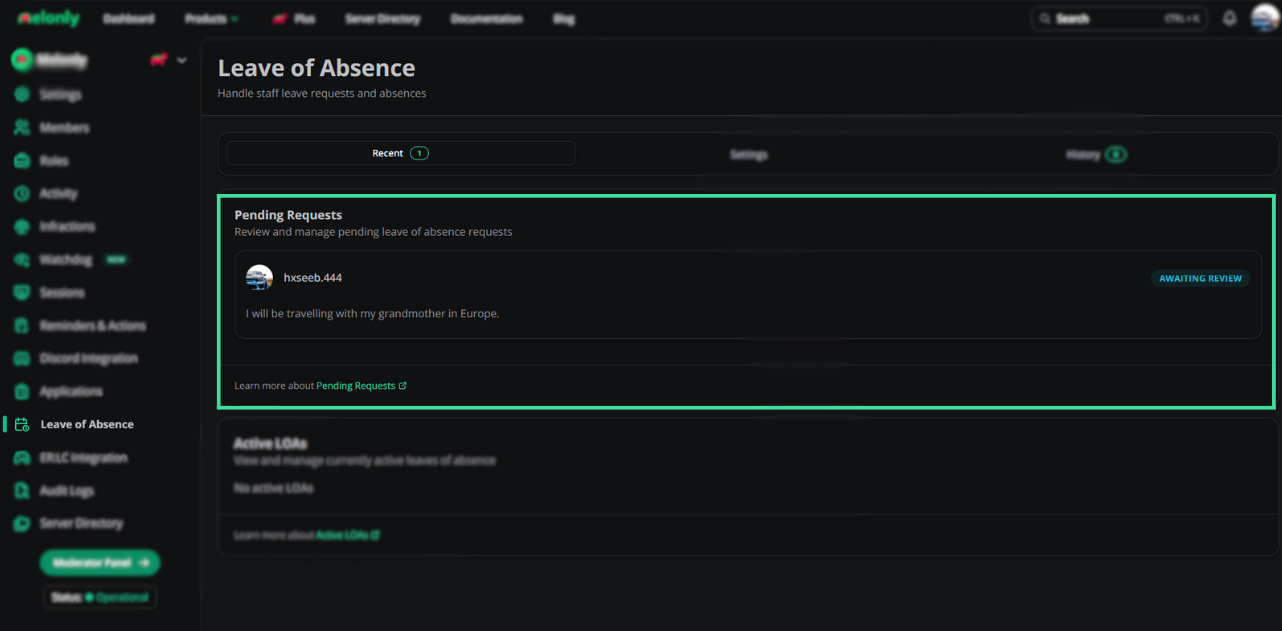
Active LOAs
View and manage currently active LOAs.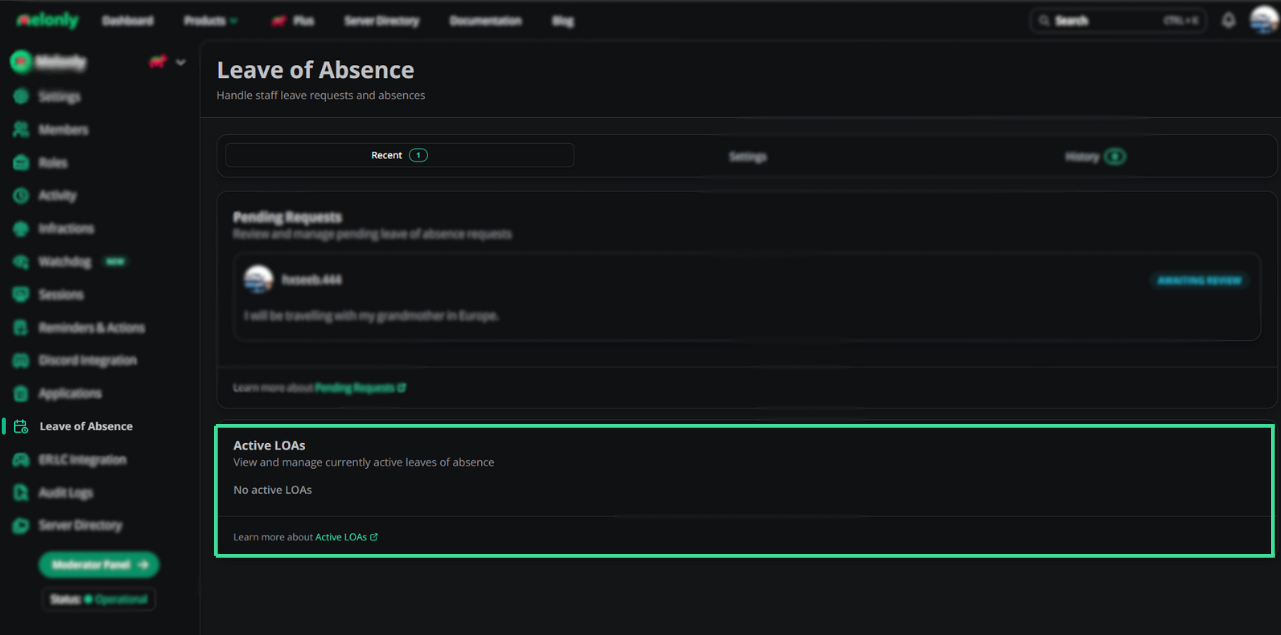
Settings
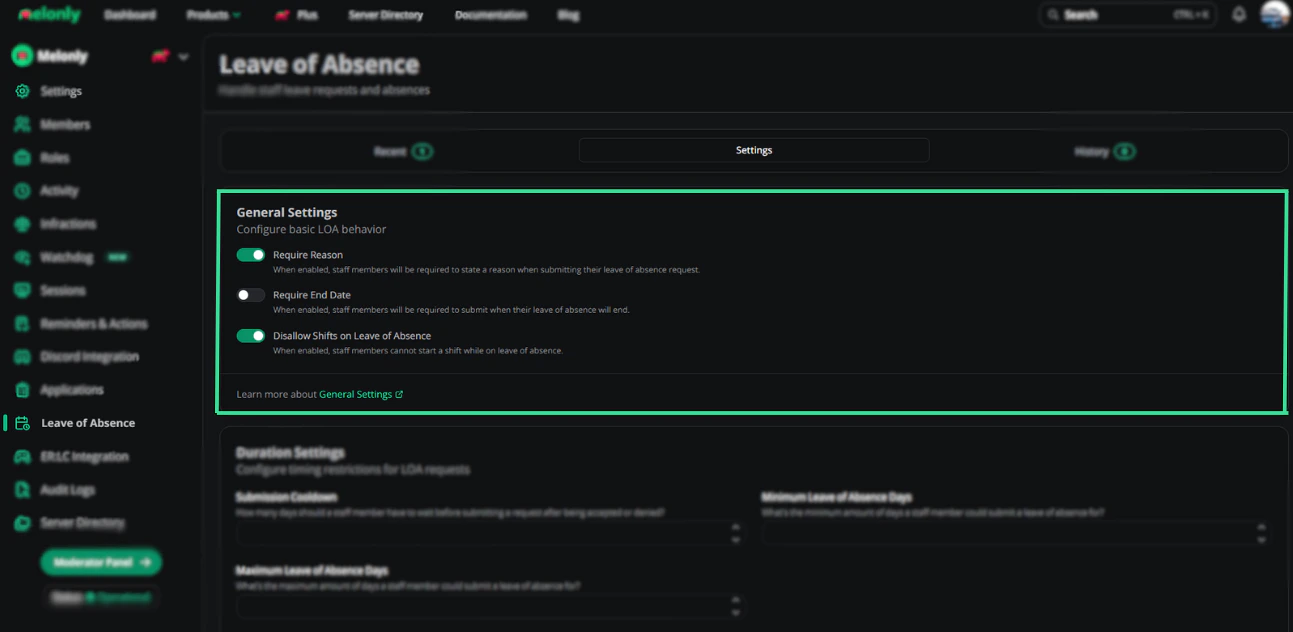
General
| Setting | Description |
|---|---|
| Require Reason | Members must provide a reason when submitting |
| Require End Date | Members must provide an end date |
| Disallow Shifts on LOA | Members can’t start a shift while on LOA |
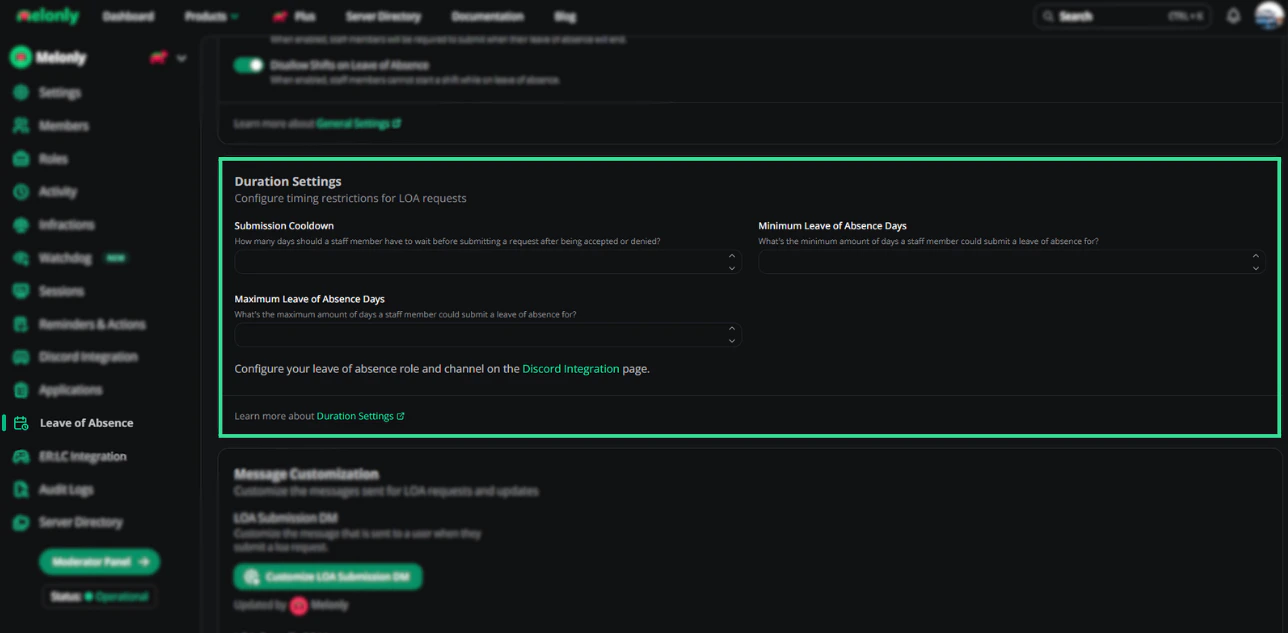
Duration
| Setting | Description |
|---|---|
| Submission Cooldown | Wait time between submissions after approval or denial |
| Minimum LOA Days | Smallest LOA length a member can request |
| Maximum LOA Days | Largest LOA length a member can request |
History
Search by user to see their full LOA history for documentation or investigations.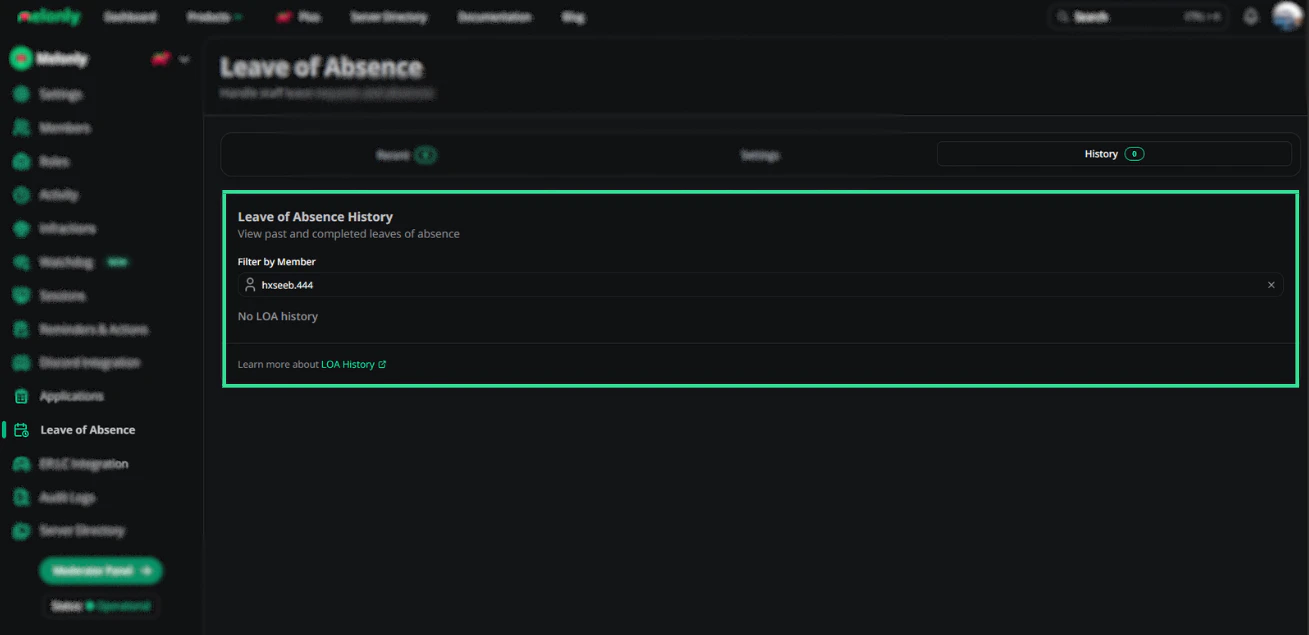
Need help?
Still have questions? Join our Discord server for support from the Melonly team.