
Departments are dedicated Melonly servers for ER:LC departments — fire, EMS, police, dispatch — linked to a parent server for shared moderation and CAD access.Documentation Index
Fetch the complete documentation index at: https://docs.melonly.xyz/docs/llms.txt
Use this file to discover all available pages before exploring further.
Create a department
Open the dashboard
Go to your Melonly dashboard, click New, and choose Department.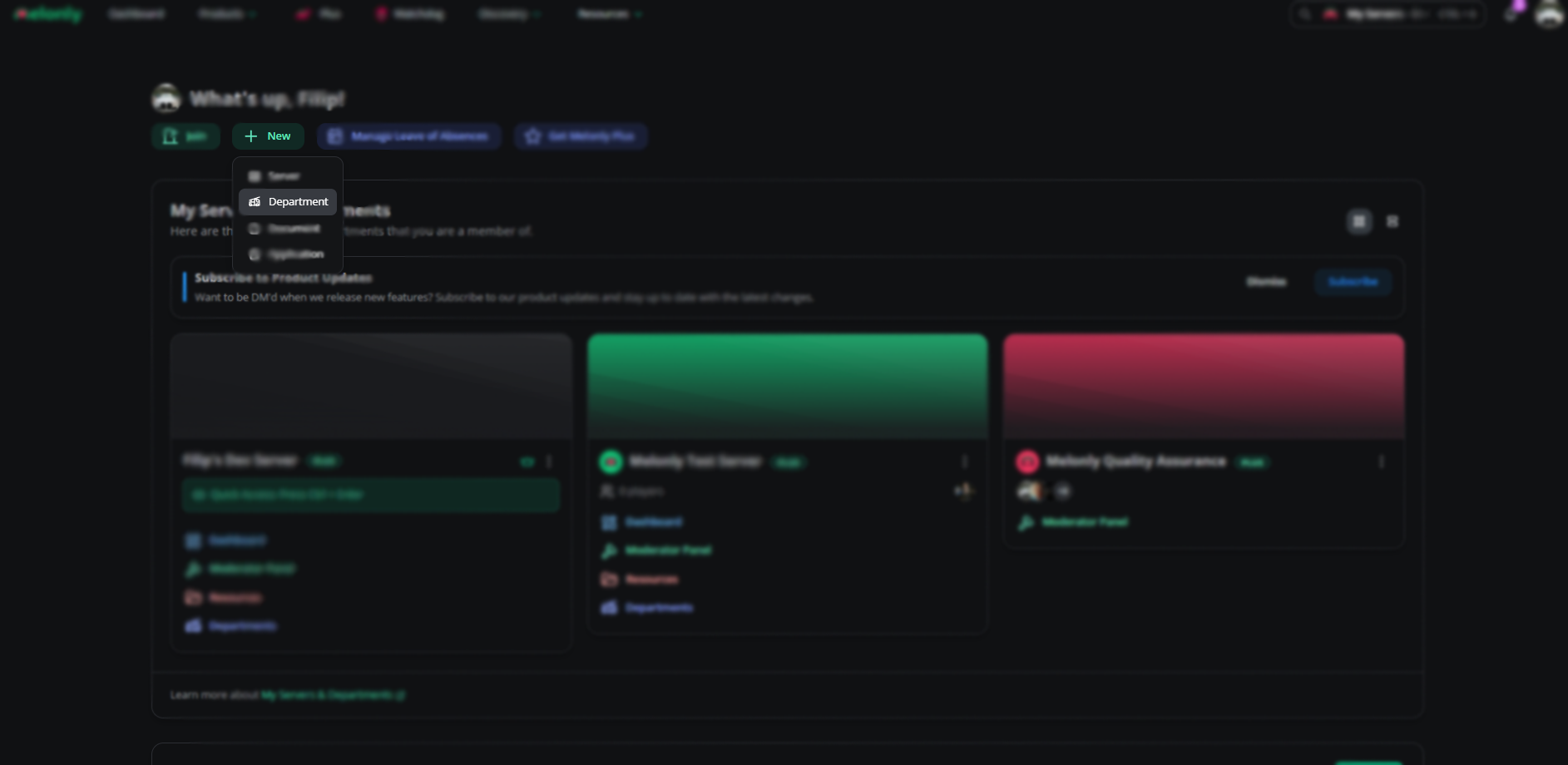
Set info and parent server
Fill in the department details, pick the parent server (your main ER:LC Melonly server), and link the department’s Discord server.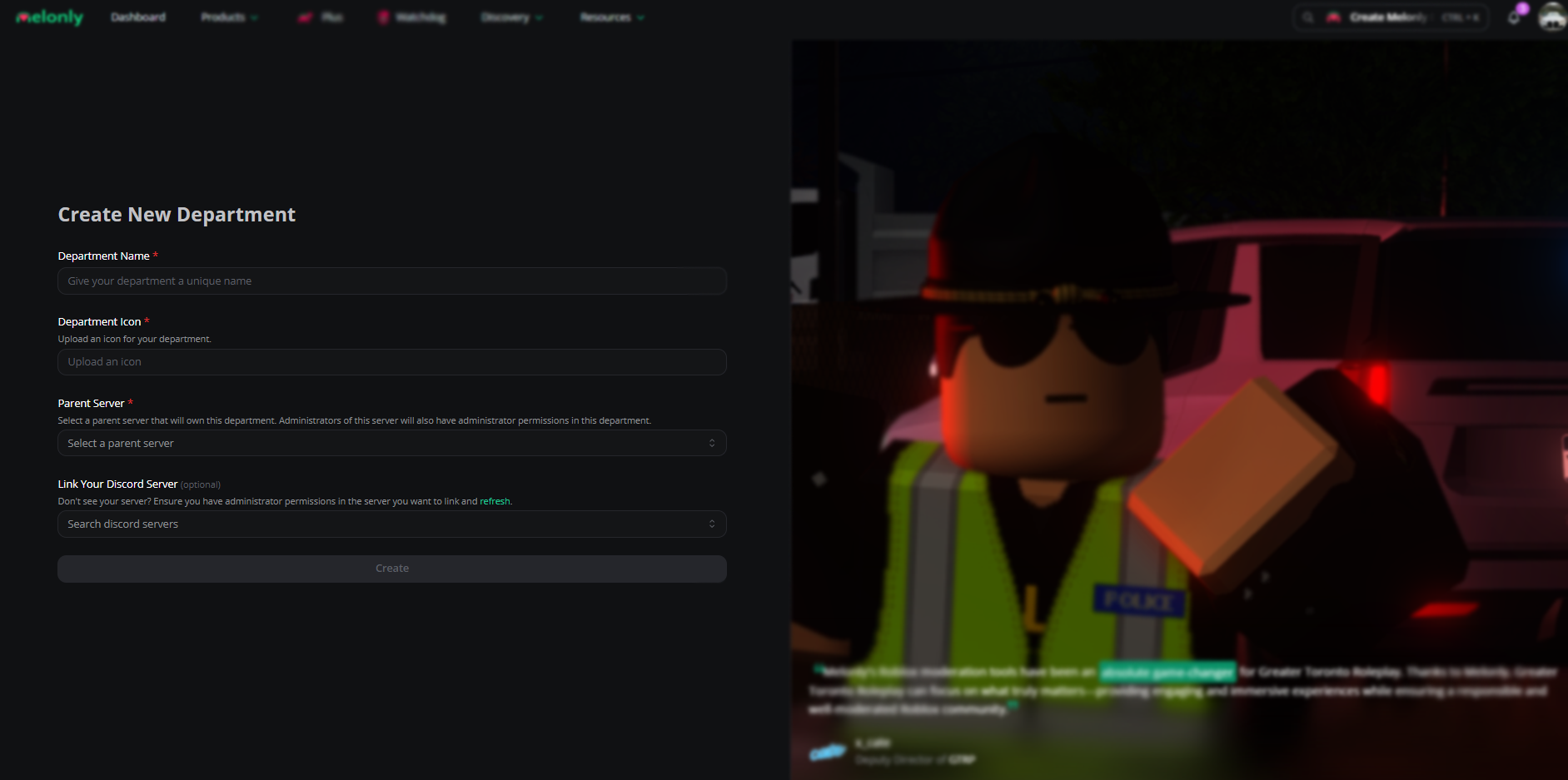
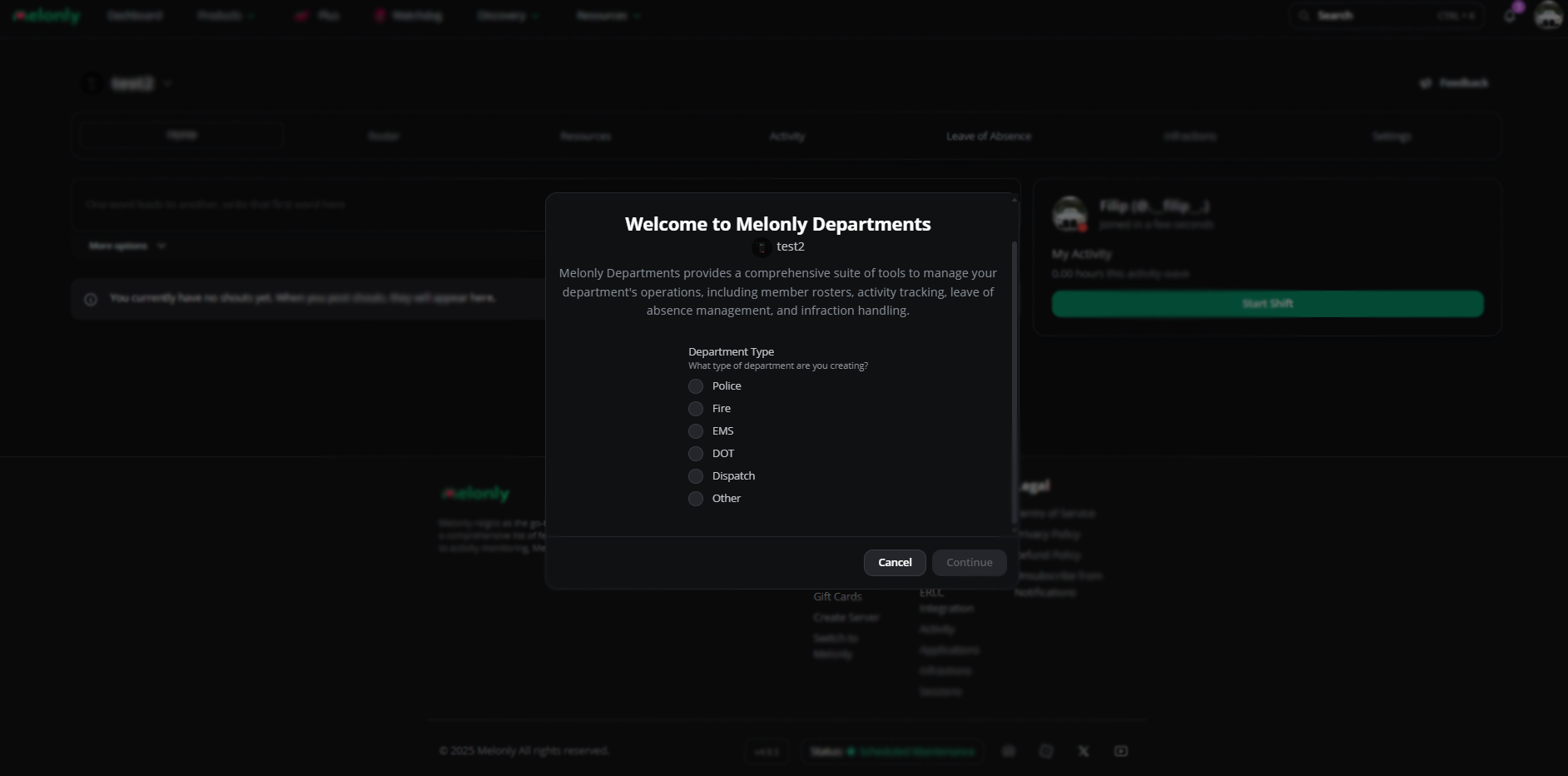
Open the department
Your new department appears on your dashboard.
Manage departments
The Departments page on your main server is where you manage every linked department.Overview
Activate, deactivate, and open department panels.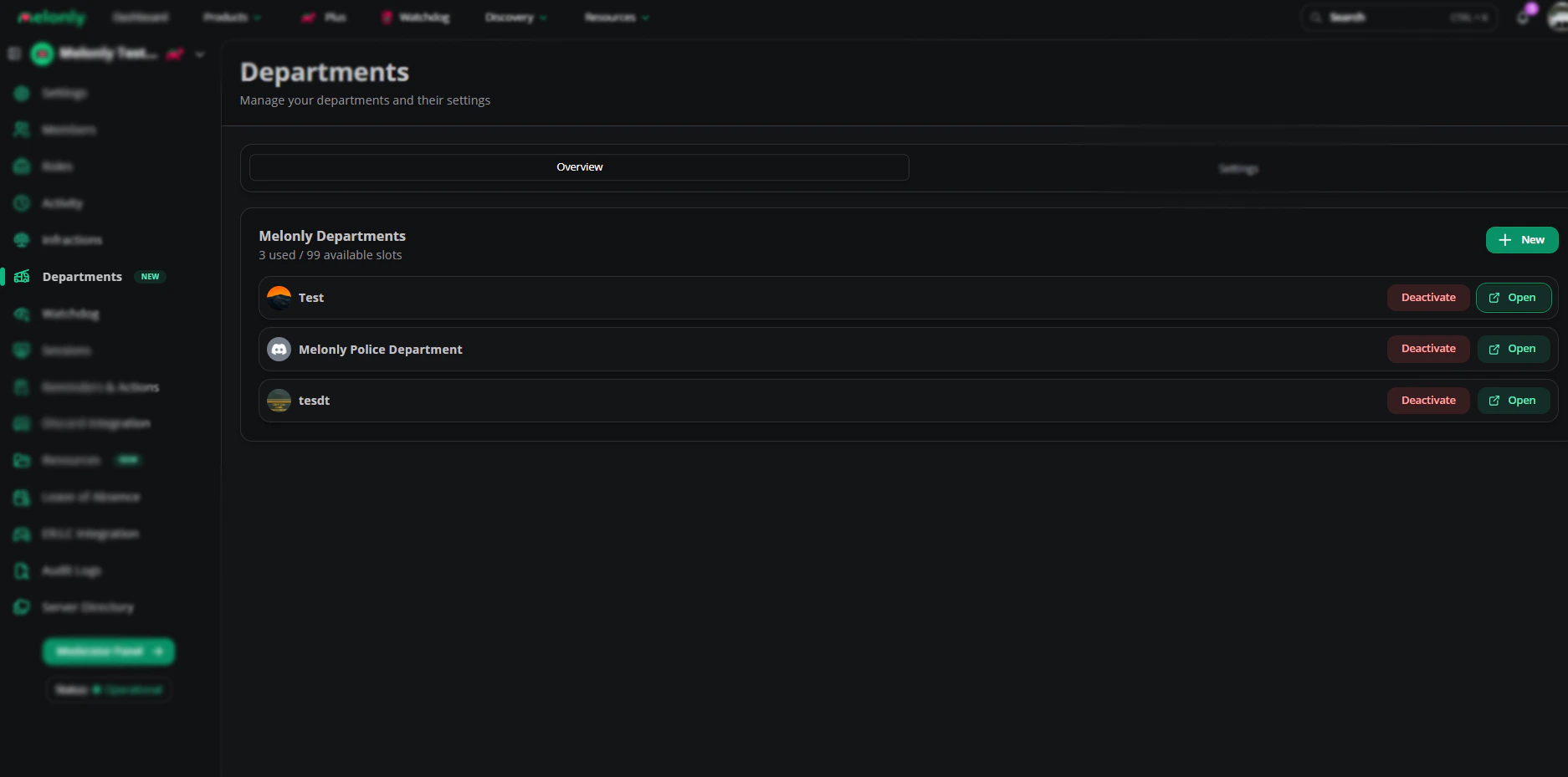
Settings
Link Discord roles between departments and sync kicks and bans.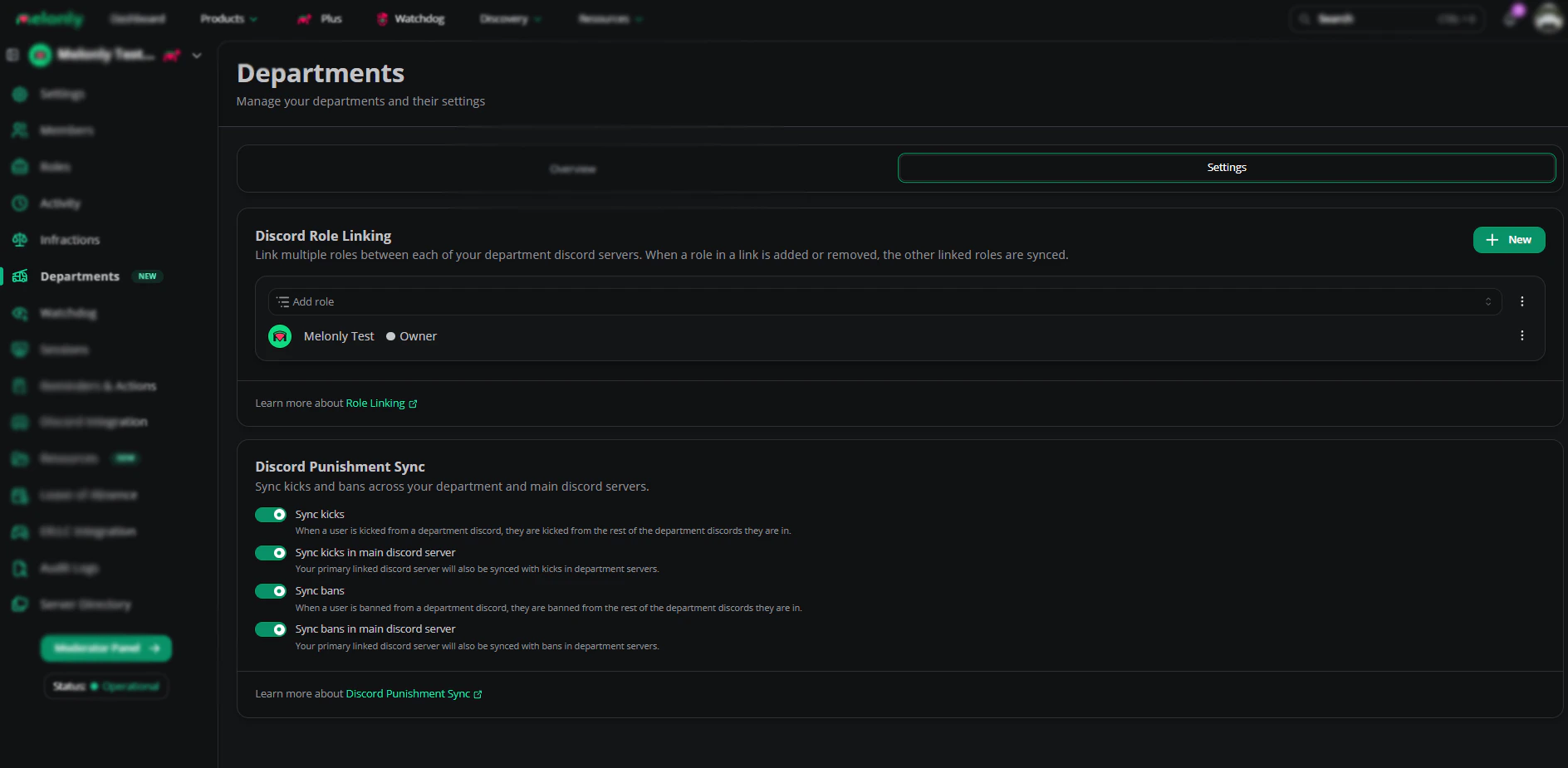
Discord role linking
Link roles between department Discord servers. Adding or removing one syncs the others. You can also create a primary-role group: assigning the primary role grants every linked role automatically. Role mapping decides which roles trigger additional roles.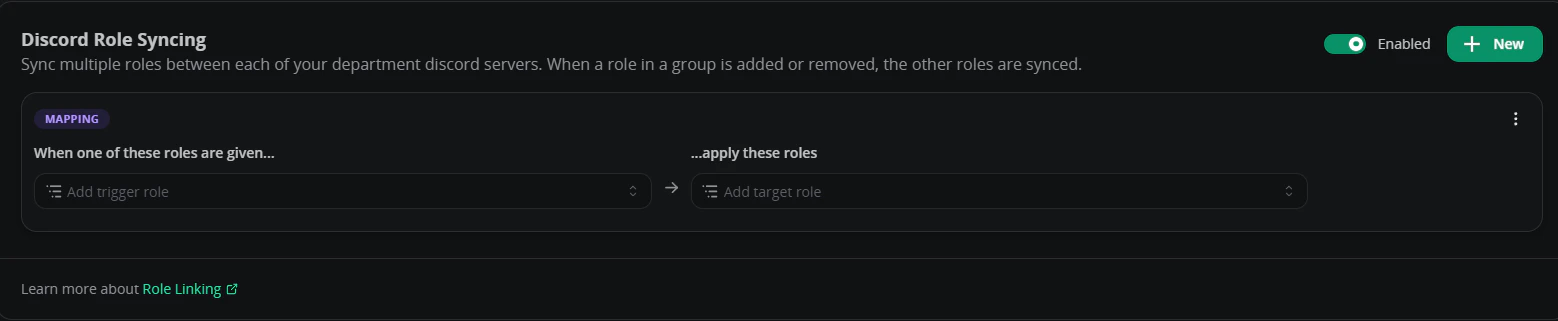
Discord punishment sync
| Setting | Description |
|---|---|
| Sync kicks | Kicking from one department Discord kicks from every linked department Discord |
| Sync kicks in main Discord server | Also syncs kicks to the main linked Discord server |
| Sync bans | Banning from one department Discord bans from every linked department Discord |
| Sync bans in main Discord server | Also syncs bans to the main linked Discord server |
Melonly CAD
Open CAD configuration, launch the live CAD, or copy the CAD link directly from the Departments page.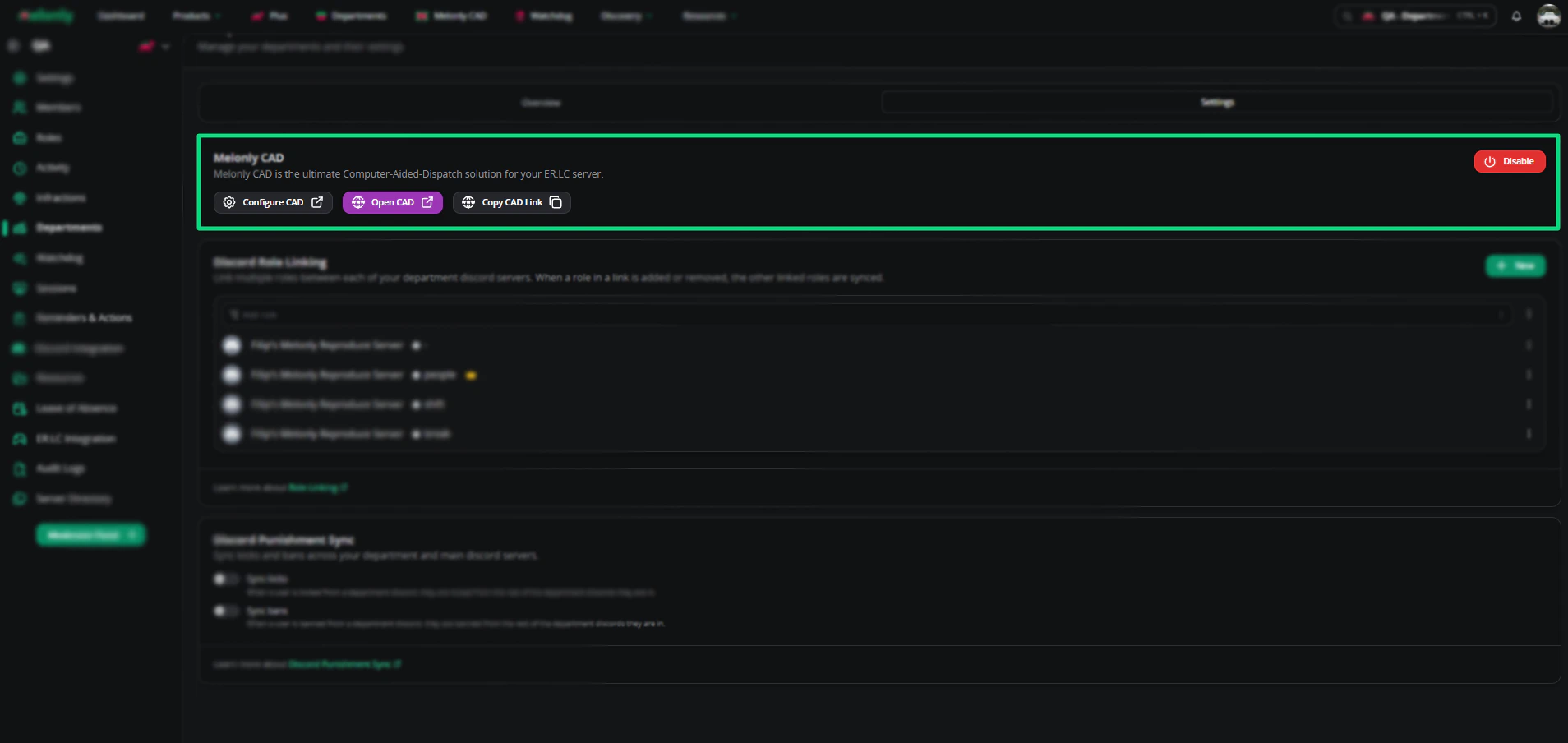
Need help?
Still have questions? Join our Discord server for support from the Melonly team.