
The map editor lets you draw custom areas for three location-based features: Area of Roleplay, Team Jurisdiction, and Safe Zones. Each area is defined by one or more rectangles you place on the map. Each editor uses the same rectangle-based workflow, but the labels change based on the feature you’re editing.Documentation Index
Fetch the complete documentation index at: https://docs.melonly.xyz/docs/llms.txt
Use this file to discover all available pages before exploring further.
Area of Roleplay
Add a custom area
Click Open Area of Roleplay Editor in the feature settings. Press Create Custom, resize the green rectangle over the area where roleplay is allowed, then click Save.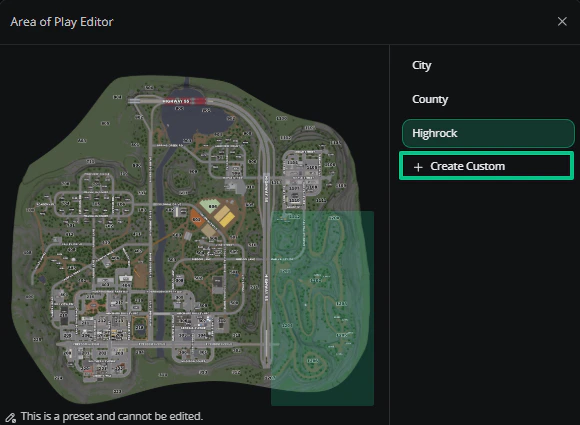
Add multiple areas
Add more rectangles to the existing custom area. You don’t need to create a new custom area — stack rectangles in the same editor.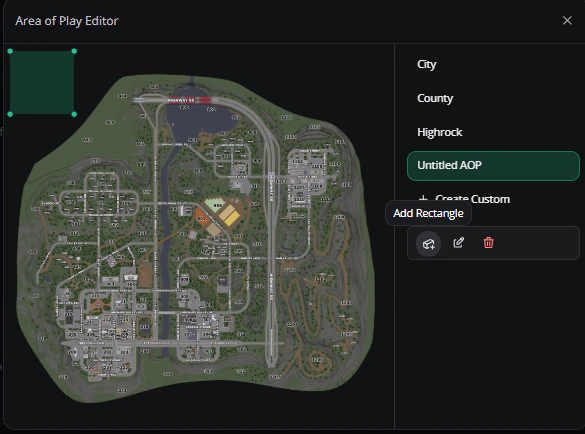
Rename an area
Click the rename button next to the area and enter a new name.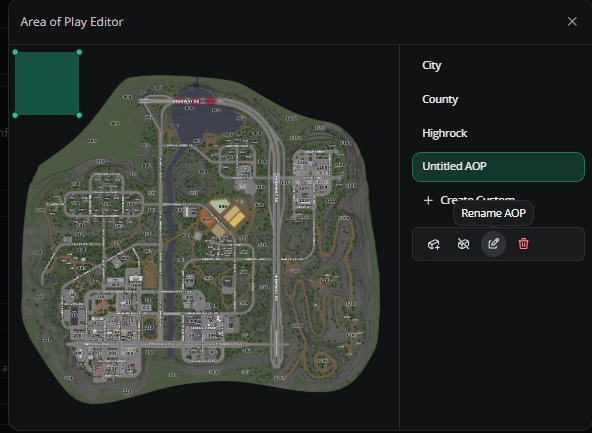
Remove an area
Open the editor, click the rectangle you want to delete, and confirm.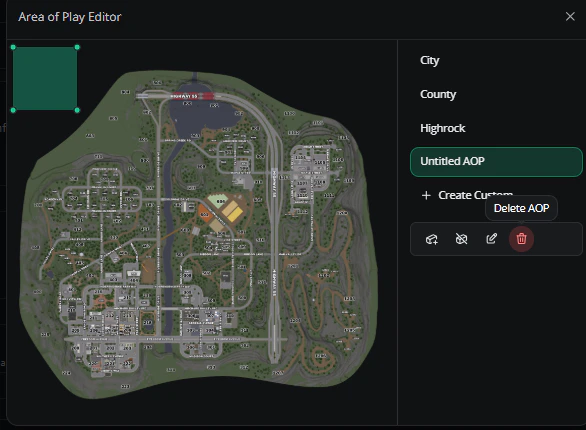
Team Jurisdiction
Add a custom jurisdiction
Click Open Team Jurisdiction Editor. Press Create Custom, resize the green rectangle over the area, then click Save.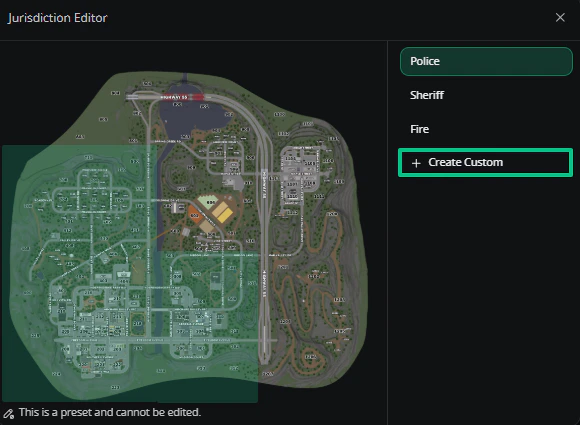
Add multiple jurisdictions
Add more rectangles to the existing custom area.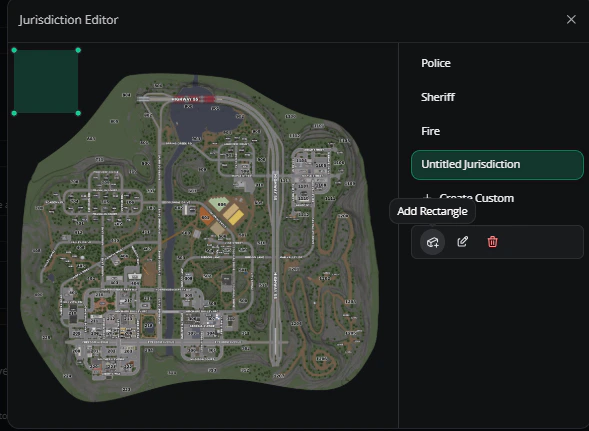
Rename a jurisdiction
Click the rename button and enter a new name.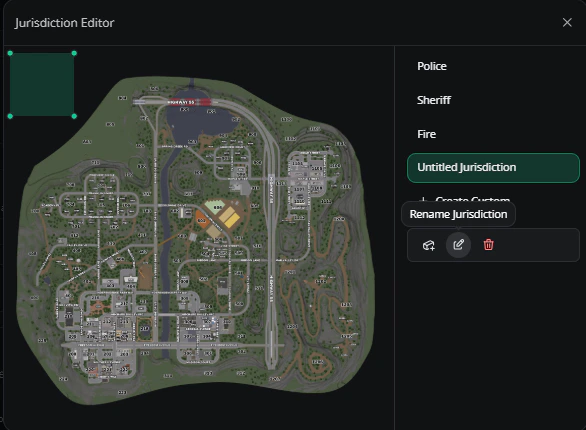
Remove a jurisdiction
Open the editor, click the rectangle you want to delete, and confirm.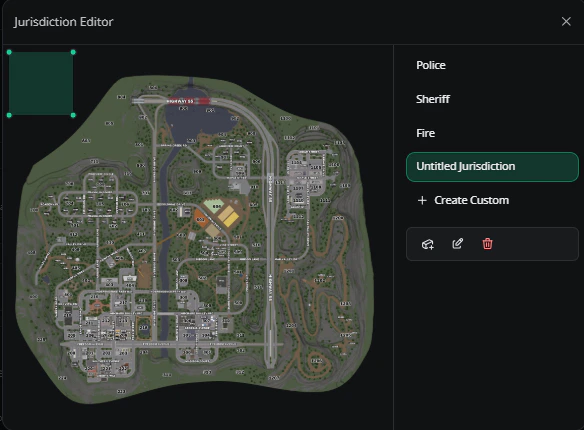
Safe Zones
Add a custom safe zone
Click Open Safe Zones Editor. Press Create Custom, resize the green rectangle over the area where players can’t damage each other, then click Save.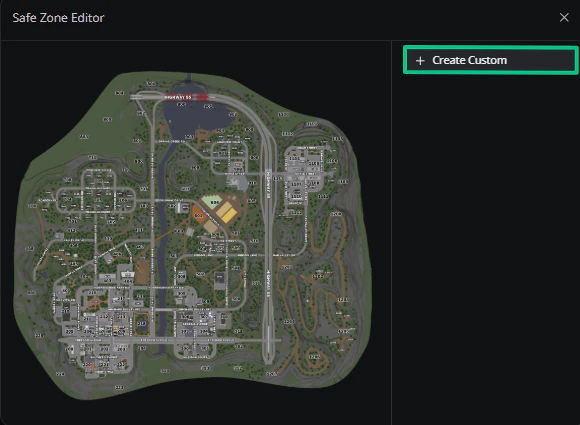
Rename a safe zone
Click the rename button and enter a new name.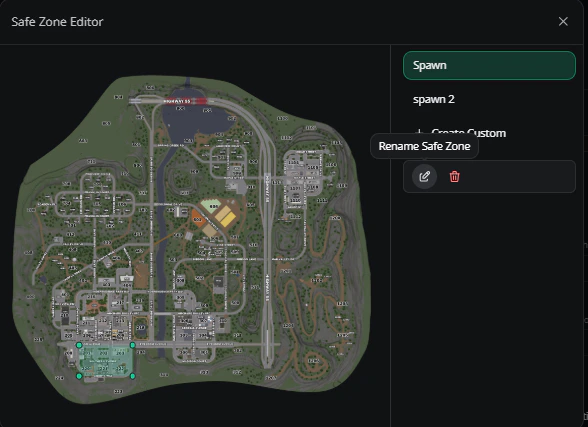
Remove a safe zone
Open the editor, click the rectangle you want to delete, and confirm.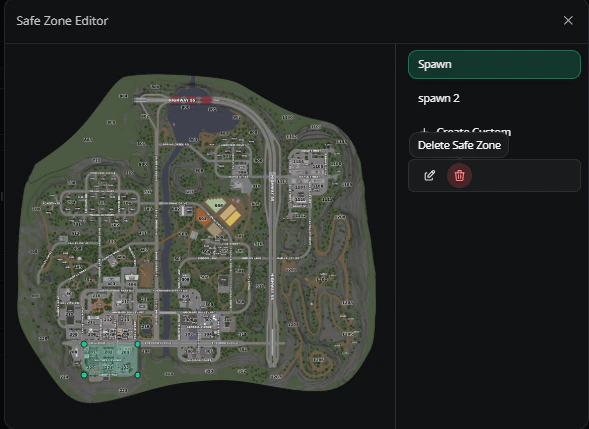
Need help?
Still have questions? Join our Discord server for support from the Melonly team.