
Melonly Vision is a desktop app that overlays moderation tools on top of ER:LC. Hover over a username, press a keybind, and take action without leaving the game.Documentation Index
Fetch the complete documentation index at: https://docs.melonly.xyz/docs/llms.txt
Use this file to discover all available pages before exploring further.
Watch the overview
Install
Download Melonly Vision
Visit melonly.xyz/vision and click Download. The download page detects your operating system automatically.
Run the installer
Open the downloaded file and follow the installer prompts. Vision is available for Windows and macOS.
If Vision doesn’t launch, confirm you downloaded the build for your operating system. If issues continue, ask in our Discord support server.
Home page
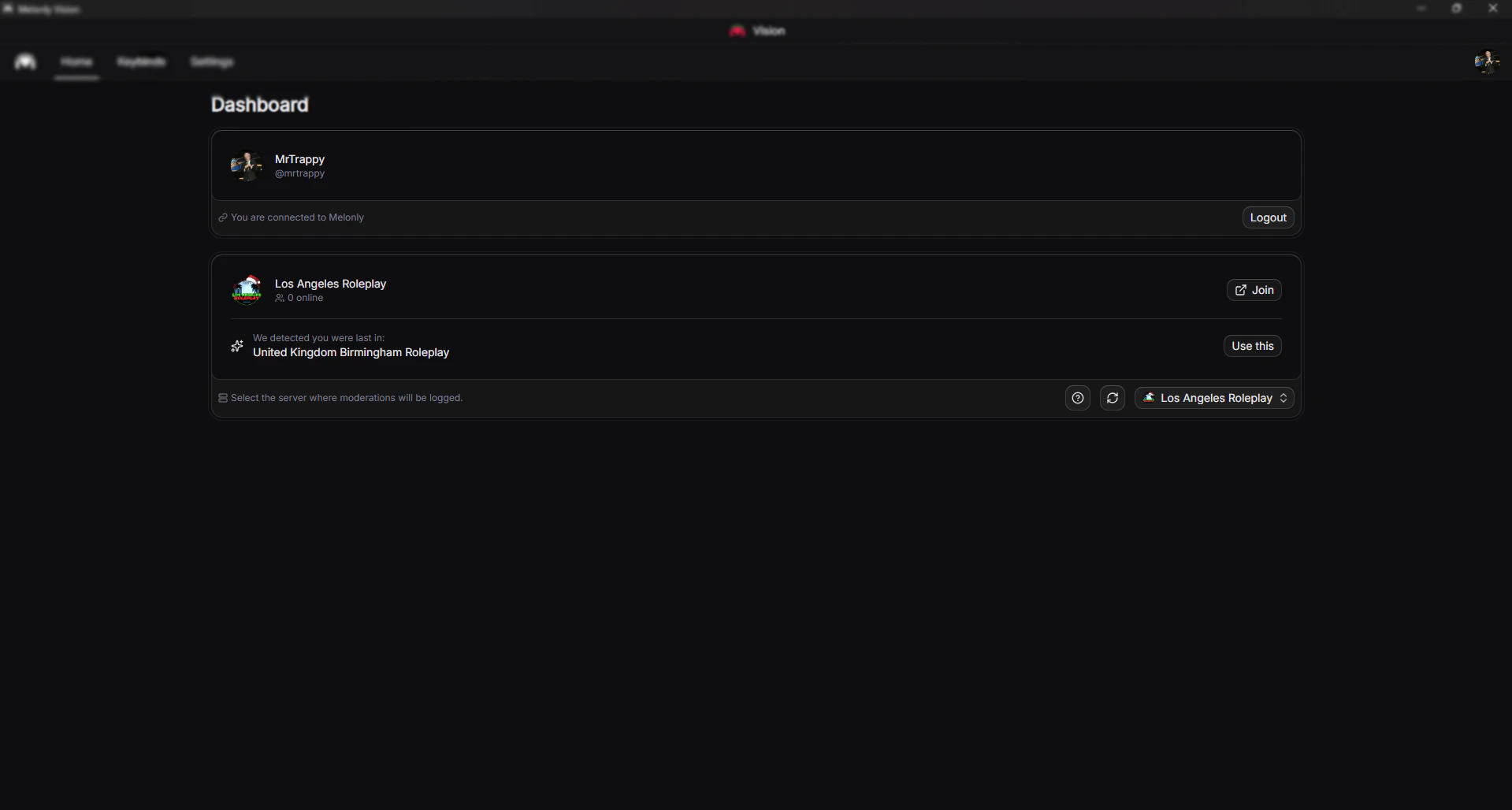
Profile
Sign out of your account or open your profile by clicking your avatar.
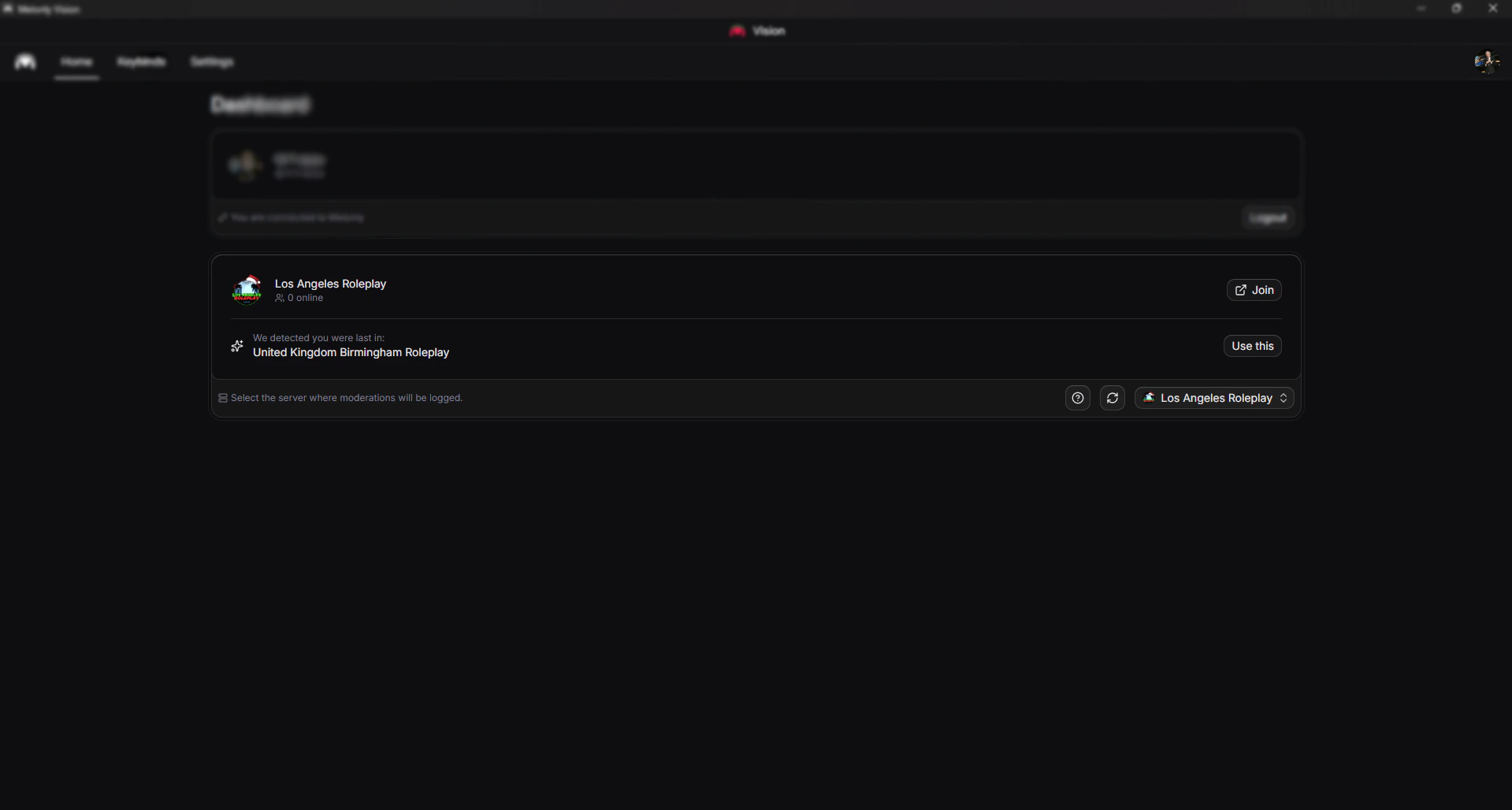
Servers
| Option | Description |
|---|---|
| Join button | Joins the selected Roblox server |
| Use this button | Selects the last detected server |
| Refresh button | Reloads your server options |
| Server dropdown | Lists the servers you’re in |
Keybinds
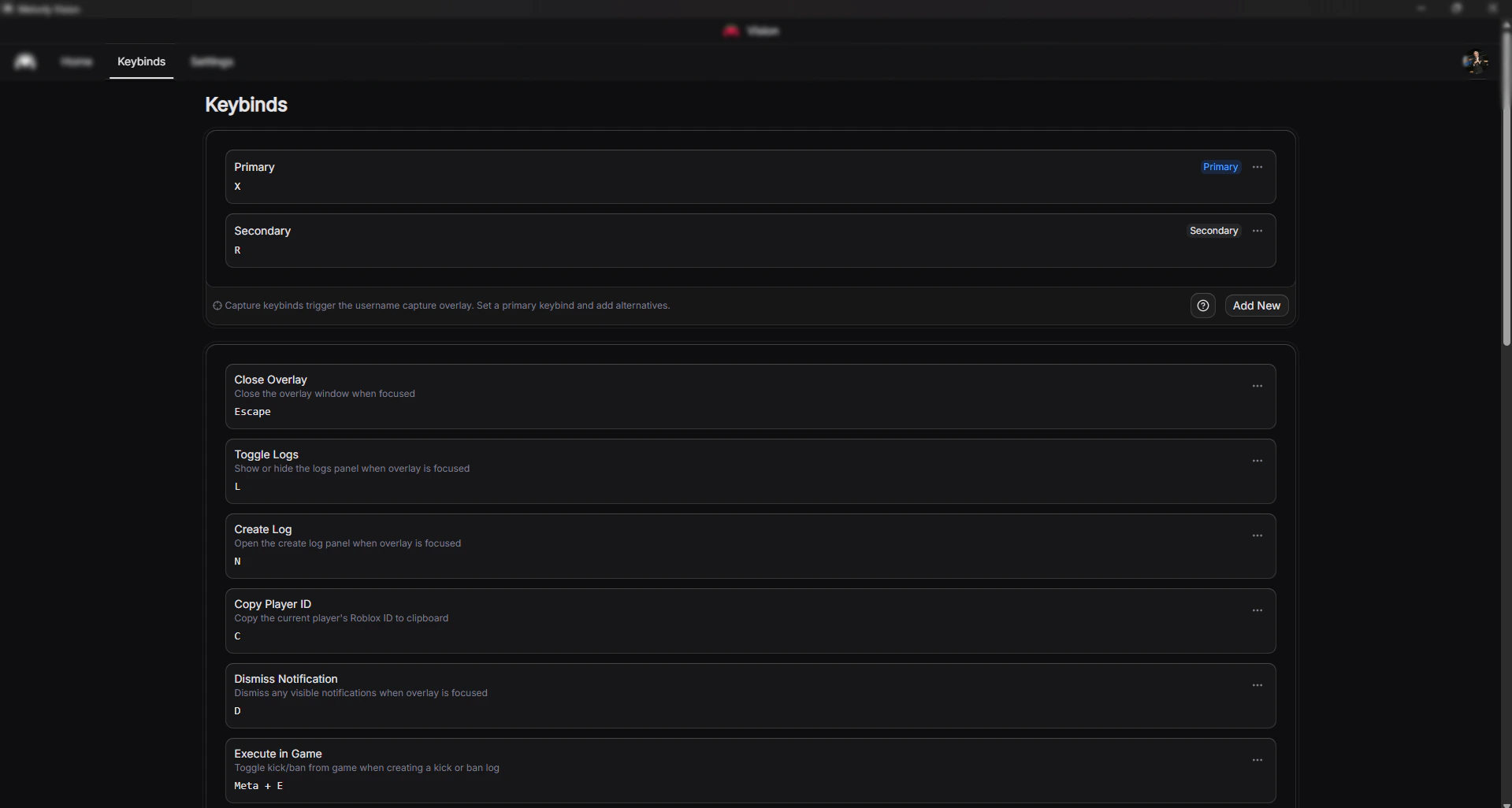
Capture keybinds
Global shortcuts that trigger the username capture overlay. Hover over a username in Roblox, press your capture keybind, and the overlay scans the area around your cursor.| Type | Description |
|---|---|
| Primary | The main keybind, registered globally |
| Secondary | An alternate keybind you can swap to |
Overlay keybinds
Single-key shortcuts that work when the overlay window is focused.| Action | Description |
|---|---|
| Close | Closes the overlay and returns to your game |
| Toggle logs | Shows or hides the player’s log history |
| Create log | Opens the panel to create a new log entry |
Global keybinds
System-wide shortcuts that work even when the overlay isn’t focused. They use modifier keys to avoid conflicts.| Operating system | Format |
|---|---|
| macOS | ⌘ + ⇧ + Key |
| Windows | Ctrl + Shift + Key |
Settings
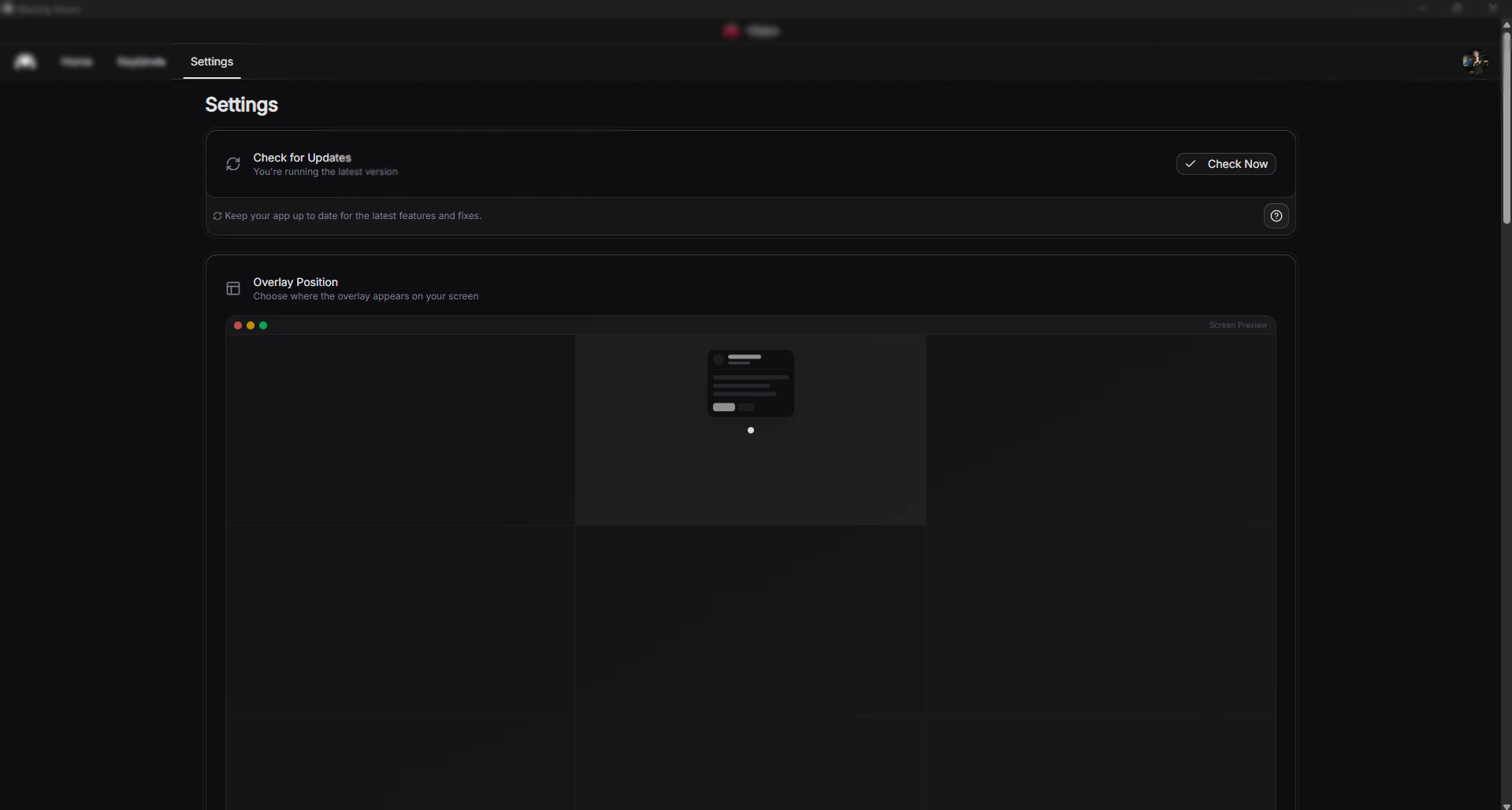
Updates
Click Check Now to immediately check for a new Vision release.Overlay position
Sets where overlay panels appear during gameplay.| Position | Best for |
|---|---|
| Top | Keeping the bottom-right arrest overlay visible |
| Middle | Maximum visibility, may overlap gameplay |
| Bottom | Keeping the top of the screen clear |
Overlay scale
Controls the size of overlay cards.| Scale | Description |
|---|---|
| Small (75%) | Minimal screen footprint |
| Compact (87.5%) | Slightly reduced size |
| Default (100%) | Standard size for most setups |
| Large (112.5%) | Easier to read on larger monitors |
| Extra Large (125%) | Maximum readability for high-resolution displays |
Theme
| Theme | Description |
|---|---|
| Light | Bright theme for daytime use |
| Dark | Reduced eye strain in low-light environments |
| System | Follows your operating system preference |
Discord rich presence
Show what you’re doing in Vision on your Discord profile.| Mode | Description |
|---|---|
| Minimal | No server information |
| Server info | Shows the server name |
| Full detail | Shares all relevant details |
Hardware acceleration
Lets Vision use your GPU for rendering. Enable it if Vision feels laggy. Disable it if you see graphical glitches.Device information
Technical details about your system and Vision install. Share this with support when reporting bugs.Need help?
Still have questions? Join our Discord server for support from the Melonly team.