
What are Requests?
When someone uses your join link or join code, they send a request to join your server. You can accept or deny each request from the Requests page, and accepted members appear in your members list. Members with a linked Discord role can skip the request and join straight away. See Discord Roles.Managing Requests
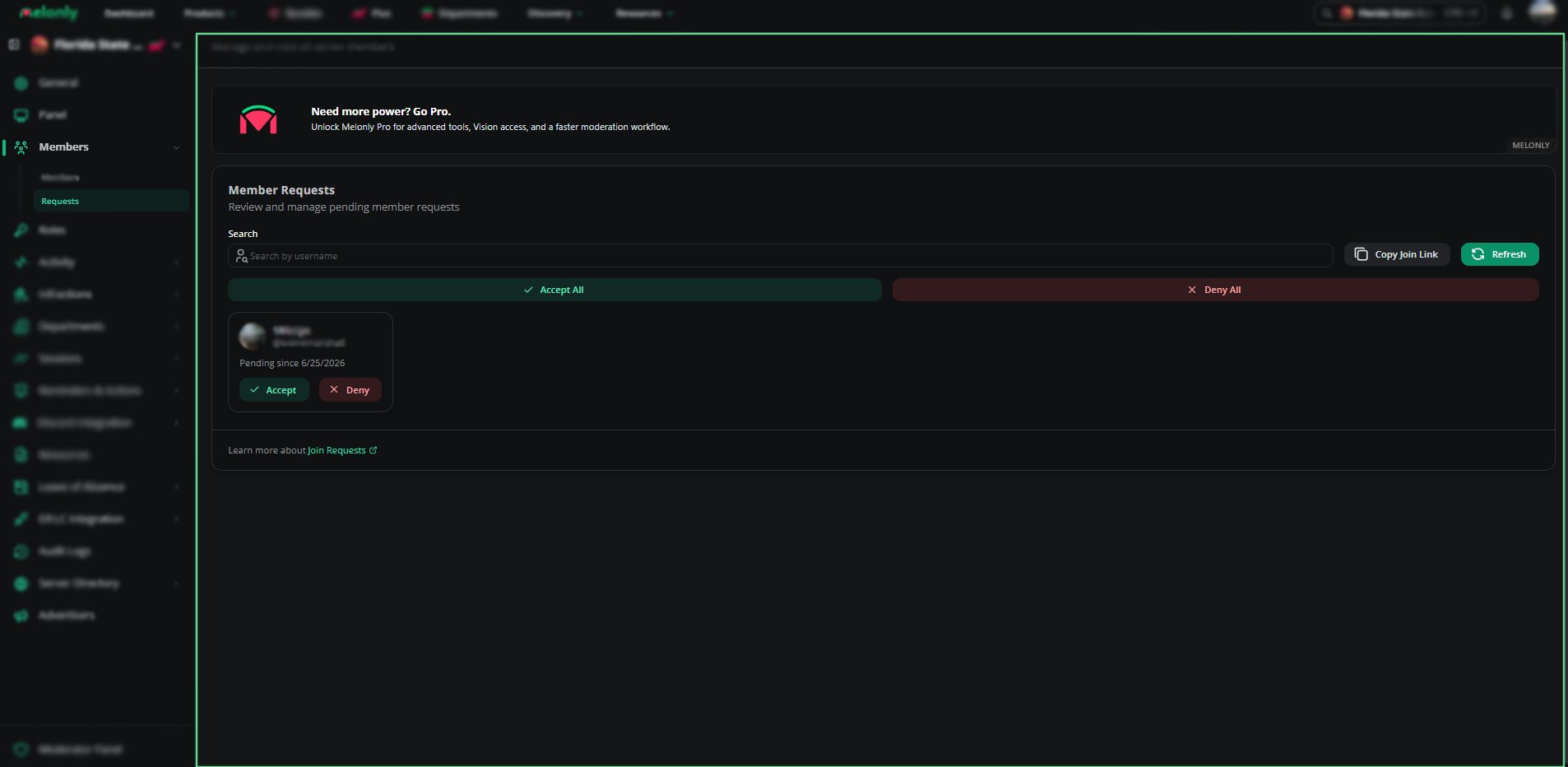
Open Members, then Requests, on your dashboard.1
Search Requests
Use the search bar to find a pending request by username or Discord tag.
2
Accept or Deny
Click Accept to let someone in or Deny to reject them. Use Accept All or Deny All to handle every request at once.
3
Copy Join Link
Click Copy Join Link to share your server’s join link.
4
Refresh Requests
Click Refresh to load any new requests.
Requests
Need help?
Still have questions? Join our Discord server for support from the Melonly Team.