
What is the Command Palette?
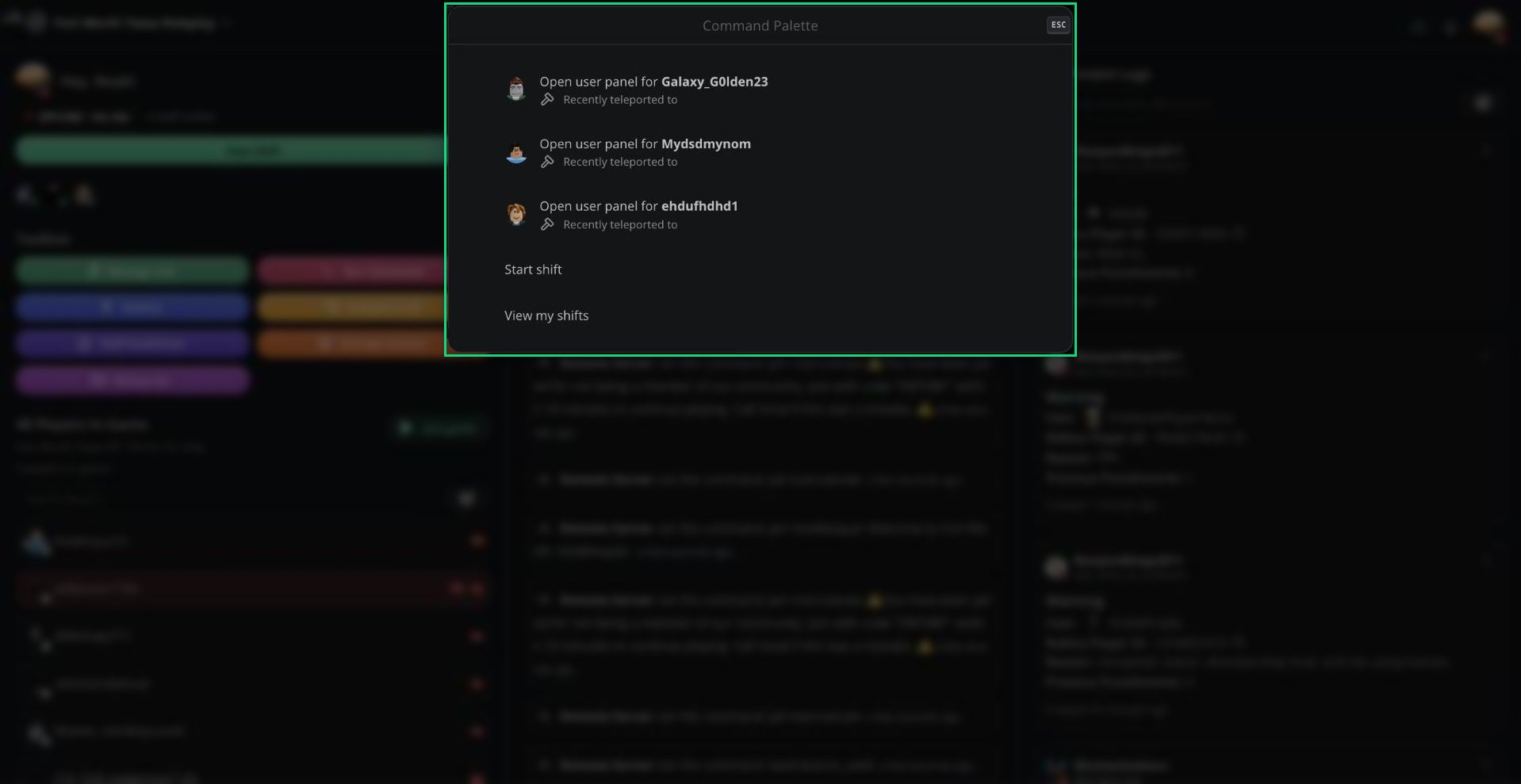
The Command Palette is the search bar at the top of the panel. It finds players, runs ER:LC commands, controls your shift, and opens panel tools without leaving the keyboard. Press/ anywhere on the panel to open it. Press Esc to close it.
Command Palette
Suggestions
When you open the palette without typing, it shows:- Recent players you kicked, banned, or teleported to. Select one to open their User Panel.
- Start shift, End shift, or End break, depending on your status.
- View my shifts and Run an action.
Commands
Start typing to search these commands:Start shift from the palette always starts a shift with no shift type. Use the Start Shift button if you need to pick a type.
Finding Players
Type a username or Roblox ID to search for players.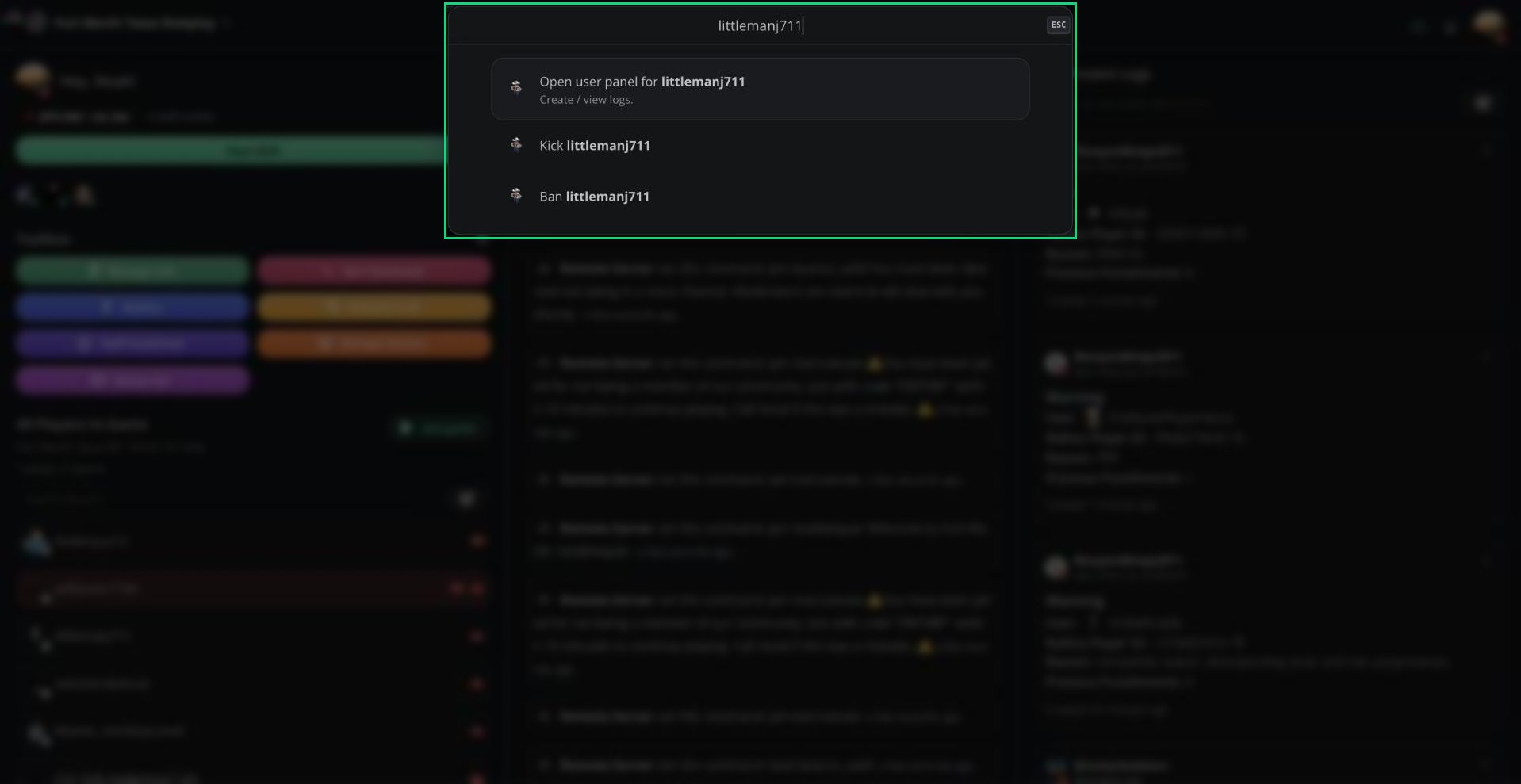
Searching for a player
- Open user panel for [name] opens the player’s User Panel, where you can create and view logs.
- Players currently in your ER:LC server appear first.
- Melonly also searches all of Roblox once you type 3 or more characters.
Running Game Commands
Start your search with: to run an ER:LC command, for example :pt on or :h Server restart in 5 minutes.
Press Enter to send it to your server. The same permissions as Run Command apply.
Filter Messages
Filter messages checks how Roblox’s chat filter will treat a message before you send it in-game.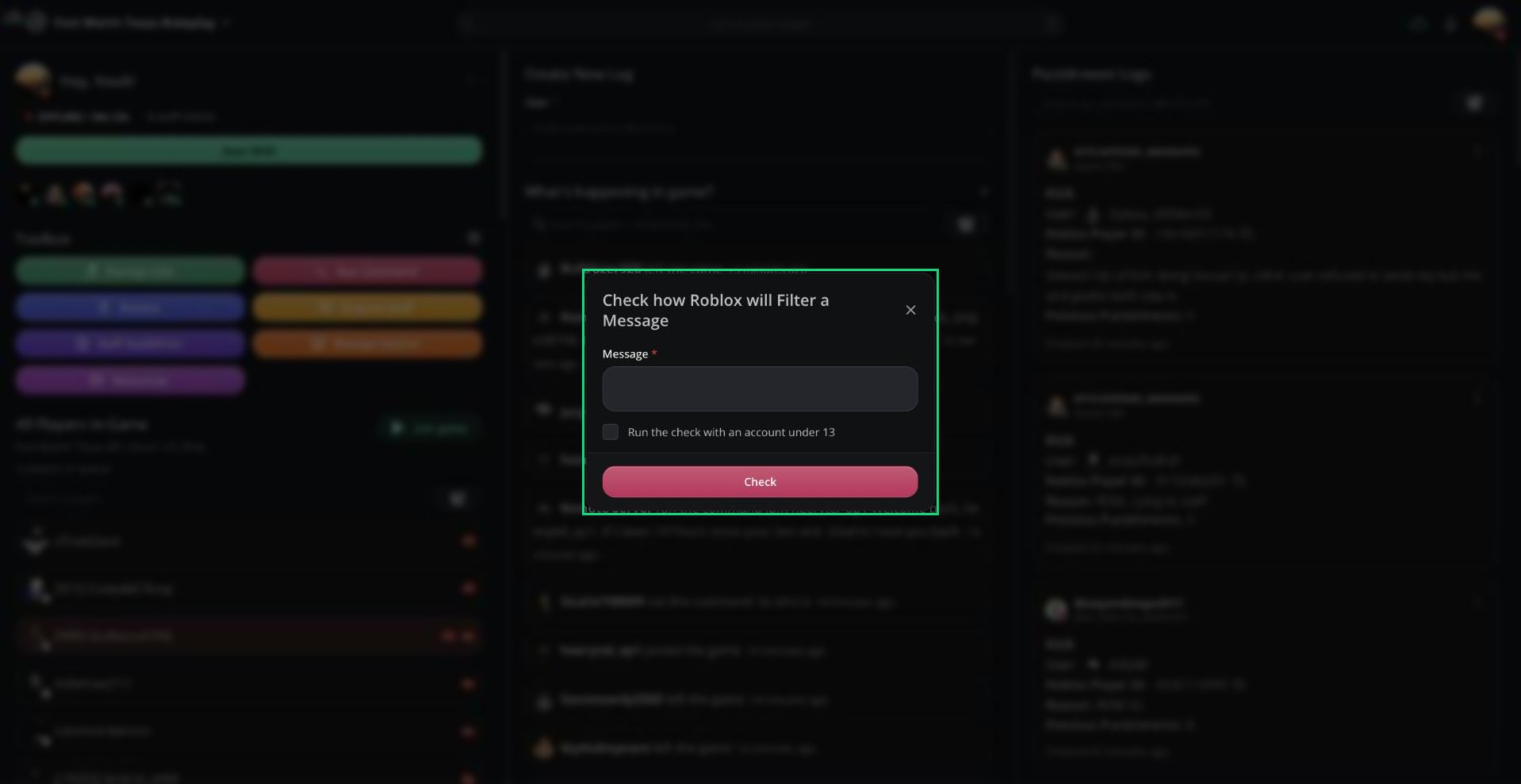
Filter Messages
1
Open Filter Messages
Press
/, type Filter messages, and press Enter.2
Enter your message
Type the message you want to check.
3
Check it
Click Check or press
Ctrl + Enter. You’ll see the message as Roblox would show it, with any hidden words filtered out.Keyboard Controls
Need help?
Still have questions? Join our Discord server for support from the Melonly Team.