
What is the User Panel?
The User Panel focuses the whole panel on one player. The left column shows their profile and live in-game info. The right column shows every log for that player.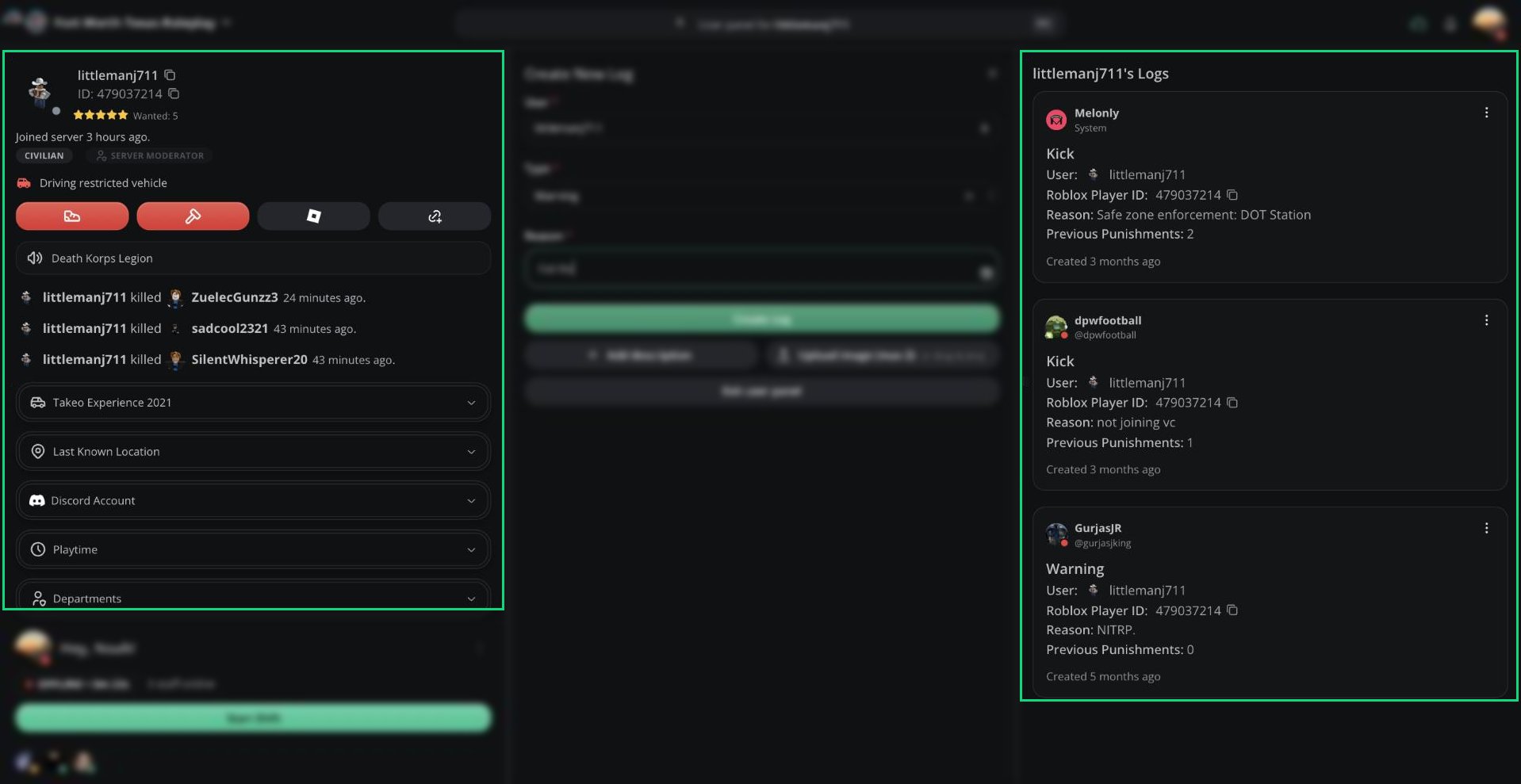
User Panel
Opening the User Panel
- Type a username in the User field of the log form.
- Search a player in the Command Palette and select Open user panel for [name].
- Click Open user panel after searching in Punishment Logs, or press
Ctrl+U. Ctrl+ click any player’s name on the panel.- Open a shared User Panel link.
Ctrl + X or Esc.
Player Profile
Details
Expand these sections for more information:Vehicle and location details need the ER:LC integration.
Quick Actions
Kick and Ban only appear while the player is in your server. See Kicking and Banning.
Player Logs
The right column, [name]‘s Logs, shows the player’s 20 most recent logs. Every option from Punishment Logs works here too.Need help?
Still have questions? Join our Discord server for support from the Melonly Team.