
What is My Activity?
My Activity shows your shift history and moderation stats for any activity wave. Use it to check your hours, review a past shift, or see how much you’ve done this wave.Opening My Activity
Click the ⋮ menu next to Hey, [your name]! and select View my shifts. You can also search View my shifts in the Command Palette.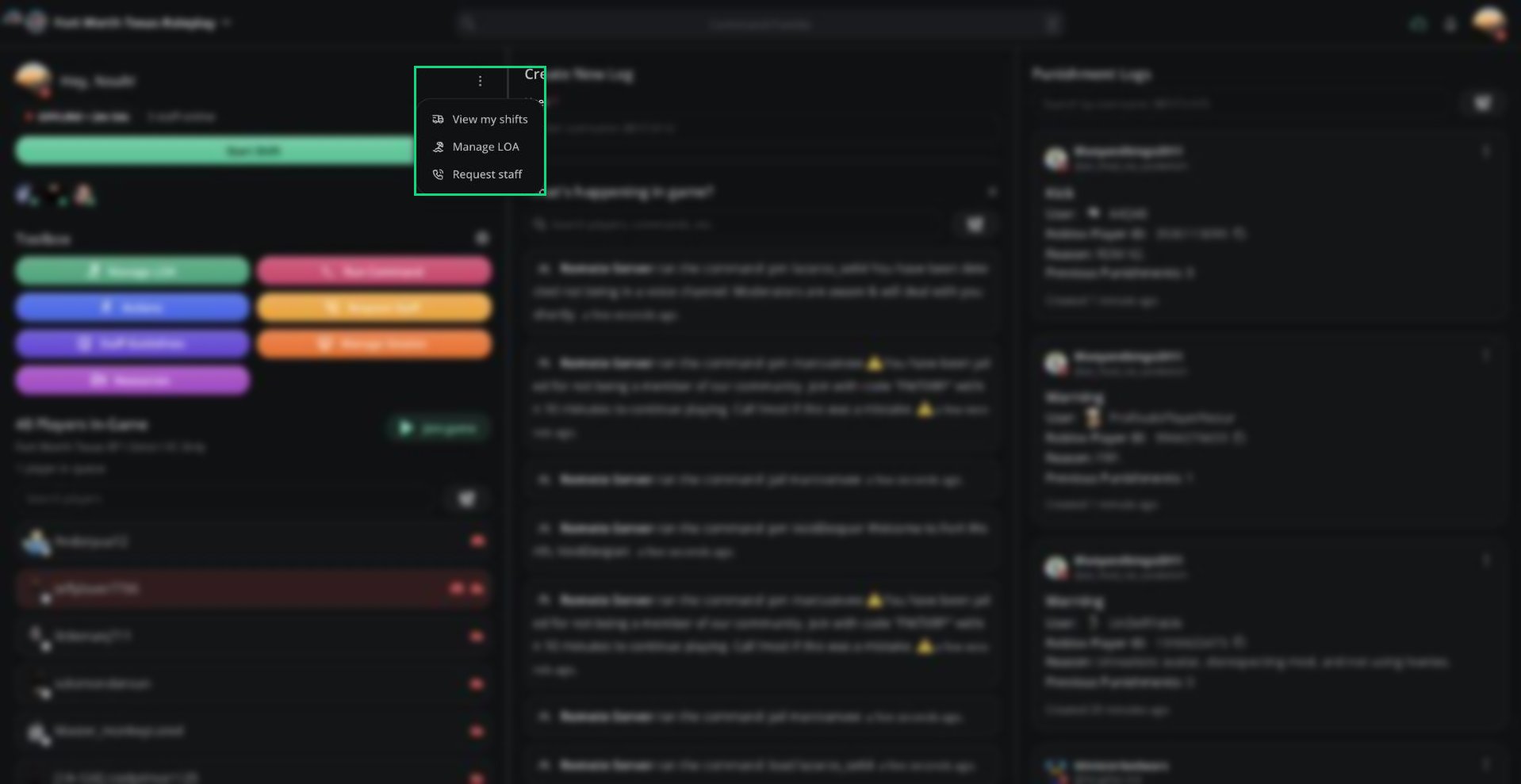
More options menu
- Manage LOA opens your Leave of Absence page.
- Request staff opens Request Staff.
Shifts Tab
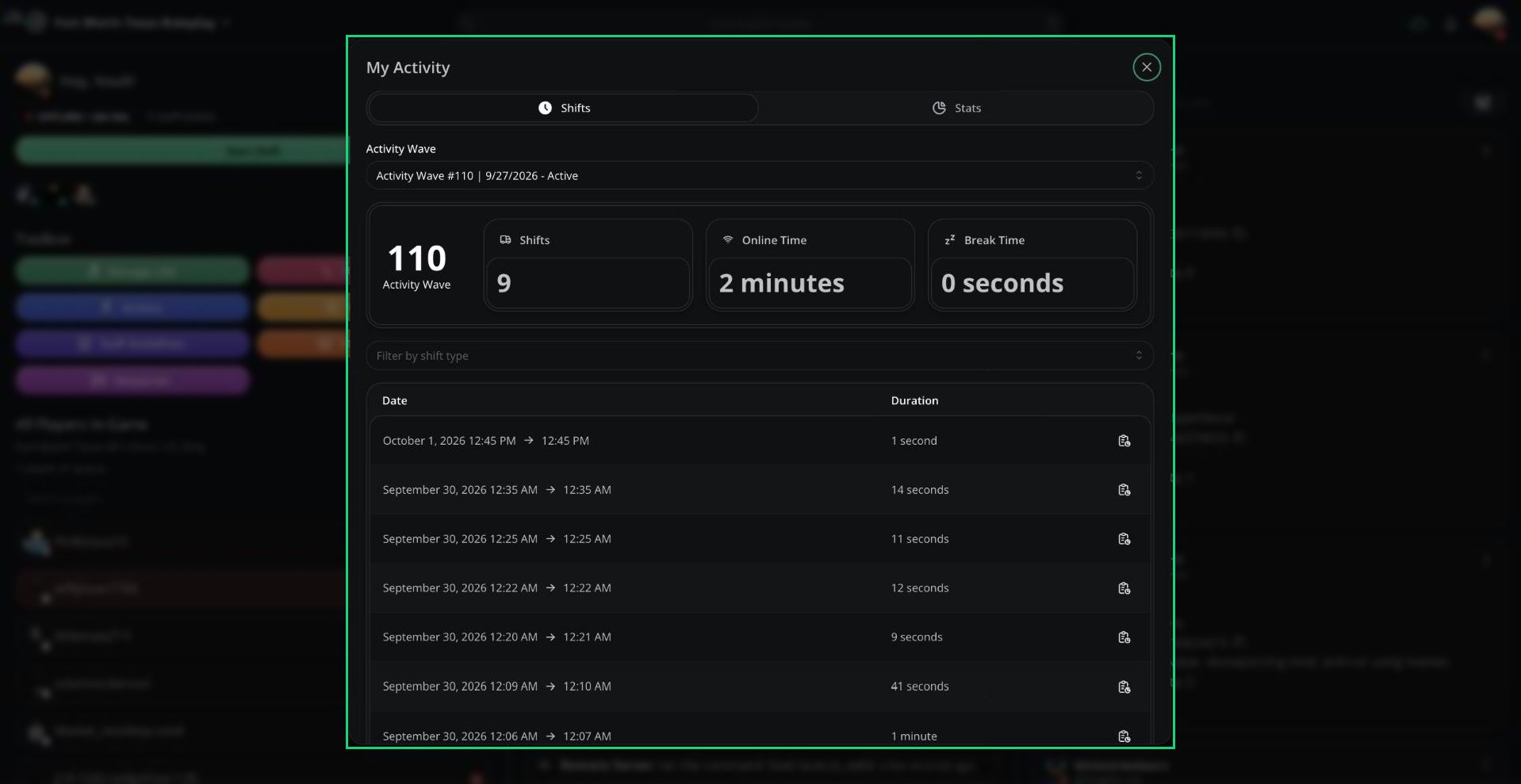
My Activity: Shifts
The Duration column includes break time. Online Time doesn’t.
Stats Tab
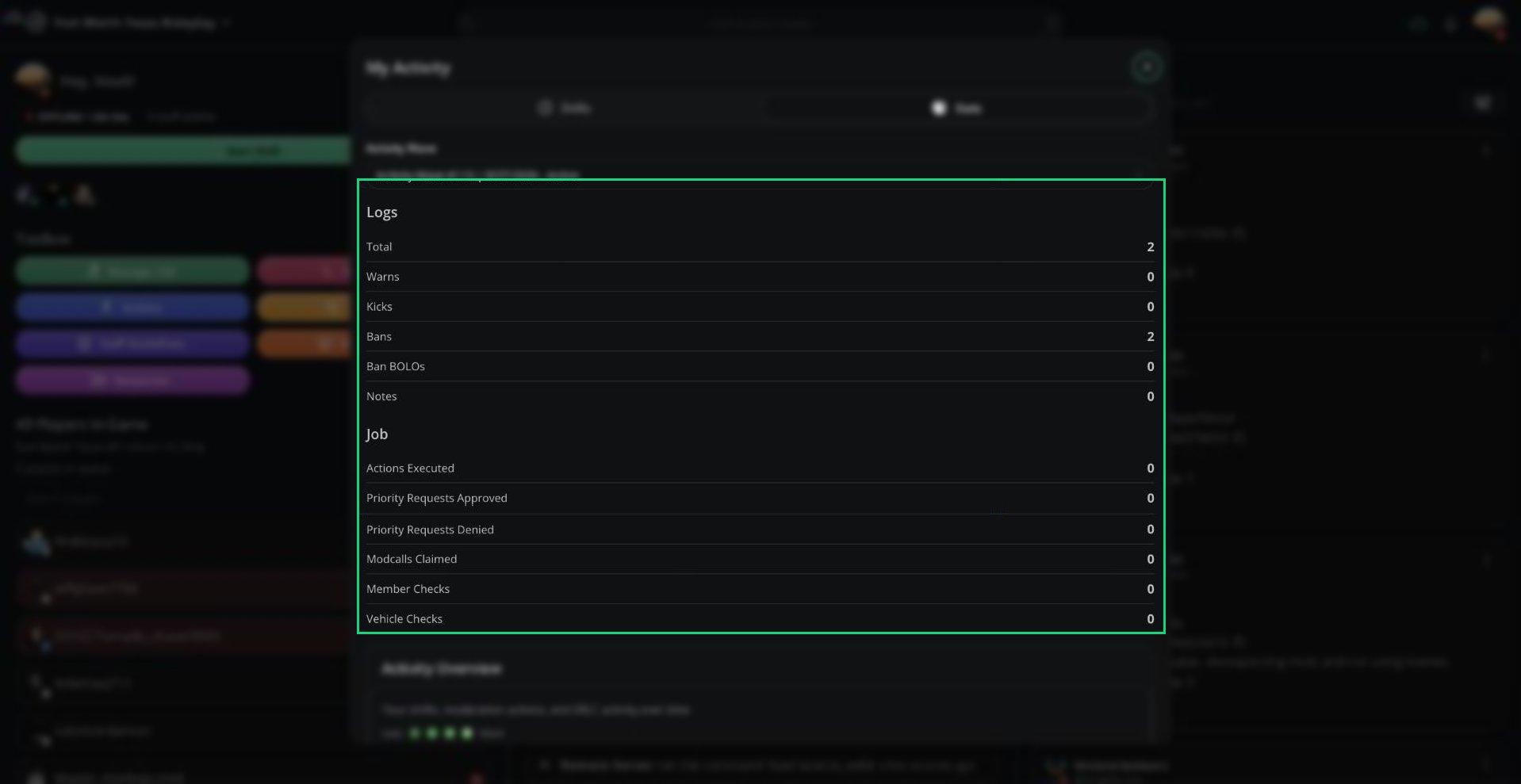
My Activity: Stats
Shift Reports
Click the report icon next to a shift to open its Shift Report. It has three tabs:
Reports are only made for shifts of 5 minutes or more, and you can open them for 7 days after the shift ends.
Need help?
Still have questions? Join our Discord server for support from the Melonly Team.