
What is the Billing Portal?
Melonly payments are handled by Stripe. The billing portal is where you update your payment method and billing details, download invoices, and cancel a subscription.Opening the Billing Portal
Go to melonly.xyz/billing, or click Billing portal in Manage subscriptions on your dashboard or on the Pro card on your profile. If you have one billing account, you go straight to Stripe. If you’ve bought with more than one (for example, different emails), you pick which one to manage first.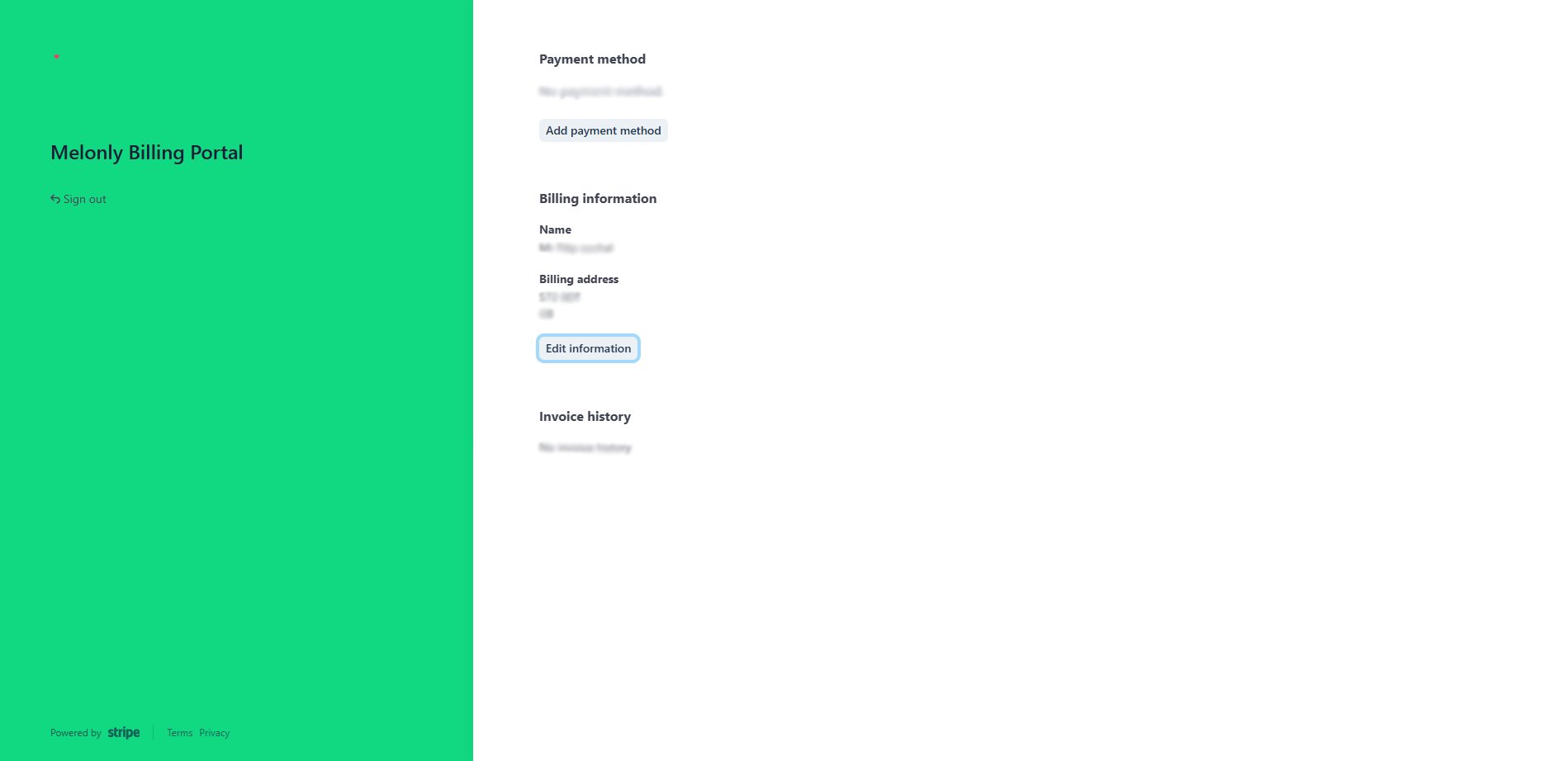
The Stripe billing portal
Cancelling a Subscription
1
Open the billing portal
Go to melonly.xyz/billing and choose the billing account if asked.
2
Find the subscription
Find the subscription you want to stop in the portal.
3
Cancel it
Click Cancel subscription and confirm.
Switching to Annual Billing
If you pay monthly and an annual plan is available, Manage subscriptions (and the Pro card on your profile) shows how much you’d save a year. Click Switch to annual, check the summary, and confirm. You’re then billed yearly instead of monthly.Paused Subscriptions
If a payment fails, Stripe can pause the subscription. While it’s paused its features are on hold, and you can’t activate it or remove it from a server. Manage subscriptions shows a warning when this happens. Click Update payment details, fix your card in the billing portal, and the subscription resumes by itself.Good to Know
- A billing account is created the first time you buy something.
- Refunds are covered by the refund policy.
Need help?
Still have questions? Join our Discord server for support from the Melonly Team.