
Opening Preferences
Open the CAD menu and click Preferences. Changes apply straight away. Your preferences are saved on this device only.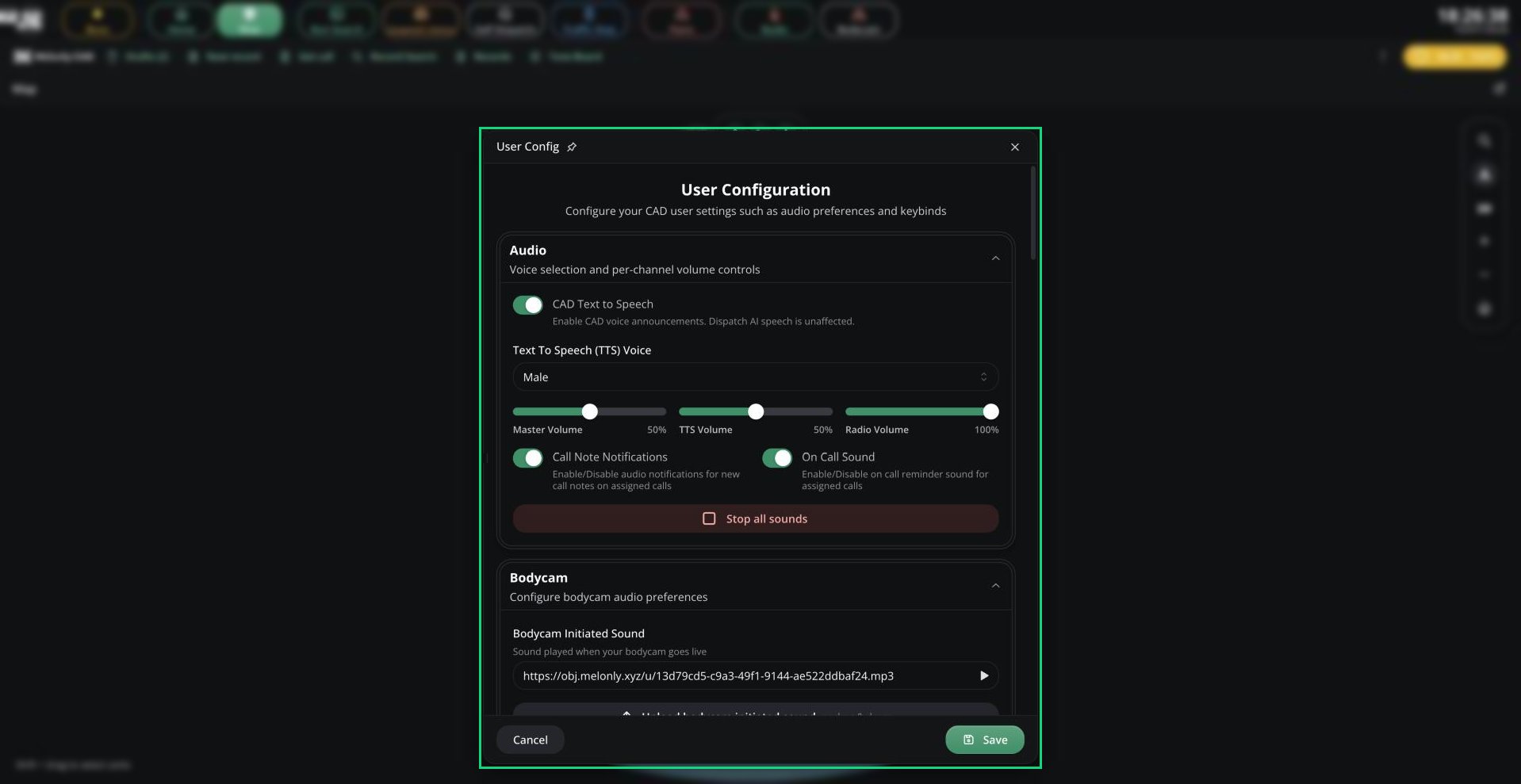
Preferences
Audio
Audio
Radio
Radio
Opening Preferences from the Radio window shows only these settings.
Radio Tones
Radio Tones
Replace any radio sound with your own, or mute it: Key Down, Key Up, Talkover Blocked, Join, Listen-only join, Leave, Mute, Unmute, Volume Up, Volume Down and Volume Min / Max.
Legacy (desktop app)
Legacy (desktop app)
Keybinds
Go to the Keybinds tab in Preferences, click a keybind, and press the keys or mouse button you want.- On Dispatch, status keybinds change the units you’ve selected. On other panels, they change your own unit.
- In the browser, keybinds don’t work while you’re typing in a text box.
- In the desktop app, keybinds work even when the CAD isn’t focused. If some fail to register, check your system’s input permissions for the app.
Notification Sounds
These tones play for CAD events. Your server’s admins can replace any of them. See Custom Notification Tones.Text-to-speech
With text-to-speech on, the CAD reads out assigned calls, new 911 calls, group changes, signals, panics, ankle monitor alerts and Falcon camera detections. 10-Codes are read as separate numbers, so 10-11 is read as “10 11”.Pop-up alerts
You’ll also see pop-ups when a dispatcher changes your status, another unit sends you a lookup, an ankle monitor triggers (Police and Dispatch), or a Falcon camera detects something.Need help?
Still have questions? Join our Discord server for support from the Melonly Team.