
What are the Logging Settings?
The Logging Settings allow Melonly to automatically record moderation actions from your ERLC server.This includes auto logging kicks and bans, as well as allowing staff to manually log punishments using the :log command. These logs appear in your Melonly Mod Panel and help maintain accurate moderation history for your community. Some features require staff to have a linked Roblox account so Melonly can verify who issued the action.
Auto Log Kicks and Bans
Automatically logs every kick and ban issued in your ERLC server.This ensures all punishments are recorded even if staff forget to manually log them. Reasons can be added later by editing the log in the Mod Panel.
:log Punish Command
The :log command allows staff to log punishments directly from in game.This is useful for quick moderation actions without needing to open the dashboard. The command supports multiple log types, including custom ones you configure on the dashboard.
:log Command Reference
How to Use The Logging Settings
1
Enable Auto Logging
Turn on auto logging to automatically record kicks and bans from your ERLC server.
2
Enable :log Command
Allow moderators to use the :log command in game.
Staff must have a linked Roblox account.
Staff must have a linked Roblox account.
3
Configure Custom Log Types
Create custom log types on the dashboard if you want more than the default options.
4
Review Logs in the Mod Panel
All logs appear in the Melonly Mod Panel where staff can review, edit, or add reasons.
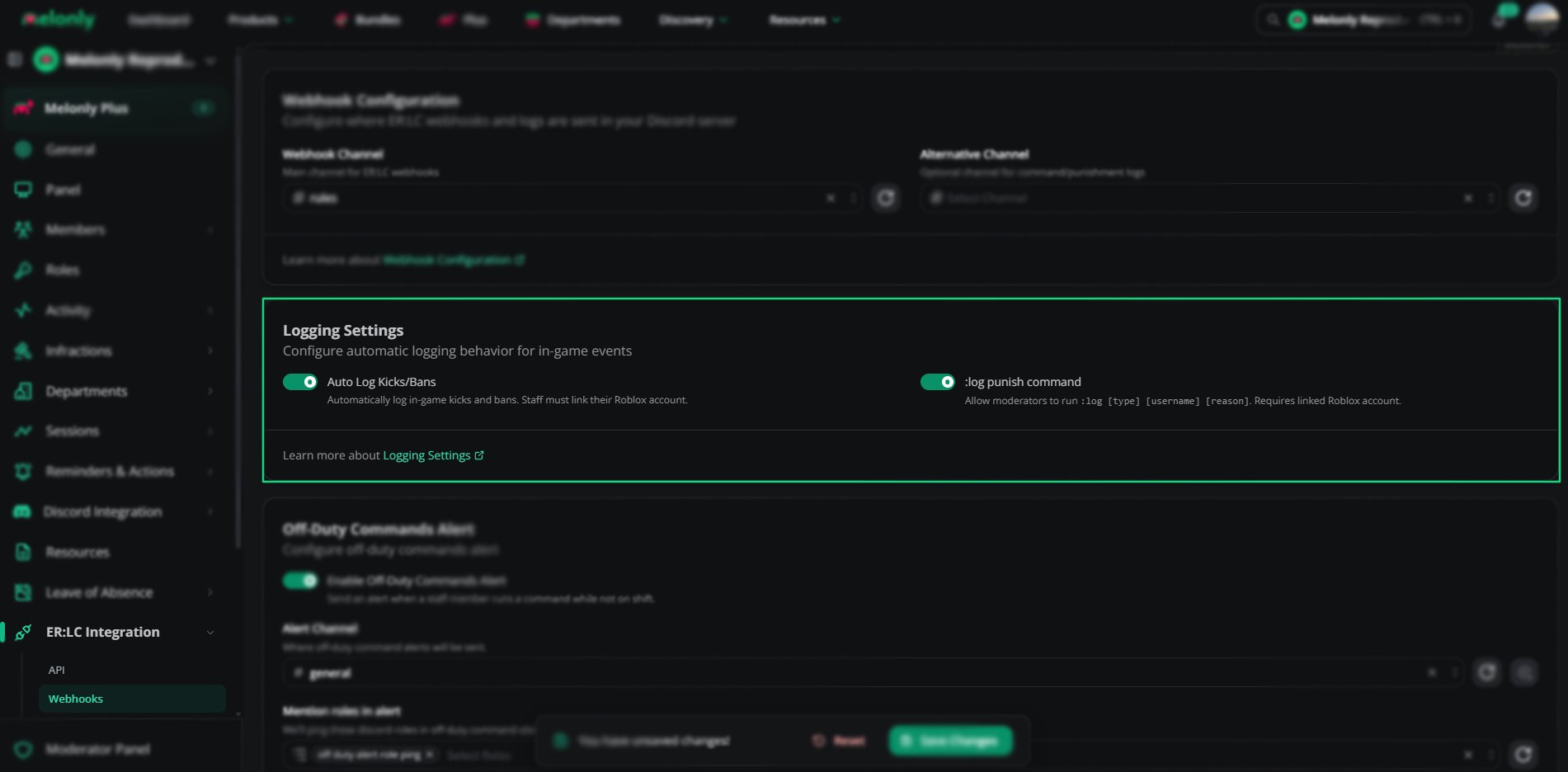
Logging Settings Overview
Example Use Cases
- Automatically record all kicks and bans.
- Allow staff to quickly log punishments in game
- Maintain a complete moderation history for your community
- Use custom log types for advanced moderation workflows
Need help?
Still have questions? Join our Discord server for support from the Melonly Team.