
What is Member Activity?
Member Activity allows you to view detailed statistics for each moderator.You can select an activity wave and a member to see their logs, job actions, and shift history. This page helps you understand performance, identify trends, and review moderation actions.
It also provides a complete breakdown of shifts and time spent online.
How Member Activity Works
Member Activity pulls data from activity waves, shift logs, and moderation logs.When you select a wave and a member, Melonly displays all relevant statistics for that period. You can switch between overall statistics and average statistics per shift.
You can also open the log viewer to see detailed moderation logs.
Configuration Options
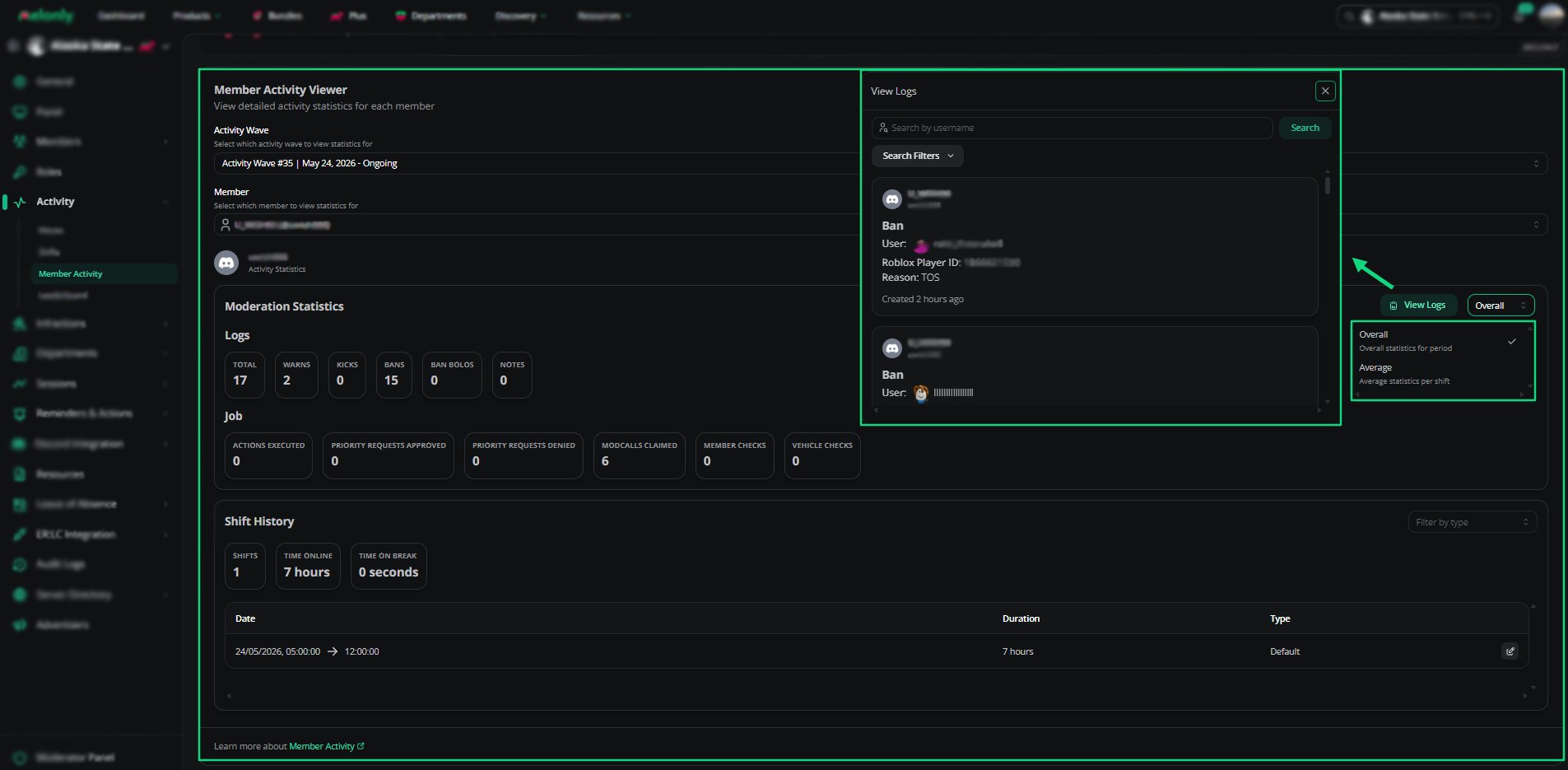
Member Activity Viewer
How to Configure
1
Select an Activity Wave
Choose the wave you want to analyze. Each wave contains its own statistics.
2
Choose a Member
Select the member whose activity you want to view. Their statistics will load automatically.
3
Review Statistics and Logs
Use the statistics panels, shift history, and log viewer to review the member’s performance.
Example Use Cases
- Reviewing moderator performance
- Checking shift history for a specific wave
- Viewing moderation logs for a member
- Comparing overall and average statistics
Need help?
Still have questions? Join our Discord server for support from the Melonly Team.