
What are Lookups and Runs?
There are two ways to look someone up:- Run is a quick check on a person, vehicle or licence, showing warrants, licences and alerts in one place.
- Record Search (also called Lookup) searches every record by name, plate, licence, identifier or record number.
Run
Click Run Search in the top bar, pick a tab and enter what you have. You can also open Run from:- A Run page in a custom layout.
- A quick traffic stop, which runs the plate first.
- The licence scanner in the Melonly desktop app, which opens the scanned licence.
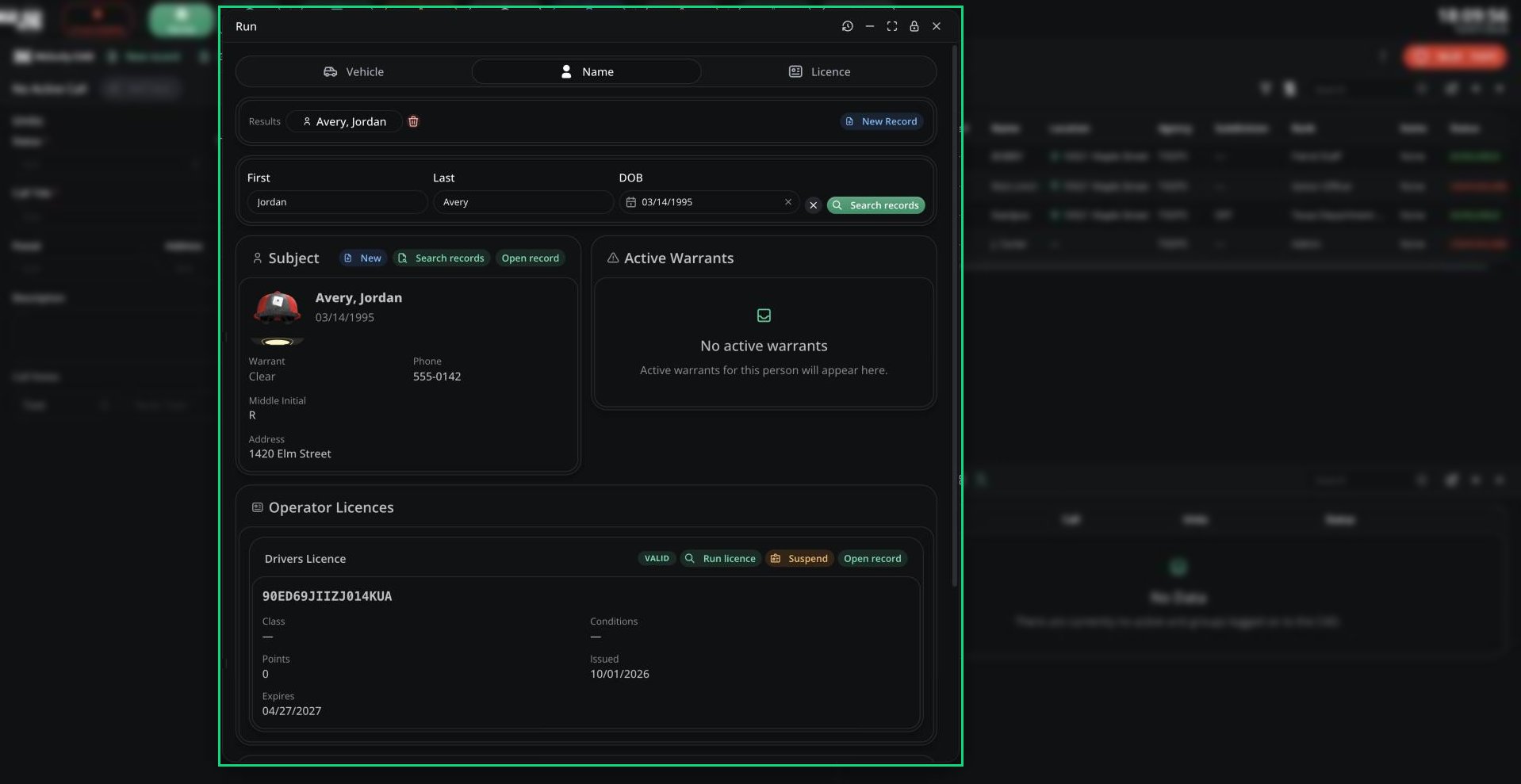
Run: Name
Use Run name, Run vehicle or Open record on any card to dig deeper. Your last 25 runs are in the history icon.
Licence results
Licence cards show a status (Valid, Expired, Suspended or Revoked), class, conditions, points and dates. Police units can click Suspend. Licences restricted to other agencies don’t appear.After a run
- Add to call links the results to your assigned call.
- New Record starts a record filled in from the results.
Record Search
Open Record Search from the CAD menu, the Quick Lookup keybind, or the Search tab in Records Centre.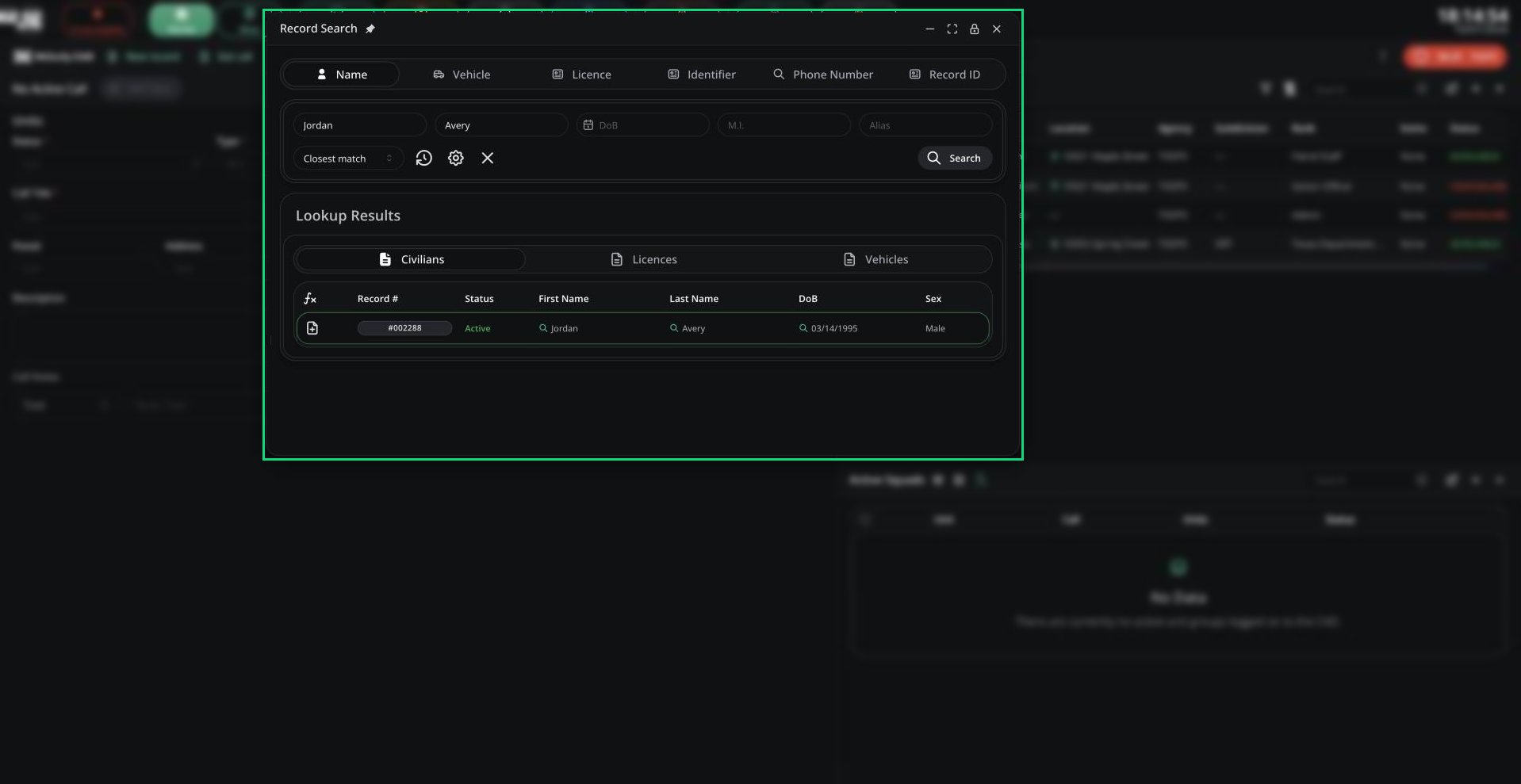
Record Search
Switch tabs with Ctrl + 1, 2, 3 and so on.
Results are grouped by record type, up to 50 at a time. Exact name matches have a green outline. Use the create menu on a civilian, licence or vehicle row to start a record filled from it.
Agency-restricted records only show to units in that agency. On the DOT panel, Record Search only finds DOT records, so use Run to check people and vehicles.
Alerts and Warnings
Runs and searches flag anything important. A tone plays and the CAD reads the flags aloud.
On the Police panel, alerts are also sent to dispatchers. See Flagged lookups.
Licence Data
Click View Licence Data on a licence record to see its history.Need help?
Still have questions? Join our Discord server for support from the Melonly Team.