
What are Search Indices?
Search indices are custom search types that let users search records by any field, such as phone number. They show up as extra tabs in Record Search, and as search fill options in templates. Your CAD starts with a Phone Number search on civilians. You can have up to 5 search types.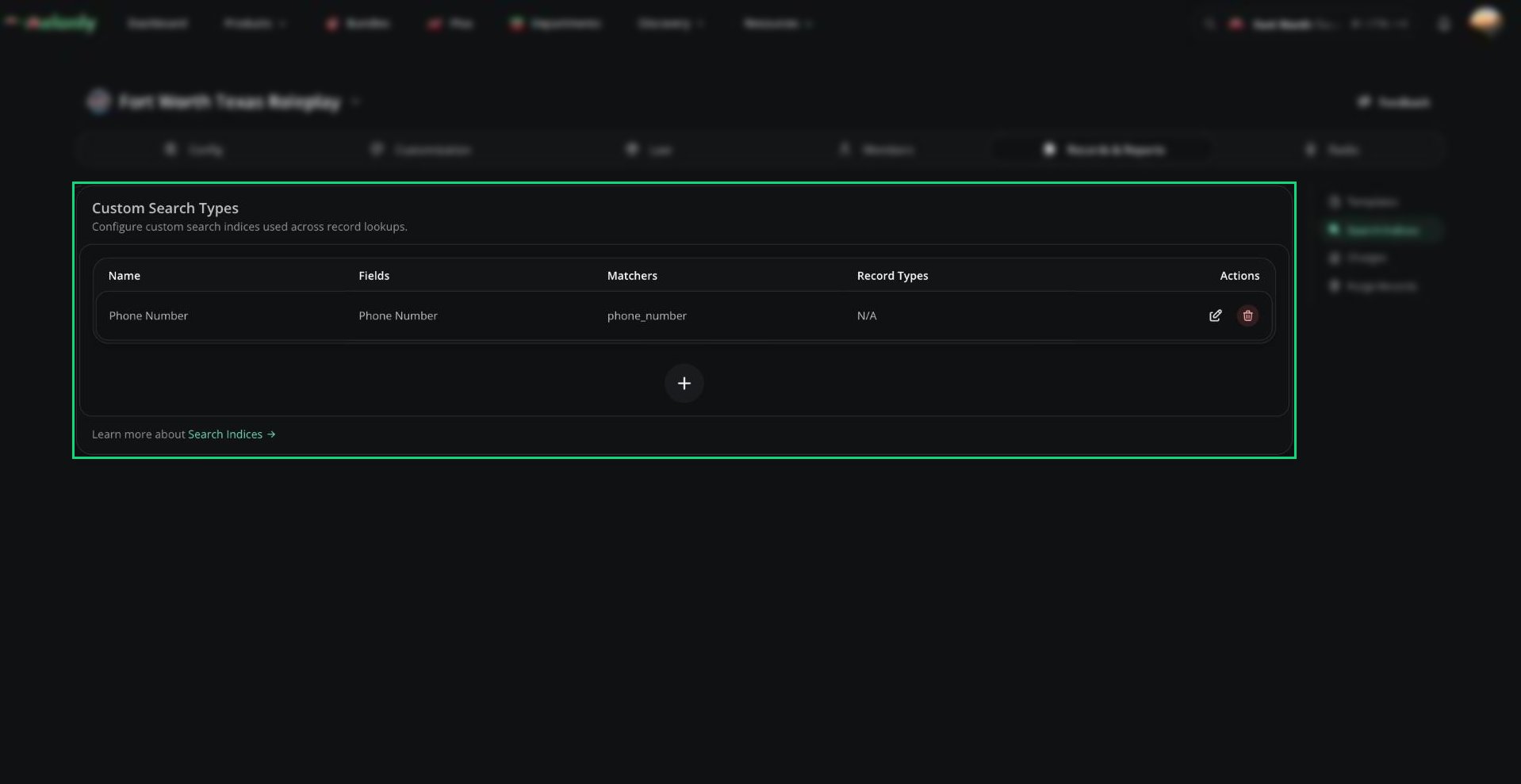
Search Indices
Adding a Search Type
1
Open Search Indices
In the CAD admin panel, open Records & Reports → Search Indices.
2
Add a search type
Click + and enter a name (3 to 20 characters). Optionally limit it to one record type.
3
Add fields
For each field (up to 4), set a name, the matcher it searches, and an optional input mask.
4
Save
Click Save Search Index.
Need help?
Still have questions? Join our Discord server for support from the Melonly Team.