
How Layouts Work
Your workspace is split into panes. Each pane holds one panel, such as your assigned call, Active Units or Radio. You can add, resize and rearrange panes, then save the result as a layout.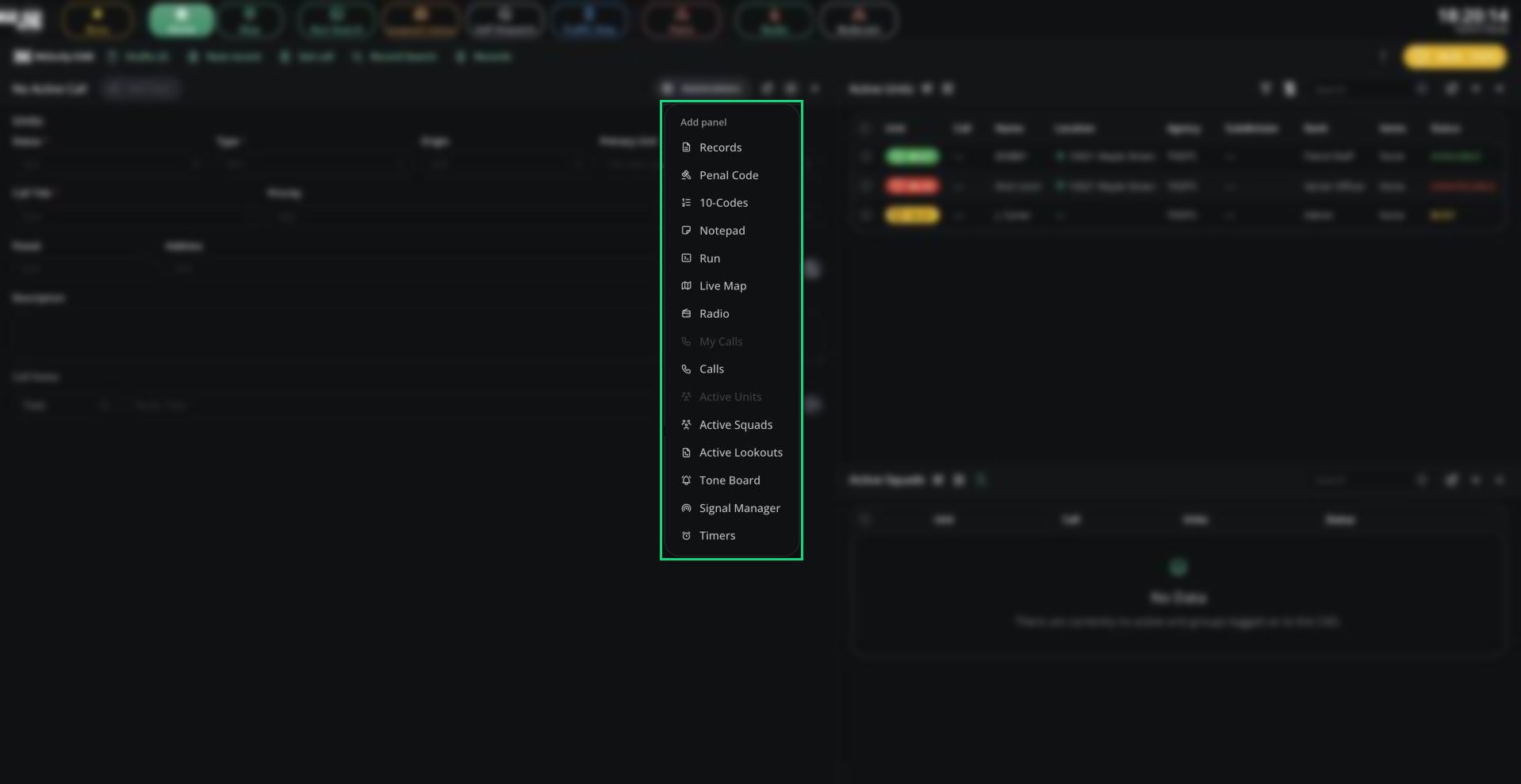
Add panel
Unit groups are called Active Squads on Police, Active Apparatus on Fire, Active Rigs on EMS and Active Vehicles on DOT.
Layouts, views and favourites are saved on this device and browser, per panel type. Use a share code to move them to another device.
Split Panes
Adding a pane
1
Click + on any pane
Every pane has an Add panel button in its header.
2
Pick a panel
Panels already in your layout are greyed out. Unit groups and Radio Quick-Actions can be added more than once.
3
Choose where it goes
Pick a new row above or below, or a new column to the left or right.
Managing panes
- Drag the dividers between panes to resize them.
- Click Detach to window to turn a pane into a floating window, and Attach to layout to put it back.
- Click Close panel to remove a pane. If you closed your calls pane, click Restore calls to bring it back.
Saving and Sharing Layouts
Open the CAD menu and go to Layout.
A share code only copies the arrangement of panes, not any calls or units.
Custom Layout Views
On Police, Fire, EMS and DOT, you can add up to 6 extra tabs next to Home and Map. Each has its own name, icon and layout.1
Create a view
Open the CAD menu and click Layout, then New layout.
2
Name it
Pick an icon and enter a name.
3
Import a code (optional)
Paste a share code to copy someone else’s view. Without one, the view starts from your current layout.
4
Save
Click Create Layout.
Dispatch Layout Presets
On Dispatch, open Layout, then Apply Preset, to switch to a ready-made console. See Dispatch.Quick Bar Favourites
Favourites are shortcut buttons in the second row of the top bar. Record Search and Records are pinned by default. Click ⋮ at the end of the bar to see every window you can open, and click a window’s star to pin or unpin it. You can also pin a window from its title bar.Need help?
Still have questions? Join our Discord server for support from the Melonly Team.