
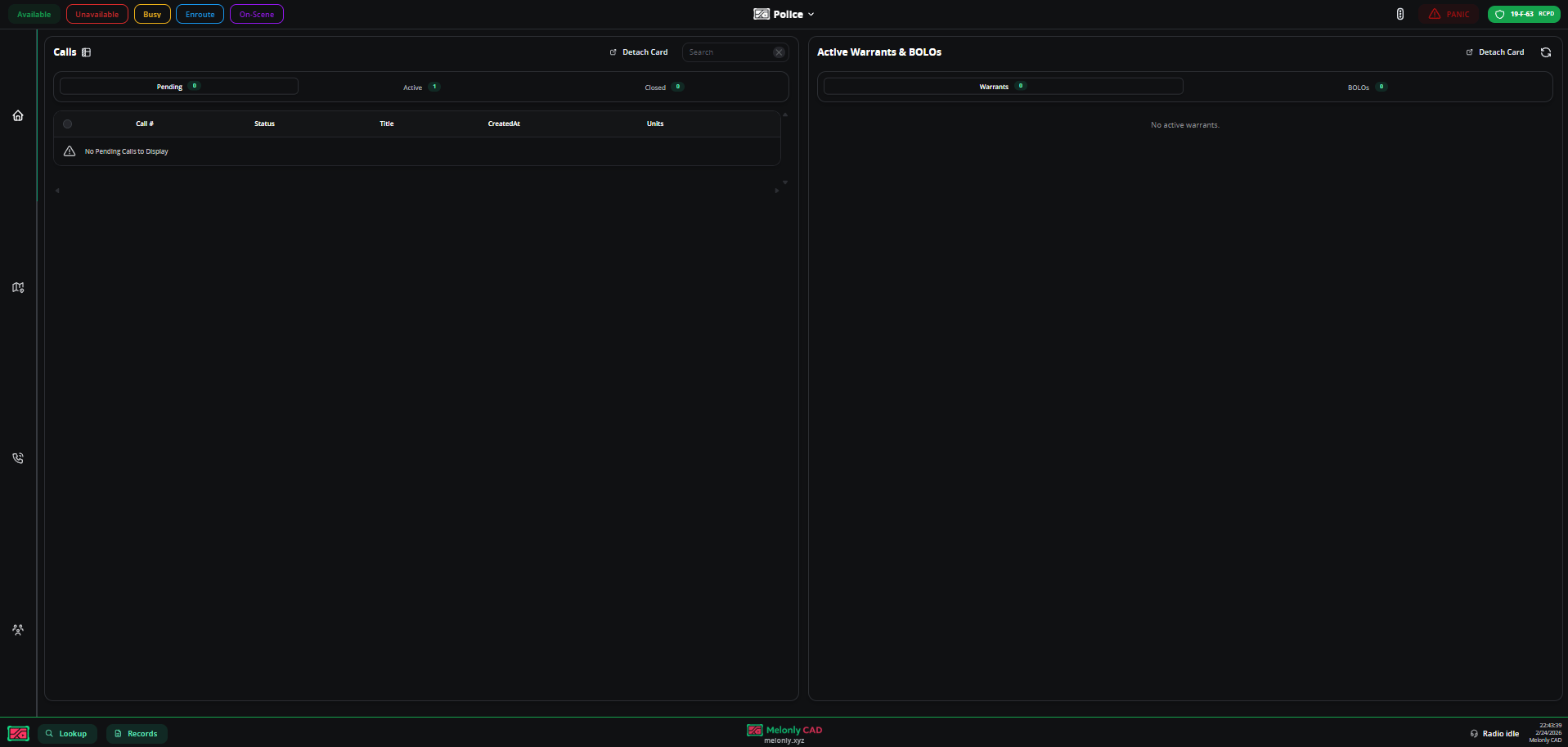
Law Enforcement homepage
- Unit creation
- Cards
- Map
- Calls
- Active units
- Tools
Create a unit
Open Add Unit
Click Select Unit → Add Unit when you first open the Law Enforcement panel.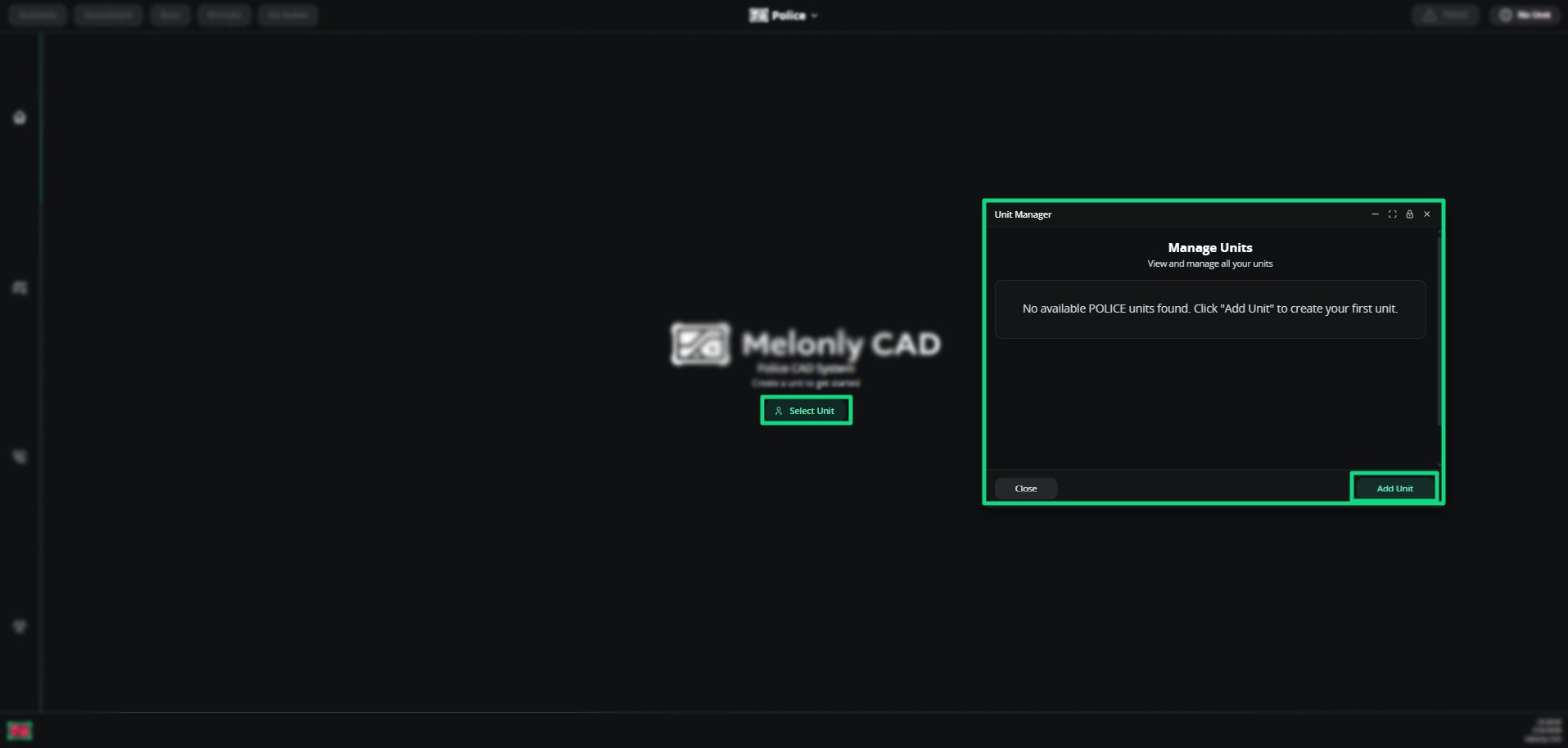
Unit creation
Fill in the details
| Field | Description |
|---|---|
| Unit Number | Your callsign |
| Unit Name | Roleplay name or designation |
| Rank | Your department rank |
| Agency | Police, Sheriff, etc. |
| Subdivision | Your specific division or specialty unit |
| Items / Abilities | Equipment, tools, and abilities |
Create Unit
Click Create Unit in the bottom-right.
Unit details can be updated at any time.
Manage units
Click the unit info button in the top-right of the homepage. From the management menu, open the kebab (⋮) on a unit and choose Edit or Delete.Button colour reflects your current status.
The Law Enforcement homepage shows two main cards: Calls and Active Warrants & BOLOs. Detach, reattach, or pin them to any side.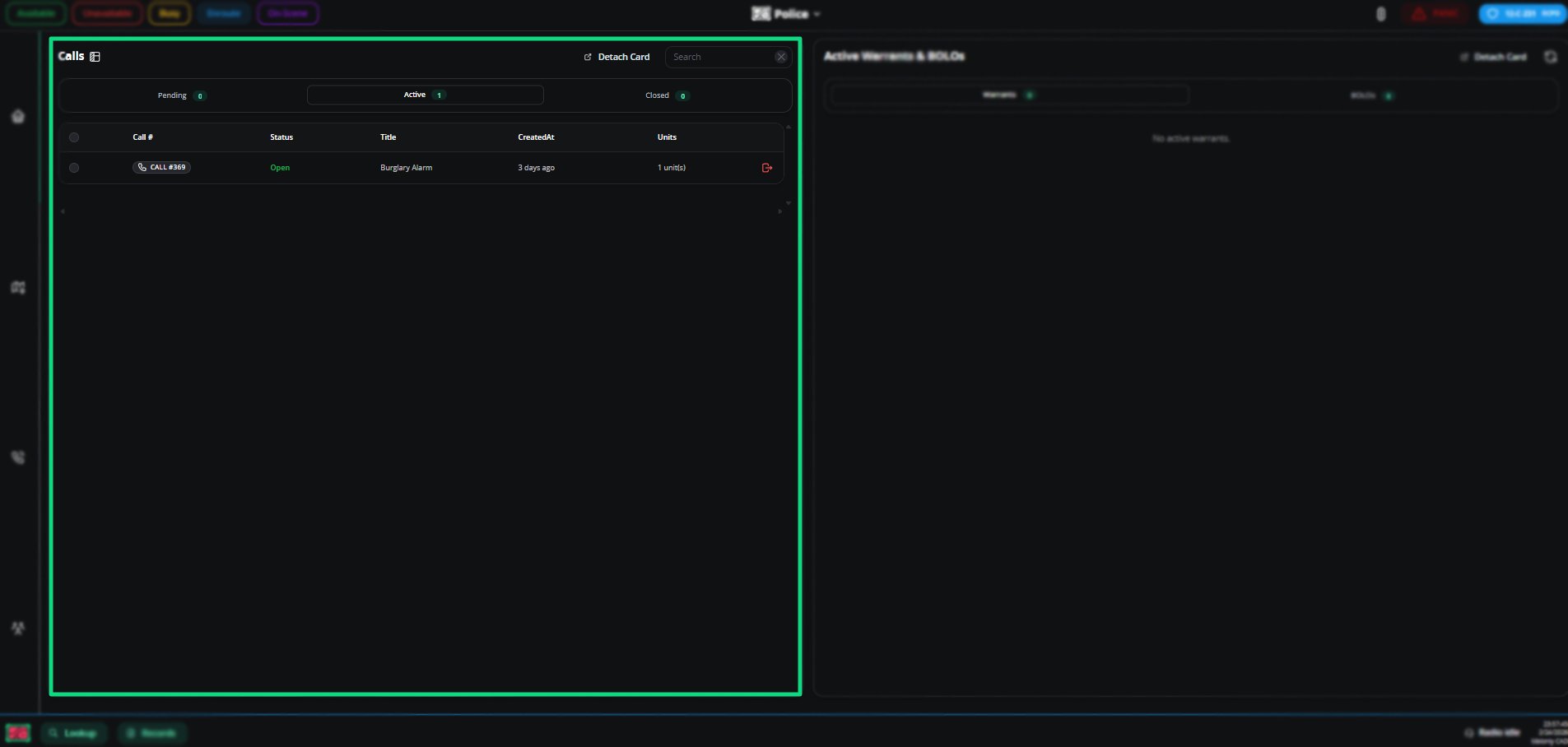
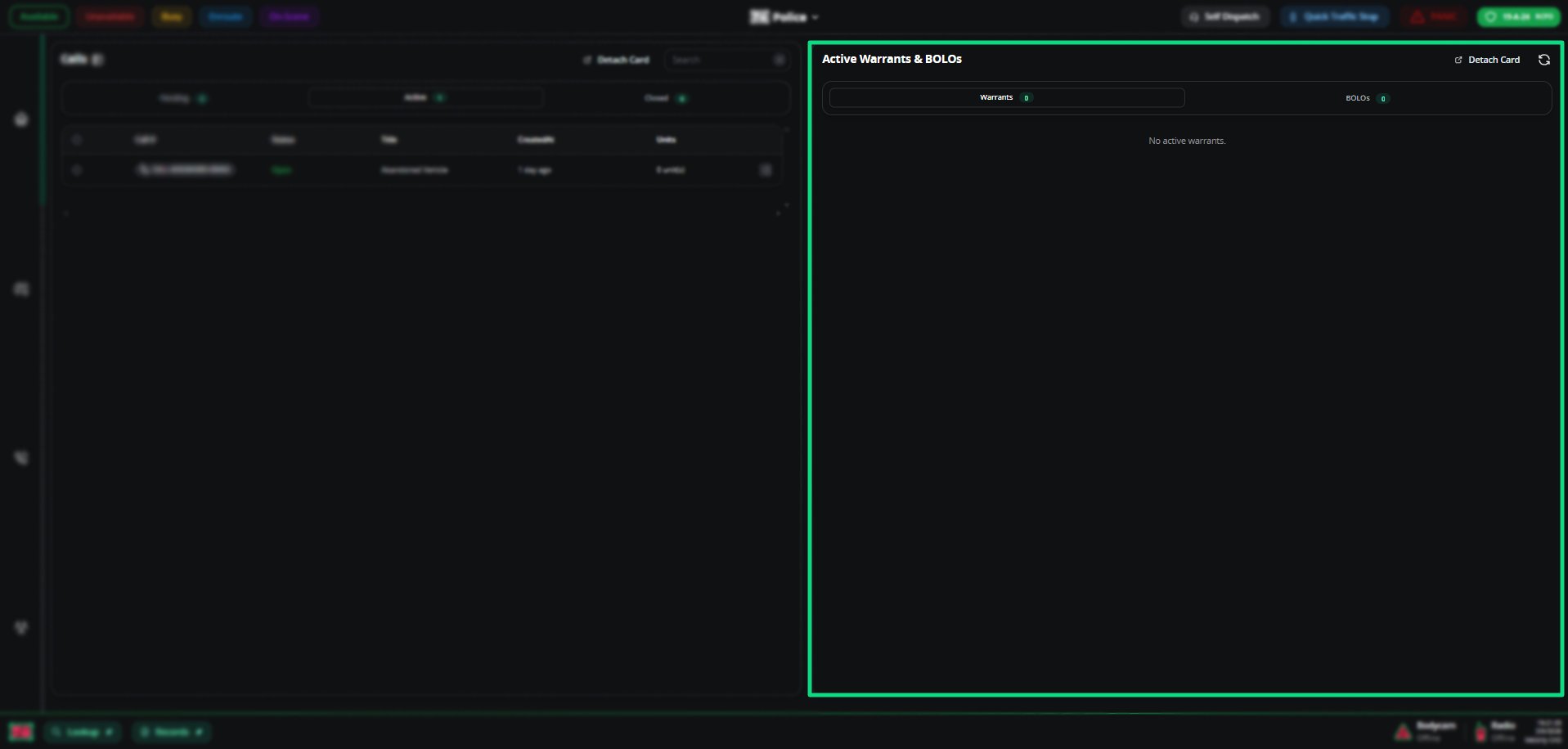
Calls
All Pending, Active, and Closed calls. Join active calls or reopen closed ones. Use Toggle Layout to switch between standard and grid views.Calls
Active warrants & BOLOs
Executable warrants and arrest-related BOLOs with suspect details, signature, and charges.Active warrants & BOLOs
Closing Warrants as LEO
Active warrants can now be closed directly from the warrant record window without needing to use the Law panel.Only active (open) warrants can be closed. Pending or already‑closed warrants will not show the close button.
This feature allows officers to close warrants during arrests in RP without dispatcher or court involvement.
An interactive ER:LC map with live unit locations and customizable markers.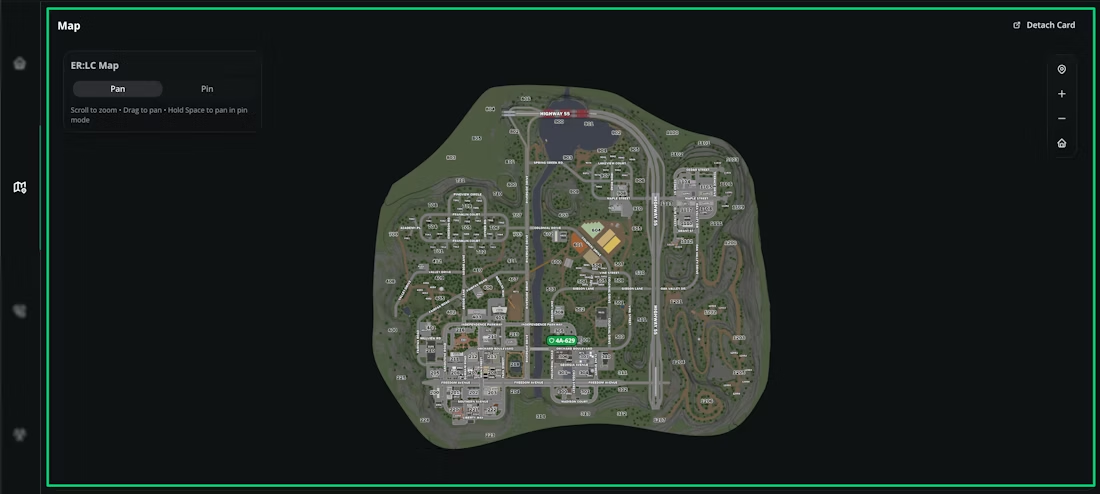
On-screen buttons mirror these controls.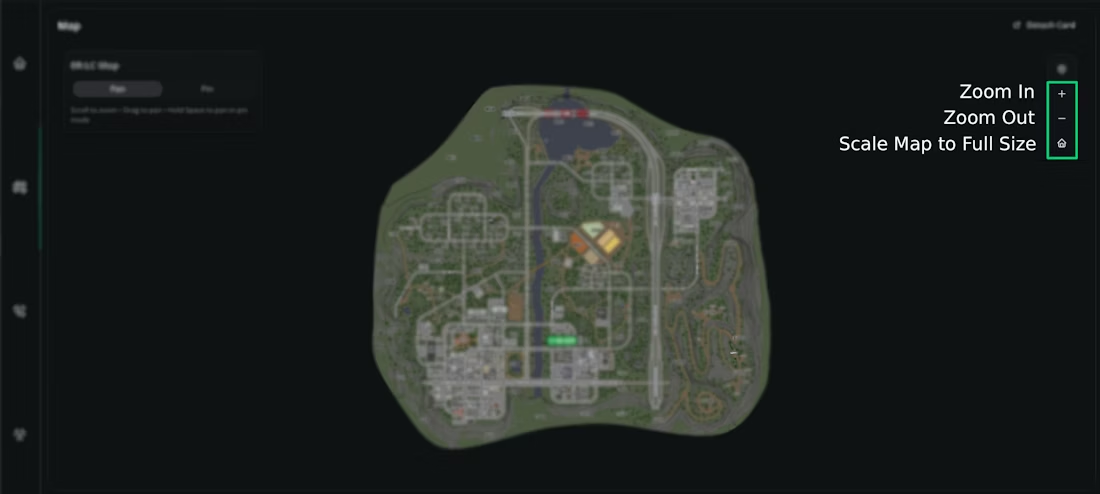
The CAD map
Navigation
| Action | Function |
|---|---|
| Pan | Click and drag |
| Pan in pin mode | Hold Space, then click and drag |
| Zoom | Scroll, or double-click to zoom in |
Map navigation buttons
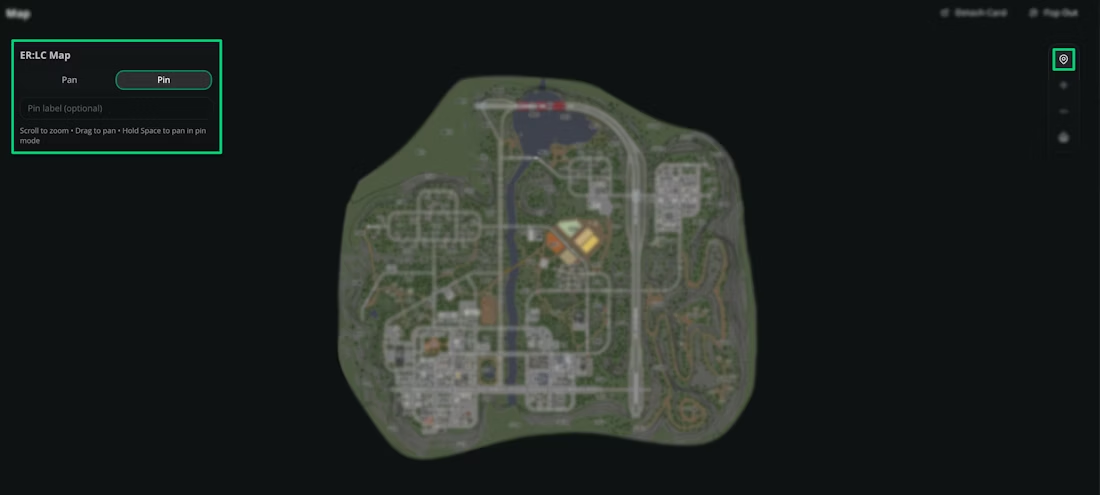
Pin mode
Place customizable markers — useful for marking event or crime-scene locations.Pins on the map
| Action | Function |
|---|---|
| Pan/Pin Toggle | Switch between pan and pin |
| Pin Label | Add a description before placing a pin |
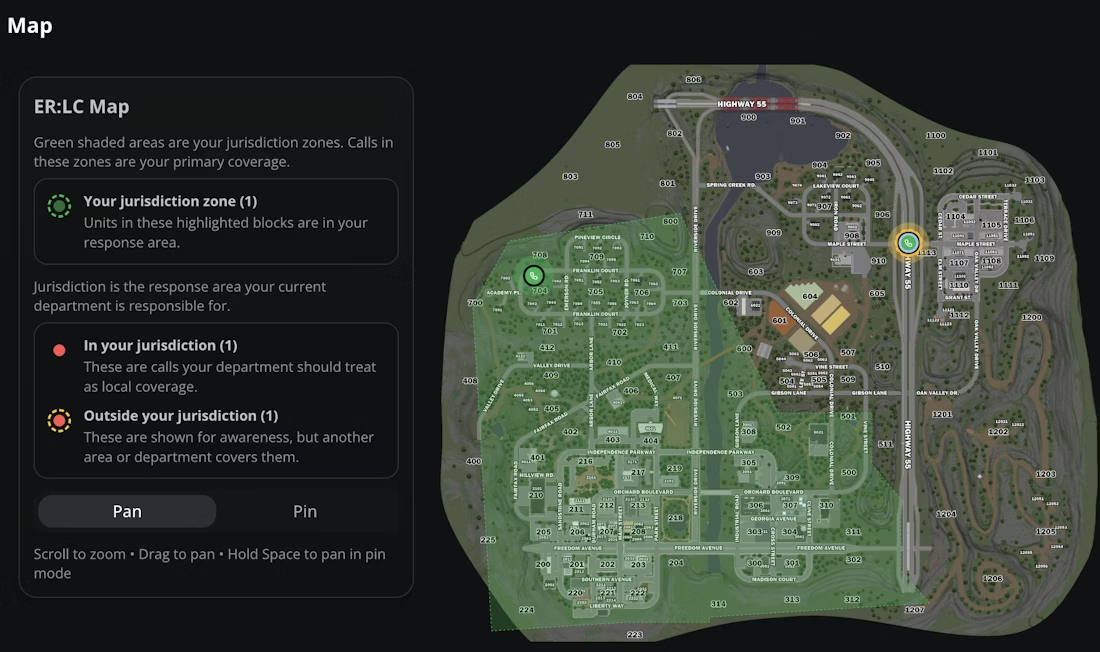
Calls on the map
Calls on the map
The green area is your unit’s agency jurisdiction.
Managing units on the map
Click a unit’s callsign to manage it. Self-Dispatch must be enabled.Units appear on the map only if their Roblox account is linked to their Melonly account in account settings.
| Action | Description |
|---|---|
| Set Status | Available, Unavailable, Busy, Enroute, On Scene |
| View Bodycam | Live video feed (clip in 15/30/60s segments) |
| Quick Traffic Stop | Search a plate, then auto-create a traffic stop call |
| Add to Group | Create a new group or add to an existing one |
| Add to Call | Attach the unit to a call |
| Add to Timer | Start a countdown timer |
| Tone Board | Play tones to communicate or alert |
| Send Lookup | Send lookup results to the unit |
| Send Record | Send a record to the unit |
| Toggle Panic | Activate panic mode |
| Kick | Disconnect from the CAD |
Calls represent active incidents — the central hub for communication. Units join or leave to show involvement, and call details update live.
Call properties
| Field | Description |
|---|---|
| Call Number | Unique ID in the configured date and counter format |
| Self Clear | Removes your unit from the call |
| Units | Units currently attached |
| Status | Active or closed |
| Type | Civil or emergency |
| Origin | Dispatcher, walk-up, caller, report, on-sight, or radio |
| Primary Unit | The lead unit |
| Priority | Urgency and response speed |
| Postal | Nearest postal code |
| Address | Street name |
| View Call Location | Opens a map centred on the location |
| View Linked Records | Records attached to the call |
| Description | Detailed incident info |
| Call Notes | Live updates and unit-added notes |
| Automations | Auto-updates your unit status |
Call info can only be managed by dispatchers or units in self-dispatch mode.
Call merging
| Topic | Description |
|---|---|
| What happens on merge | Units reassign to the destination call, notes merge with [MERGED] prefix, source call closes |
| Notifications | Assigned units get a CAD alert plus a TTS notification |
| How to merge | Use the context menu, drag and drop, or select multiple calls with checkboxes |
All units connected to the CAD with their info — number, name, agency, subdivision, rank, equipment.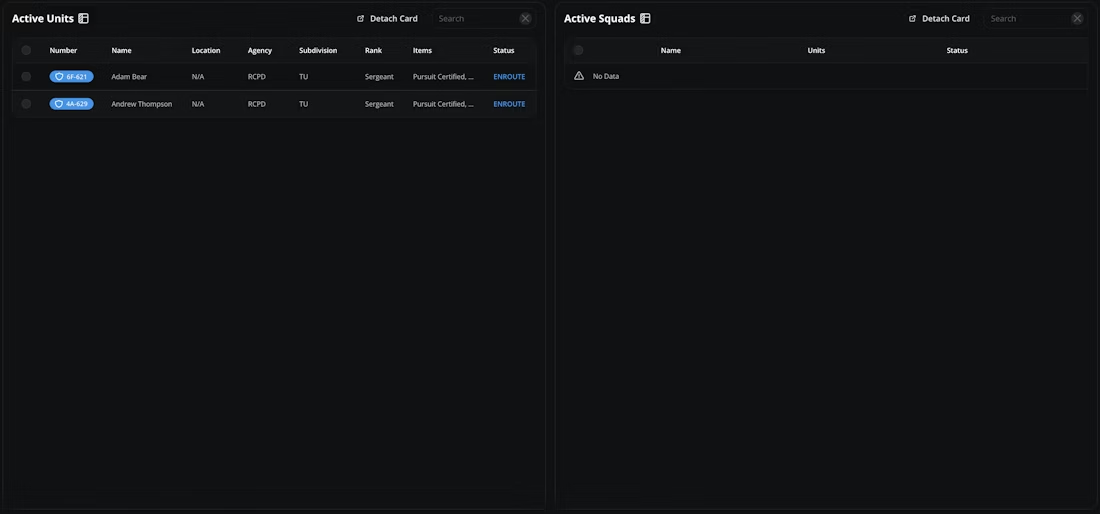
Click a callsign to manage the unit (same actions as the map).
Active units
| Field | Description |
|---|---|
| Number | Unit’s callsign |
| Name | Roleplay name |
| Location | Last known location |
| Agency | Member agency |
| Subdivision | Specific subdivision |
| Rank | Department rank |
| Items | Authorized abilities and equipment |
| Status | Current status |
Tools live across the top and bottom of every Law Enforcement page.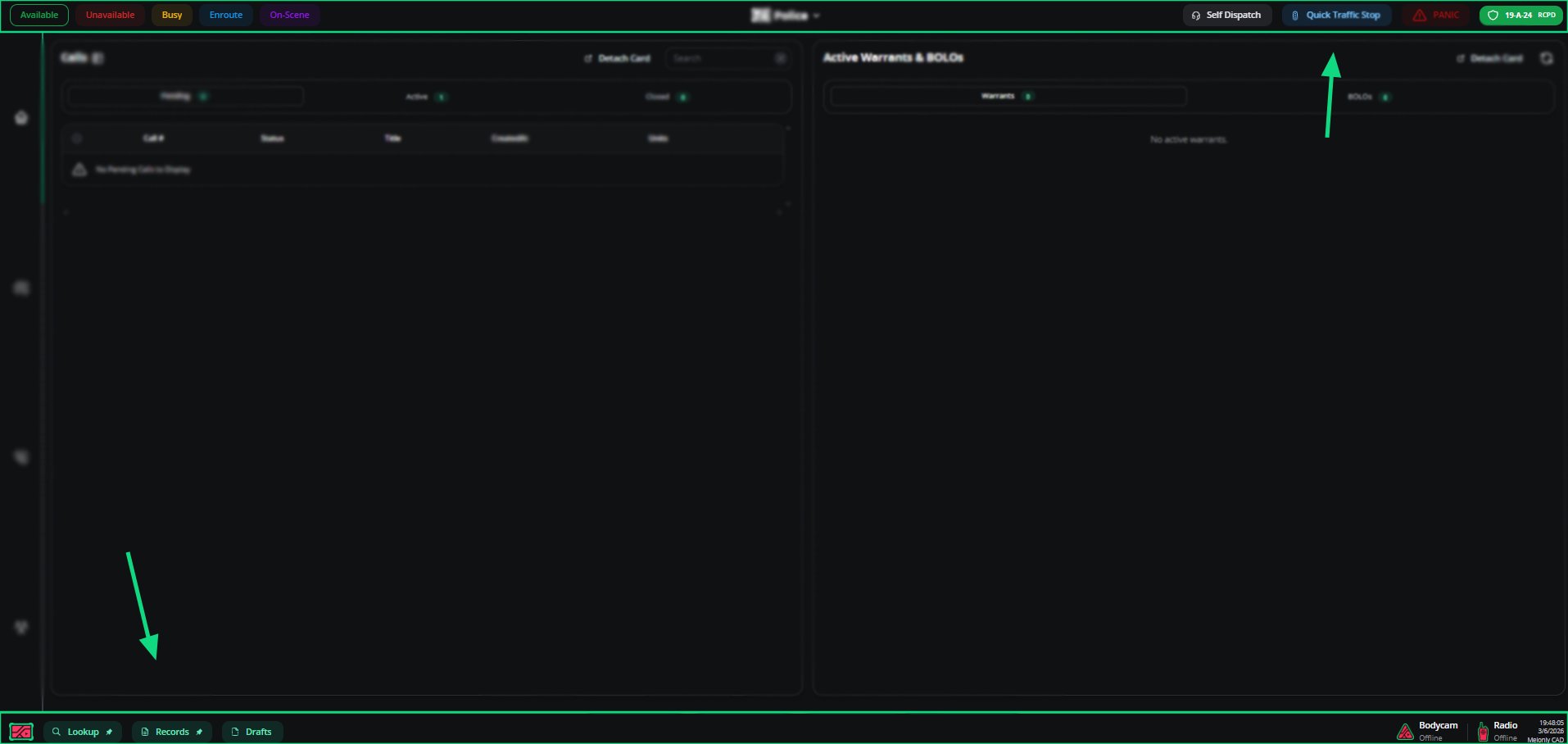
Keybinds
Radio
Tools overview
Actions
Open the actions menu by clicking the Melonly CAD logo in the bottom-left of any page.| Action | Description |
|---|---|
| Leave | Returns to the CAD homepage with no server selected |
| Switch Panel | Returns to the CAD homepage with the current server still selected |
| Preferences | Configure audio, keybinds, and radio |
| Enter Fullscreen | Toggle fullscreen mode |
| Information | View Penal Codes and 10-Codes |
| Notepad | Create and manage on-the-fly notes |
| Lookup | Search records by name, vehicle, licence, identifier, or Record ID |
| Records | View, create, and review records and reports. Supervisors can click the User Icon to view the record creator. |
Preferences
Audio| Setting | Description |
|---|---|
| Text to Speech Voice | TTS voice |
| Text to Speech Volume | TTS loudness |
| Master Volume | All system audio |
| Radio Volume | Radio communication volume |
| Call Note Notifications | Toggle call note alerts |
| On Call Sound | Toggle the on-call sound |
| Setting | Description |
|---|---|
| Status: Available | Set status to Available |
| Status: Unavailable | Set status to Unavailable |
| Status: Busy | Set status to Busy |
| Status: En-Route | Set status to En-Route |
| Status: On-Scene | Set status to On-Scene |
| Panic | Trigger panic |
| Quick Lookup | Open quick lookup |
| Setting | Description |
|---|---|
| Input / Output Device | Mic and audio devices |
| Push-to-Talk | Transmit keybind |
| Key Down / Up | PTT activation tones |
| Talkover Blocked | Alert when talkover isn’t allowed |
| Join / Leave | Channel cues |
| Mute / Unmute | Mic mute cues |
| Deafen / Undeafen | Output mute cues |
Status management
Set your status (Available, Unavailable, Busy, Enroute, On Scene) in the top-right by clicking or pressing your hotkey. Status auto-changes to Enroute when attached to a call.Self dispatch
Toggle in the top-right. When enabled, you can create and manage calls with full dispatcher-level control.Quick traffic stop
Top-right button — opens the vehicle database for an instant plate-based lookup.Lookup
Search Names, Vehicles, Licenses, Identifiers, or any specific Record ID. Advanced mode supports start-with, partial, or exact matches.Records
View Warrants and BOLOs, create new records, and pull call info by incident number. Includes a Supervisor Centre and a My Files tab.Viewing Record Creator
Supervisors can now view which Melonly user created a record directly from the record window.When you open any record, a user icon appears on the far-right side of the bottom bar. Clicking this icon reveals the creator’s Melonly profile information, including their avatar and Discord username.
This feature is only available to supervisors for the specific record type.
For example, a Police Supervisor can see creators of Police Records and Police Reports, but not Fire Records or Fire Reports.
For example, a Police Supervisor can see creators of Police Records and Police Reports, but not Fire Records or Fire Reports.
Non-supervisors will not see the creator icon and cannot access record creator information.
Drafts
Cloud‑saved drafts allow you to return to records you started but didn’t finish - synced across all your devices.Drafts are no longer stored in your browser. They are saved directly to your Melonly account and load automatically when you open the panel.
How Cloud Drafts Work
- When the panel loads, all your saved drafts are fetched from the Melonly API.
- Drafts appear both:
- In the Drafts tab inside the Records Centre (under My Files), and
- In the bottom‑left Drafts button on the panel.
- Opening a draft locks it so it cannot be opened twice at the same time.
- Closing a draft without creating the record saves it back to your list.
- Creating a record removes the draft from your account.
- Deleting a draft removes it from the list immediately.
The Drafts tab and the bottom‑panel Drafts button always stay in sync.
If you experience issues with drafts not syncing, open Chrome DevTools → Network and send the relevant API request and response logs to support.
Bodycam
Share your Roblox gameplay view as a live feed.Share only your Roblox tab. Sharing your full screen exposes everything on it.
Radio
Voice channels that work like Discord. Join from the Radio icon in the bottom-right.| Action | Description |
|---|---|
| Channel Clips | Record short clips for review |
| Quick Transmit Keybind | Push-to-Talk |
| Mute / Deafen | Standard mute and deafen |
| Leave | Disconnect from the channel |
In-game commands
| Command | Description |
|---|---|
;status 'status' | Change your unit status |
;panic | Toggle panic |
;sn 'First' 'Last' | Search a name |
;sp 'Plate' or ;sp * | Plate lookup (* = nearest vehicle) |
;ts 'Plate' or ;ts * | Quick traffic stop |
Requires a linked Roblox account and a configured events webhook.
Need help?
Still have questions? Join our Discord server for support from the Melonly team.