
The CAD Interface
Every panel has a top bar, a CAD menu behind the logo, a workspace you can rearrange, and floating windows for tools like Records, Run and Radio. To change your workspace, see Layouts. The top bar stays greyed out until you select a unit. See Creating Your Unit.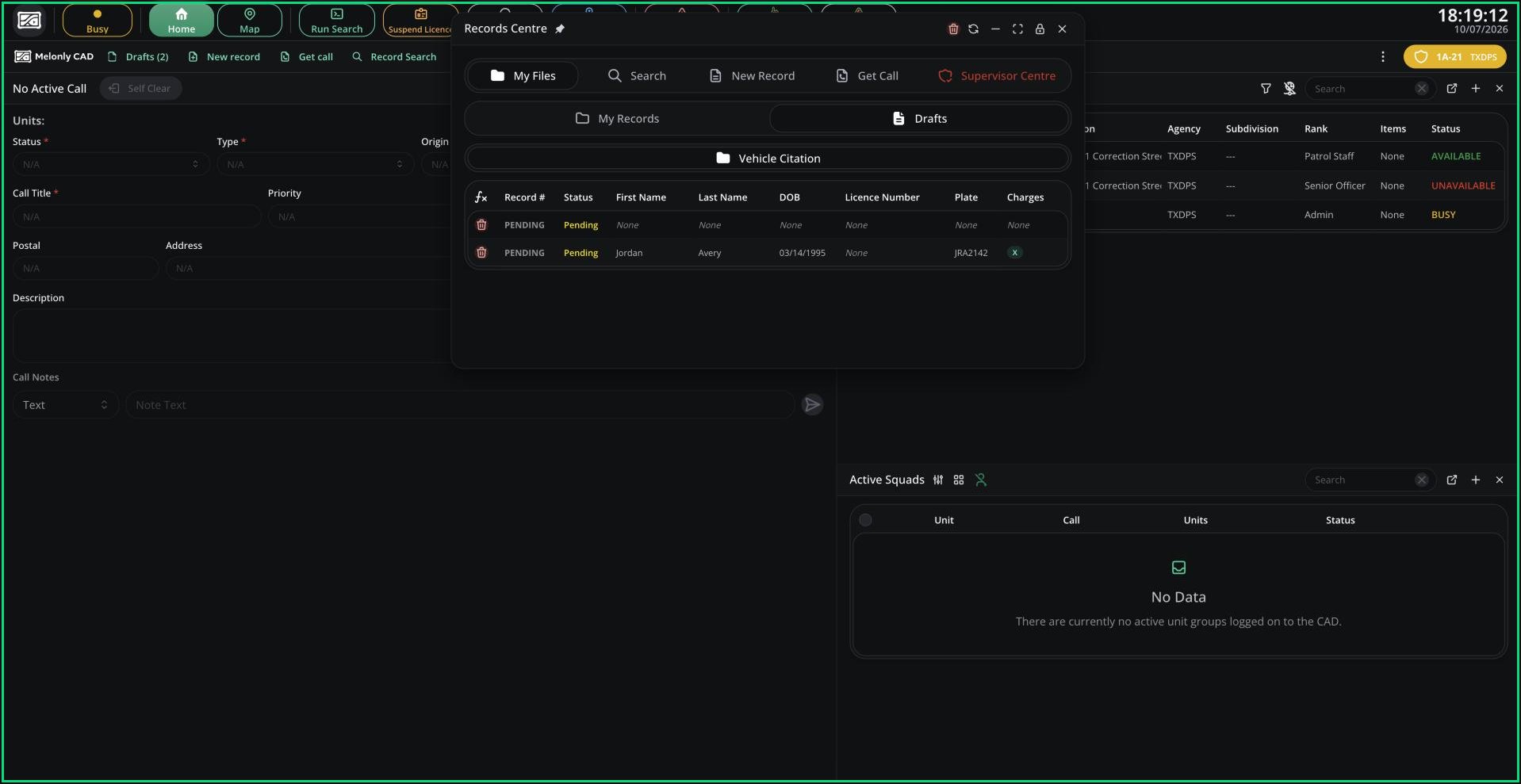
The panel interface
🧭 Quick Navigation
Top Bar & CAD Menu
Every top bar button and CAD menu item.
Layouts
Split panes, custom views, presets and favourites.
Preferences
Audio, keybinds, radio settings and notification sounds.
Command Bar
Dispatch units and manage calls by typing.
Bodycam
Your bodycam streams your ER:LC window so supervisors can watch it, and lets you record clips.- Open Bodycam in the top bar and click Start Bodycam.
- When your browser asks what to share, choose Window, then ROBLOX. Don’t share your entire screen.
- To save a clip, click Start Recording or press
Alt+R. Your clips are under View recordings.
Floating Windows
Most tools open in windows that float over your workspace.- Drag the title bar to move a window, and the bottom-right corner to resize it.
- Drag a window to a screen edge or corner to snap it, or to the top-middle to maximise it.
- Double-click the title bar to minimise or restore.
- Use the title bar buttons to pin it to your favourites, dock it into your layout, lock it in place, or pop it out (desktop app).
- Press
Ctrl+Esc(⌘+Escon Mac) to close the focused window.
Run Search
Click Run Search to check a vehicle by plate, a person by name and date of birth, or a licence by number. Results show any alerts and warnings, and you can link them to your assigned call. See Lookups & Runs. To search records instead, pressAlt + L for Quick Lookup.
Command Bar
The Command Bar lets you control units and calls by typing short commands, likeD 1A-12 #1234 to dispatch a unit. See Command Bar for every command.
Live Map
The live map shows units and calls on the ER:LC map. On service panels, click the Map tab. On Dispatch, click Live Map. You can also add it to your layout as a pane.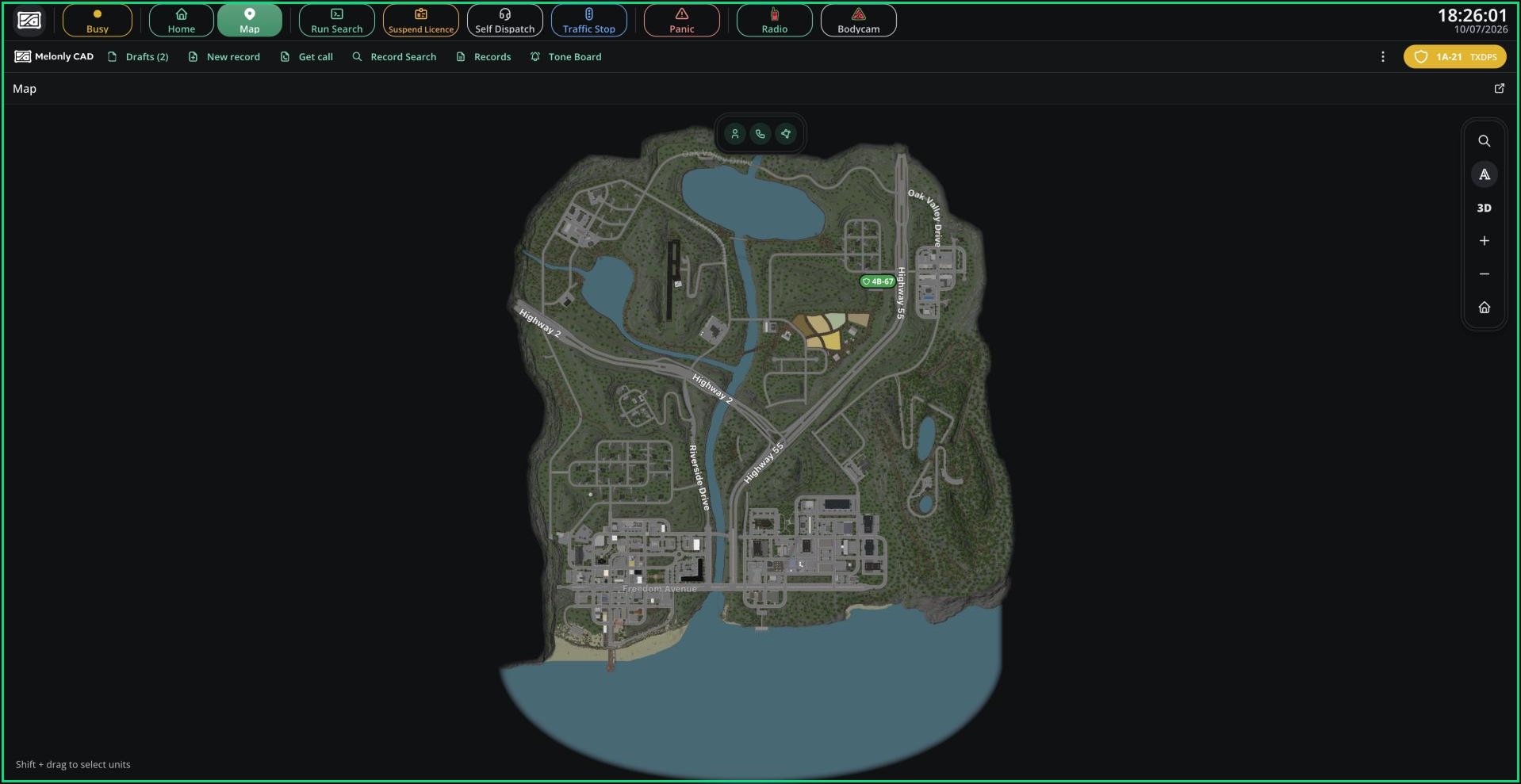
Live map
- Toggle units, calls and jurisdiction layers, and street labels.
- Search for a street, postal or building to jump to it.
- Switch between 2D and 3D, or pop the map into its own window.
- Right-click the map to see the closest units.
Shift+ drag selects several units.
Desktop App
Download the Melonly desktop app for Windows, macOS or Linux from the CAD menu. In the app you also get:- Global keybinds that work even when the CAD isn’t focused.
- Pop-out windows that move CAD windows into their own system windows.
- The Scan License and Open keybinds, and an overlay button on the call card.
Mobile
On phones and tablets, windows stay inside the screen and some desktop controls, such as adding layout panes and pop-outs, are hidden. Phones need to be held in landscape, and touch screens get an on-screen PTT button. Installing Melonly to your home screen gives you more space. See Install Melonly.Need help?
Still have questions? Join our Discord server for support from the Melonly Team.