Documentation Index Fetch the complete documentation index at: https://docs.melonly.xyz/docs/llms.txt
Use this file to discover all available pages before exploring further.
The Resources page is your department’s document hub and application builder. Documents and applications are fully configurable and can be updated by any member with the right permissions.
Documents Documents share important information with your department — Code of Conduct, Chain of Command, SOPs, anything you need members to know.
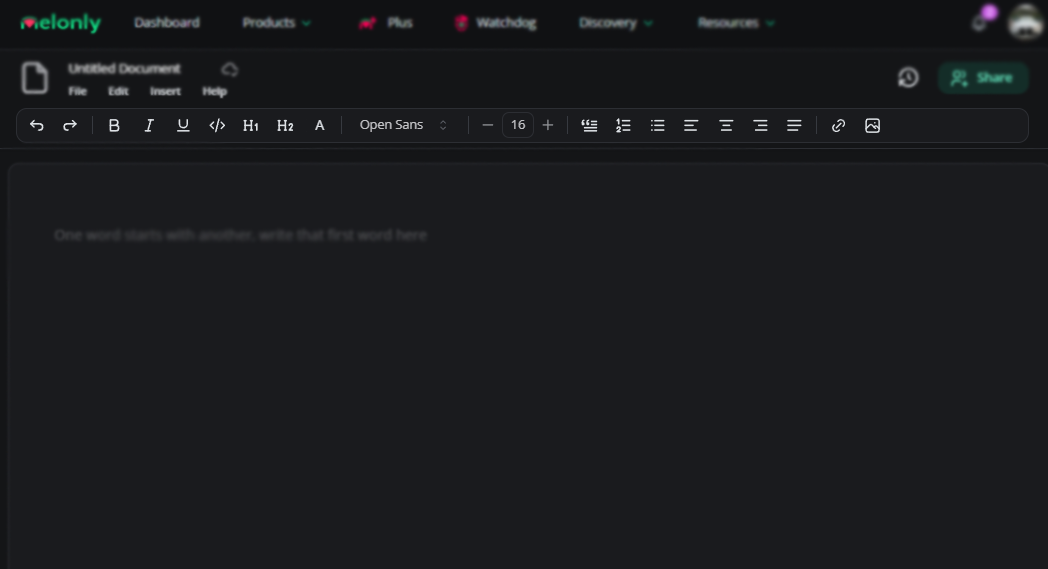
Ribbon Tool Description Undo / Redo Reverts or reapplies your last change Bold / Italic / Underline Standard text styles Code Text Switches to a monospace font Heading 1 / Heading 2 Section headings Text Color Recolor selected text Font Selector Switch font Size Change text size Block Quote Wraps text in a quote block Numbered / Bulleted List List formatting Align Left / Center / Right / Justified Text alignment Insert Link Add a hyperlink Insert Image Add an image
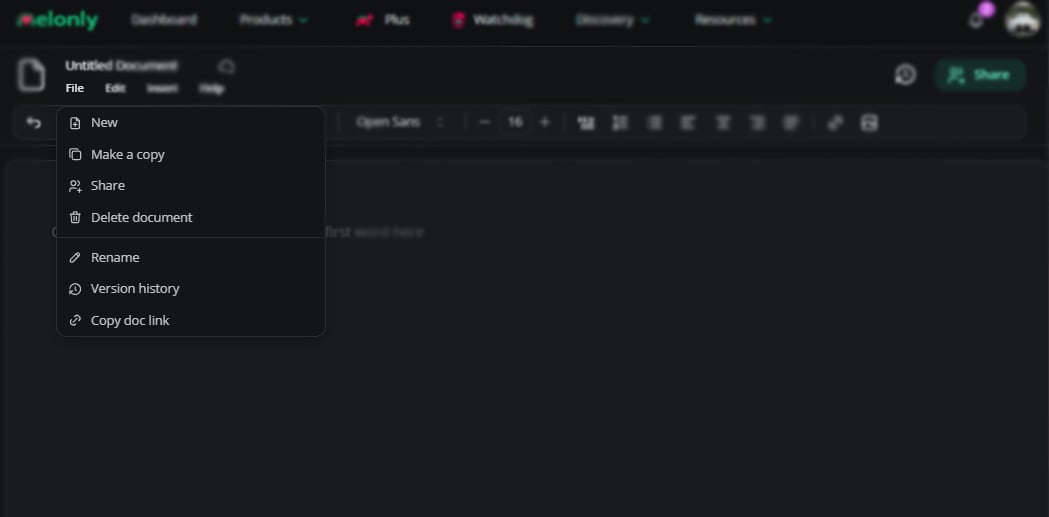
Option Description New Create a fresh document Make a Copy Duplicate the document Share Open the access page Delete Document Permanently delete the document Rename Rename the document Version History View past versions Copy Doc Link Copy the document URL
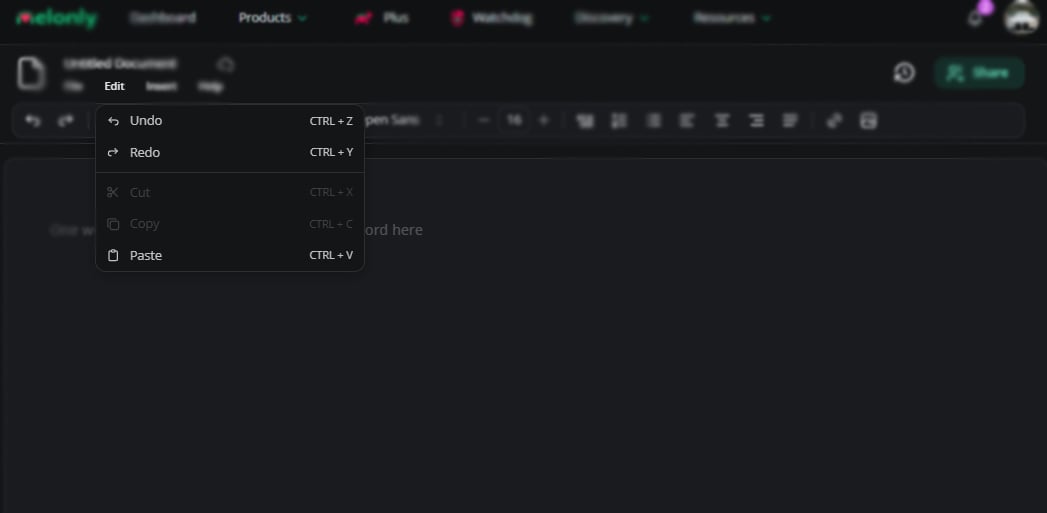
Option Description Undo / Redo Step back or forward Cut Copy and remove highlighted text Copy Copy highlighted text Paste Paste from clipboard
Two slash commands speed things up: /discord invite drops your server invite, and /erlc posts a card with your ER:LC server stats and join link.
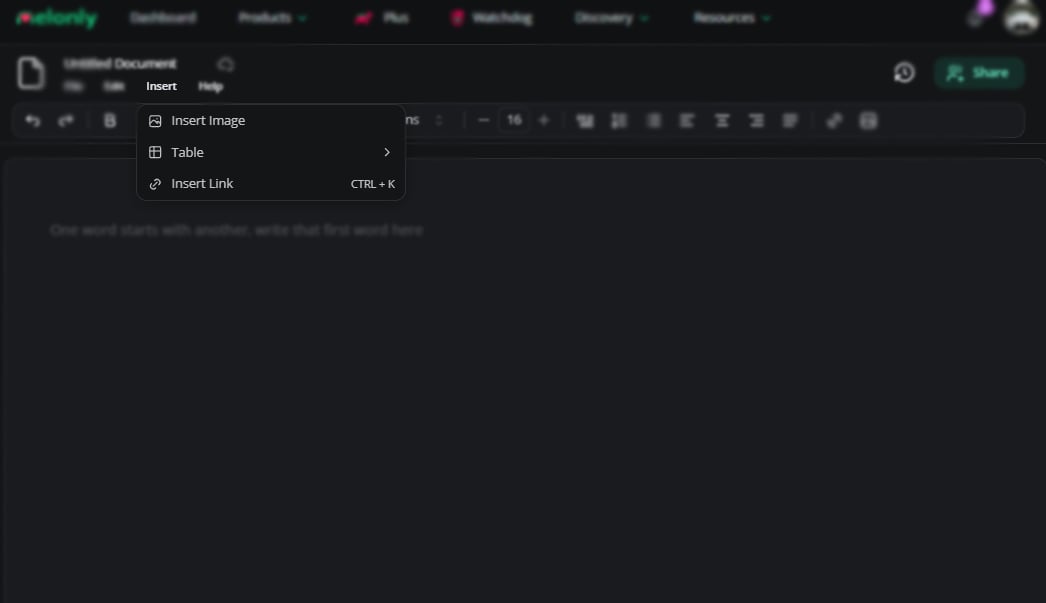
Object Description Insert Image Add an image Table Insert a table Insert Link Add a hyperlink
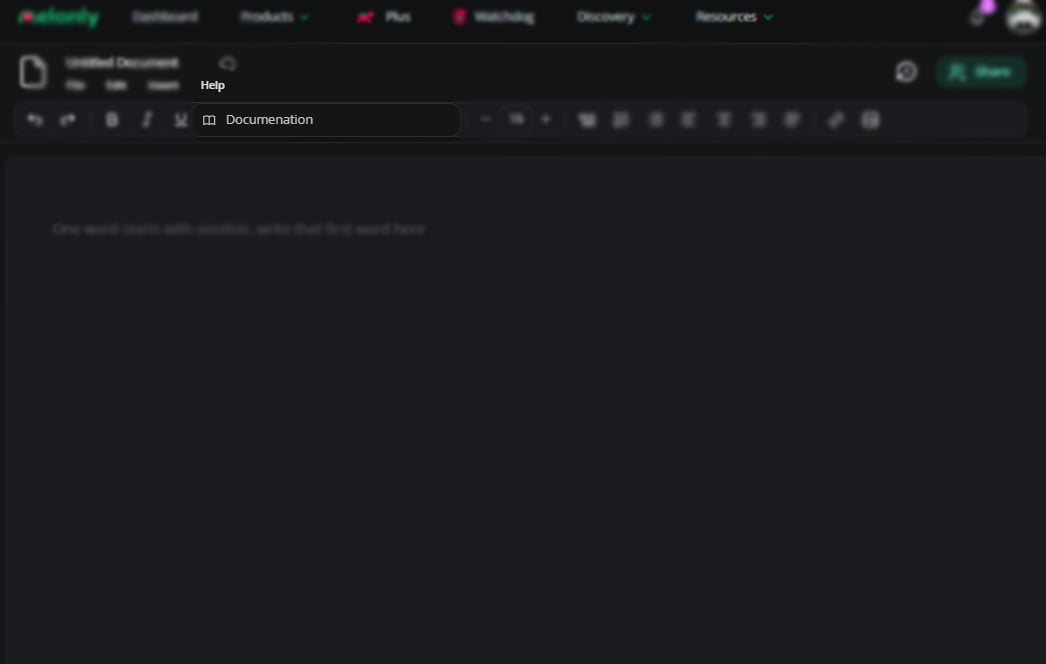
Opens this documentation in a new tab.
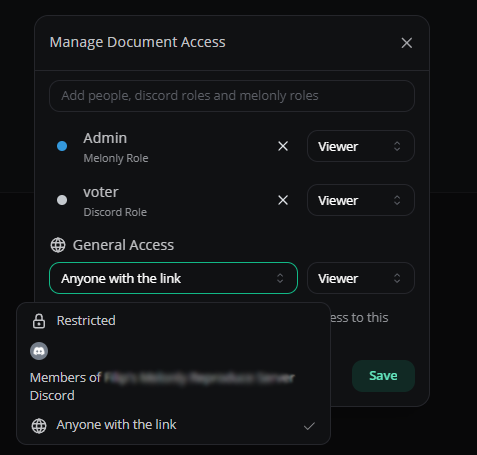
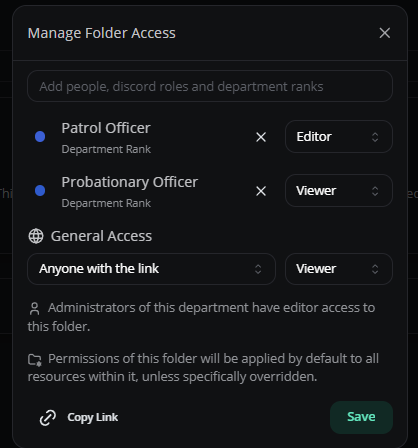
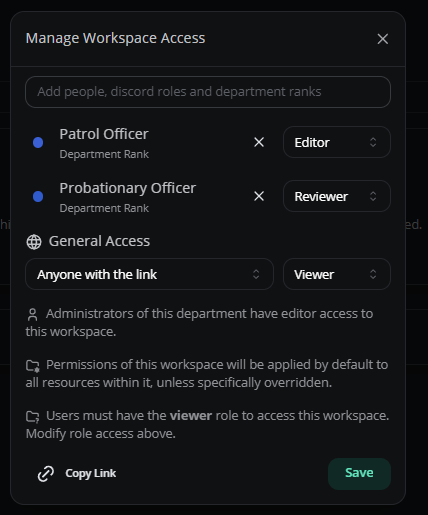
Sharing Share with individuals, Discord roles, Melonly roles, or via document link. Each grant is set to viewer or editor.
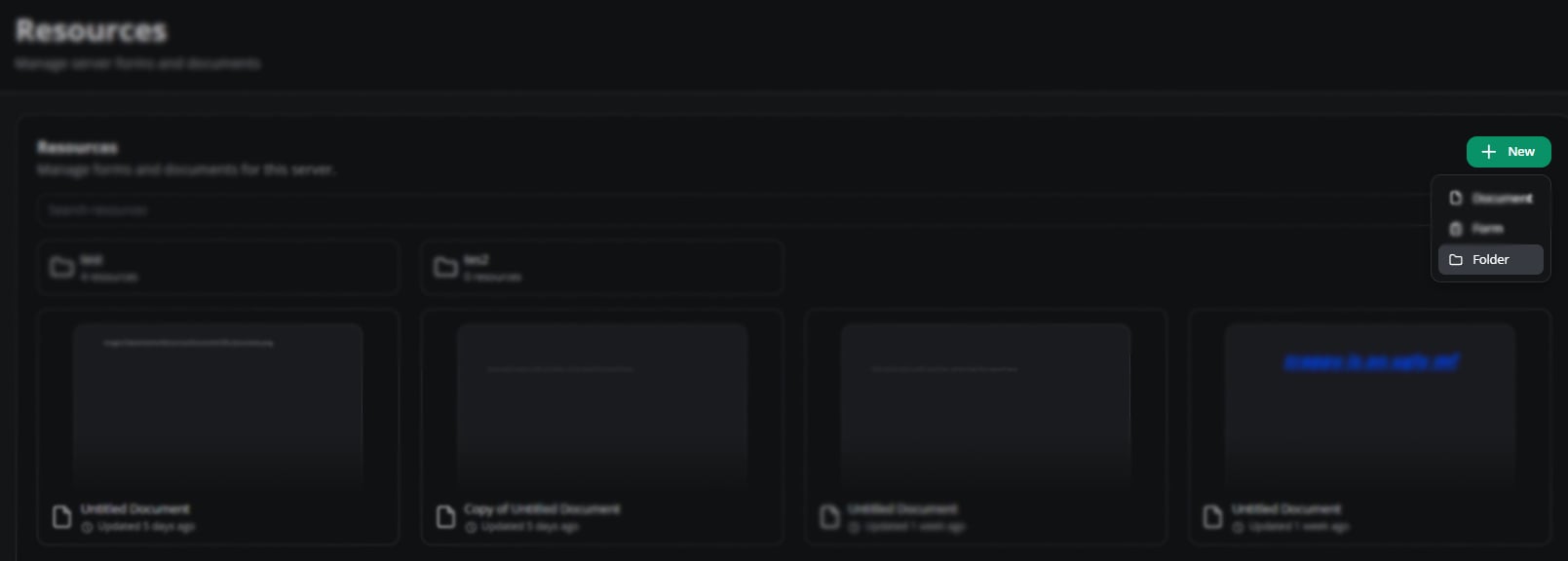
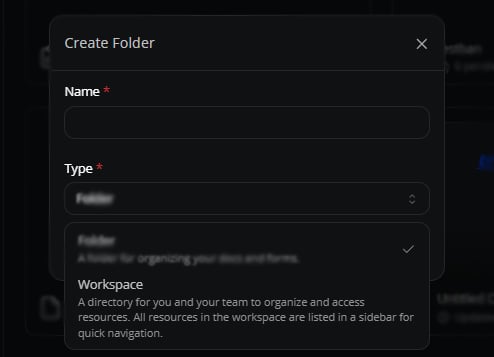
Folders and workspaces Folders Create Press New on the Resources page and select Folder .
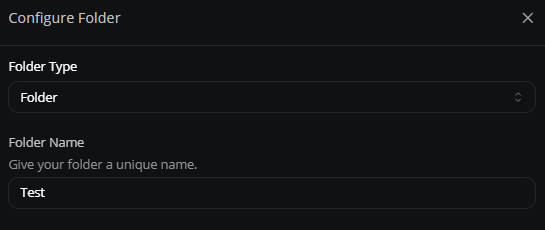
Convert to a workspace or rename from the configuration menu.
Share Restrict folders to specific roles or members. Use Copy Link to distribute.
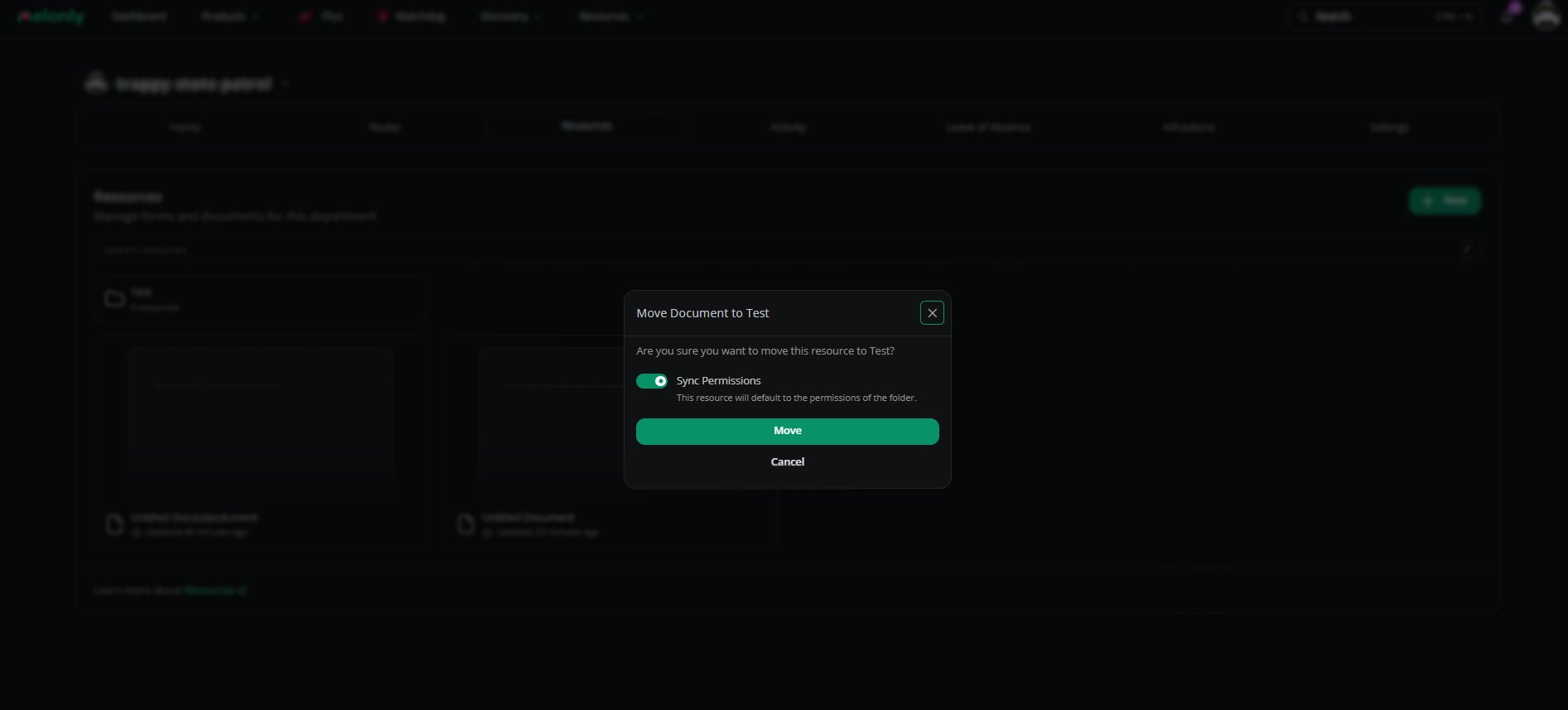
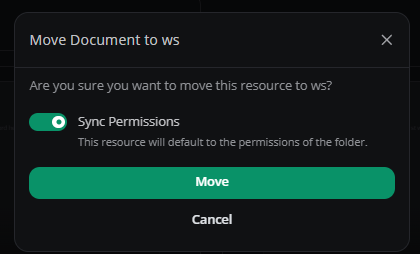
Move documents into a folder Drag and drop. Sync permissions to inherit folder access.
Workspaces Create Press New , select Folder , then switch the Type to Workspace .
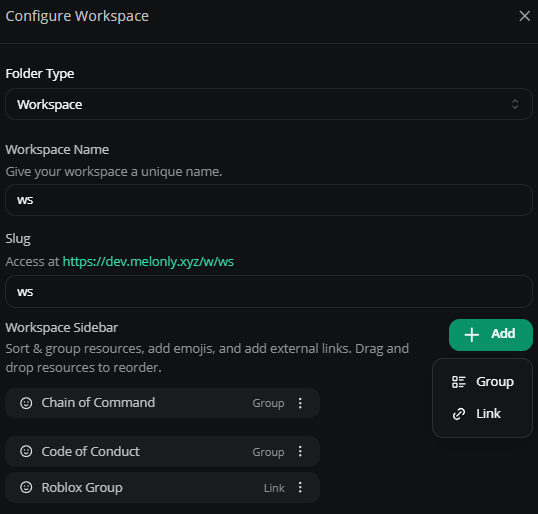
Convert it back to a folder, rename it, or set up a sidebar with grouped documents and links.
Share Same as folders — restrict by role or member, or share via link.
Move documents into a workspace Drag and drop. Sync permissions to inherit workspace access.
Applications Applications are forms and questionnaires built for ER:LC communities — automatic role assignment, server joining, staging, internal commenting, and more.
New: AI detection AI tools read application responses to flag AI-generated content. Melonly Applications are purpose-built for ER:LC. Discord and Roblox info is collected automatically, role assignment runs on accept or deny, and you get features like required roles, paste detection, and quizzes — all in one place.
Standout features Application
Paste Detection
Tab In & Out
AI Detection
Automatic Discord and Roblox info collection — no manual entry from applicants.
Highlights any text pasted into a response.
Tracks how often an applicant tabs away while filling out the form.
Flags likely AI-generated content in responses.
Create an application
Open Applications
Navigate to the Resources Page.
Build it
Click New Form , name it, choose Application or ER:LC Ban Appeal , then customize.
Response types Character types
Selection types
Numerical types
Type Description Short Answer Brief, single-sentence responses Paragraph Answer Long-form, open-ended responses Roblox Roblox username field
Type Description Multiple Choice Single-select from several options Checkbox Multi-select from a list Dropdown Compact single-select menu File Upload Attach files
Type Description Number Numeric only Date Calendar picker Time Time picker Linear Scale Rating scale (e.g. 1–5) Shift Start Date and time picker for shift starts Shift End Date and time picker for shift ends
Application responses The Responses tab on each application splits into pending, staging, approved, and denied. Use search to find a specific response.
Response presets Save preset accept/deny reasons for faster reviews.
Create a preset
Open the application’s settings → Manage Application Response Presets and fill in the details.
Use a preset
Type the preset name into the Reason field when accepting or denying. The full message fills in on submit.
Application settings General Setting Description Accepting Responses Lets users submit Stage Responses Routes accepts/denials through a staging phase before publishing Join Melonly Server on Approval Auto-joins approved applicants to your server
Editor and reviewer Permission Description Editor Edit application questions and content (no advanced settings) Reviewers Review responses, send to staging, and publish
Additional Setting Description Max Logs Blocks users with too many moderation logs from applying Requires Roblox Group Roblox group applicants must belong to Cooldown Time before a user can reapply
Quiz Setting Description Release Scores When scores are released — immediately or after review Default Question Point Value Default points per question
Release Type Description Immediately Scores show as soon as the quiz is submitted After Review Scores release once the application is approved or denied
Discord integration Setting Description Require Discord Member Applicants must be in your linked Discord server Minimum Discord Member Age Minimum time in the server before applying Add Roles on Approval Roles granted on accept Remove Roles on Approval Roles removed on accept Add Roles on Denial Roles granted on deny Remove Roles on Denial Roles removed on deny Required Roles Roles applicants must already hold Blacklisted Roles Roles that block applying Event Channel Channel notified on new responses Result Channel Channel where published results post
Advanced Deleting all responses or the application is permanent.
Action Description Duplicate Application Copies questions, sections, and settings to a new application (responses are not copied) Delete All Responses Permanently deletes every response Delete Application Permanently deletes the application and all data
Need help? Still have questions? Join our Discord server for support from the Melonly team.