
LOAs let members step away when they can’t fulfill their duties. Melonly auto-ends LOAs when they expire, applies Discord roles, enforces submission cooldowns, and more — all configurable on the Leave of Absence tab.Documentation Index
Fetch the complete documentation index at: https://docs.melonly.xyz/docs/llms.txt
Use this file to discover all available pages before exploring further.
Request an LOA
Open the dashboard
Open the Melonly dashboard.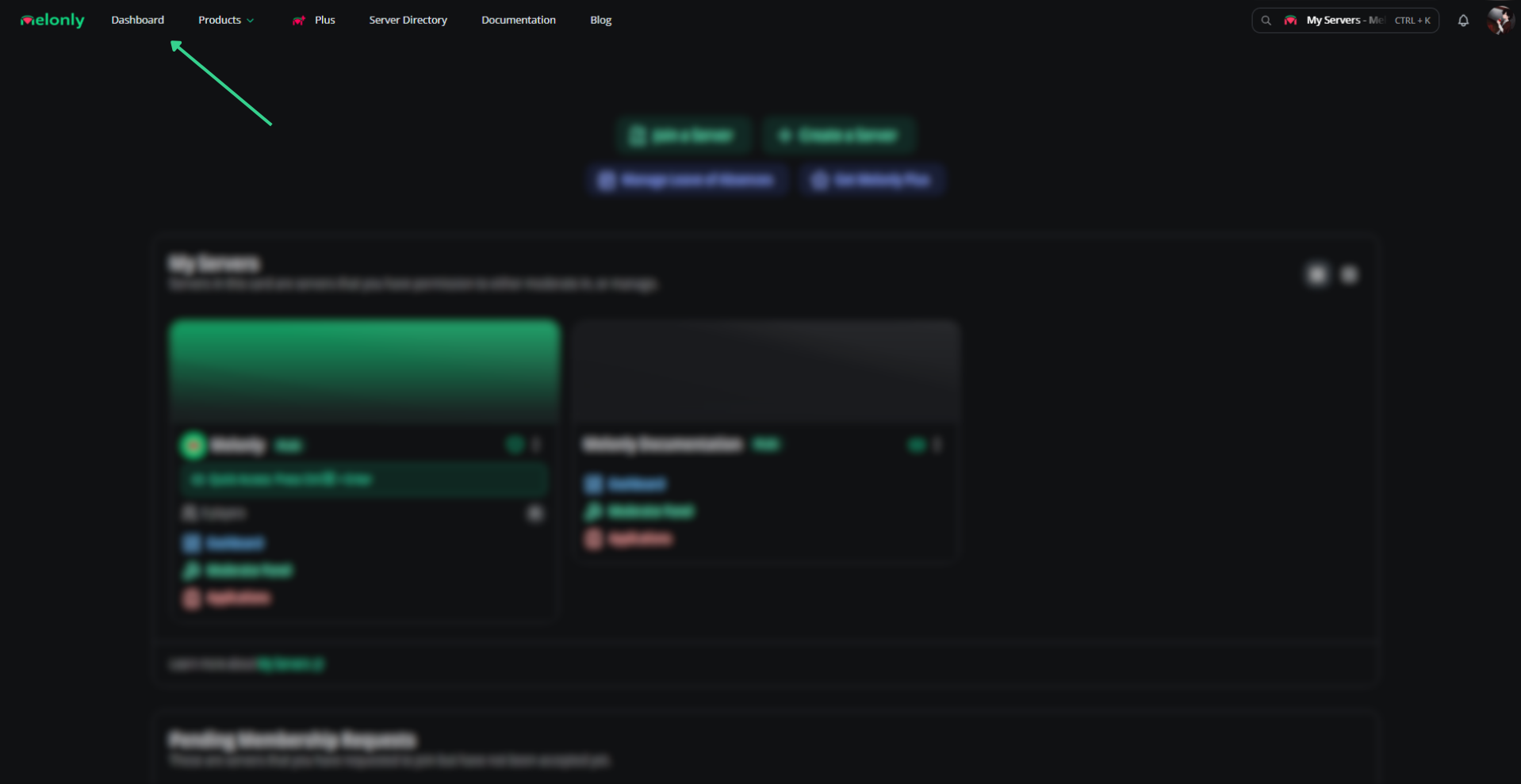
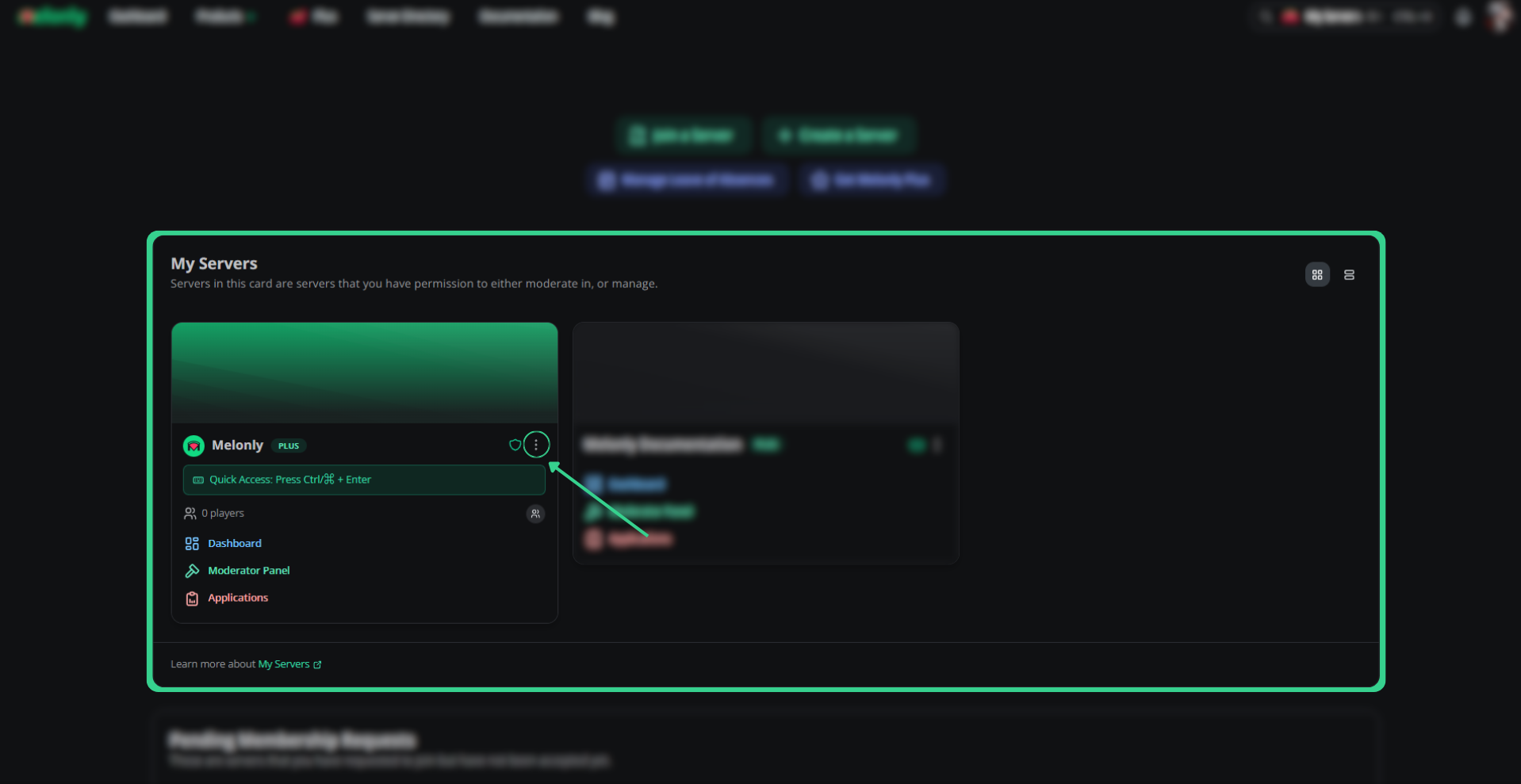
Review LOAs
Open the dashboard
Open the Melonly dashboard.
Recent
| Tab | Description |
|---|---|
| Pending Requests | Requests awaiting review |
| Active LOAs | Members currently on leave |
Settings
General
| Setting | Description |
|---|---|
| Require Reason | Forces members to provide a reason |
| Require End Date | Forces members to provide an end date |
| Disallow Shifts on LOA | Blocks shifts while on LOA |
Duration
| Setting | Description |
|---|---|
| Submission Cooldown | Days a member must wait between submissions |
| Minimum LOA Days | Shortest allowable LOA |
| Maximum LOA Days | Longest allowable LOA |
History
Search by user to see their full LOA history.Need help?
Still have questions? Join our Discord server for support from the Melonly team.