
The Roster is your department’s structured directory — every rank, every member, all in one chain of command.Documentation Index
Fetch the complete documentation index at: https://docs.melonly.xyz/docs/llms.txt
Use this file to discover all available pages before exploring further.
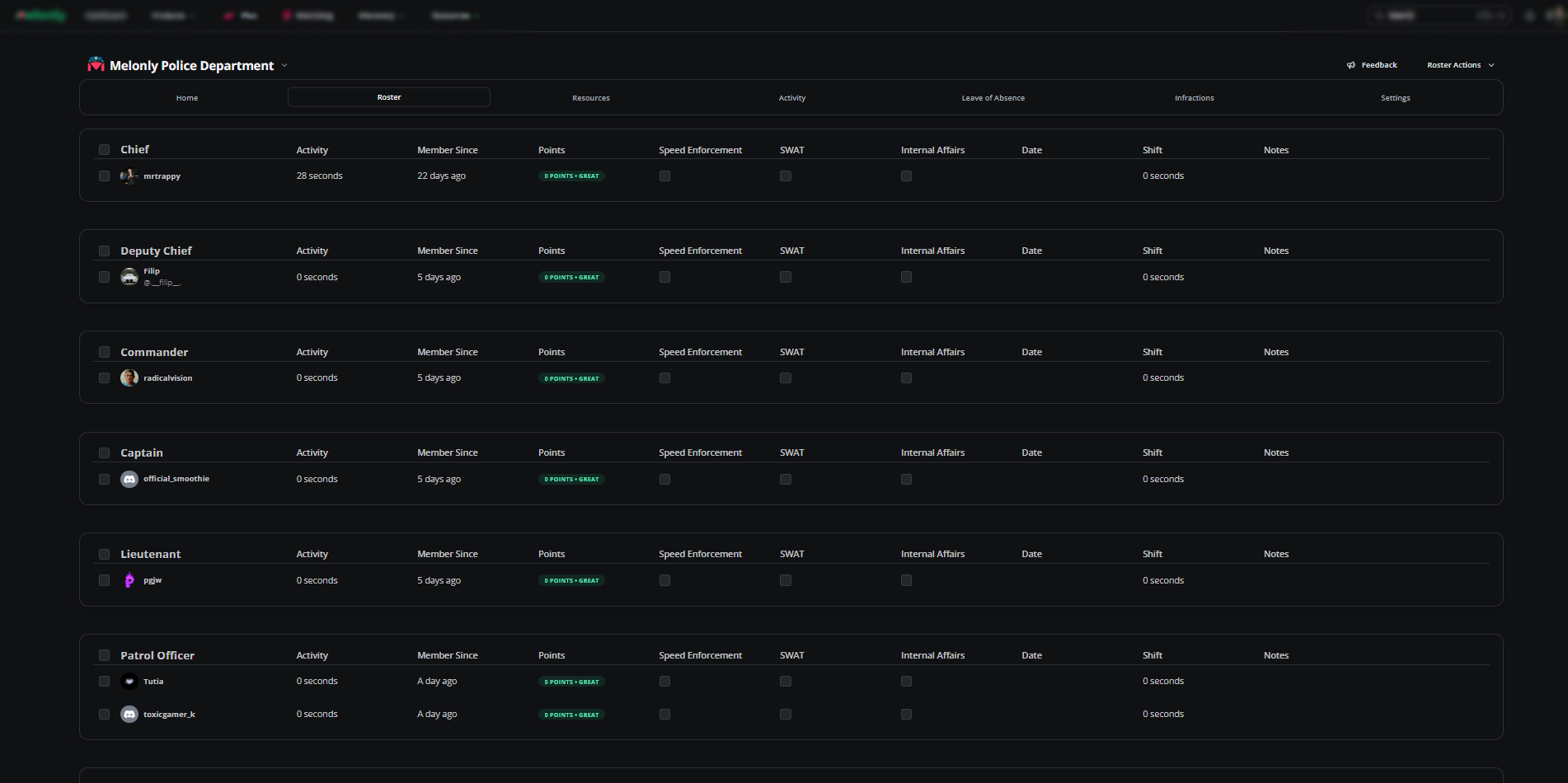
Roster actions
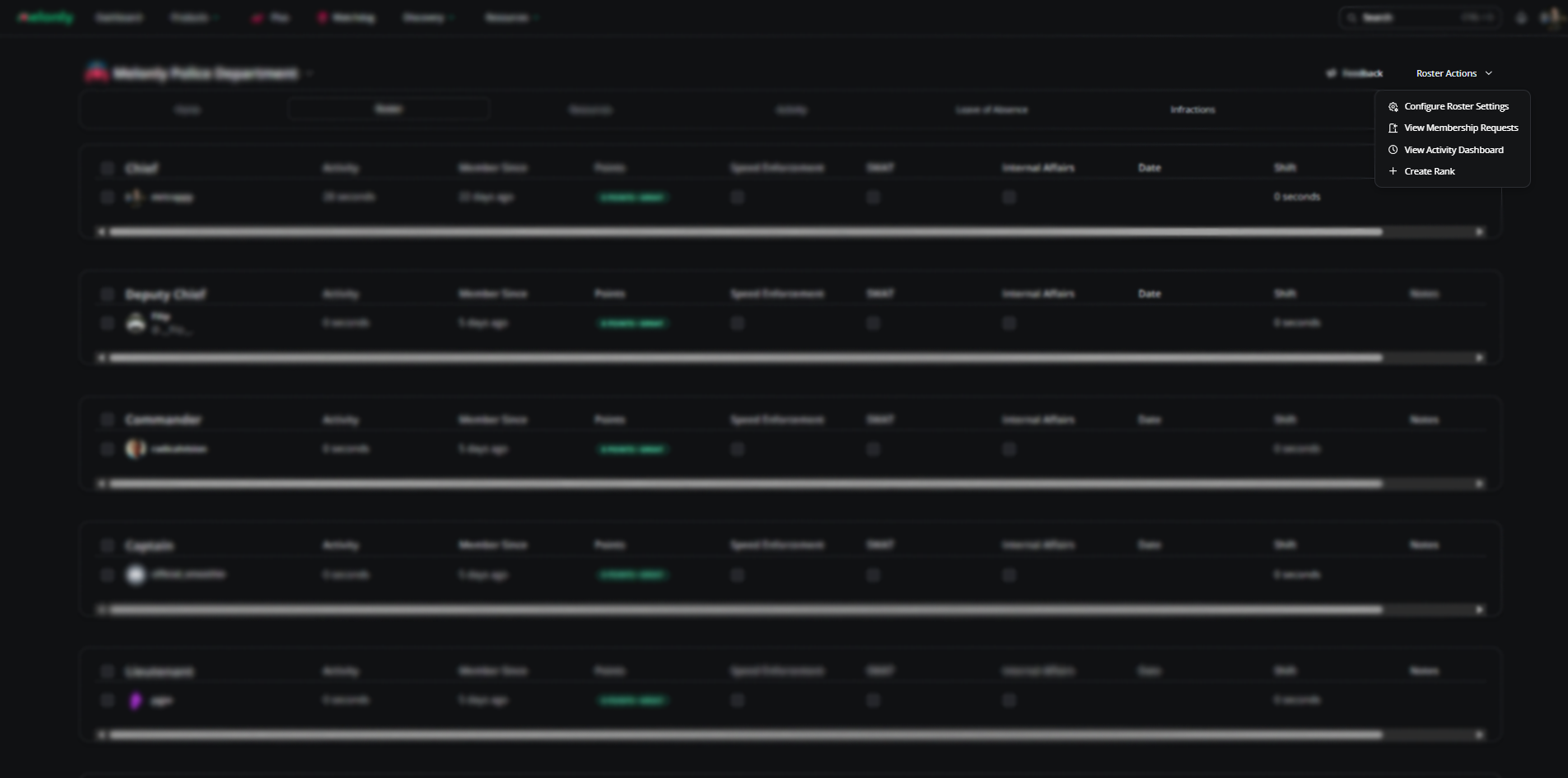
The Roster Actions dropdown sits in the top-right next to the settings icon and contains the following.Configure roster settings
Tune the roster columns and tracked information. See roster settings.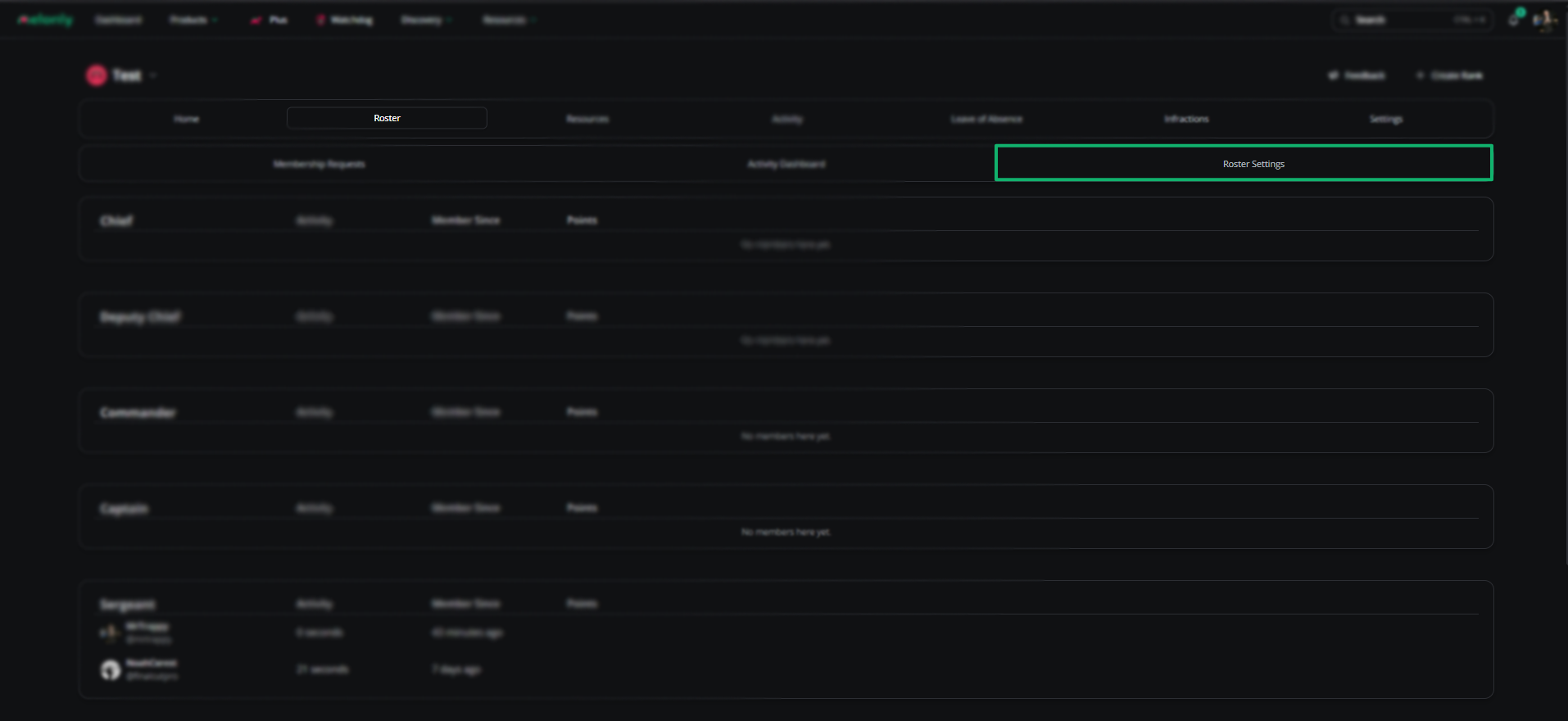
Review membership requests
Approve or deny join requests. On accept, assign server roles or a department rank. Linked roles can bypass this flow.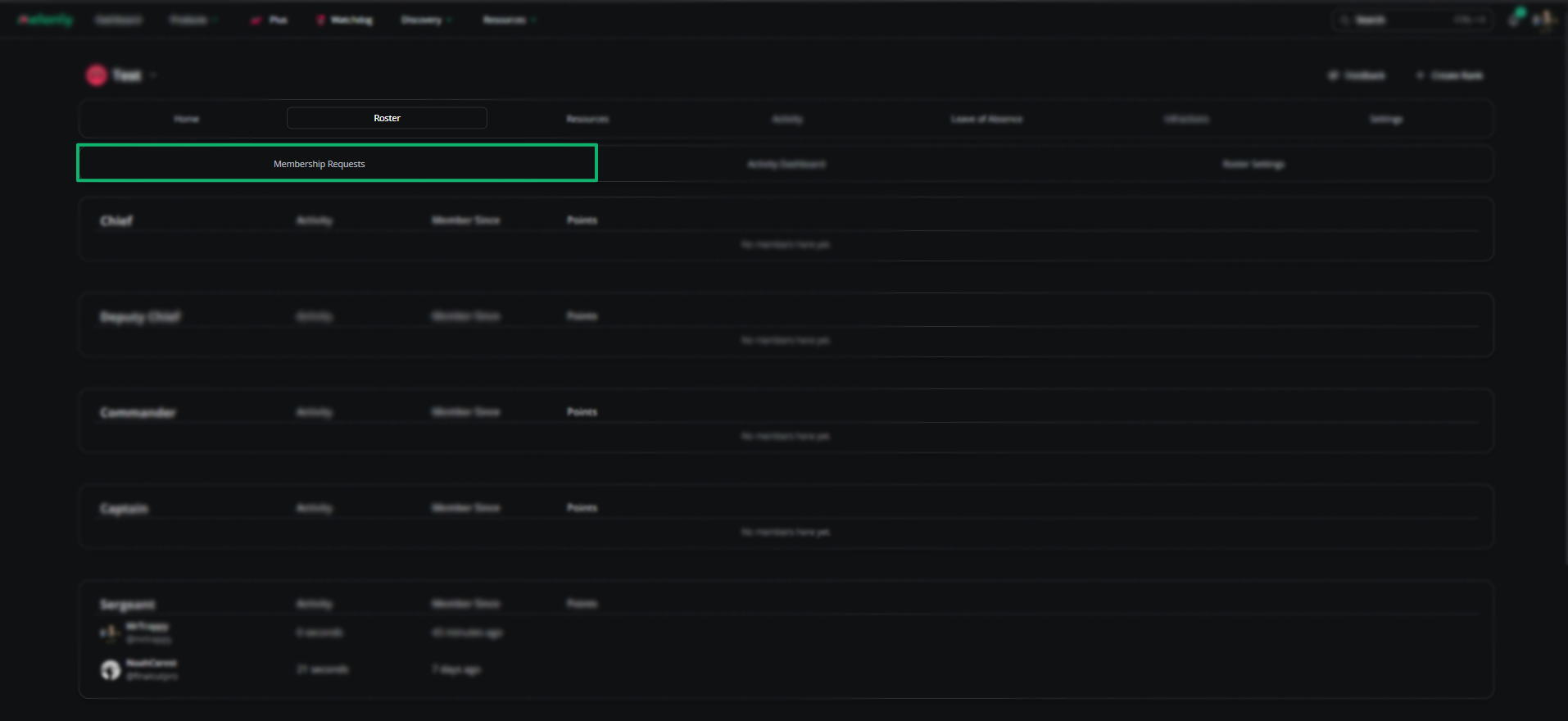
Remove members
Click Remove Member next to a username on the Members page. Requires Administrator or Member Page permissions.
View activity dashboard
Jump to the Activity page.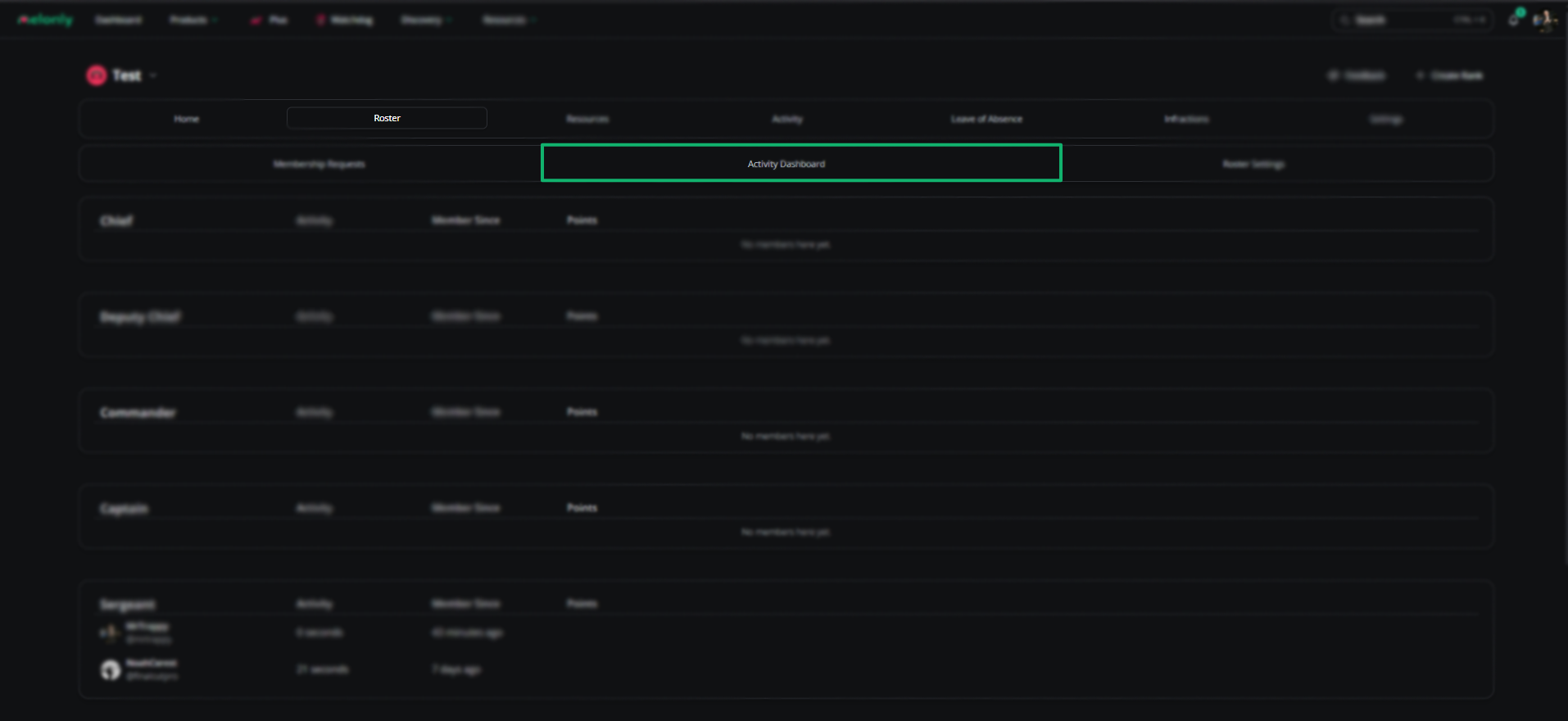
Create a rank
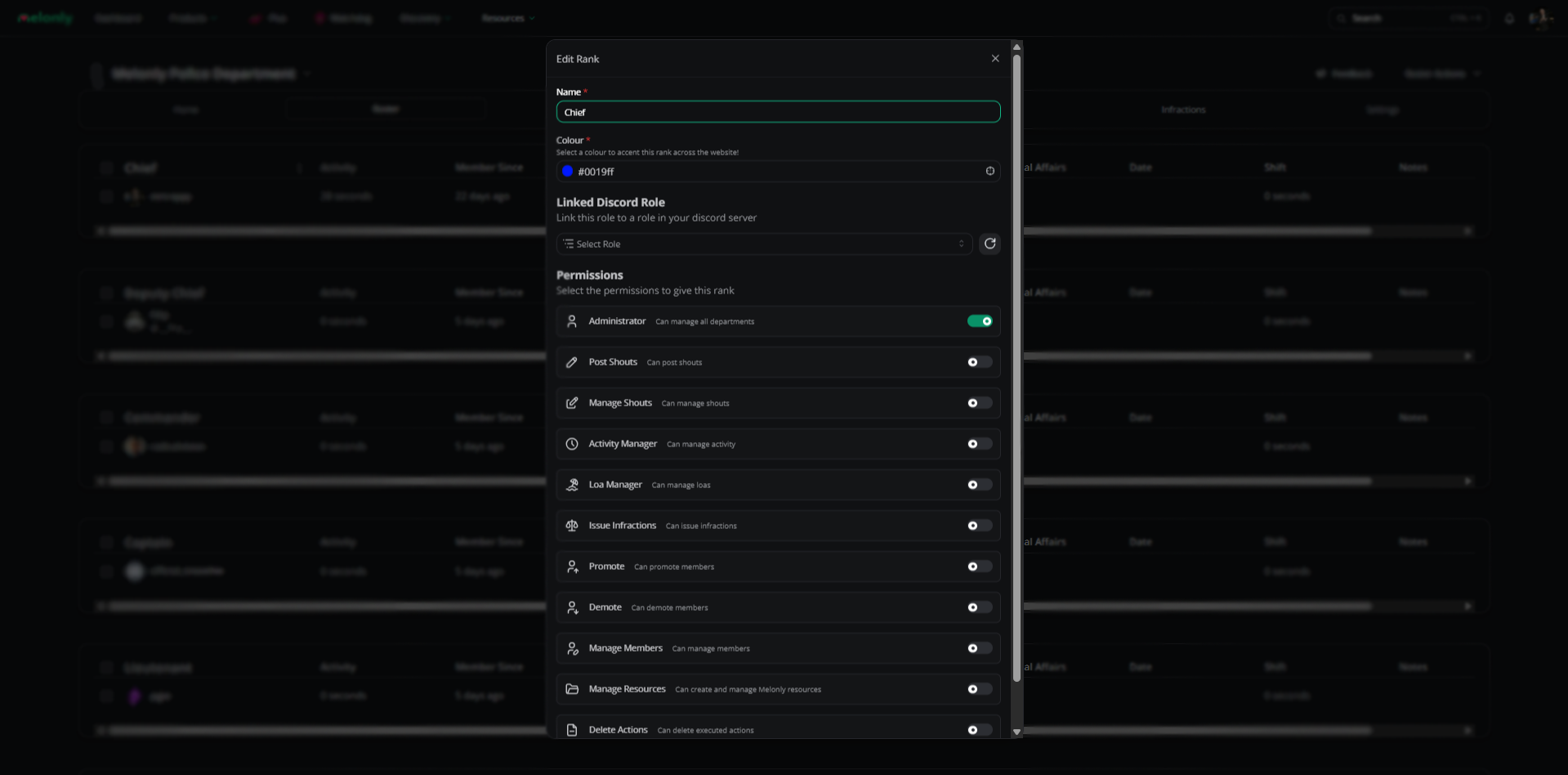
Manage ranks
Hover a rank and click the kebab menu (three dots) to access these actions.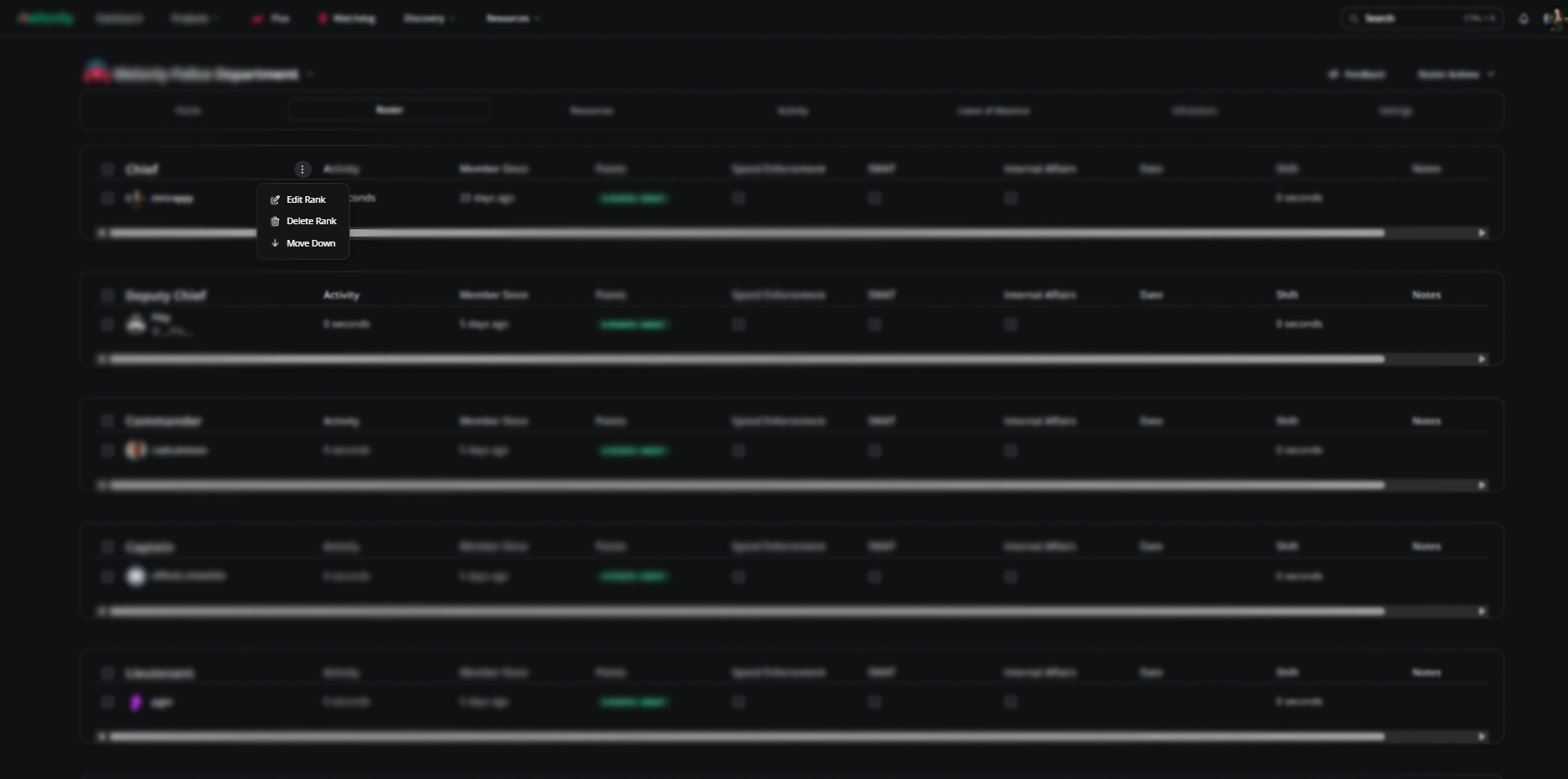
| Action | Description |
|---|---|
| Edit | Update the rank’s fields |
| Delete | Permanently remove the rank (requires confirmation) |
| Move Up / Move Down | Reposition the rank in the hierarchy |
Filtering
Filter the roster by role and other requirements like activity.Roles
| Action | Description |
|---|---|
| Create Role | Roster Admin → Create Role |
| Apply / Remove Role | Select a member’s column → Perform Action → Apply/Remove Role |
Promotion
Promote members straight from the roster.Finalize
Choose the new rank, add more members, create a shout, DM the promoted members, or schedule a date.
| Feature | Description |
|---|---|
| Add Member | Add more members to the promotion |
| Create Shout | Announce the promotion department-wide |
| DM Promoted Member | DM each promoted member |
| Scheduled Date | Schedule the promotion for a future date and time |
Demotion
| Feature | Description |
|---|---|
| Add Member | Add more members to the demotion |
| Create Shout | Announce the demotion department-wide |
| DM Demoted Member | DM each demoted member |
| Scheduled Date | Schedule the demotion for a future date and time |
Infraction
Click Infract and fill in the fields. Use Guideline to auto-fill the reason and points from a configured guideline.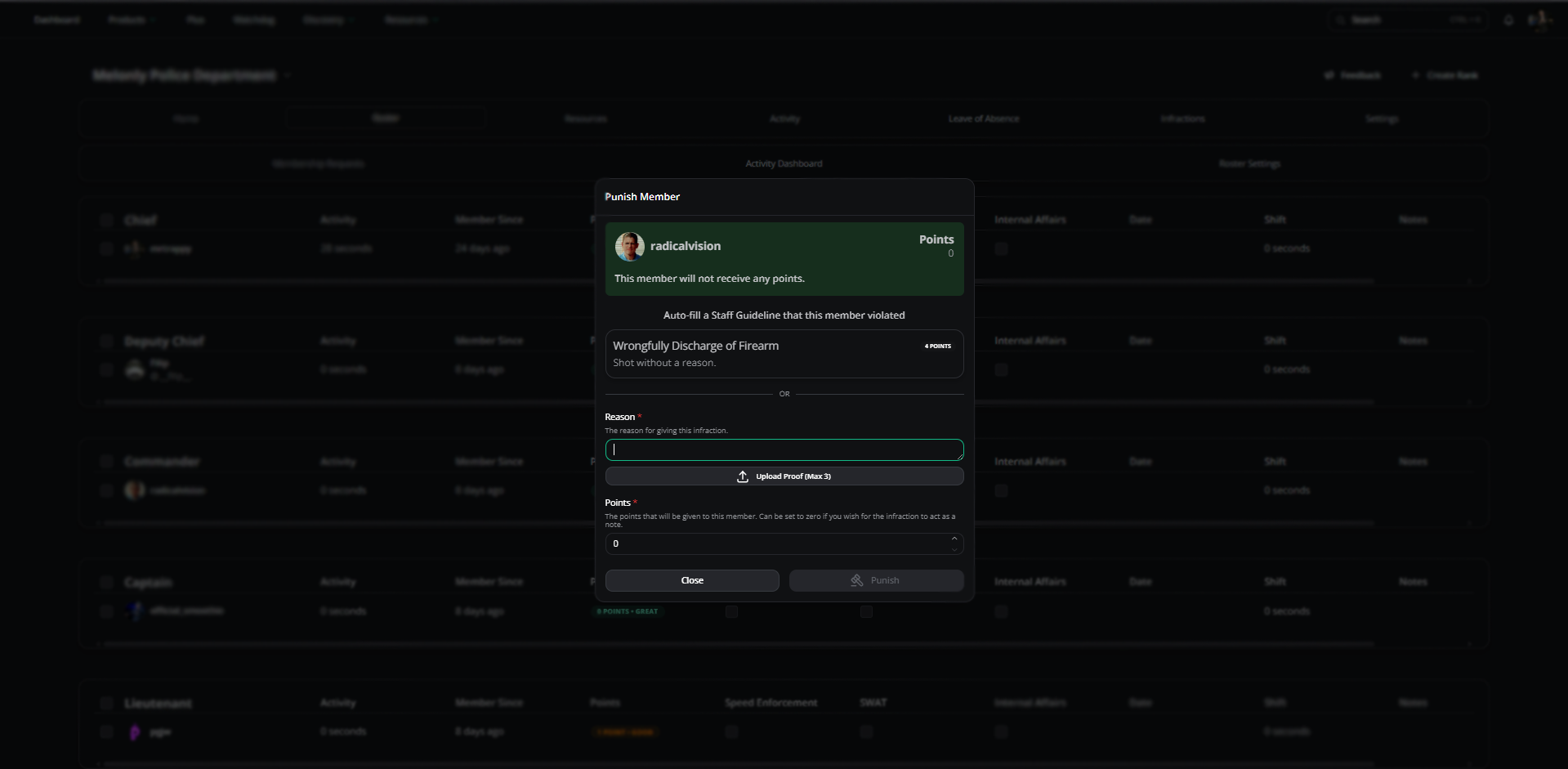
Suspension
Click Suspend and complete the form. Set an end date to auto-unsuspend.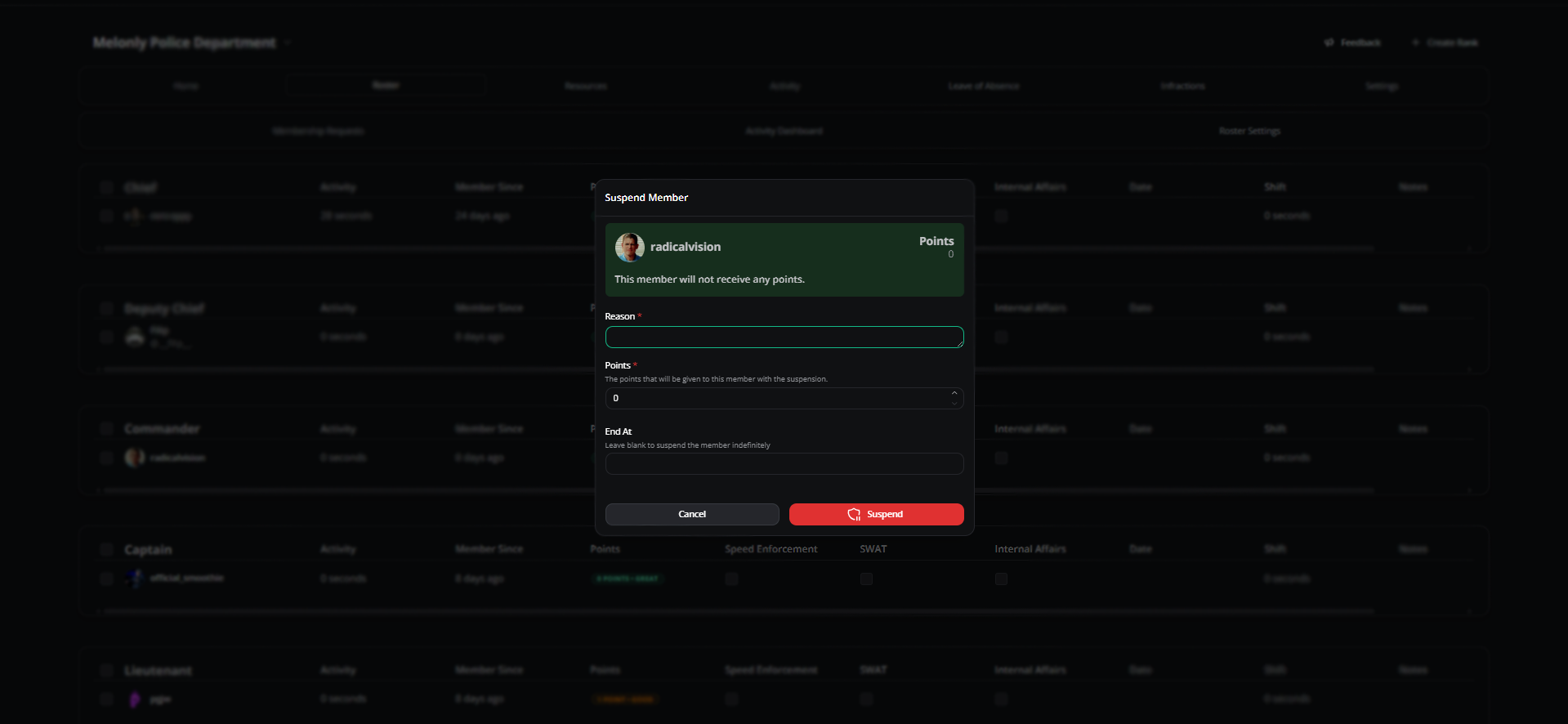
Termination
Click Terminate and provide a reason. Terminations are permanent.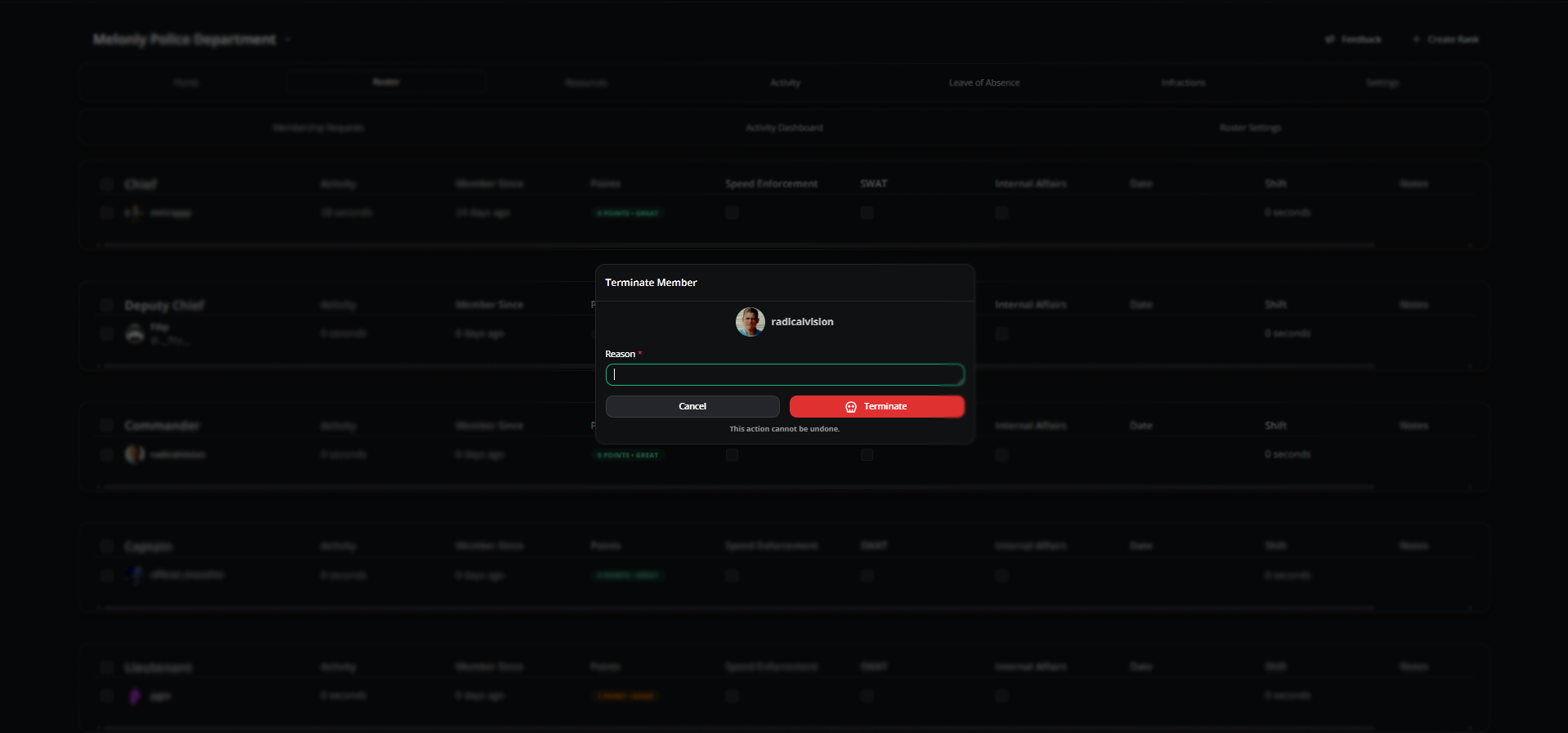
Need help?
Still have questions? Join our Discord server for support from the Melonly team.