
What is Manage LOA?
Manage LOA shows your Leave of Absence status for the server you’re moderating. Use it to check an active or pending LOA, or to request time away.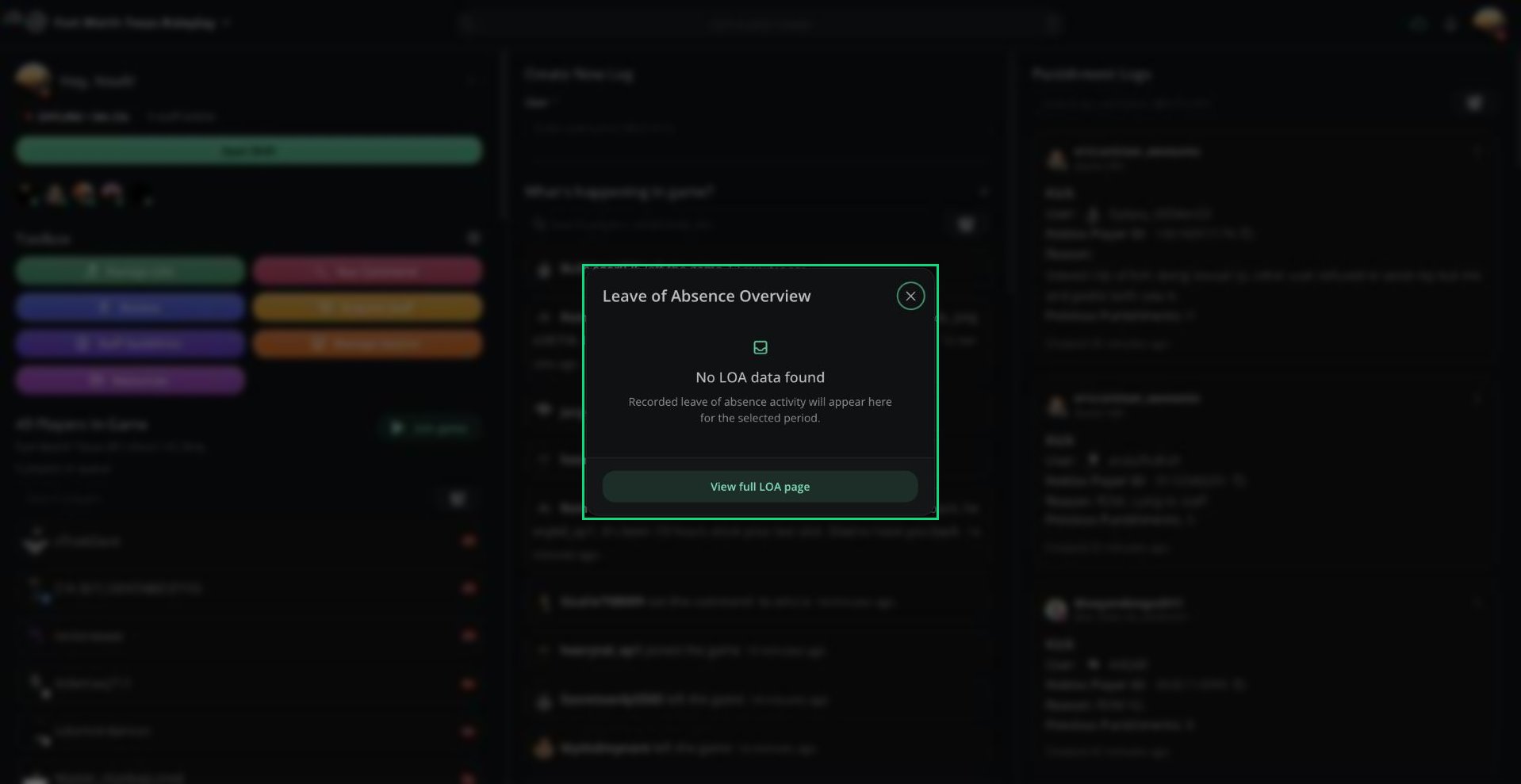
Leave of Absence Overview
LOA Overview
Click Manage LOA in the Toolbox. The overview shows:
Click View full LOA page to request or manage an LOA.
Requesting an LOA
1
Open the LOA page
Click View full LOA page, or select Manage LOA from the ⋮ menu next to your name.
2
Fill in the request
Enter a Reason, choose whether it starts on approval or on a future date, then pick an End Date.
3
Submit
Click Submit request. Your server’s management will review it.
Managing an LOA
Once your LOA is approved, the LOA page lets you:LOA on the dashboard
How management reviews LOAs and configures LOA settings.
Need help?
Still have questions? Join our Discord server for support from the Melonly Team.