
Linking a Discord Server
Linking a Discord server lets your department sync shouts, post logs, and give roles and nicknames automatically. You need to be signed in to Melonly with Discord.1
Open Discord Integration
Go to Settings, then Discord Integration.
2
Pick a server
Click a server marked Click to Link, then confirm with Link.
3
Invite the bot if needed
If Melonly isn’t in that server yet, click Invite Melonly bot, add it in Discord, then come back and finish linking.
/unlink in Discord.
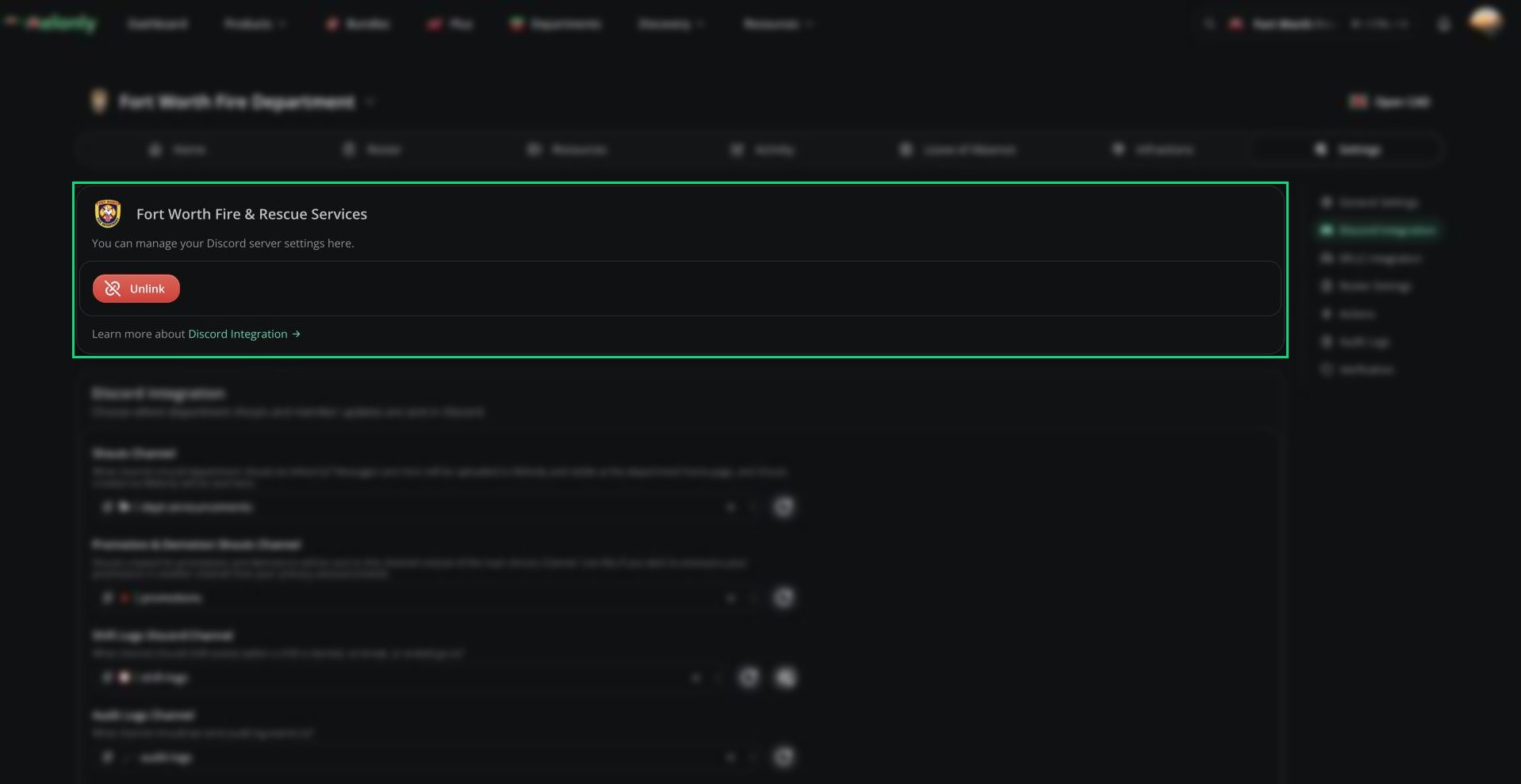
Linked Discord server
Channels
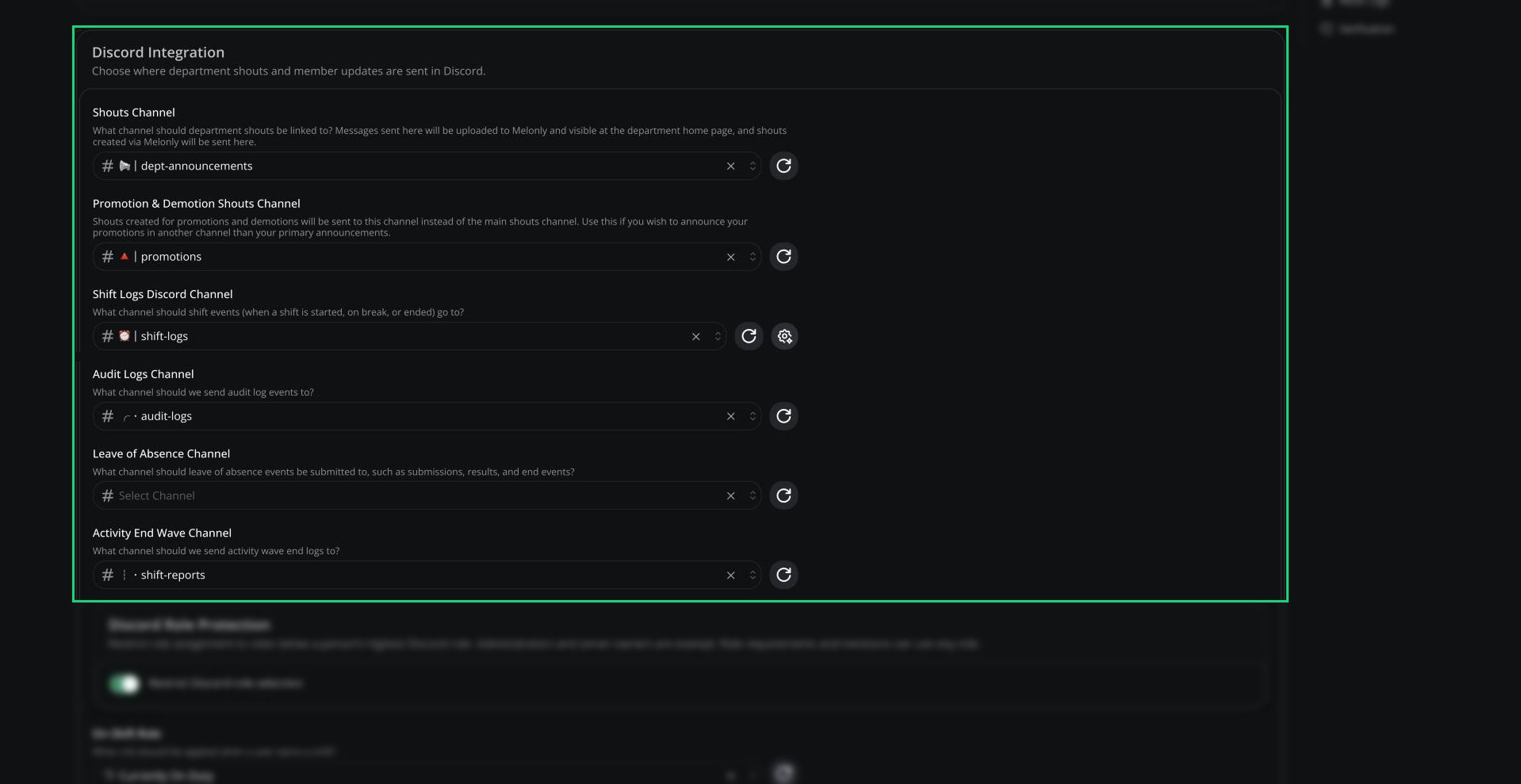
Discord channels
Roles and Nicknames
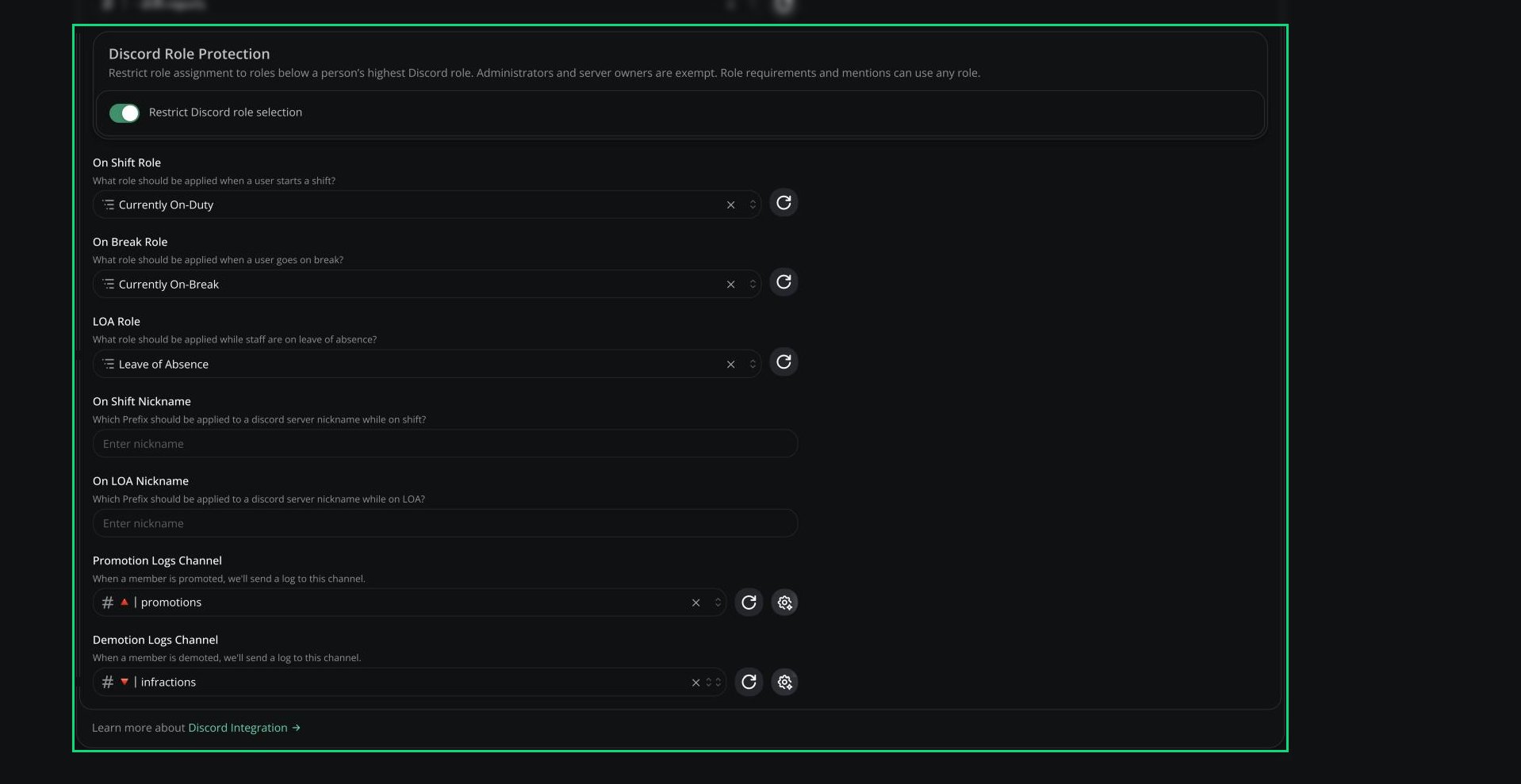
Roles, nicknames and log channels
Custom Discord Messages
You can rewrite the messages Melonly sends to your shift, promotion and demotion log channels.- For shift messages, click the sparkle icon next to Shift Logs Discord Channel and pick the event.
- For promotions and demotions, use the customise button under each log channel.
Settings marked Plus, like custom messages and promotion logs, are included with every department. No separate subscription needed.
Shift message variables
Shift message variables
Promotion and demotion variables
Promotion and demotion variables
Time variables
Time variables
Need help?
Still have questions? Join our Discord server for support from the Melonly Team.