
Settings overview
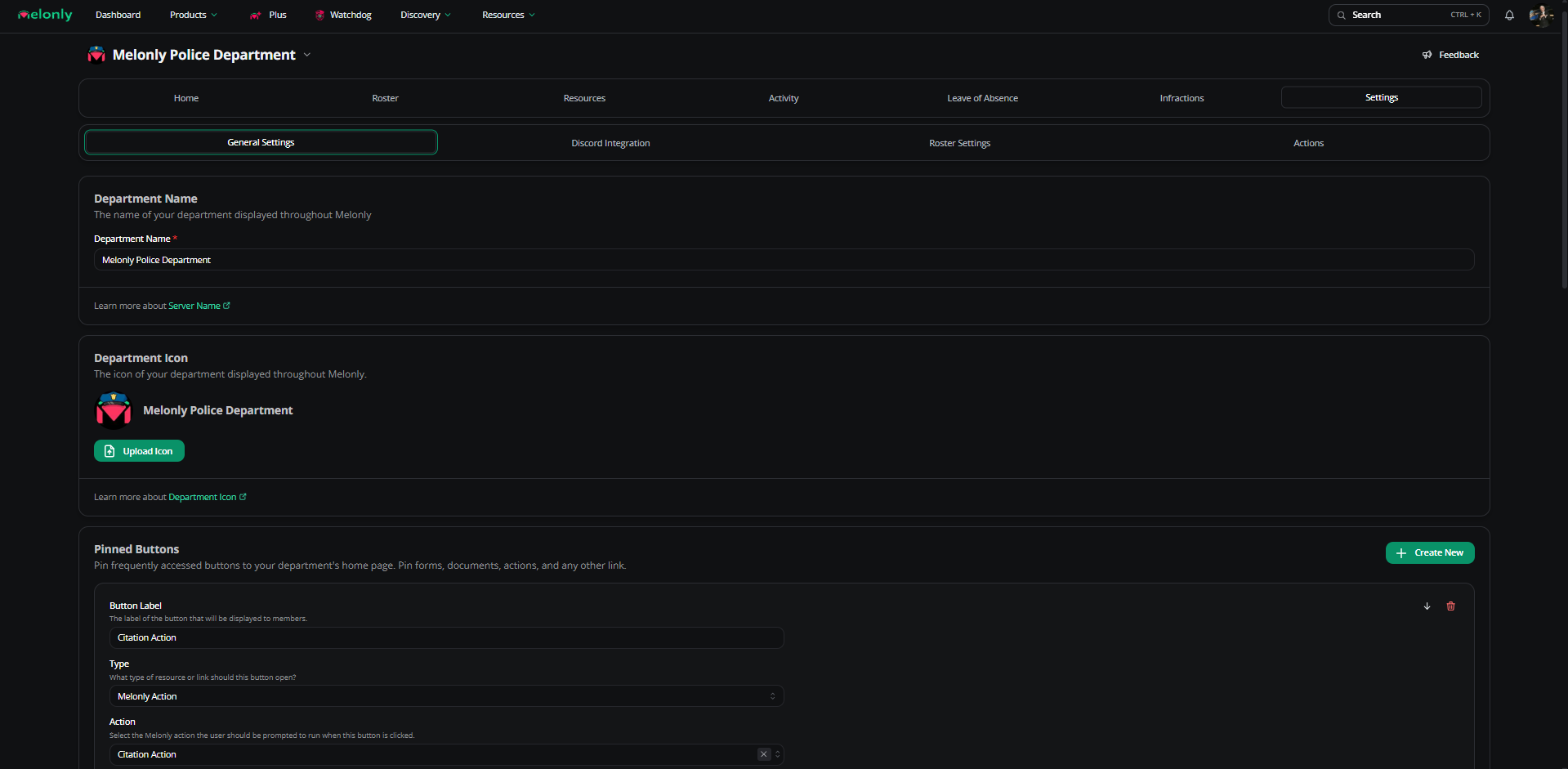
Department settings
Department name
Change the public name of your department.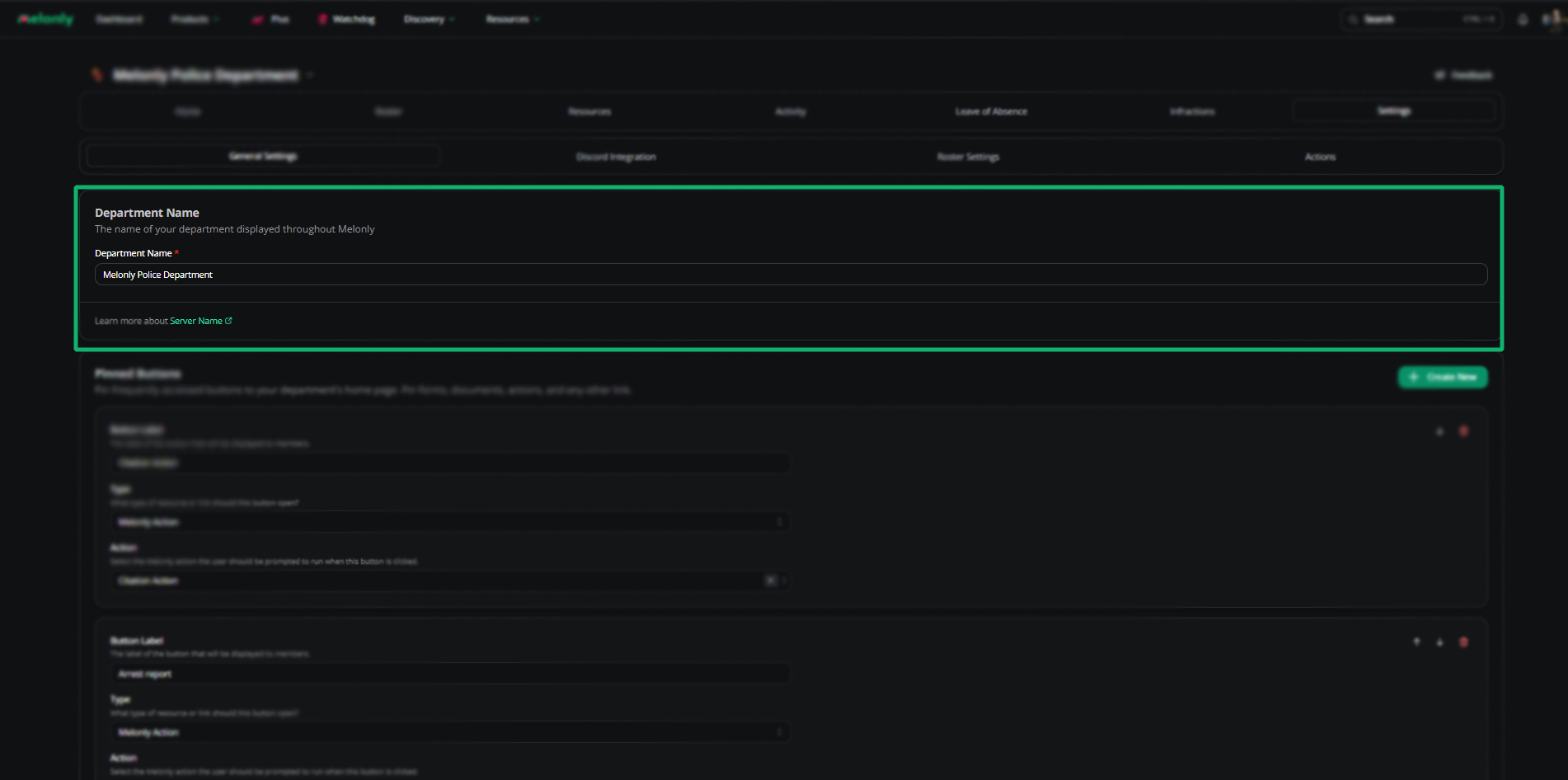
Department name
Department icon
Update the department’s icon.
Department icon
Pinned buttons
Quick-access buttons that appear on the home page next to Shift Manage.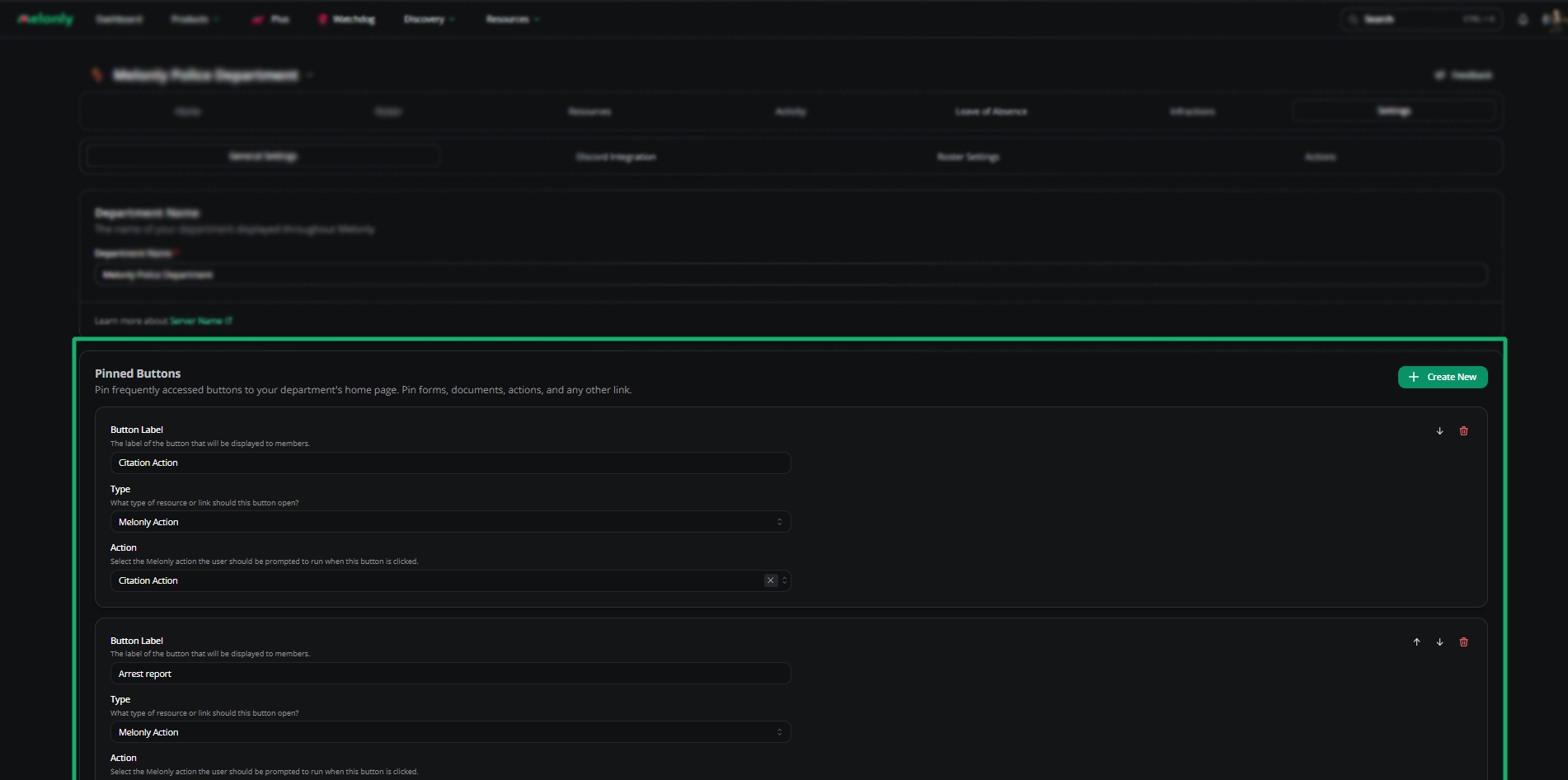
Pinned buttons
Discord autokick
Auto-kicks members who leave the linked Discord server.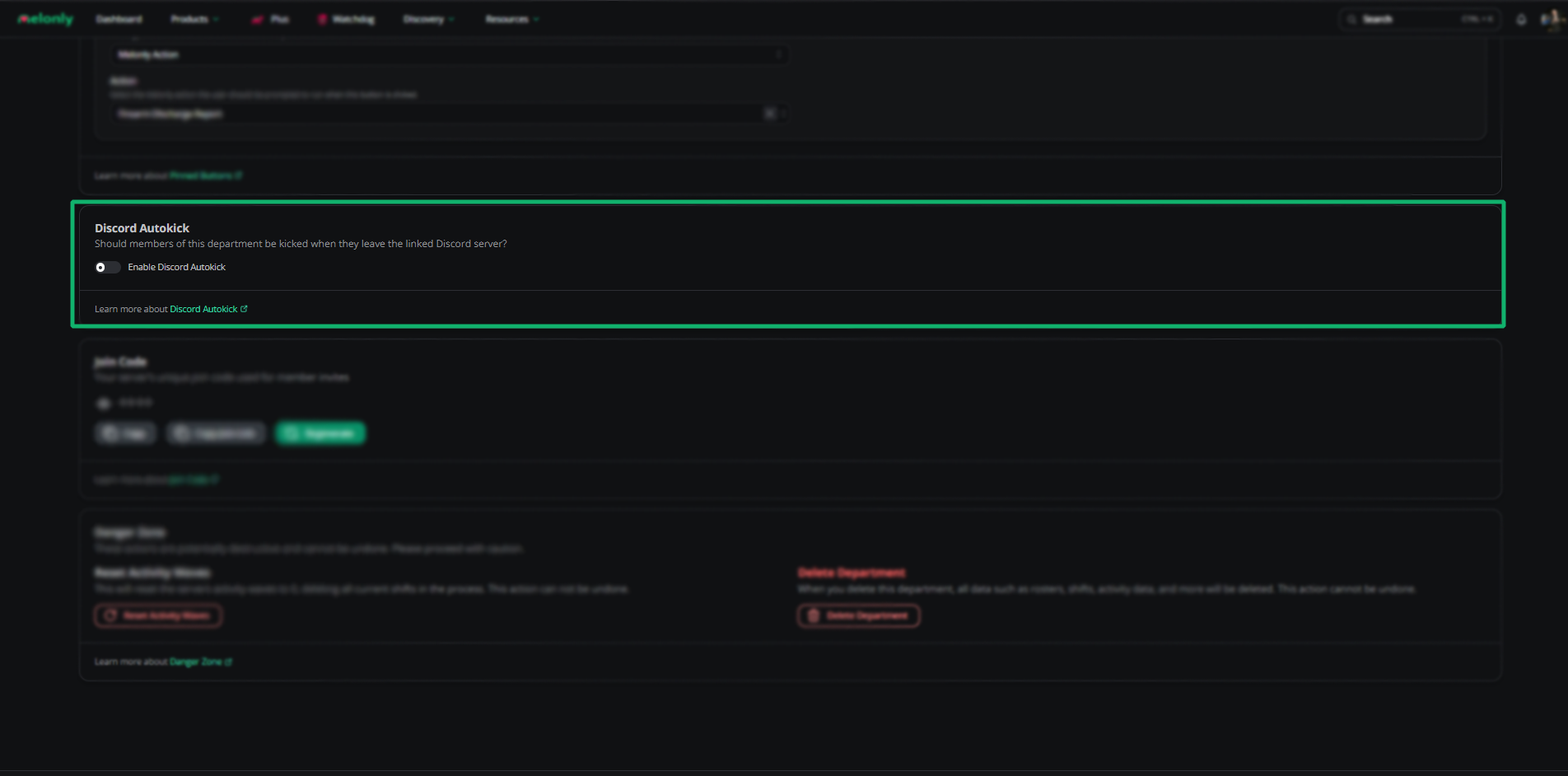
Discord autokick
Join code
The join code (and join link) invites new members. Codes can’t be disabled — only regenerated, which invalidates the old one.Danger zone
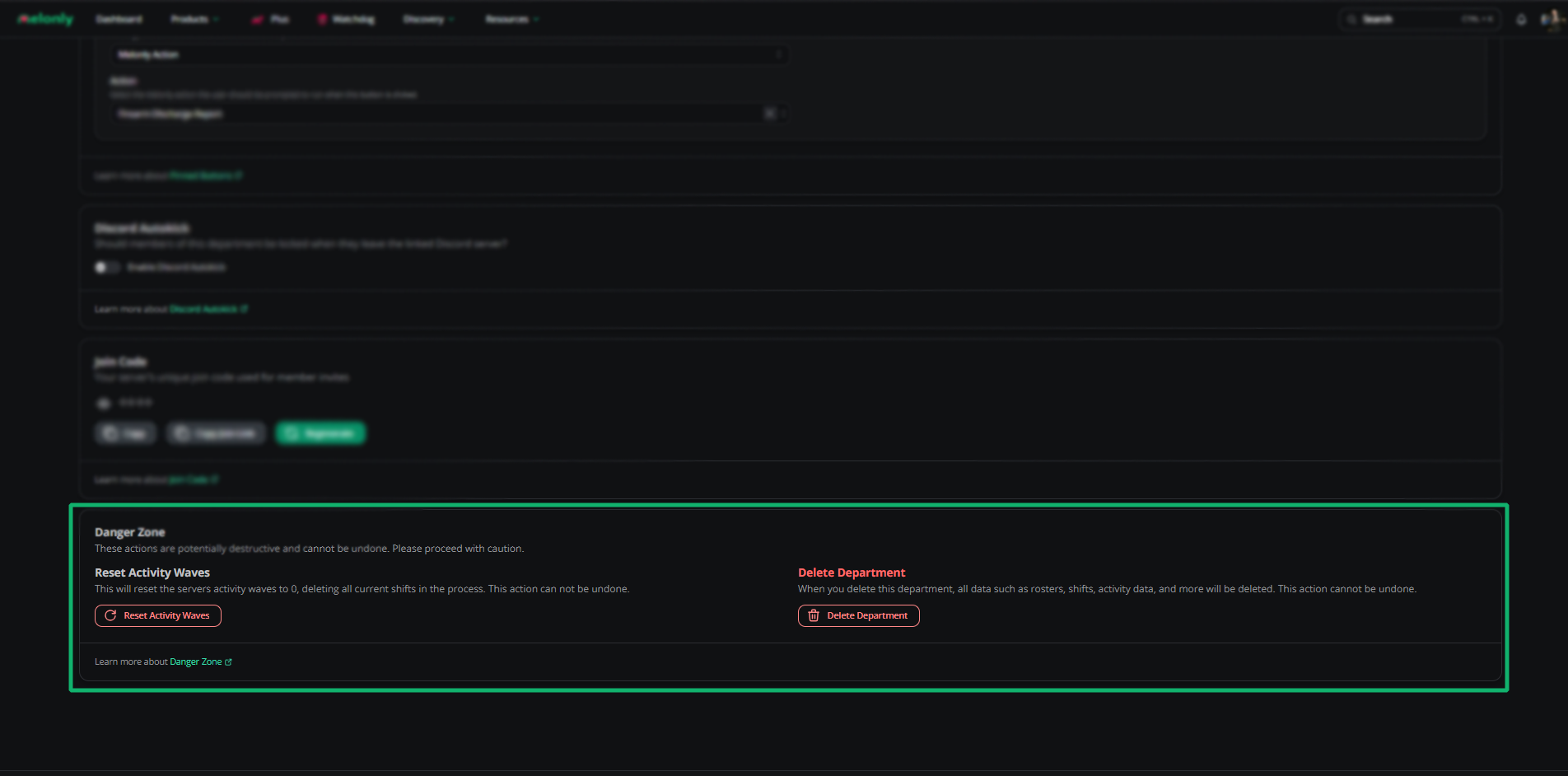
Danger zone
Discord integration
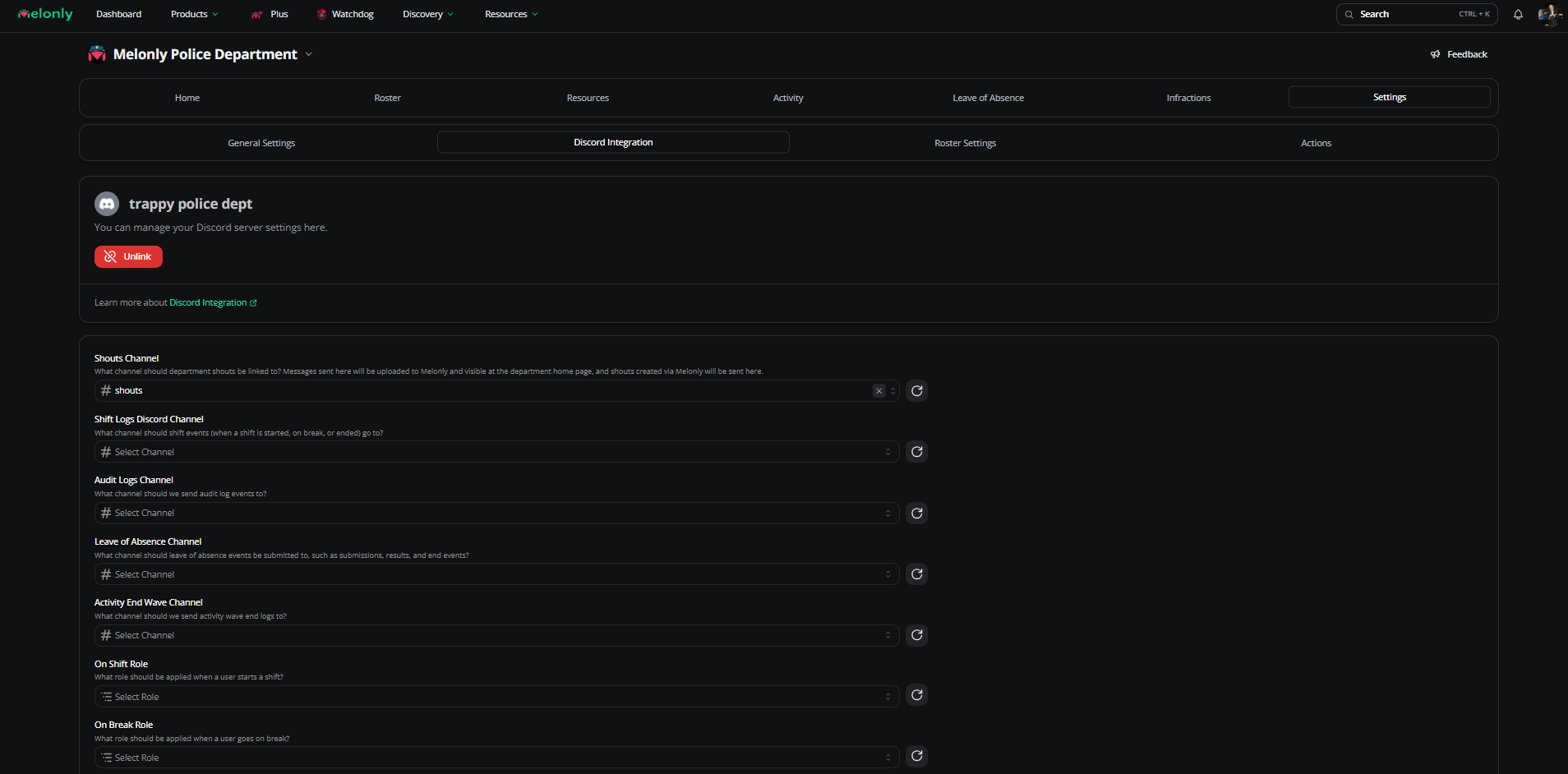
Discord integration
Channels
Roles
Nicknames
ER:LC integration
The department uses your parent server’s linked ER:LC server.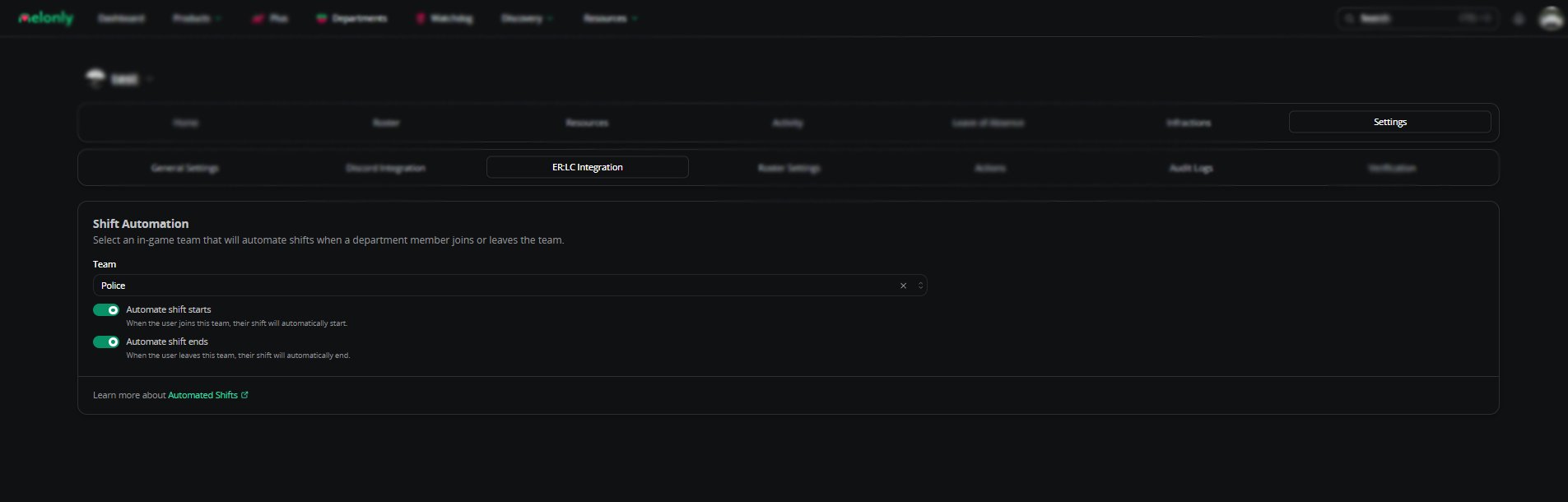
ER:LC integration
Shift automation
Pick an in-game team to drive shifts.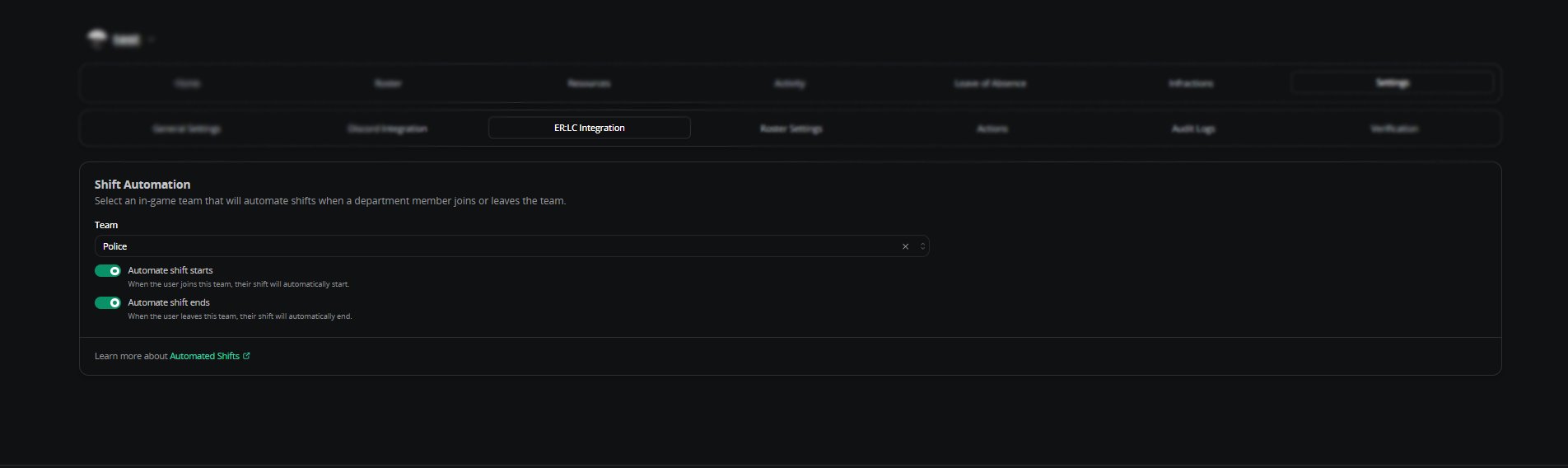
Shift automation
Roster settings
Custom columns
Track certifications, divisions, activity, and anything else you need on the roster.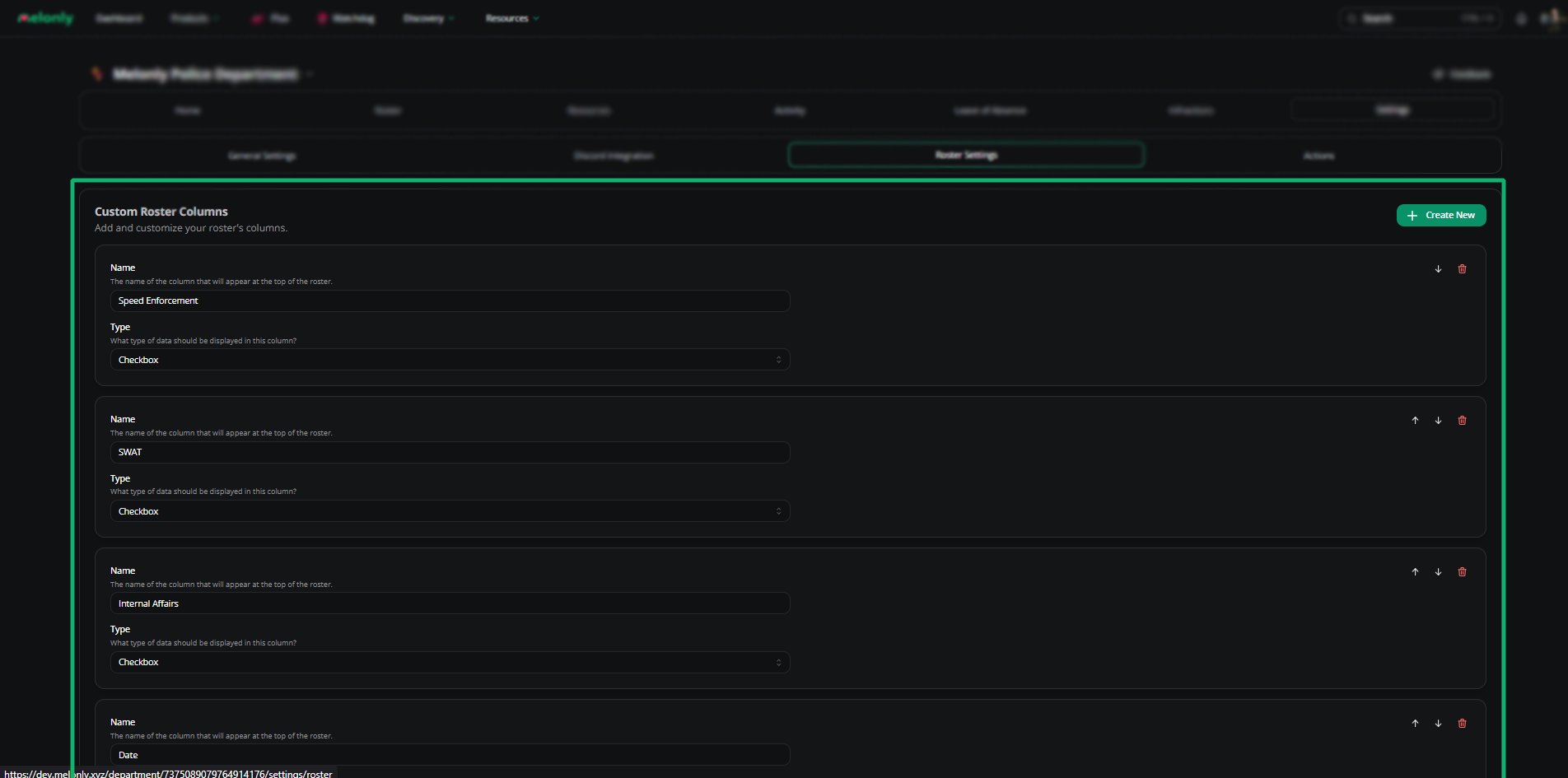
Custom roster columns
Actions
Actions are custom logs for tracking events outside Melonly’s defaults.Open Actions
Department Dashboard → Settings → Actions.
Create
Click Create New Action.
Configure
Customize fields, reorder questions, and configure Discord logs. Melonly Plus unlocks advanced log customization.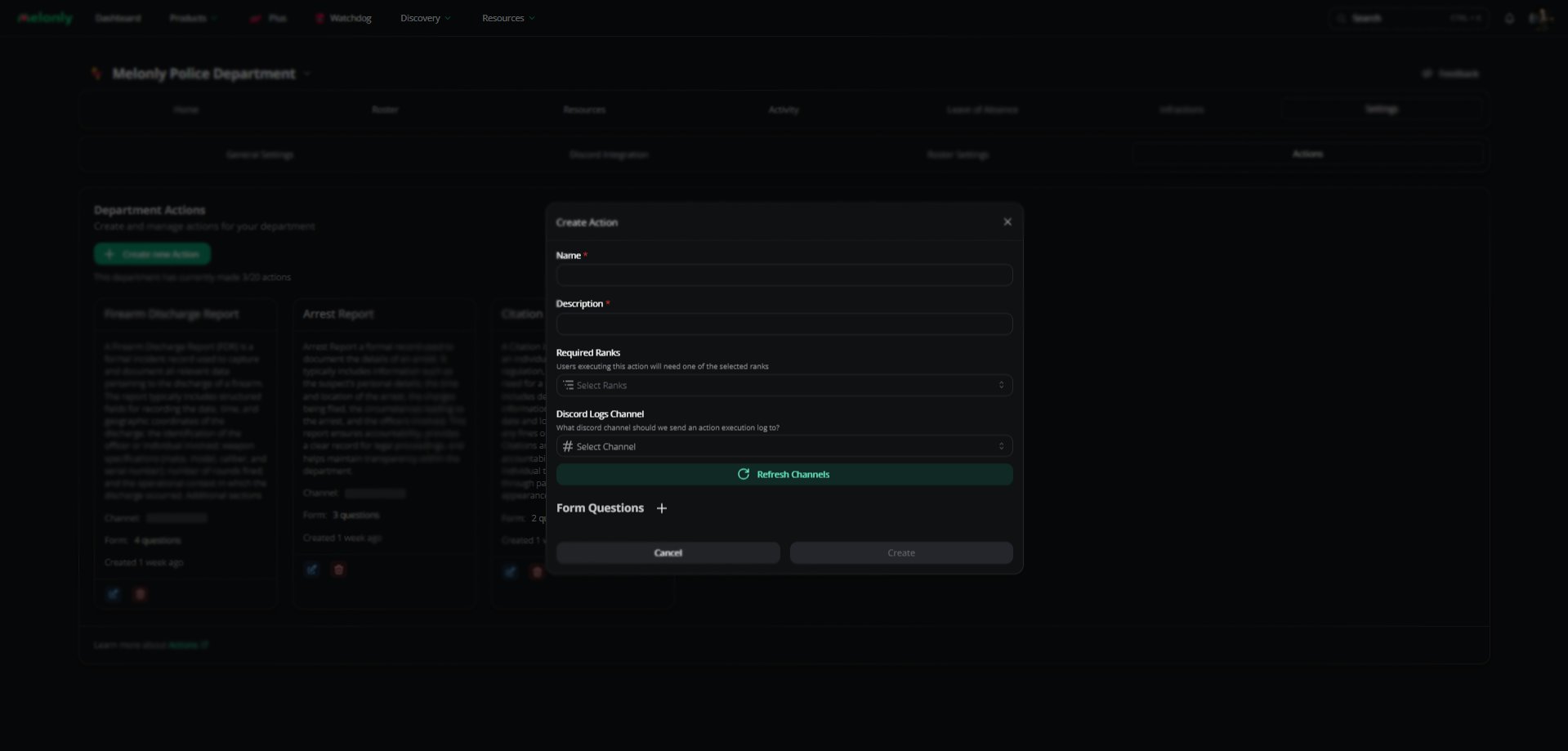
Action configuration
Audit logs
Full history of every action taken in your department.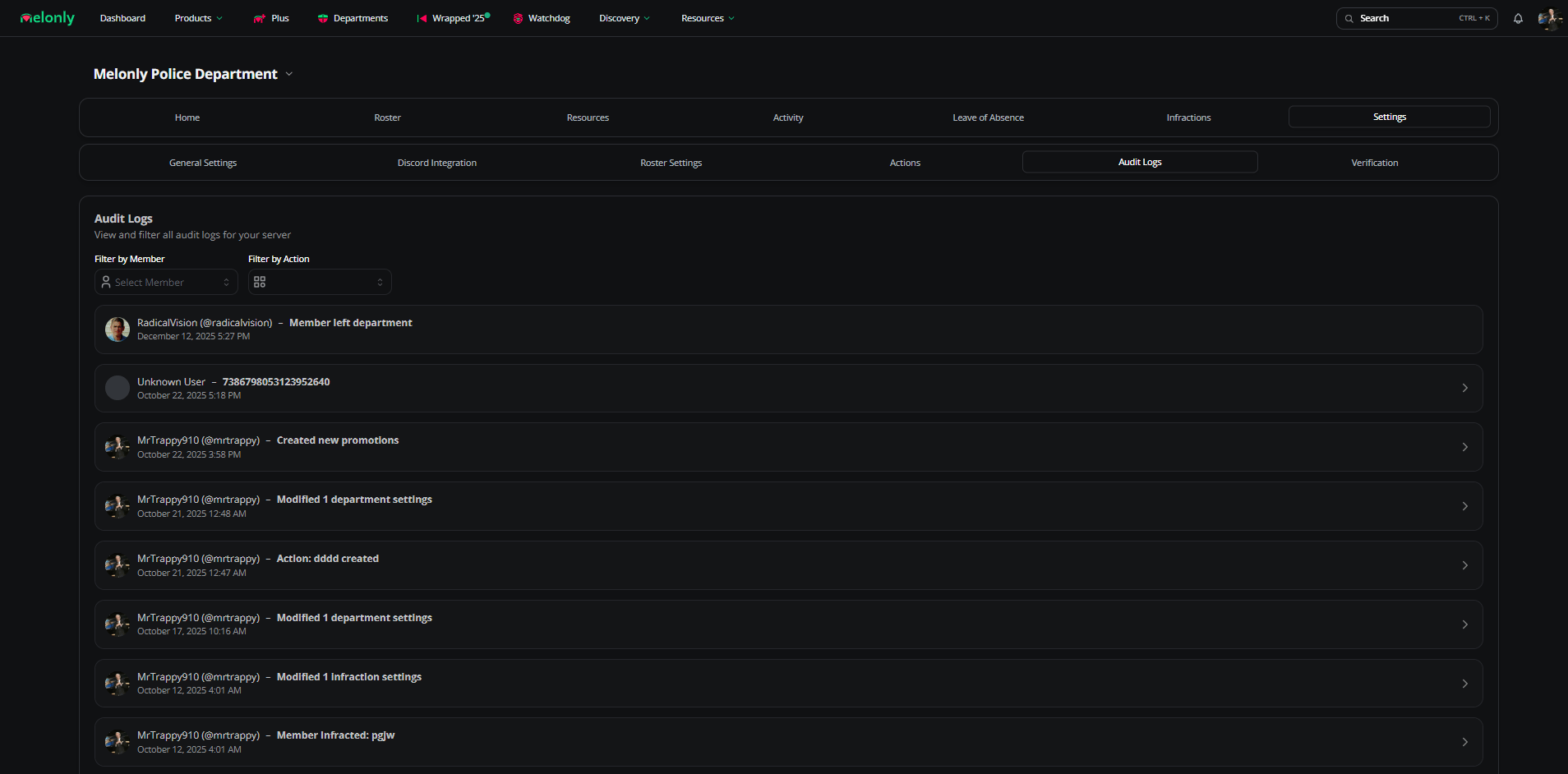
Audit logs
Filter by user
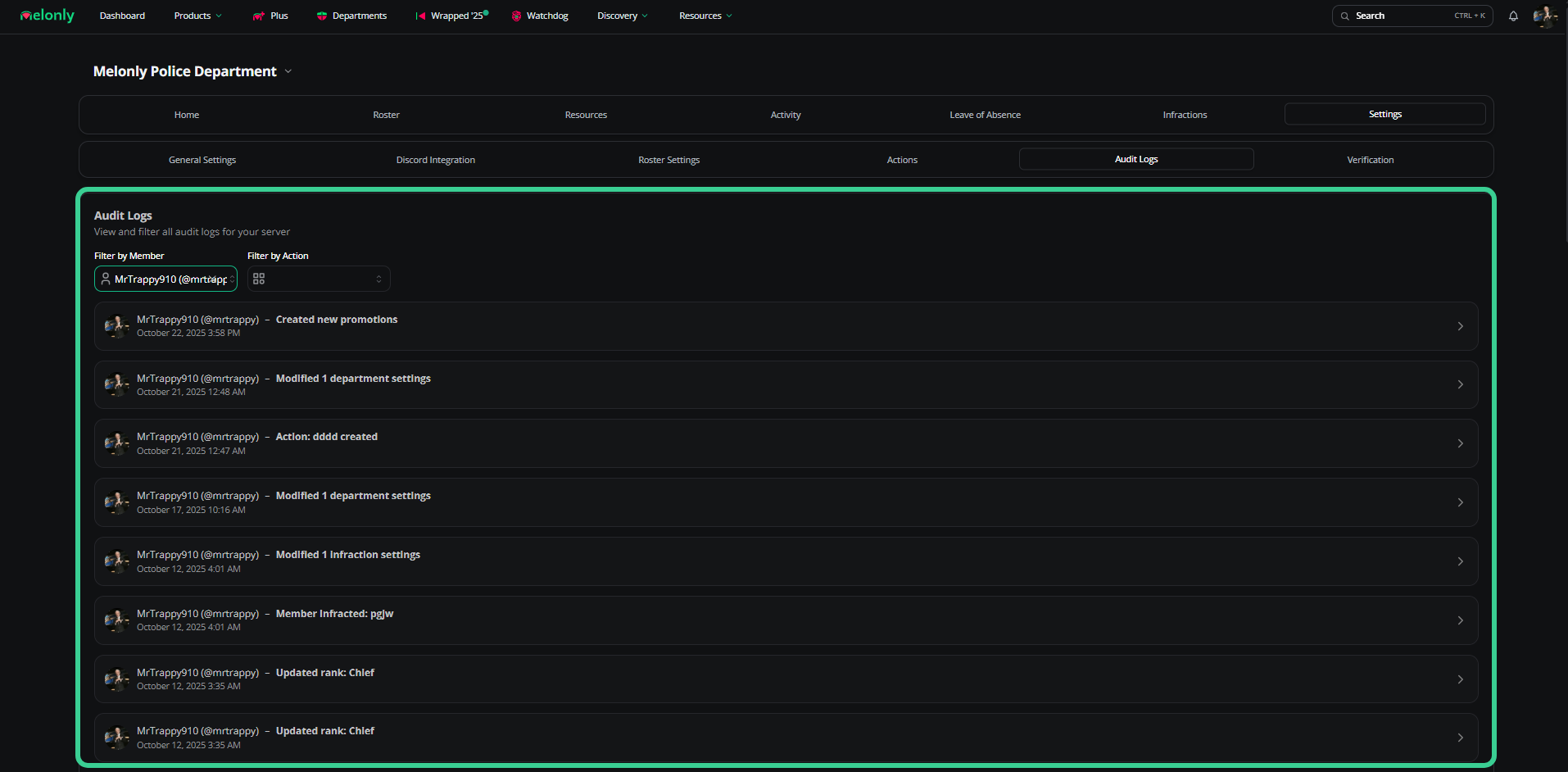
Filter by user
Filter by action
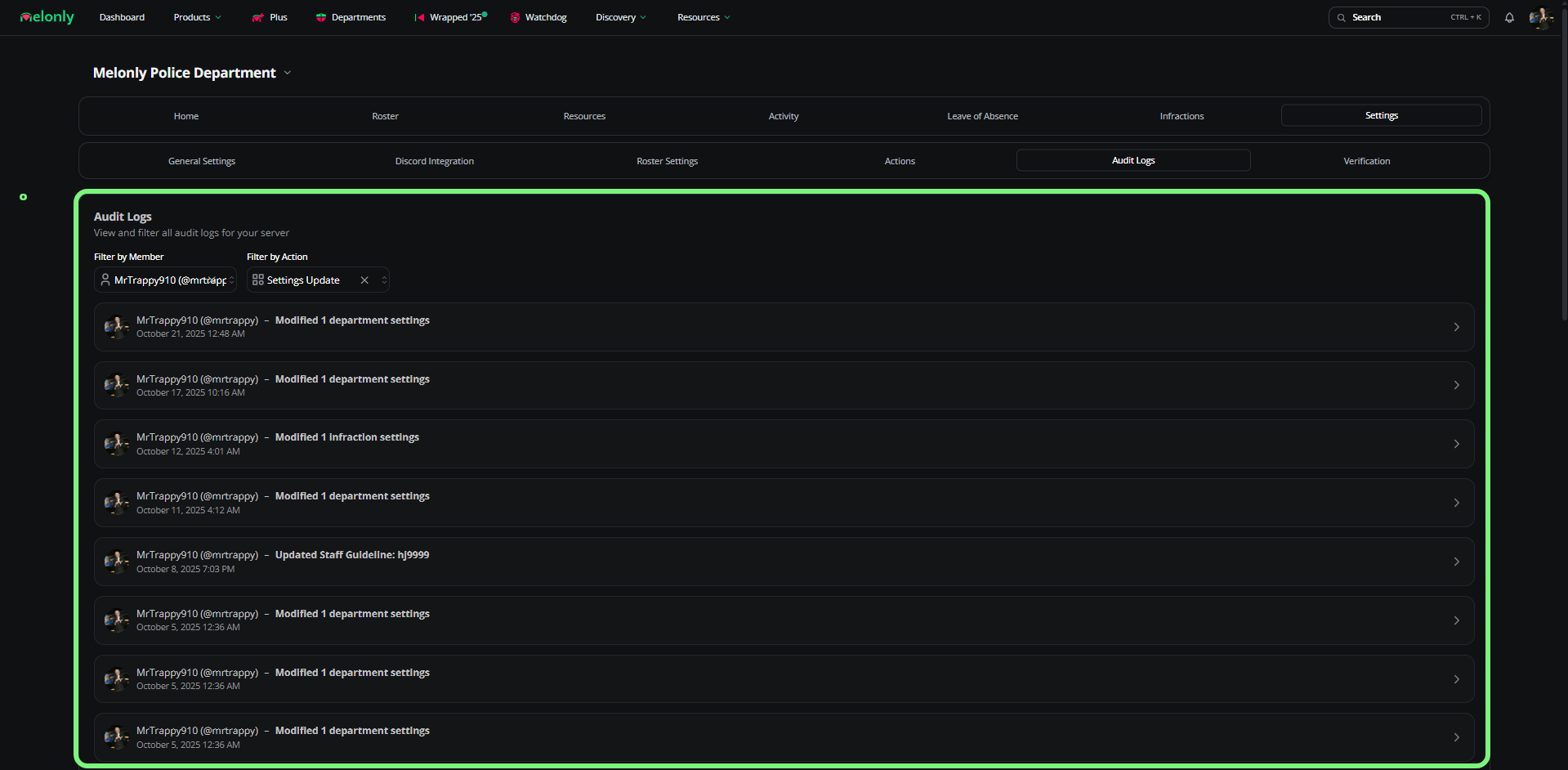
Filter by action
Verification
Configure Melonly’s verification system for your department.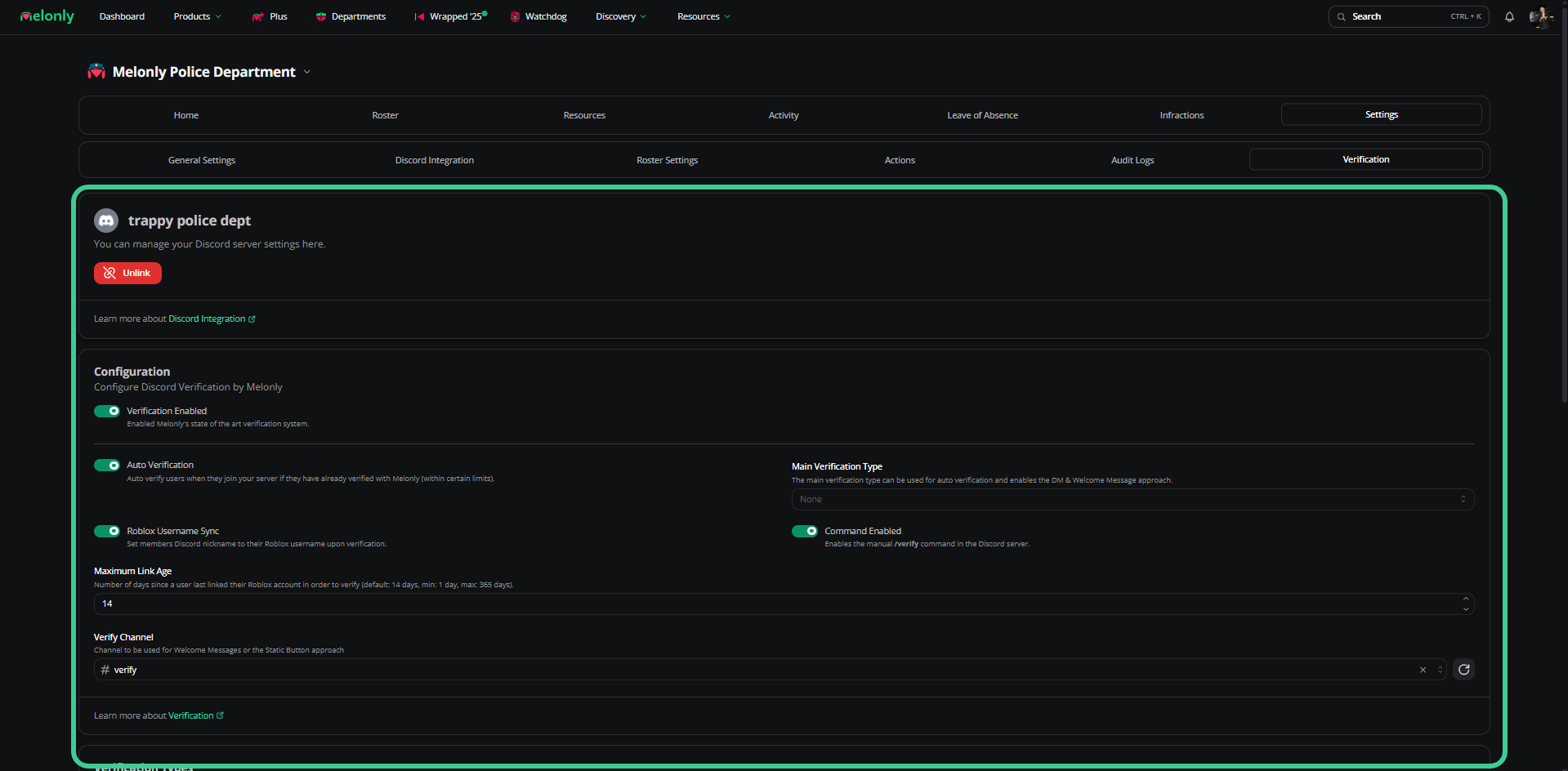
Verification
Configure
Verification types
Requirements
Verification guide
Read the full verification guide.
Need help?
Still have questions? Join our Discord server for support from the Melonly team.