
What are Shifts?
A shift is a block of time a member spends on duty. Shift time counts towards the member’s quota in the current activity wave.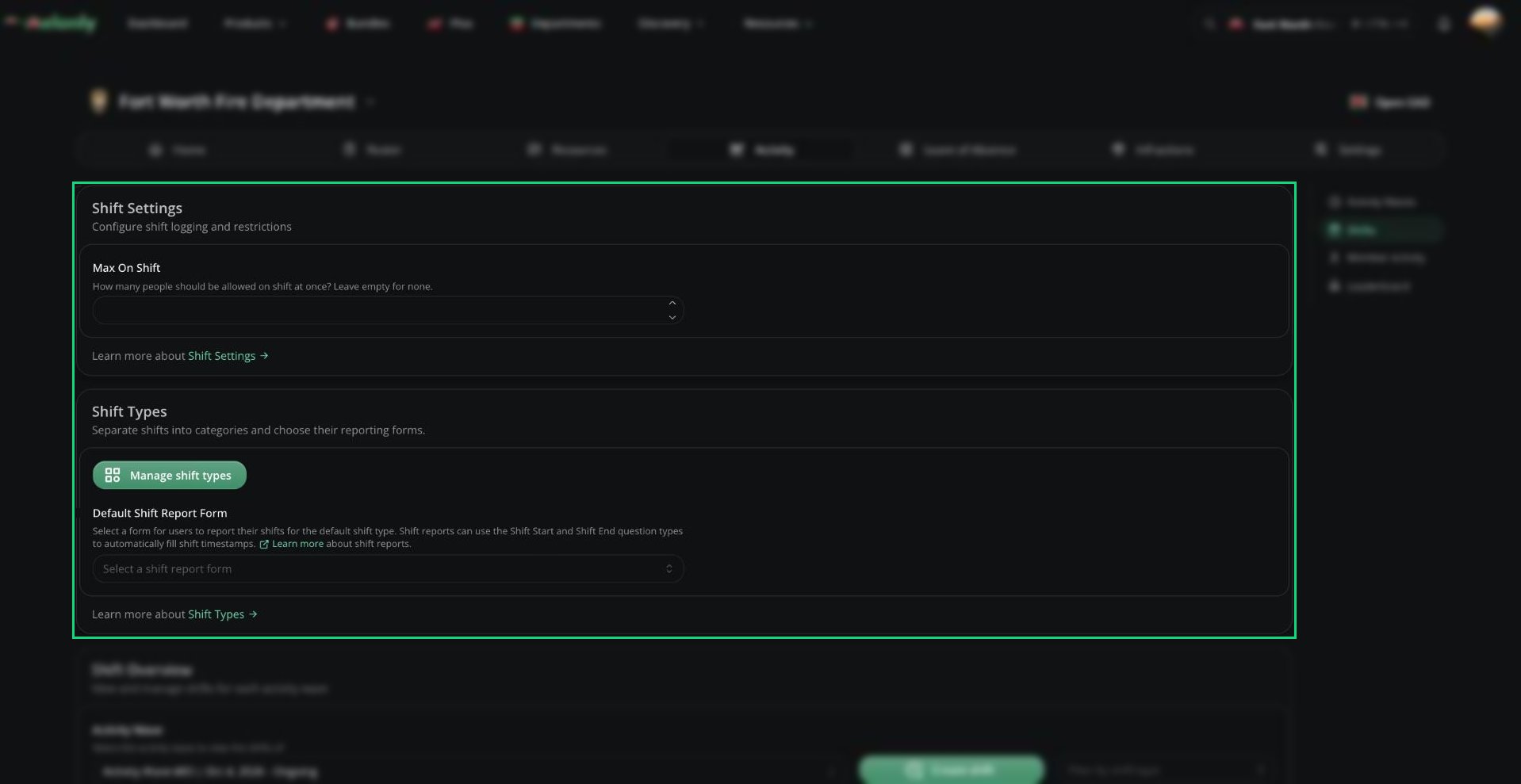
Shifts page
Clocking In
Members can start and end shifts from:- The department Home page, with Start Shift. If you have shift types, they pick one first. The shift report form opens when they end the shift.
- Melonly CAD, from the Activity menu. A CAD shift ends automatically when they leave the panel. If Require Clock-In is on, the CAD stays locked until they clock in.
- In-game teams, if you set up ER:LC shift automation.
Shift Settings
Shift Types
Shift types split shifts into categories, like Patrol or Training. Click Manage shift types to add, edit or delete them.
When you delete a type, its shifts move to the default type unless you tick Delete related shifts.
Default Shift Report Form
The form members fill in after a shift with no shift type. Create forms on the Resources page first. Use the Shift Start and Shift End question types to fill in the shift’s times automatically.Shift Overview
Lists every shift in the selected wave. You can filter by shift type, and click Create shift to log one manually, for example when someone forgot to clock in. From a shift’s menu you can view its report, edit its times or type, or delete it. You can’t edit or delete ongoing shifts, or shifts of members at or above your rank.Melonly generates a report for shifts of at least 5 minutes, showing how many actions were run. Reports aren’t available for shifts that ended more than 7 days ago.
Need help?
Still have questions? Join our Discord server for support from the Melonly Team.