
Documents
Documents share important information with your department — Code of Conduct, Chain of Command, SOPs, anything you need members to know.Ribbon
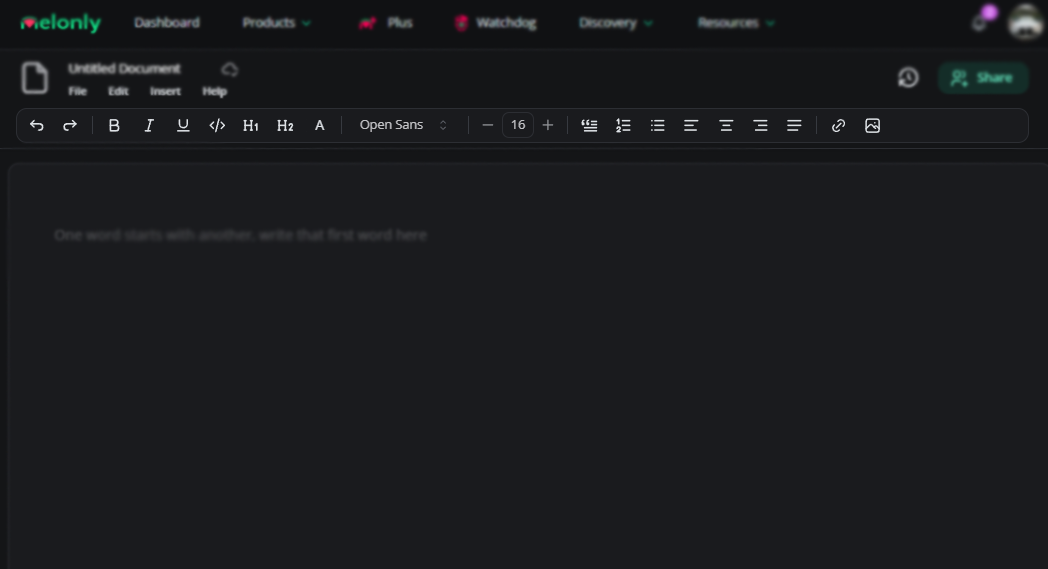
Document ribbon
File menu
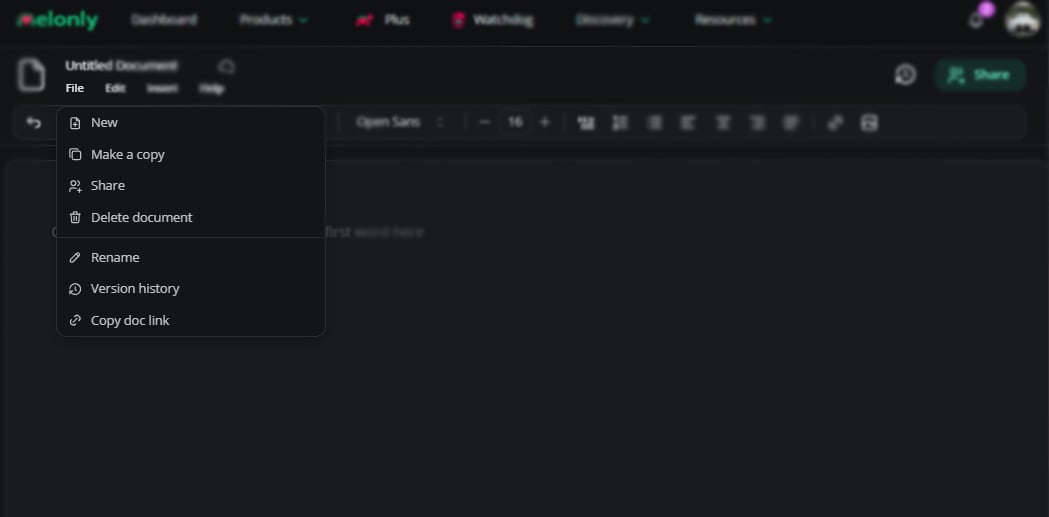
File menu
Edit menu
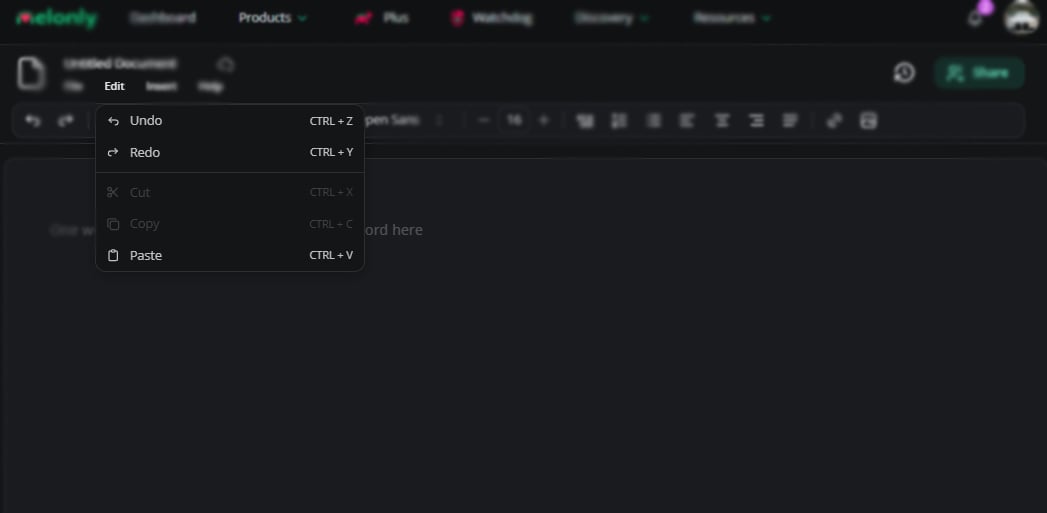
Edit menu
Insert menu
Two slash commands speed things up:/discord invite drops your server invite, and /erlc posts a card with your ER:LC server stats and join link.
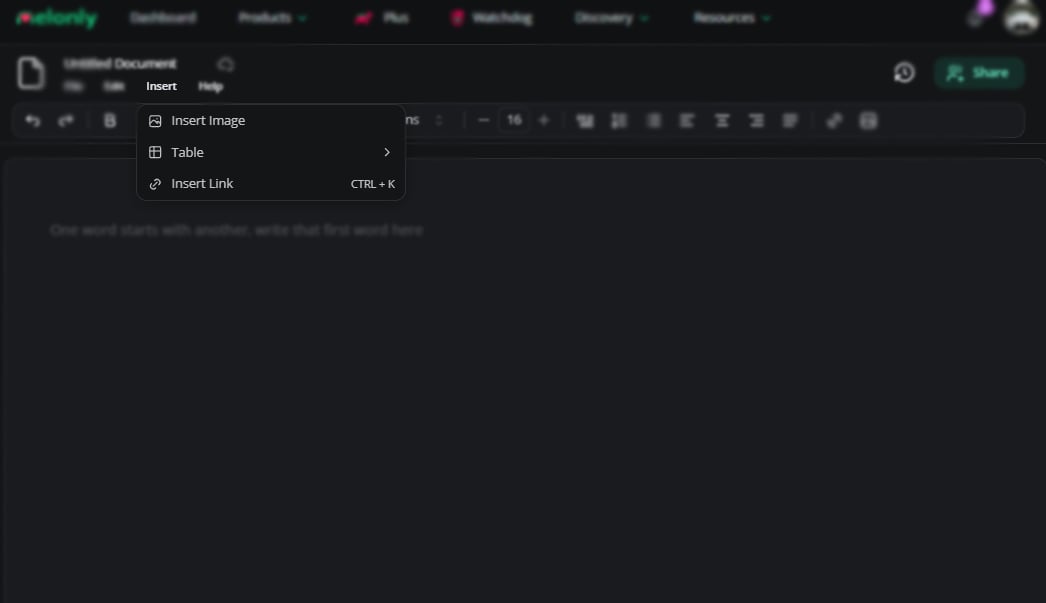
Insert menu
Help menu
Opens this documentation in a new tab.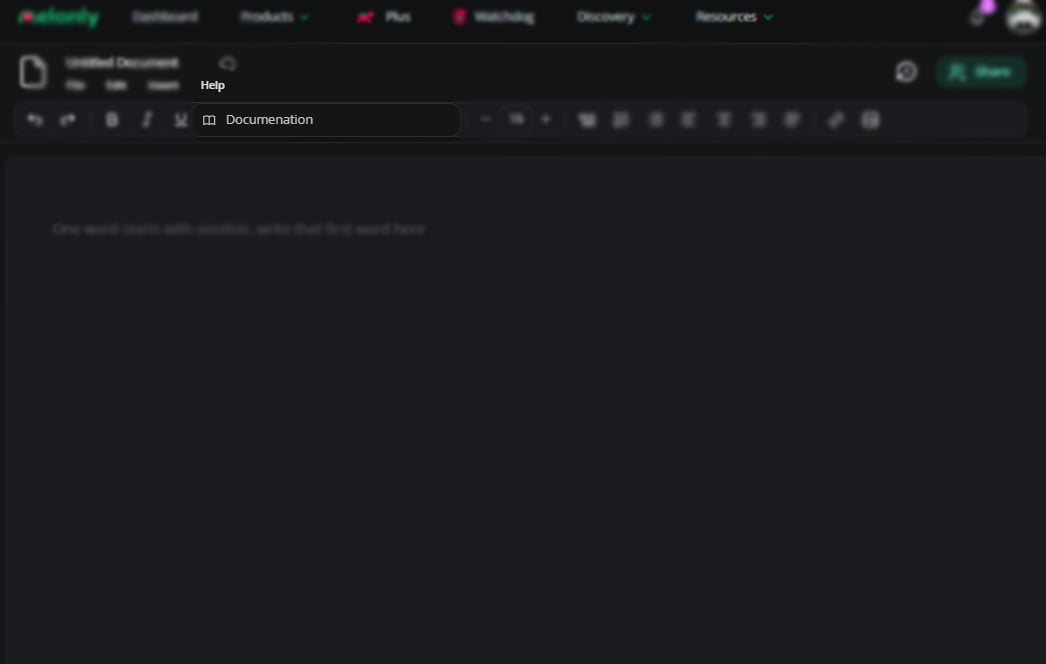
Help menu
Sharing
Share with individuals, Discord roles, Melonly roles, or via document link. Each grant is set to viewer or editor.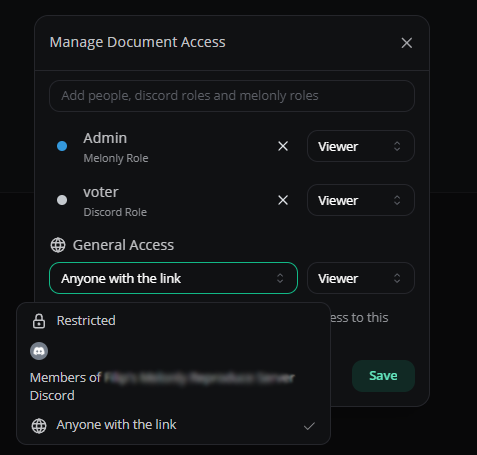
Sharing menu
Folders and workspaces
Folders
Create
Press New on the Resources page and select Folder.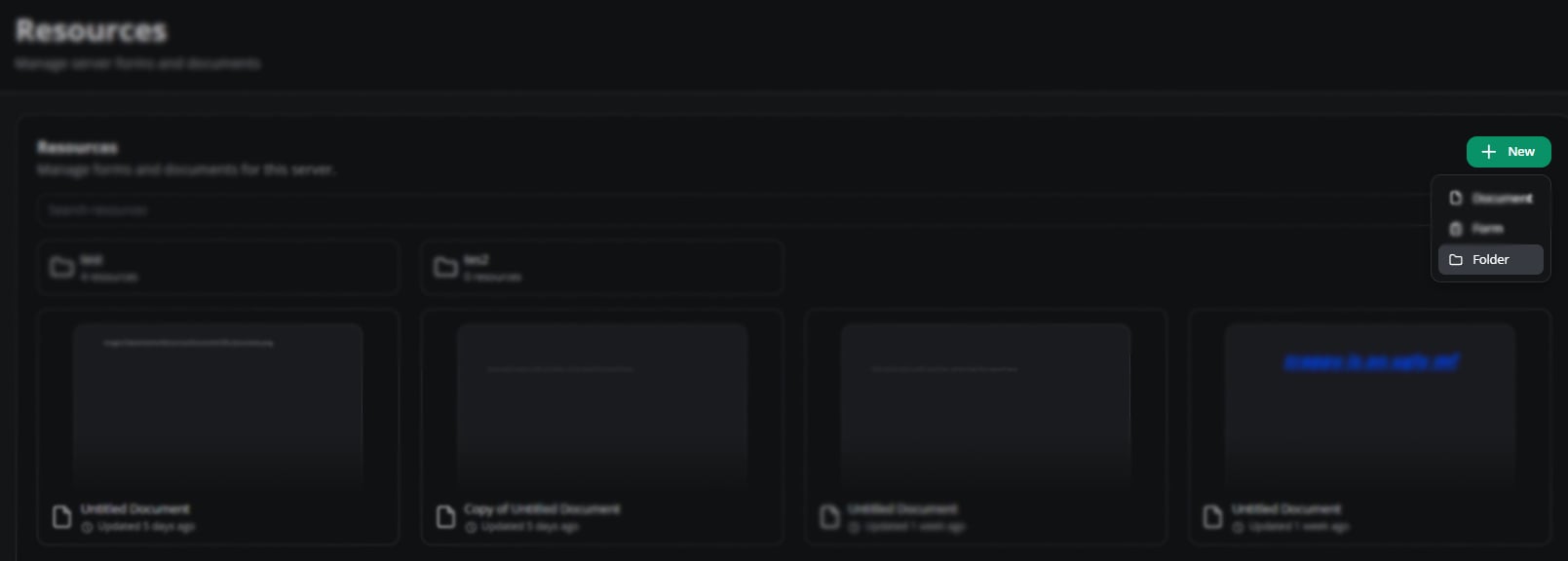
Create a folder
Configure
Convert to a workspace or rename from the configuration menu.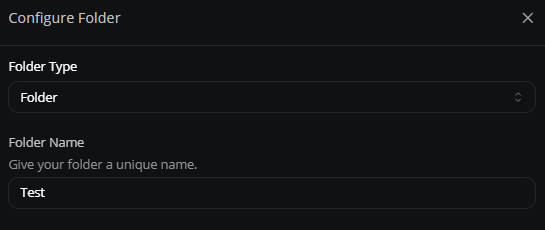
Folder configuration
Share
Restrict folders to specific roles or members. Use Copy Link to distribute.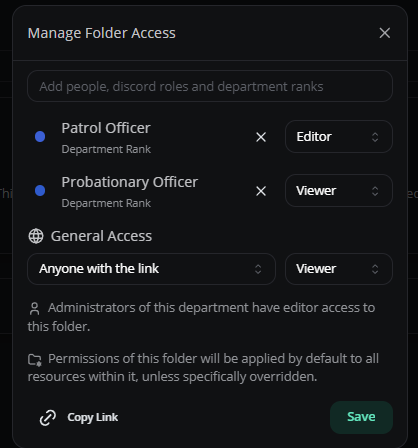
Folder sharing
Move documents into a folder
Drag and drop. Sync permissions to inherit folder access.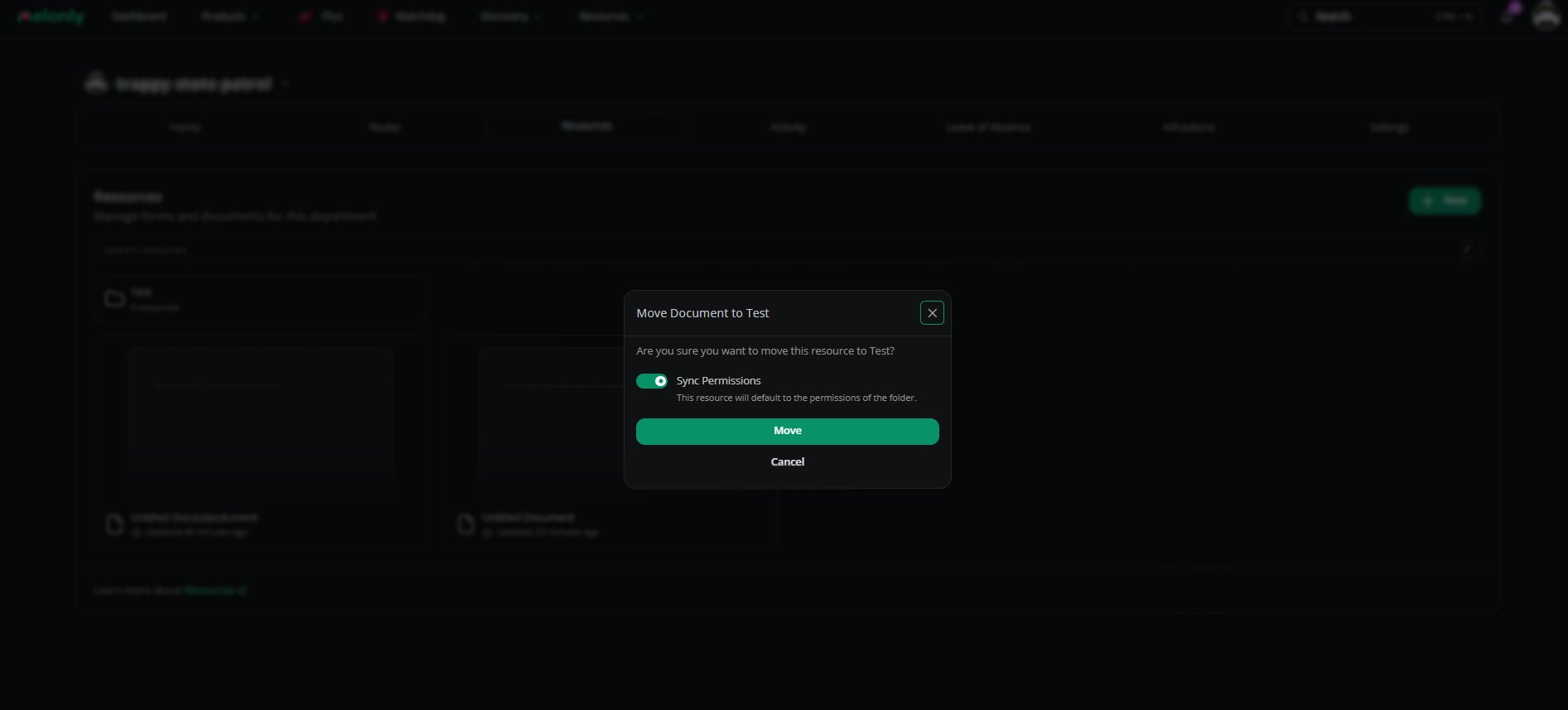
Move documents into a folder
Workspaces
Create
Press New, select Folder, then switch the Type to Workspace.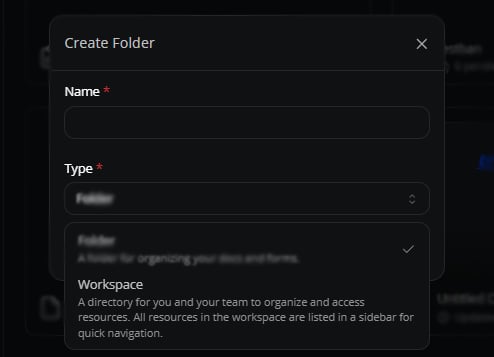
Create a workspace
Configure
Convert it back to a folder, rename it, or set up a sidebar with grouped documents and links.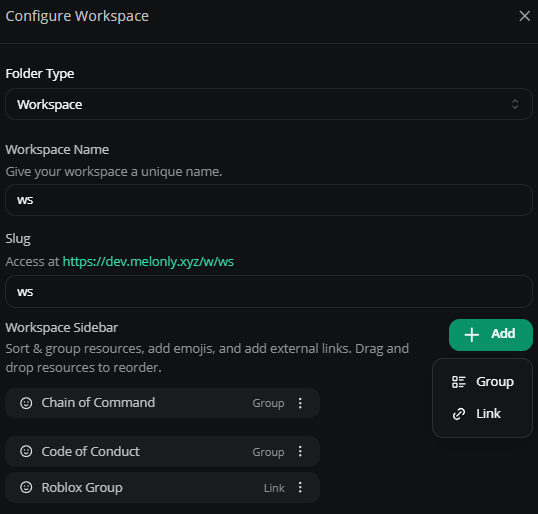
Configure a workspace
Share
Same as folders — restrict by role or member, or share via link.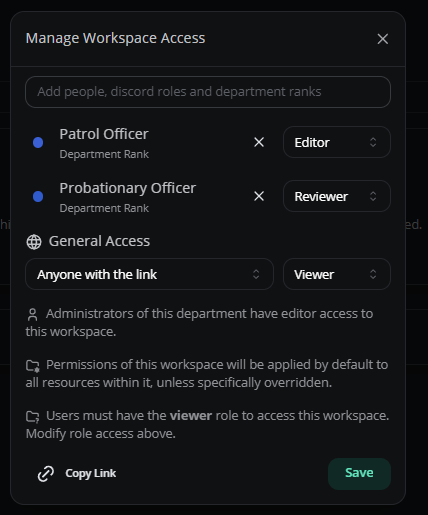
Workspace sharing
Move documents into a workspace
Drag and drop. Sync permissions to inherit workspace access.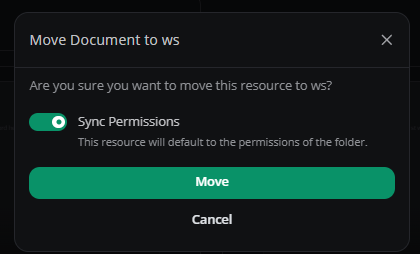
Move documents into a workspace
Applications
Applications are forms and questionnaires built for ER:LC communities — automatic role assignment, server joining, staging, internal commenting, and more.New: AI detection
AI tools read application responses to flag AI-generated content.
AI detection in action
Why not Google Forms
Melonly Applications are purpose-built for ER:LC. Discord and Roblox info is collected automatically, role assignment runs on accept or deny, and you get features like required roles, paste detection, and quizzes — all in one place.Standout features
- Application
- Paste Detection
- Tab In & Out
- AI Detection
Automatic Discord and Roblox info collection — no manual entry from applicants.
Create an application
Open the dashboard
Open your server in the dashboard.
Open Applications
Navigate to the Resources Page.
Build it
Click New Form, name it, choose Application or ER:LC Ban Appeal, then customize.
Response types
- Character types
- Selection types
- Numerical types
Application responses
The Responses tab on each application splits into pending, staging, approved, and denied. Use search to find a specific response.Response presets
Save preset accept/deny reasons for faster reviews.Create a preset
Open the application’s settings → Manage Application Response Presets and fill in the details.
Use a preset
Type the preset name into the Reason field when accepting or denying. The full message fills in on submit.
Application settings
General
Editor and reviewer
Additional
Quiz
Read more about the Quiz feature.
Discord integration
Advanced
Need help?
Still have questions? Join our Discord server for support from the Melonly team.