
What are Ranks?
Ranks make up your department’s chain of command. Every member has exactly one rank, and each rank has its own permissions. For extra permissions or groups on top of a rank, use roles. Managing ranks needs the Administrator permission, and you can only manage ranks below your own.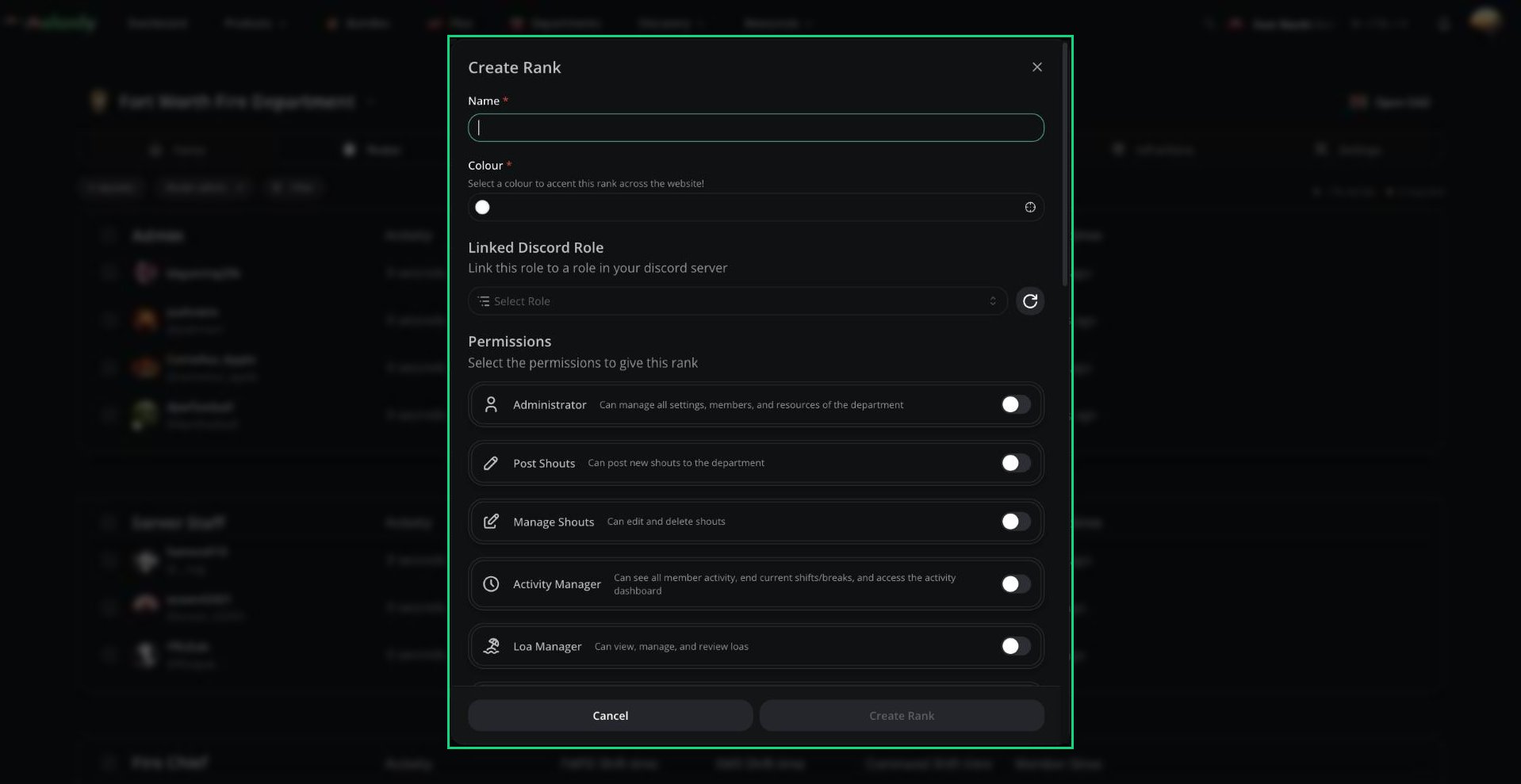
Create Rank
Create a Rank
1
Create the rank
Click Roster admin, then Create Rank.
2
Fill in the details
Give it a name and colour, link a Discord role if you want, and pick its permissions.
3
Put it in place
New ranks are added at the bottom. Use Move up in the rank’s menu to move it.
Edit, Move and Delete Ranks
Click the three dots next to a rank name to edit, duplicate, delete, or move it. When you delete a rank that has members, you’ll pick a rank to move them into.Linked Discord Roles
Each Discord role can be linked to one rank, and Melonly keeps them in sync:- Rank changes in Melonly swap the member’s Discord roles.
- Getting a linked role in Discord moves the member to the highest matching rank, and adds them to the department if needed.
- Losing their only linked rank role in Discord removes them from the department.
Need help?
Still have questions? Join our Discord server for support from the Melonly Team.