
What are Promotions and Demotions?
Promotions and demotions change a member’s rank and let everyone know about it. Use them instead of dragging members on the Roster when you want the change announced.Promotions need the Promote permission, and demotions need Demote. You can only move members ranked below you, into ranks below your own.
Create a Promotion or Demotion
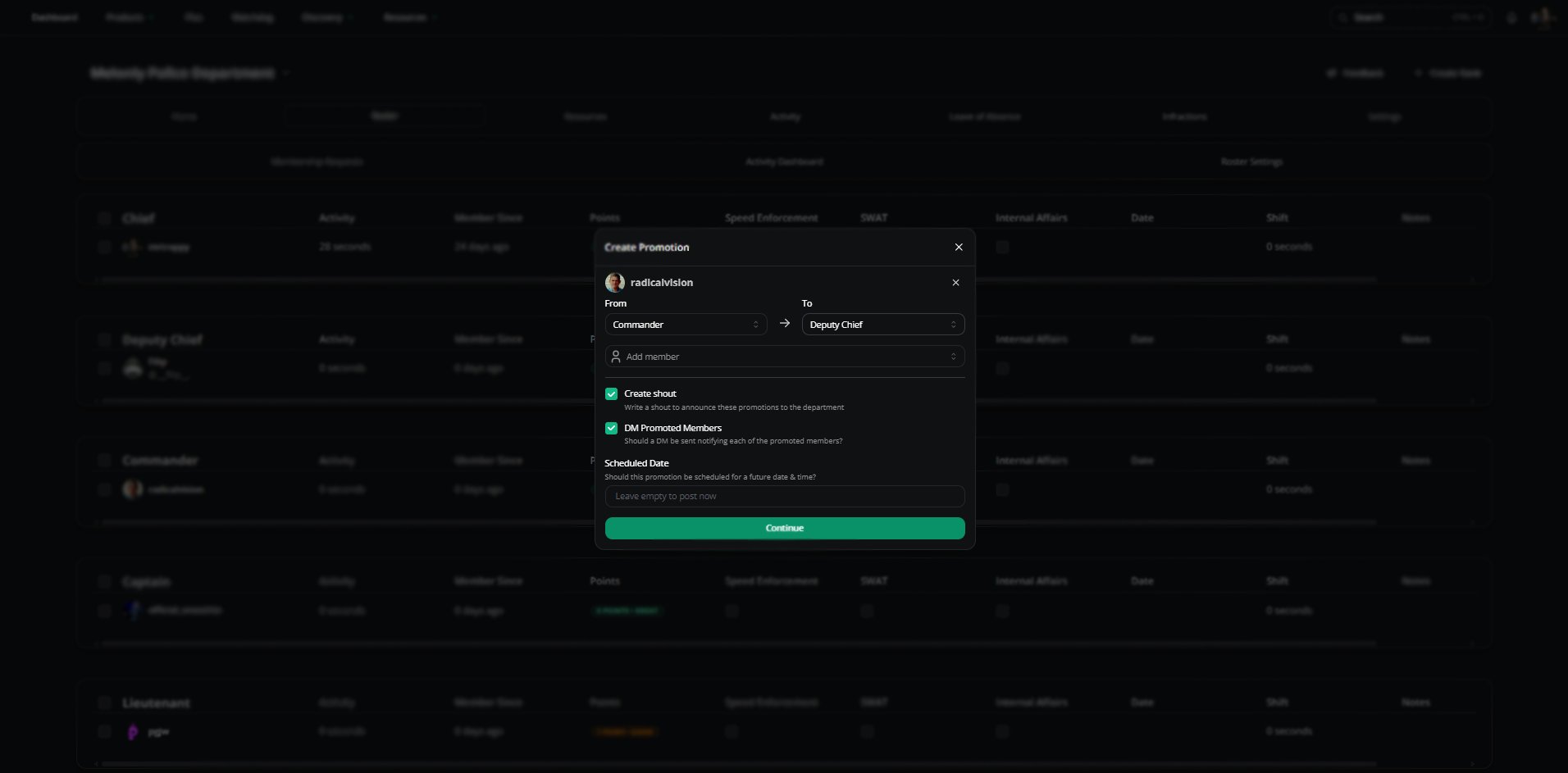
Promote a member
1
Start it
Right-click a member and choose Promote or Demote. To do several at once, select them and use Perform action, or open Roster admin and choose Create Promotion or Create Demotion.
2
Pick the new rank
Choose each member’s new rank under To. It defaults to the next rank up or down.
3
Choose the options
Decide whether to post a shout and DM the members. Promotions can also be scheduled.
4
Finish
Click Continue to write the shout, or Create Now if you turned the shout off.
Announcement Shouts
If Create shout is on, you’ll get a shout editor with one line per member, like “@member has been promoted to @Rank”. Edit it however you like, or click Restore Default to start over.What Happens
When a promotion or demotion goes through:- Each member’s rank changes, and their linked Discord roles are swapped.
- Members get a DM, if you turned that on.
- A log is posted to your Promotion or Demotion Logs Channel, if set in Discord Integration.
- Your shout is posted, and any workflows set to run on promotions or demotions are triggered.
Scheduled Promotions
Scheduled promotions show in the shouts feed on the Home page. From there you can post them now, change the date, or cancel them.Need help?
Still have questions? Join our Discord server for support from the Melonly Team.