
Opening the CAD
Go to melonly.xyz/cad, or click CAD in the Melonly navigation bar, then pick a server. PressCtrl + Enter (⌘ + Enter on Mac) to jump into the server you used last.
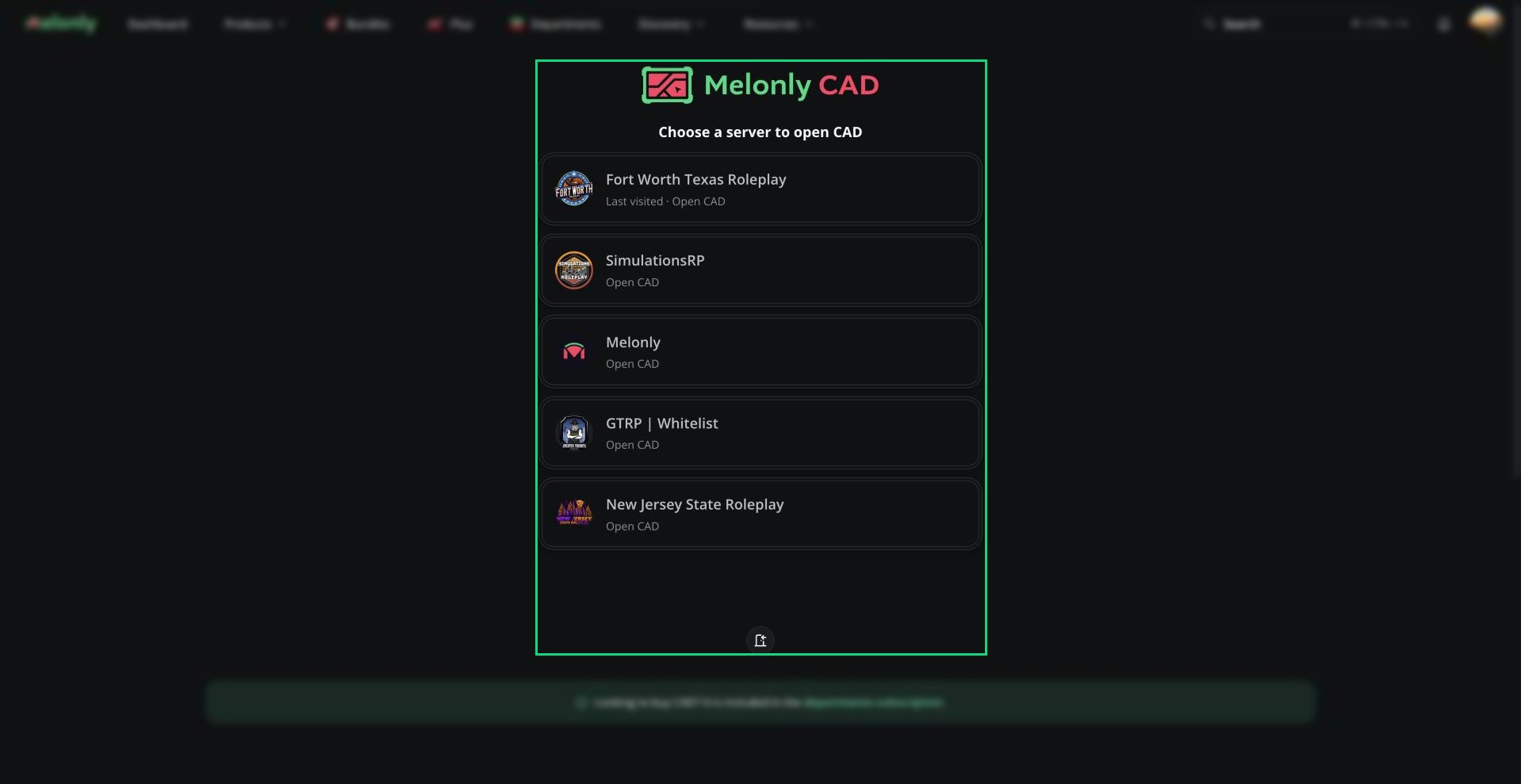
Choosing a server
Choosing a Panel
After picking a server, click a panel tile to open it. Scroll sideways if you have a lot of panels.- A greyed-out tile means the server has no department for it yet, or you don’t have permission. Hover it to see which. See Panel Access.
- Dispatch and service panel tiles have a small radio icon that opens a radio-only page. See Radio.
- The Admin button at the bottom opens the admin panel, if you have CAD Admin.
Joining with a Code
Join codes let people outside your departments use the CAD. Joining gives you a temporary membership with the permissions on that code.1
Open the join window
On the server list, click the Join Server door button.
2
Enter both codes
Fill in the Community Code (your server’s code) and the Join Code your admins gave you.
3
Join
Click Join. You’ll go straight to the server’s panel picker.
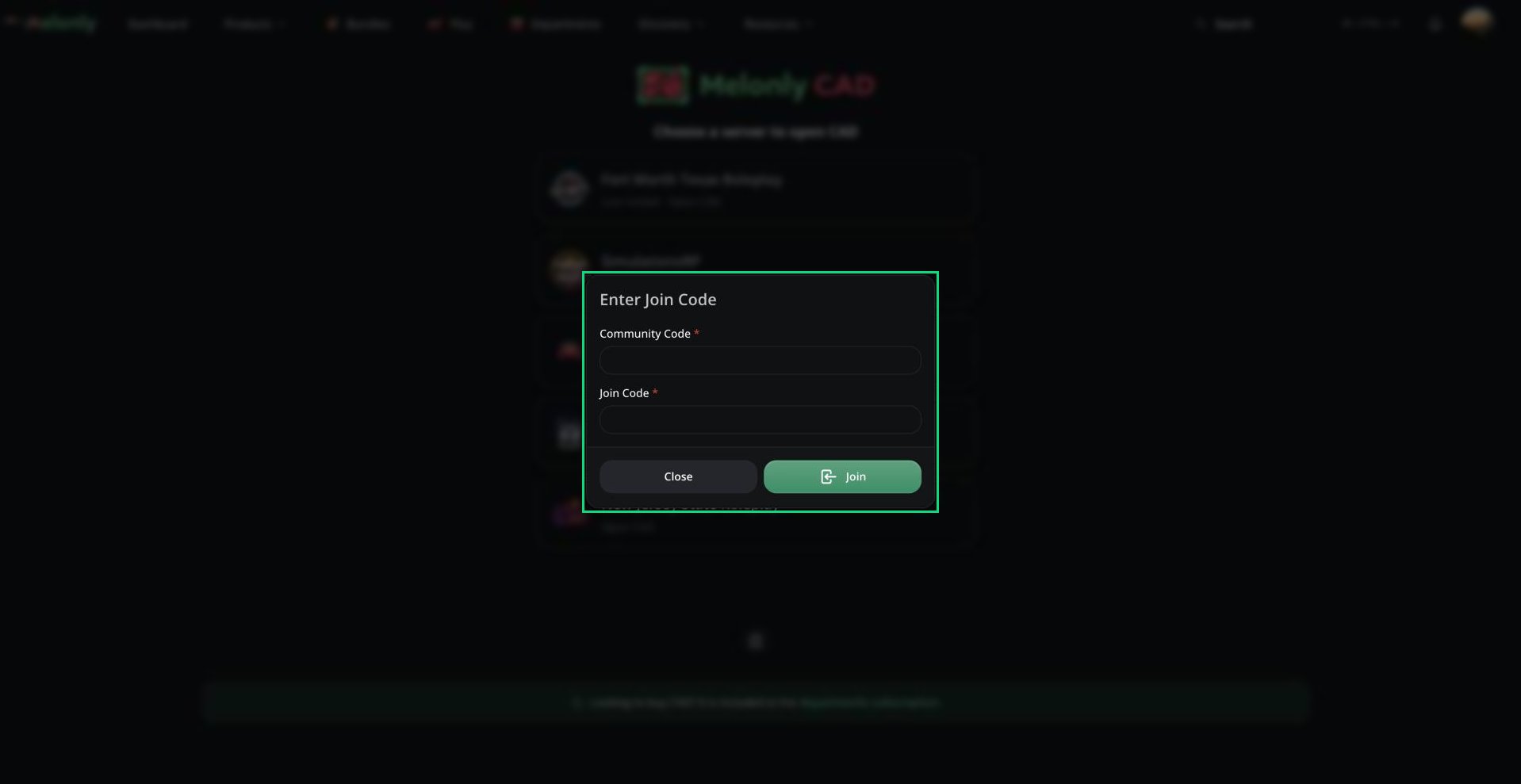
Enter Join Code
How code memberships work
How code memberships work
- Codes can’t give CAD Admin, DMV Panel or radio moderation permissions.
- A code can expire a set number of days after you join. You lose its permissions when it does.
- Some codes need you to have certain Discord roles in the server’s linked Discord.
- A CAD admin can remove your membership or block you from joining with codes. Anything your department ranks give you stays.
Creating Your Unit
On Police, Fire, EMS, DOT and Dispatch, you need a unit before you can do anything. Click Create Unit, enter your unit number and agency, then select it. See Units. On the Civilian panel you pick or create a character instead. On the Law panel you set your judicial name. DMV doesn’t need either.Roblox authorization
On Police, Fire, EMS, DOT and Law, link your Roblox account by clicking Authorize Roblox when asked. The panel works without it, but you won’t appear on the live map.Clocking In
You can start and end department shifts without leaving the CAD. Open the CAD menu (the logo in the top-left) and go to Activity.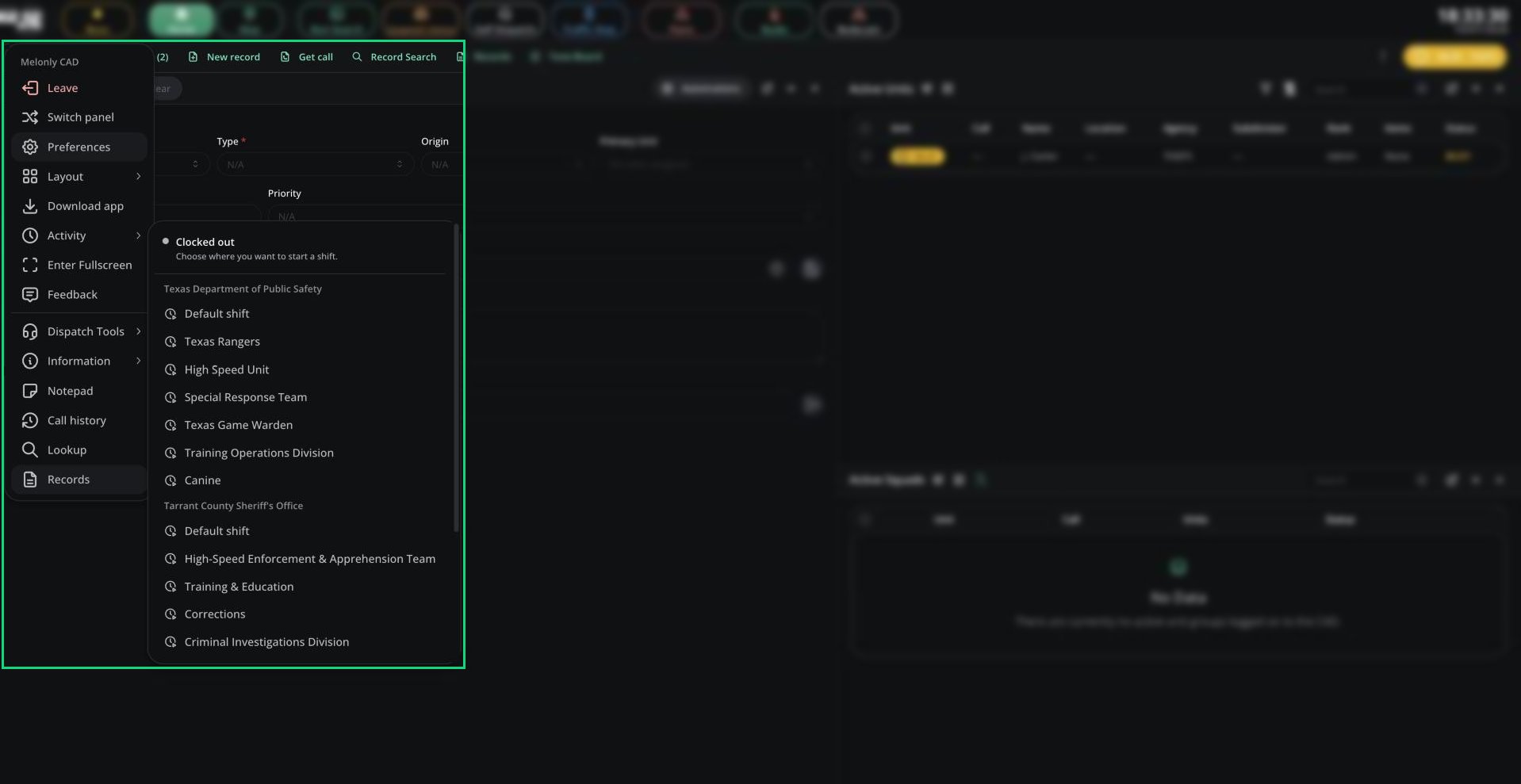
Activity menu
- Pick a department to start a shift, or pick a shift type if it uses them.
- While on shift, you can start or end a break, or end your shift. If the department has a shift report form, it opens when you end.
- Shifts work just like the department’s Activity page, including Discord roles and shift logs. See Department Activity.
When clock-in is required
If your server turns on Require Clock-In, you must be on shift before you can become a unit or run lookups. If your shift ends, you’re removed from the panel. This doesn’t apply to Civilian, Law, DMV or CAD admins.Bodycam
If your server turns on Require Bodycam, you must start your bodycam before you can become a unit on Police, Fire, EMS or DOT. See Bodycam for how to start it.Connection Problems
If you see Connection Failed, click Try Again. If you’re told you’ve been removed or disconnected, it’s usually because you opened the CAD in another tab or device, an admin kicked you, or your required shift ended.Desktop and Mobile
The CAD also runs in the desktop app, which adds global keybinds and pop-out windows, and on phones and tablets in landscape.Need help?
Still have questions? Join our Discord server for support from the Melonly Team.