
What are 10-Codes?
The 10-Codes page holds the code list your units and dispatchers pick from on calls and see in the 10-codes reference window. You can have up to 150 codes. Open Customization → 10-Codes in the CAD admin panel. Changes are kept as a draft until you click Save Changes (Ctrl + S).
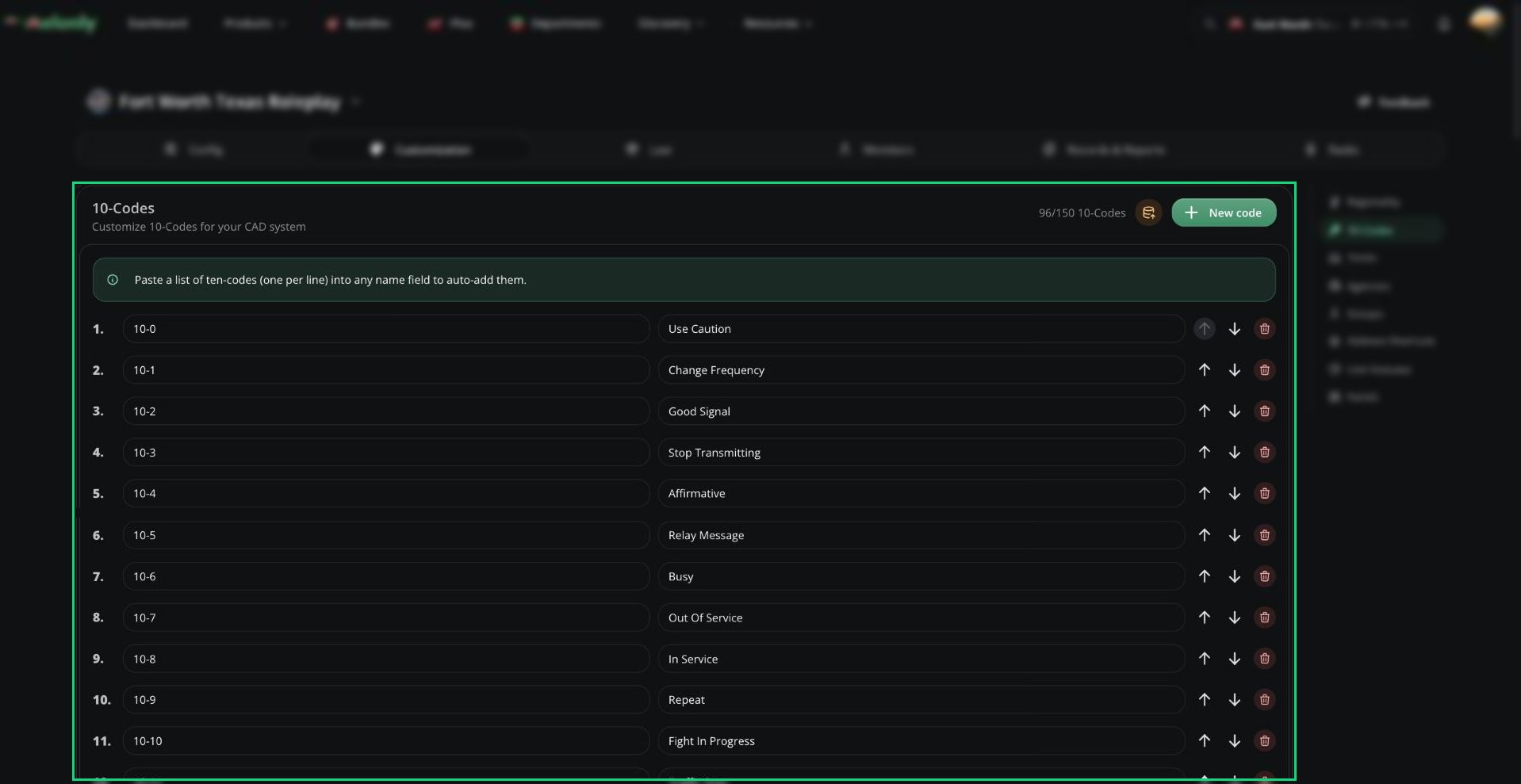
10-Codes
Adding Codes
1
Add a code
Click New code.
2
Name and define it
Enter a name, like
10-4 (2 to 12 characters), and a definition, like Affirmative (3 to 48 characters). Code names must be unique.3
Order and save
Use the arrows to reorder, then click Save Changes.
When an officer starts a traffic stop, the CAD uses the first code whose definition matches “traffic stop”, so keep one in your list.
Pasting a Whole List
Paste a list into any Name field, one code per line, and Melonly splits each line into a code and definition. All of these work:Importing from Sonoran CAD
1
Export from Sonoran
Export your 10-codes from Sonoran CAD as a JSON file.
2
Start the import
Click Import from Sonoran CAD and enter the separator between code and meaning (for
10-4: Affirmative it’s :).3
Upload
Upload the file and click Import ten codes.
Need help?
Still have questions? Join our Discord server for support from the Melonly Team.