Documentation Index Fetch the complete documentation index at: https://docs.melonly.xyz/docs/llms.txt
Use this file to discover all available pages before exploring further.
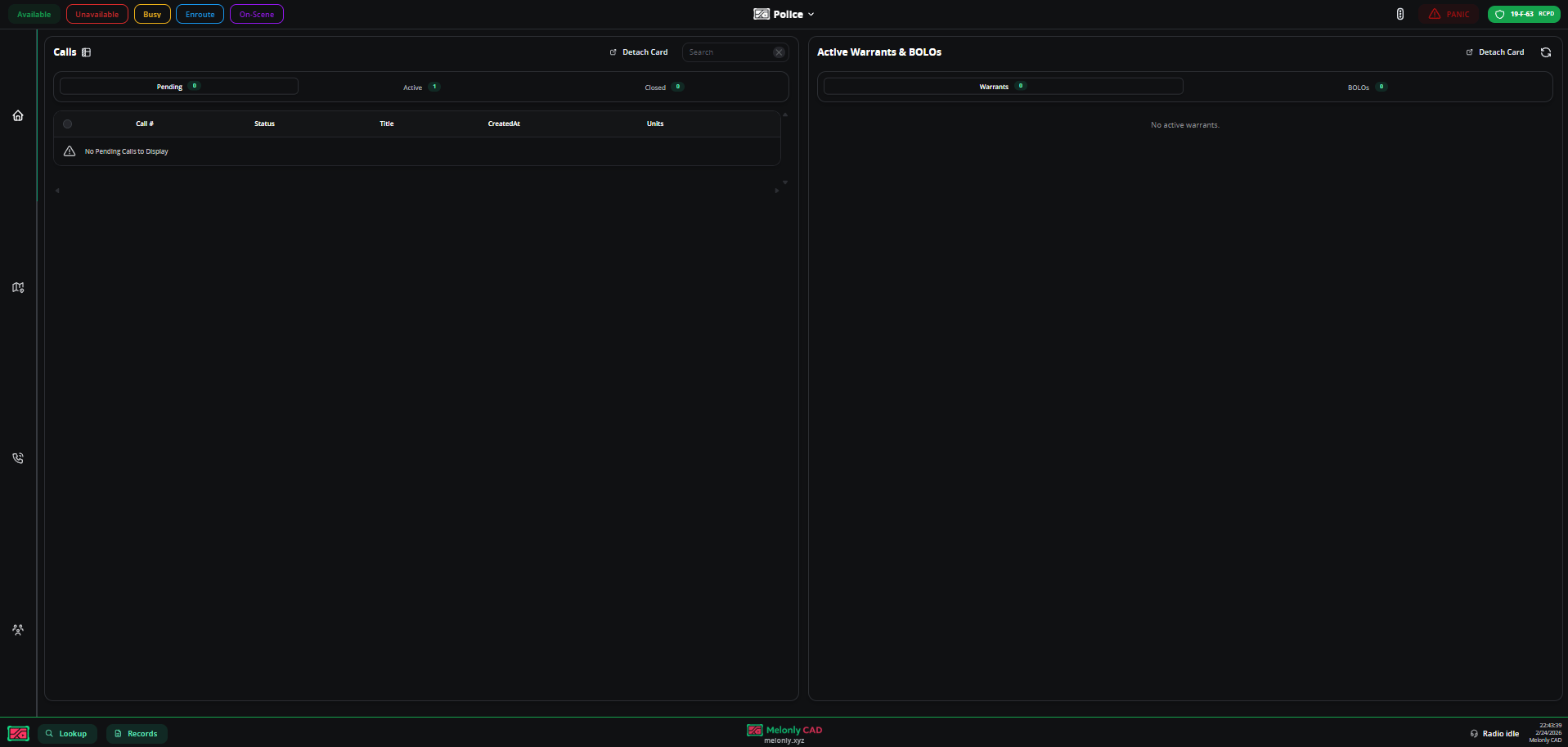
The Law Enforcement panel is your main coordination hub on duty — monitor your status, review calls, track warrants and BOLOs, trigger panic, and run record checks. Quick access to citations, arrest reports, supervisory tools, and plate lookups during traffic stops. The radio is always available, no matter which page you’re on.
Unit creation
Cards
Map
Calls
Active units
Tools
Create a unit
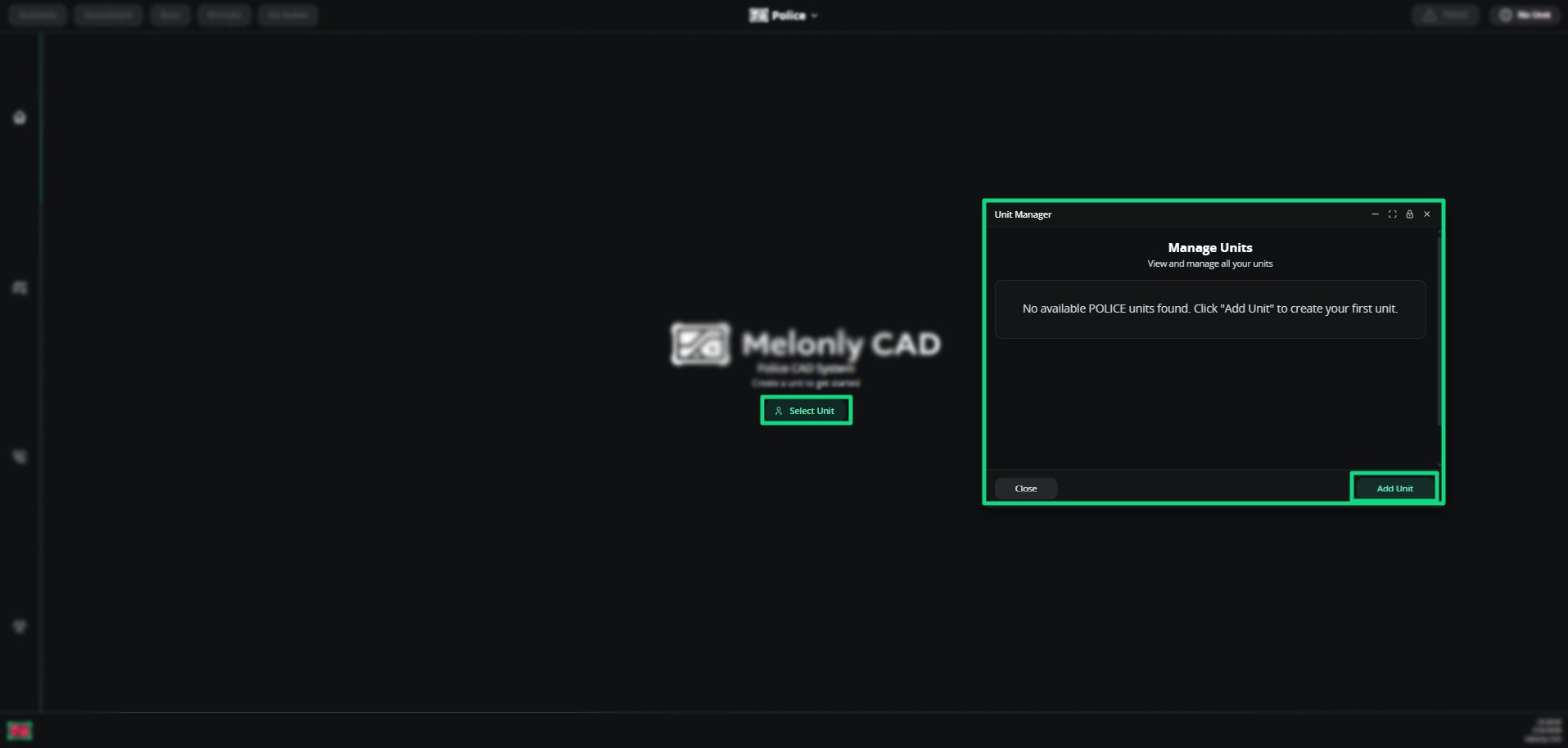
Open Add Unit
Click Select Unit → Add Unit when you first open the Law Enforcement panel.
Fill in the details
Field Description Unit Number Your callsign Unit Name Roleplay name or designation Rank Your department rank Agency Police, Sheriff, etc. Subdivision Your specific division or specialty unit Items / Abilities Equipment, tools, and abilities
Create Unit
Click Create Unit in the bottom-right. Unit details can be updated at any time.
Manage units Click the unit info button in the top-right of the homepage. From the management menu, open the kebab (⋮) on a unit and choose Edit or Delete . Button colour reflects your current status.
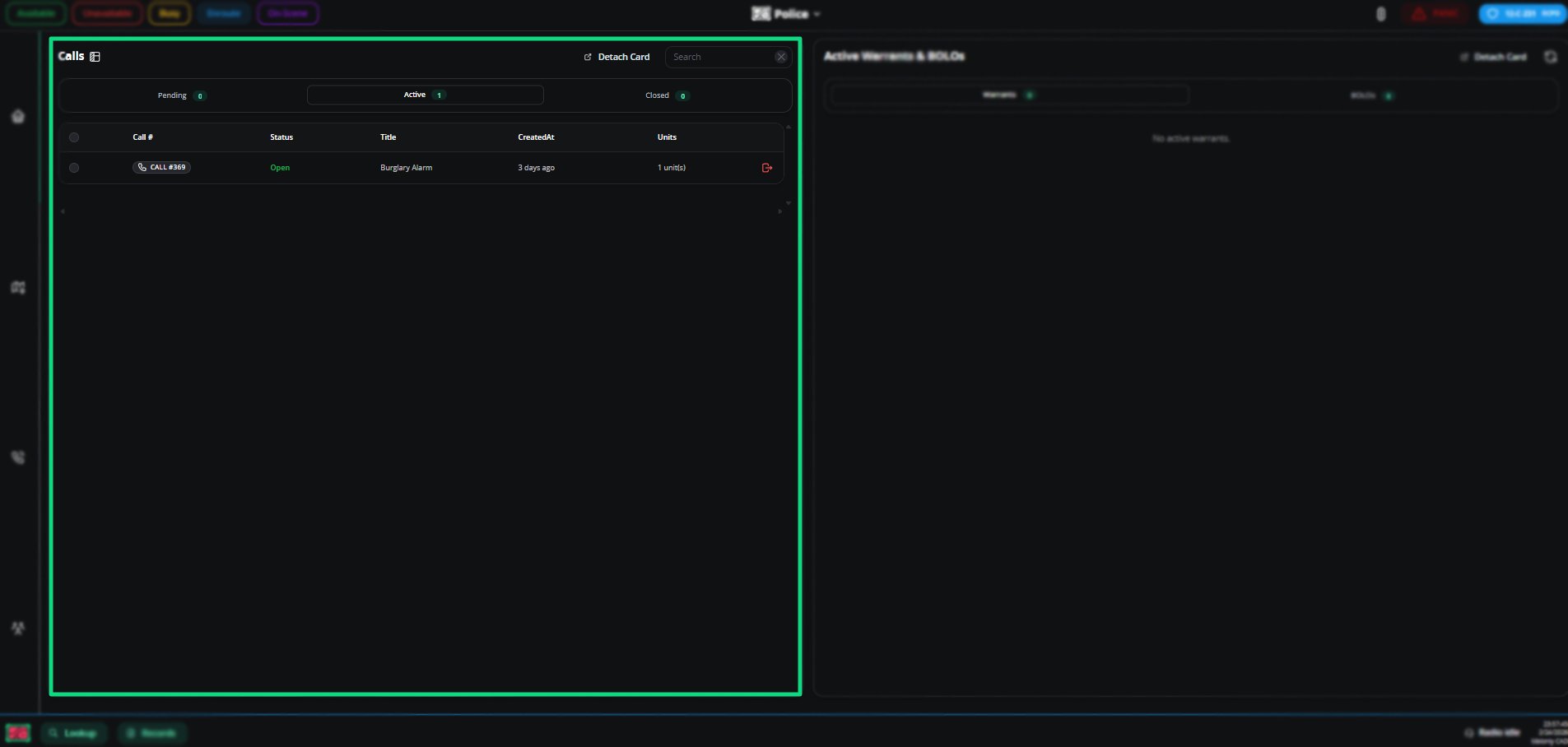
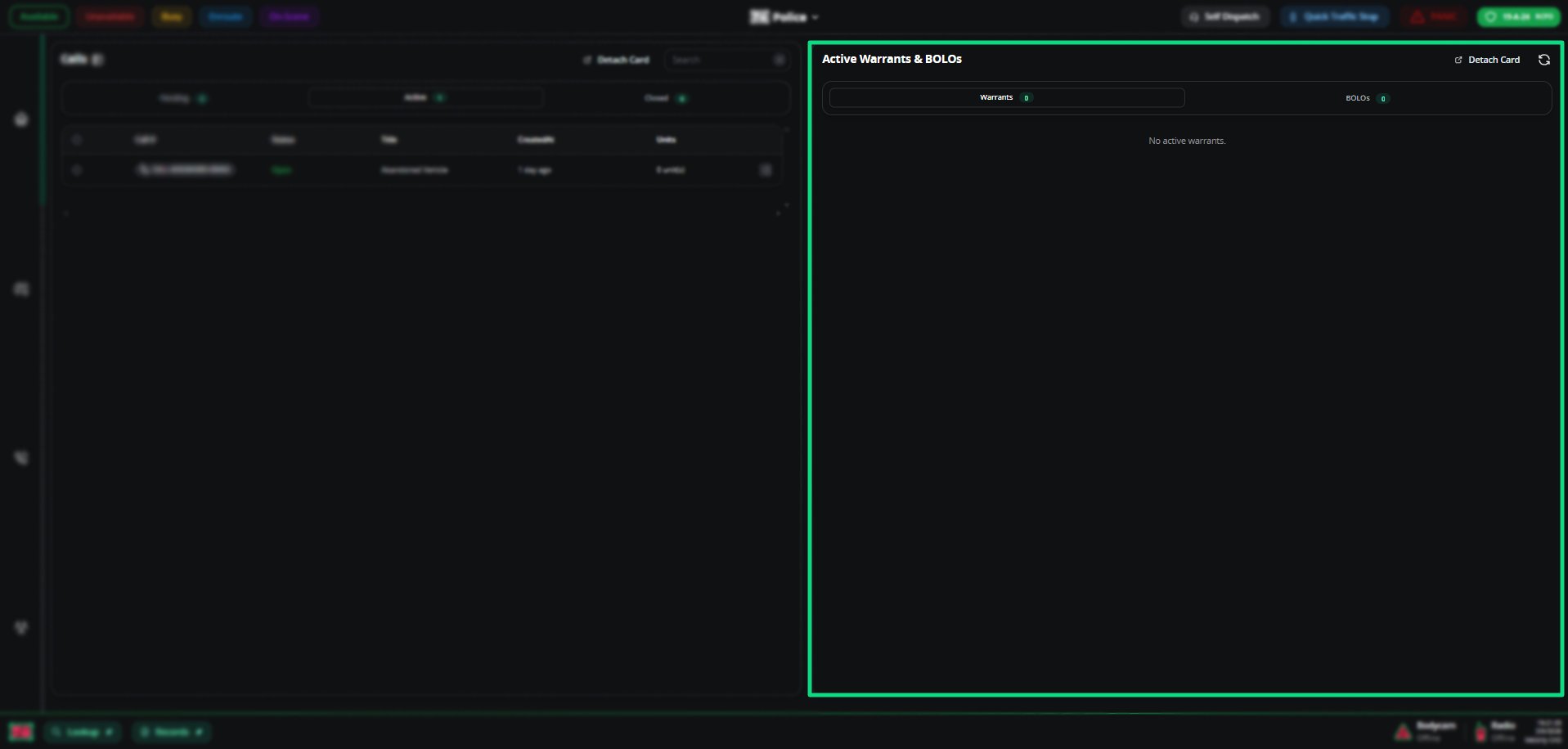
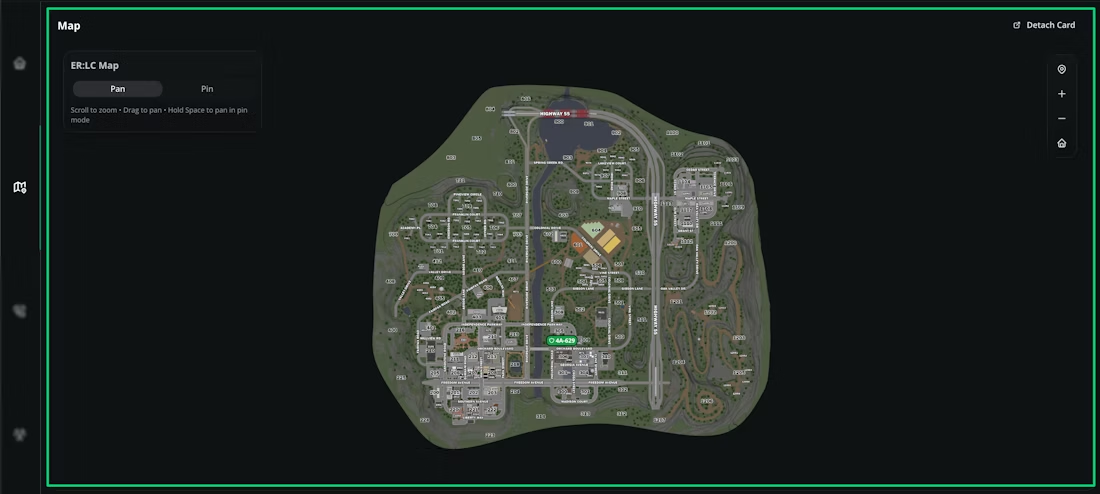
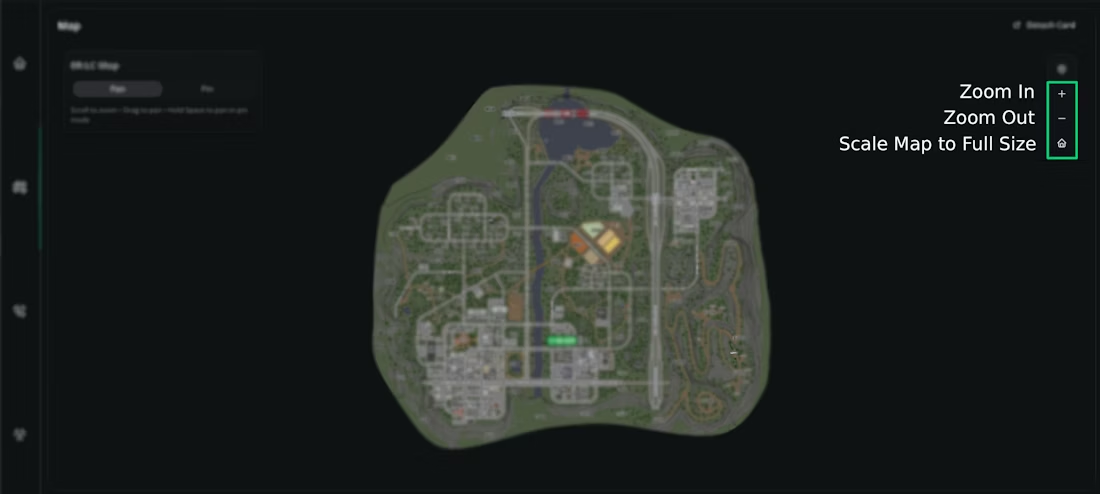
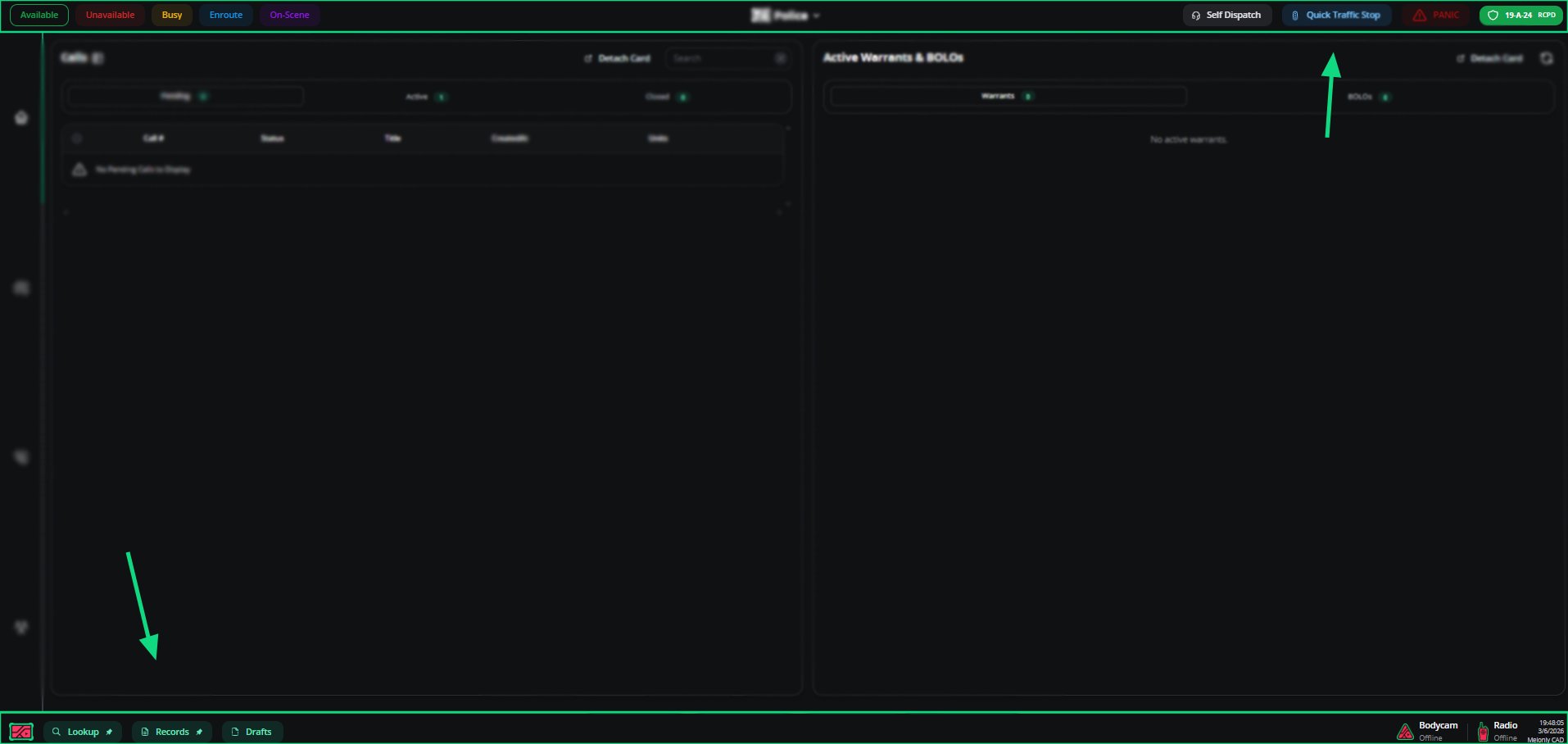
The Law Enforcement homepage shows two main cards: Calls and Active Warrants & BOLOs. Detach, reattach, or pin them to any side. Calls All Pending, Active, and Closed calls. Join active calls or reopen closed ones. Use Toggle Layout to switch between standard and grid views. Active warrants & BOLOs Executable warrants and arrest-related BOLOs with suspect details, signature, and charges. An interactive ER:LC map with live unit locations and customizable markers. Navigation Action Function Pan Click and drag Pan in pin mode Hold Space, then click and drag Zoom Scroll, or double-click to zoom in
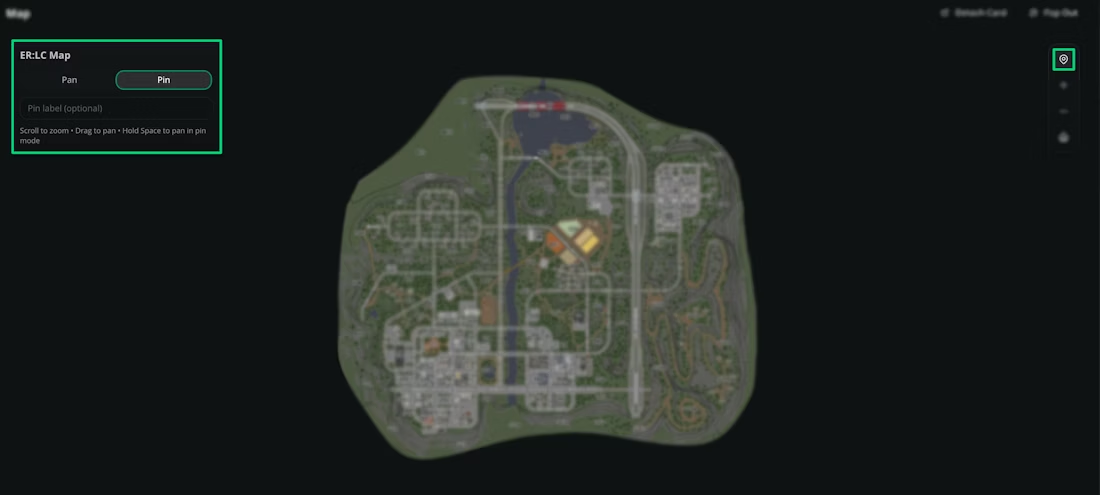
On-screen buttons mirror these controls. Pin mode Place customizable markers — useful for marking event or crime-scene locations. Action Function Pan/Pin Toggle Switch between pan and pin Pin Label Add a description before placing a pin
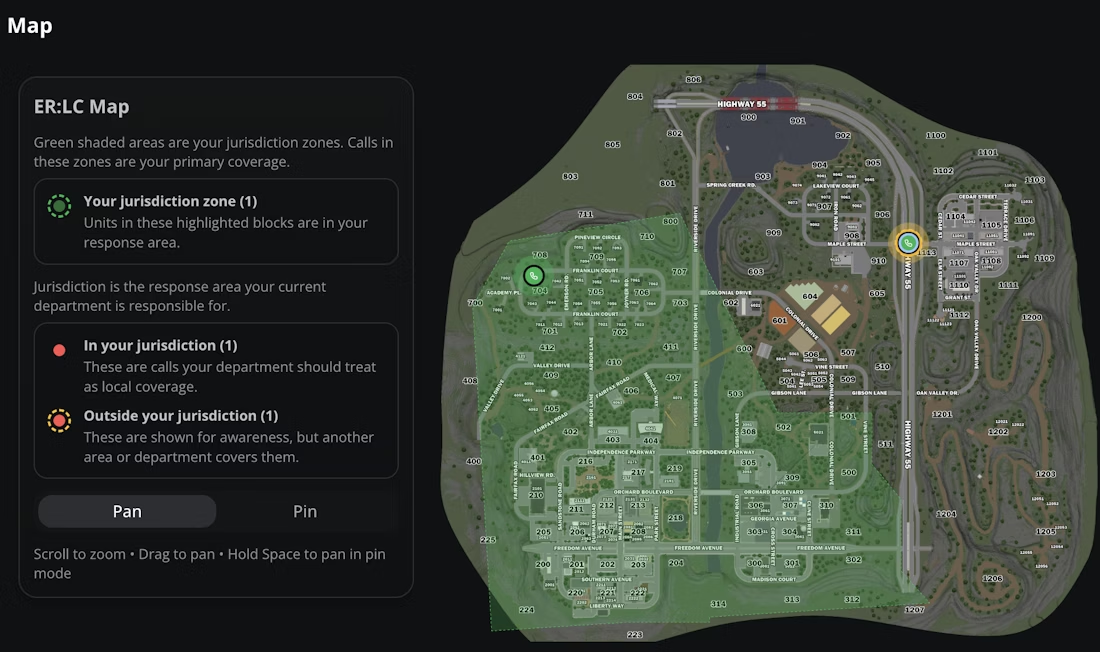
Calls on the map The green area is your unit’s agency jurisdiction.
Click any call on the map for quick actions: View on Map, Add Note, Add to Timer, Tone Board, Send Lookup, Send Record, Leave Call, Close Call, View Call. Managing units on the map Click a unit’s callsign to manage it. Self-Dispatch must be enabled. Units appear on the map only if their Roblox account is linked to their Melonly account in account settings . Action Description Set Status Available, Unavailable, Busy, Enroute, On Scene View Bodycam Live video feed (clip in 15/30/60s segments) Quick Traffic Stop Search a plate, then auto-create a traffic stop call Add to Group Create a new group or add to an existing one Add to Call Attach the unit to a call Add to Timer Start a countdown timer Tone Board Play tones to communicate or alert Send Lookup Send lookup results to the unit Send Record Send a record to the unit Toggle Panic Activate panic mode Kick Disconnect from the CAD
Calls represent active incidents — the central hub for communication. Units join or leave to show involvement, and call details update live. Call properties Field Description Call Number Unique ID in the configured date and counter format Self Clear Removes your unit from the call Units Units currently attached Status Active or closed Type Civil or emergency Origin Dispatcher, walk-up, caller, report, on-sight, or radio Primary Unit The lead unit Priority Urgency and response speed Postal Nearest postal code Address Street name View Call Location Opens a map centred on the location View Linked Records Records attached to the call Description Detailed incident info Call Notes Live updates and unit-added notes Automations Auto-updates your unit status
Call info can only be managed by dispatchers or units in self-dispatch mode.
Call merging Topic Description What happens on merge Units reassign to the destination call, notes merge with [MERGED] prefix, source call closes Notifications Assigned units get a CAD alert plus a TTS notification How to merge Use the context menu, drag and drop, or select multiple calls with checkboxes
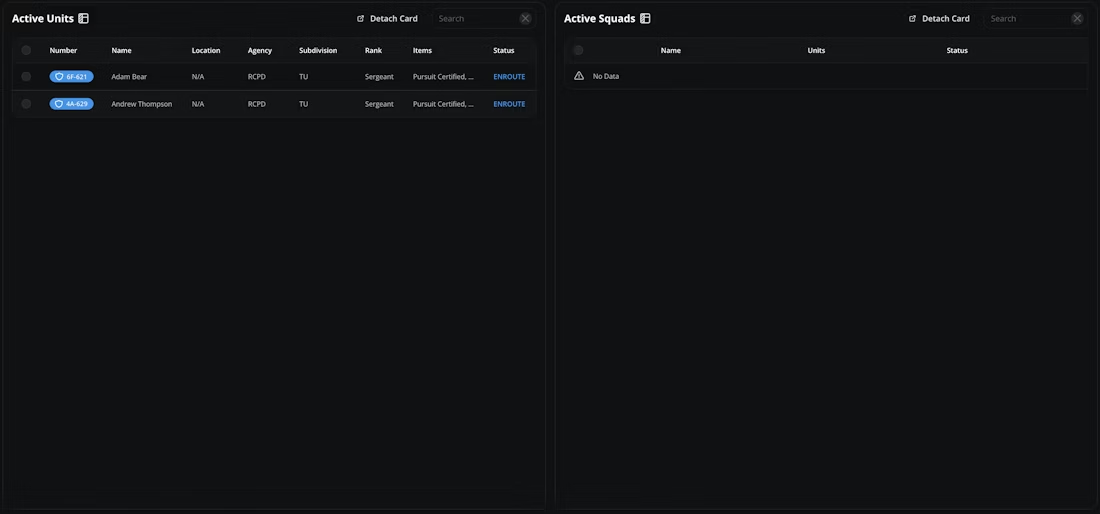
All units connected to the CAD with their info — number, name, agency, subdivision, rank, equipment. Field Description Number Unit’s callsign Name Roleplay name Location Last known location Agency Member agency Subdivision Specific subdivision Rank Department rank Items Authorized abilities and equipment Status Current status
Click a callsign to manage the unit (same actions as the map). Tools live across the top and bottom of every Law Enforcement page. Actions Open the actions menu by clicking the Melonly CAD logo in the bottom-left of any page. Action Description Leave Returns to the CAD homepage with no server selected Switch Panel Returns to the CAD homepage with the current server still selected Preferences Configure audio, keybinds, and radio Enter Fullscreen Toggle fullscreen mode Information View Penal Codes and 10-Codes Notepad Create and manage on-the-fly notes Lookup Search records by name, vehicle, licence, identifier, or Record ID Records View, create, and review records and reports
Preferences Audio Setting Description Text to Speech Voice TTS voice Text to Speech Volume TTS loudness Master Volume All system audio Radio Volume Radio communication volume Call Note Notifications Toggle call note alerts On Call Sound Toggle the on-call sound
Keybinds Setting Description Status: Available Set status to Available Status: Unavailable Set status to Unavailable Status: Busy Set status to Busy Status: En-Route Set status to En-Route Status: On-Scene Set status to On-Scene Panic Trigger panic Quick Lookup Open quick lookup
Radio Setting Description Input / Output Device Mic and audio devices Push-to-Talk Transmit keybind Key Down / Up PTT activation tones Talkover Blocked Alert when talkover isn’t allowed Join / Leave Channel cues Mute / Unmute Mic mute cues Deafen / Undeafen Output mute cues
Status management Set your status (Available, Unavailable, Busy, Enroute, On Scene) in the top-right by clicking or pressing your hotkey. Status auto-changes to Enroute when attached to a call. Self dispatch Toggle in the top-right. When enabled, you can create and manage calls with full dispatcher-level control. Quick traffic stop Top-right button — opens the vehicle database for an instant plate-based lookup. Lookup Search Names, Vehicles, Licenses, Identifiers, or any specific Record ID. Advanced mode supports start-with, partial, or exact matches. Records View Warrants and BOLOs, create new records, and pull call info by incident number. Includes a Supervisor Centre and a My Files tab. Drafts Return to records you started but didn’t finish. Bodycam Share your Roblox gameplay view as a live feed. Share only your Roblox tab. Sharing your full screen exposes everything on it.
Radio Voice channels that work like Discord. Join from the Radio icon in the bottom-right. Action Description Channel Clips Record short clips for review Quick Transmit Keybind Push-to-Talk Mute / Deafen Standard mute and deafen Leave Disconnect from the channel
In-game commands Command Description ;status 'status'Change your unit status ;panicToggle panic ;sn 'First' 'Last'Search a name ;sp 'Plate' or ;sp *Plate lookup (* = nearest vehicle) ;ts 'Plate' or ;ts *Quick traffic stop
Requires a linked Roblox account and a configured events webhook.
Need help? Still have questions? Join our Discord server for support from the Melonly team.