
Shouts are posted from the composer at the top of the Home page feed. You need the Post Shouts permission, see Permissions.
Writing a Shout
Type your message in the composer at the top of the feed, then click the send button or pressCtrl + Enter (⌘ + Enter on Mac).
Shouts use Discord-style markdown, so **bold**, *italics*, # headings, and lists look the same in both places. Type @ to mention members, ranks, or Discord roles, # for Discord channels, and : for emoji.
A shout always needs some text. Attachments on their own can’t be sent.
Attachments
Use the toolbar under the text box to add: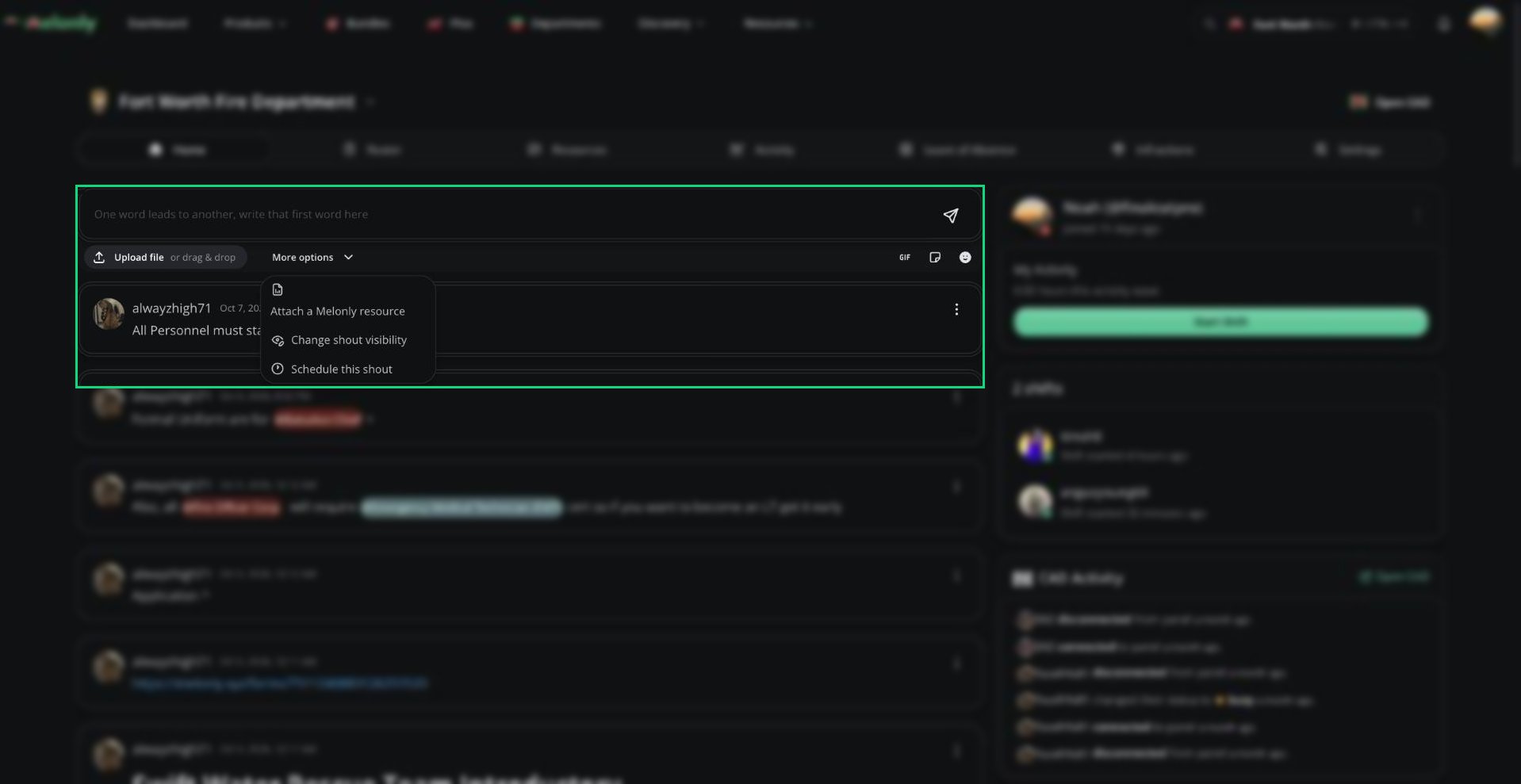
More options menu
Shout Visibility
By default, every member sees a shout. To limit it, open More options and choose Change shout visibility.
Limited shouts show a Limited visibility tag. Members with Post Shouts can always see them.
Scheduling a Shout
1
Pick a time
Open More options, choose Schedule this shout, pick a future date and time, and click Save.
2
Send it
Write your shout and send it. It waits at the top of the feed until the scheduled time.
Editing and Deleting
Click ⋮ on a shout, or right-click it, to open its menu.- Edit: only the author can edit. You can change the text and sticker, but not files, resources, or visibility.
- Delete: the author or anyone with Manage Shouts. Hold
Shiftto skip the confirmation.
Need help?
Still have questions? Join our Discord server for support from the Melonly Team.