
Members request leave from the department, and managers with the Loa Manager permission approve or deny it. Approved LOAs end on their own when the end date passes.
Requesting an LOA
1
Open the LOA page
On the department Home page, open the menu on your profile card and choose Manage LOA. You can also use a request link shared by your department.
2
Fill in the form
Enter a reason, choose whether it starts on approval or on a future date, and pick an end date.
3
Submit
Click Submit Request and wait for a manager to review it.
Reviewing LOAs
Expand an LOA to see the member’s reason and a timeline of everything that’s happened. From there you can:- Approve or Deny a request, with an optional reason the member can see.
- Accept or Deny an extension request. These show a pending request badge.
- End leave of absence early. This can’t be undone.
Recent
Your day-to-day view: pending requests (including extensions) at the top, and members currently on leave or about to start below.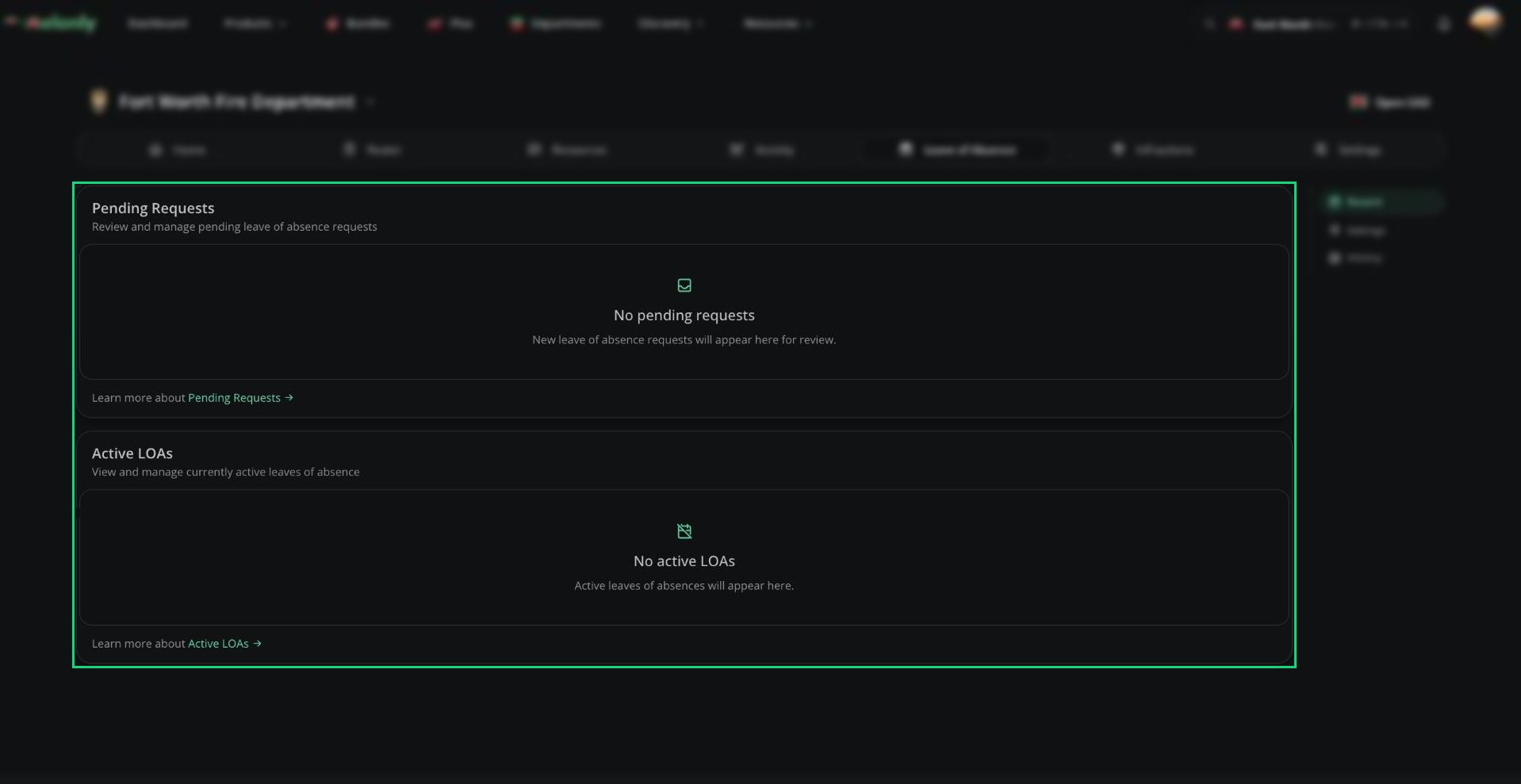
Recent
History
Every past and current LOA in the department. Filter by member to see one person’s leave history. You can review and end LOAs from here too.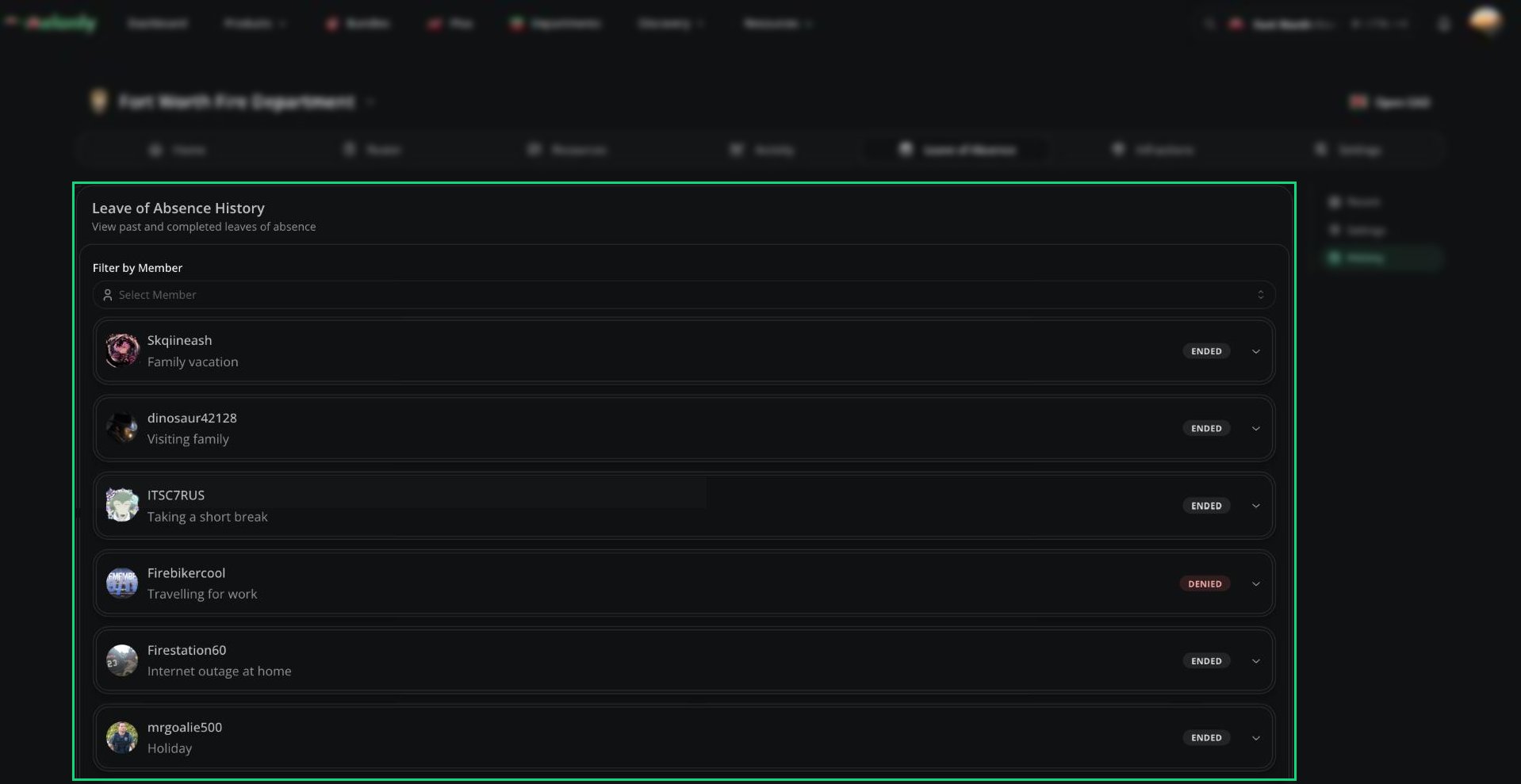
History
Need help?
Still have questions? Join our Discord server for support from the Melonly Team.