
What are CAD Webhooks?
Webhooks post a Discord message when something happens in the CAD, like a unit pressing panic or a call being created. Each event can have one webhook.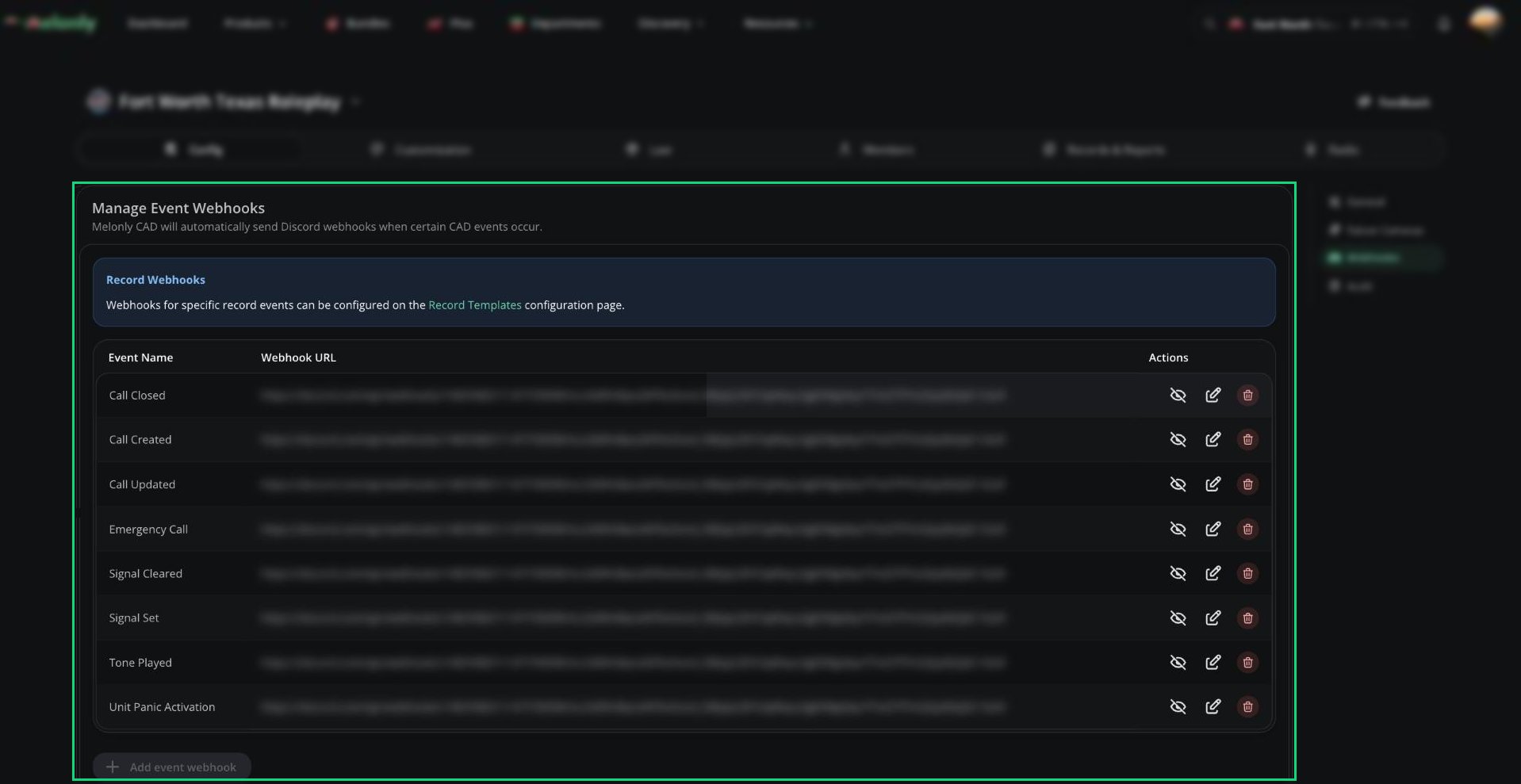
Webhooks
Adding a Webhook
1
Create a Discord webhook
In Discord, open the channel’s settings, go to Integrations, create a webhook, and copy its URL.
2
Open Webhooks
In the CAD admin panel, open Config → Webhooks and click Add event webhook.
3
Pick an event
Choose the event and paste the Discord webhook URL.
4
Save
Click Save. The webhook works straight away.
Events
Record webhooks are set on each template instead. See Template Details.
Need help?
Still have questions? Join our Discord server for support from the Melonly Team.